Follow the steps and red lettered screenshots below. Some controls vary by installed version; confirm a send, purchase, license decision, or saved record in your app.
How to Use CutoverCheck — the complete guide
CutoverCheck · JE Horizon · updated 2026-09-27 · Microsoft Store ID 9MWGM28H0KZC · https://jehorizon.com/cutovercheck/
Help center · Product page · Microsoft Store
1. What this app is
CutoverCheck is a small Windows app for PC repair shops and IT technicians. It records which folders you and the customer agreed to check before a PC move, takes a read-only fingerprint of every file in those folders on the old PC, and after the move compares the files on the new PC against those fingerprints. At the end you export a single local HTML report that shows, file by file, what matched, what is missing, what changed, and what could not be checked. You hand that report to the customer as the record of the move.
The fingerprint is called a SHA-256 hash. Think of it as a unique 64-character "receipt number" computed from a file's exact contents. Two files with the same hash have identical bytes — byte for byte. CutoverCheck compares these hashes, not file names or sizes, so a file that quietly corrupted during the copy cannot hide.
This guide is written for a brand-new user: every button is named, every next step is spelled out, and anything the app does not do is stated plainly.
What this app is NOT
- It is NOT a file mover. It never copies, moves, repairs, deletes, or changes a single file. You move the files yourself (robocopy, drag-and-drop, an imaging tool — your choice). CutoverCheck only checks afterwards.
- It is NOT an app tester. It never launches or tests applications (Outlook, QuickBooks, AutoCAD…). The checklist entries about apps are you typing in what you observed when you tested them yourself.
- It is NOT a guarantee. A matching hash proves the bytes were the same at the times measured. It does not prove the apps work, it does not cover folders you did not select, and it does not mean the old PC is safe to erase.
- It is NOT a cloud service. Everything runs on your machine, offline. No account is needed for the Free tier.
2. Before you start
What you need on the PC before installing, and how the Free and Pro plans compare.
| Requirement | What you need | Notes |
|---|---|---|
| Windows version | Windows 10 or Windows 11, x64 (64-bit) | The landing page lists "Windows 10, Windows 11 (x64)". Windows 11 x64 is the primary supported platform. |
| Processor | 1.6 GHz x64 dual-core or better | A faster CPU (2.4 GHz quad-core recommended) speeds up SHA-256 hashing. |
| Memory | 4 GB RAM minimum, 8 GB recommended | Hashes are streamed in bounded memory; the app is light, but the Store listing recommends 8 GB. |
| Graphics | DirectX 11 compatible display adapter | The normal integrated graphics in a business PC is fine. |
| Input | Keyboard and mouse | Required per the Store listing. |
| Account | None for the app itself | Free tier: "No account, card or time limit". You still need a Microsoft account to install anything from the Microsoft Store. |
| Network | None | Capture, mapping, verification, checklist and report export all work with the network disabled. |
| Version | Check the version installed on your PC. | An official Microsoft Store install on 2026-09-27 delivered package 0.1.5.0 on the guide test machine; rollout may differ on other PCs. |
| Disk space | Leave room for the local job database and the bundles/reports you export | No exact footprint is published; a PC-move job with tens of thousands of files stores hashes in a local database, and exported bundles/reports are saved where you choose. |
Plans & pricing (verbatim from the landing page, 2026-09-27)
| Tier | Price | What you get |
|---|---|---|
| Free | $0 | "Complete capture, map, verify and handoff workflow" · "One active job at a time; archive to start another" · "No account, card or time limit — archived jobs stay readable and exportable" |
| Pro | $1.99 / mo · $19.99 / yr | Multiple concurrent active jobs; existing active jobs remain usable if Pro ends. Current site checkout code and Store submission materials use JE Horizon website checkout; confirm the in-app upgrade route before paying. |
What this means in plain language: the whole workflow is free forever, and Free can hold one active (non-archived) job at a time. When that job is finished you archive it, which frees the slot for your next job — archived jobs stay readable and exportable forever. Pro only adds capacity (more than one active job at a time on one machine); it does not unlock any hidden feature. Pro has zero per-seat fees: one price covers the whole shop.
3. Install & first launch
- Open the Microsoft Store listing: https://apps.microsoft.com/detail/9MWGM28H0KZC (or search the Store for "CutoverCheck").
- Click Get (or Install). Windows downloads and installs the app — no sign-up inside the app, no card.
- Click Launch, or find CutoverCheck in your Start menu and open it.
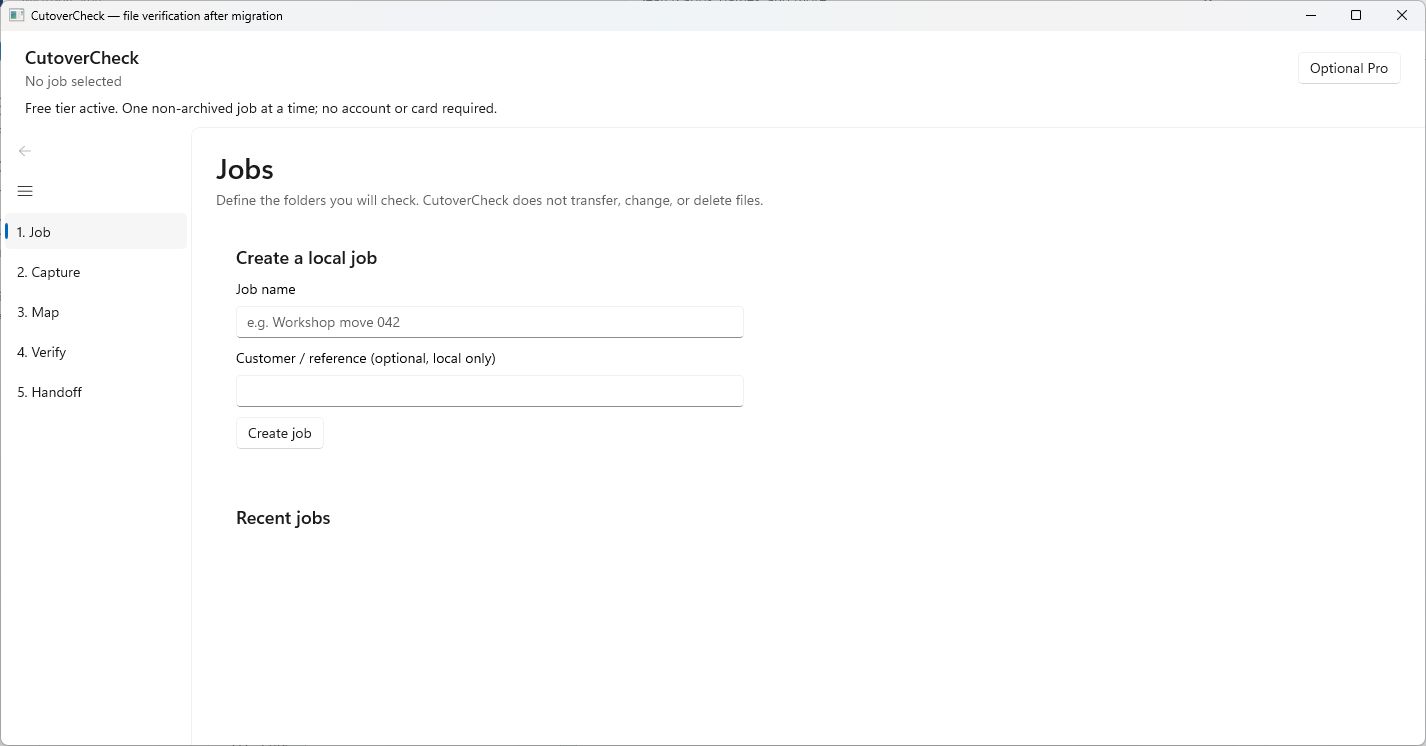
- The app opens on the Jobs screen. At first launch you will see an empty Recent jobs list and the header reads "No job selected".
Reviewed product or Store capture. It shows the named control only; it does not prove that a later action completed.
There is no first-run wizard and nothing to configure. You are on the Jobs screen, ready to create your first job.
4. Quick start
The shortest path from a fresh install to a real handoff report — about 10 minutes for one folder set.
This is the shortest path from install to a real handoff report. Each step names the button to click (🔴 marks the primary action in these steps).
- On the Jobs screen, type a Job name — for example
Workshop move 042— and optionally a Customer / reference (for exampleAcme Engineering, ticket #1092). Then click "🔴 Create job". The app creates the job and takes you to the Capture screen. If the button seems to do nothing, you left the name empty — type one and click again. - On the Capture screen, click "🔴 Choose source folder…" (the three dots are part of the label). Pick the first folder the customer agreed to check — for example
Documents. Repeat to add more folders. Every folder you pick appears under Selected source folders. Only folders you pick from the Windows picker are ever checked. - (Optional but recommended) Under Scope exclusions, type something you agreed not to check — for example
TemporDocuments/private.txt— pick the Exclusion type (Exact file or Folder and contents), and click "Add exclusion". - Click "🔴 Start capture". You will see the progress line change as files are hashed, e.g.
Documents: 1,428 files, 48.2 MB, 0 exceptions — 00:00:14.2. When it finishes you see "Capture complete: 1,428 hashed, 0 changed during scan, 0 unreadable, 0 not checked, 0 coverage exceptions." This is your baseline — the record of what the old PC had. - Move the files to the new PC with your own method (robocopy, drag-and-drop, imaging tool). If the two PCs cannot share a network, go to the Map screen and click "Export baseline…" first, save the
baseline.cutovercheckfile to a USB stick, move to the new PC, and click "Import baseline…" to open the job there. - On the new PC, go to the Map screen. For each source folder: click it in the Select the source folder to map list, click "Choose destination folder…", and pick where that folder's files actually landed. When every source folder has one destination, click "🔴 Approve all mappings". The message "Mapping approved. Proceed to Stage 4 — Verify." means you are clear to compare.
- Go to the Verify screen and click "🔴 Run verification". When it finishes you see the measured totals — Baseline files, Matched, Missing, Different, Unreadable, Changed, Not checked, Pending — plus a line such as
1,424 of 1,428 baseline files accounted for. Files that are Missing or Different need your attention: move the missing file or the correct version with your own tools, then click "Run verification" again. - Go to the Handoff screen. Test the moved applications yourself (sign in to Outlook, open the QuickBooks company file, print a test page) and record each one under Manual application checklist with "Add checklist entry". Then click "🔴 Export full-detail HTML…" (or "Export summary-only HTML…" for a version without file paths), pick where to save it, and open the saved
.htmlfile in any browser. That file is the handoff report — you can send it to the customer or open it on their PC; no app needed.
When the job is done, go back to the Jobs screen, select the job, and click "Archive selected job" so your one Free slot is free for the next job.
5. The tour
Every screen of the app, in the order you meet them, with every button named.
The whole app is one window with a header at the top and a five-item navigation on the left: 1. Job, 2. Capture, 3. Map, 4. Verify, 5. Handoff. These are the five stages of every job ("01 Job → 02 Capture → 03 Map → 04 Verify → 05 Handoff"). At the top of the window you always see:
- CutoverCheck — the app title.
- The current job header — either "No job selected" or the job name plus its state (for example
Workshop move 042 • Verified). States you will see here: Draft, Capturing, Captured, Mapping, MappingComplete, Verifying, Verified, Incomplete, Archived. - "Optional Pro" — a button in the top-right corner. It opens and closes the Pro subscription panel (see section 5.7).
- A status line under that, for example "Free tier active. One non-archived job at a time; no account or card required." — it always tells you which tier is active and shows license messages.
The stages are gated on purpose: you cannot verify before your mappings are approved, and you cannot hand over a clean final report while results are still pending. If a button is greyed out or rejected, the stage before it is not finished.
5.1 Jobs screen (Stage 1 — Job)
Purpose. This is the front door. You create jobs here, open existing jobs, archive finished jobs, and reopen archived ones. A job is one PC move: its own scope, baseline, mapping, results and report.
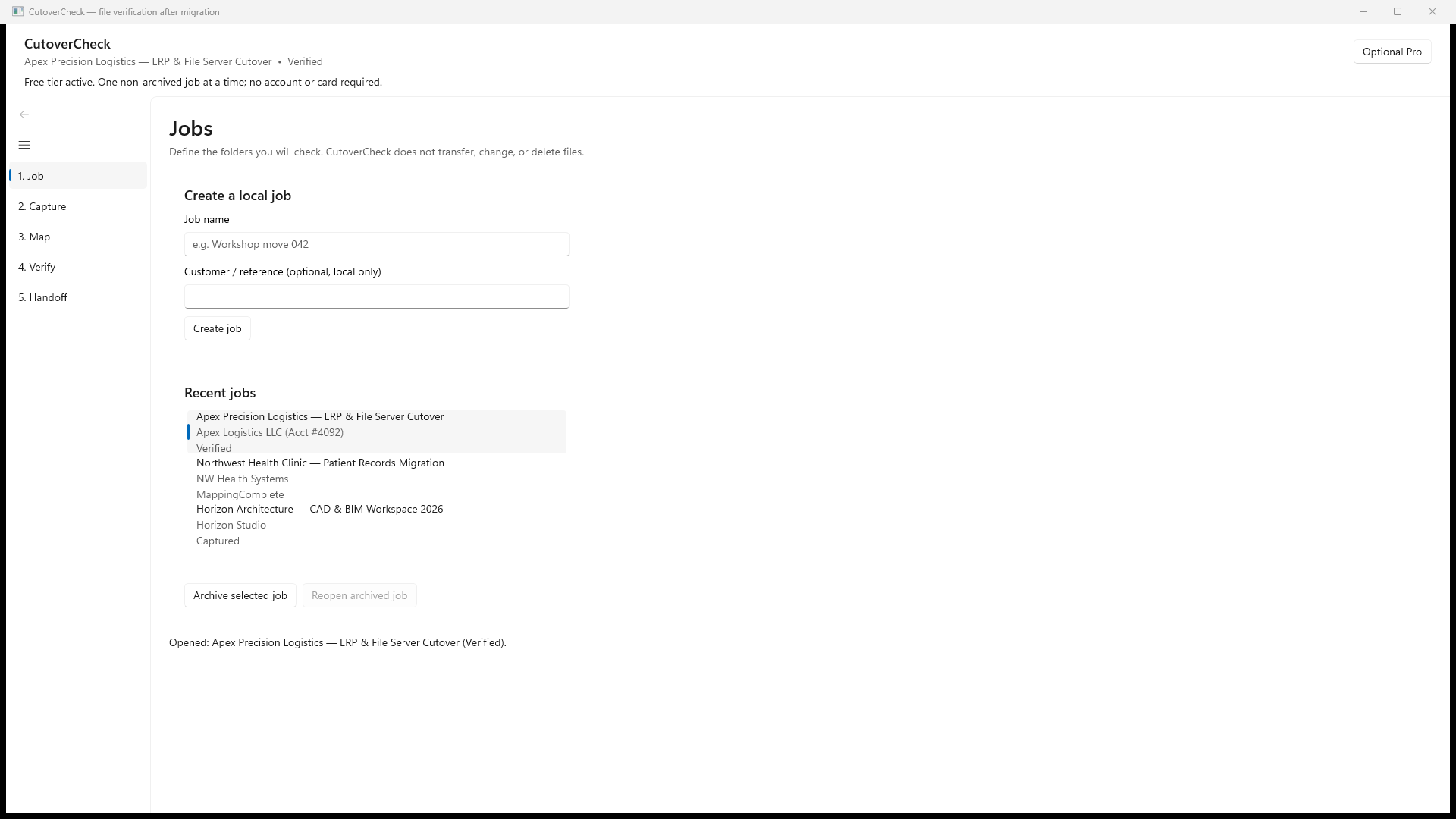
Reviewed product or Store capture. It shows the named control only; it does not prove that a later action completed.
| Control (label) | What it does | When you use it | Gotcha |
|---|---|---|---|
| "Job name" (text box) | Names the job; shown in the list and the report | Before creating a job | Required. If it is empty, "Create job" refuses with "The entered value is missing or invalid" |
| "Customer / reference (optional, local only)" (text box) | Stores a customer label or ticket number; stays on this PC only | When you want the report to show who the job was for | Optional; leave blank if you have nothing to add |
| "Create job" (button) | Creates the job and jumps you to the Capture screen | To start a new PC move | Nothing is saved until you click it; on Free it fails with "Free allows one non-archived job at a time" if you already have an active job — archive first |
| Recent jobs (list) | Shows every job: display name, customer label, and state (Draft, Capturing, Captured, Mapping, MappingComplete, Verifying, Verified, Incomplete, Archived) | To open a job's workspace | Clicking a row opens that job; the header updates to Name • State. Jobs are listed newest first |
| "Archive selected job" (button) | Moves the selected finished job to the archived state, freeing the Free slot | After a job is delivered and reported | Greyed out while capture or verification is running, and for a job already archived. Archiving blocks new measurements until you reopen |
| "Reopen archived job" (button) | Restores an archived job with its exact previous state and evidence | When the customer calls back and you want to measure again | Only enabled for archived jobs. On Free it still needs a free slot: "Free allows one non-archived job at a time" |
Next action. On this screen the button you will press most often at the start of a day is "🔴 Create job". Click it after naming the job — it creates the job and automatically moves you to the Capture screen, so the obvious next step is choosing your first source folder.
Gotchas for this screen.
- On Free you can have one non-archived job. If "Create job" errors, select your current job and click "Archive selected job" first.
- Archiving never erases anything. The success message says it: "Job archived. Existing evidence and exports remain readable. Reopen it before making new measurements."
- Closing the window does not delete jobs. All jobs live in a local database and reappear in "Recent jobs" next time.
5.2 Capture screen (Stage 2 — Capture, "Capture baseline")
Purpose. You pick the exact folders the customer agreed to check, add exclusions, and take the read-only baseline: a SHA-256 hash of every selected, stable, readable file. The scan never writes to or modifies your files.
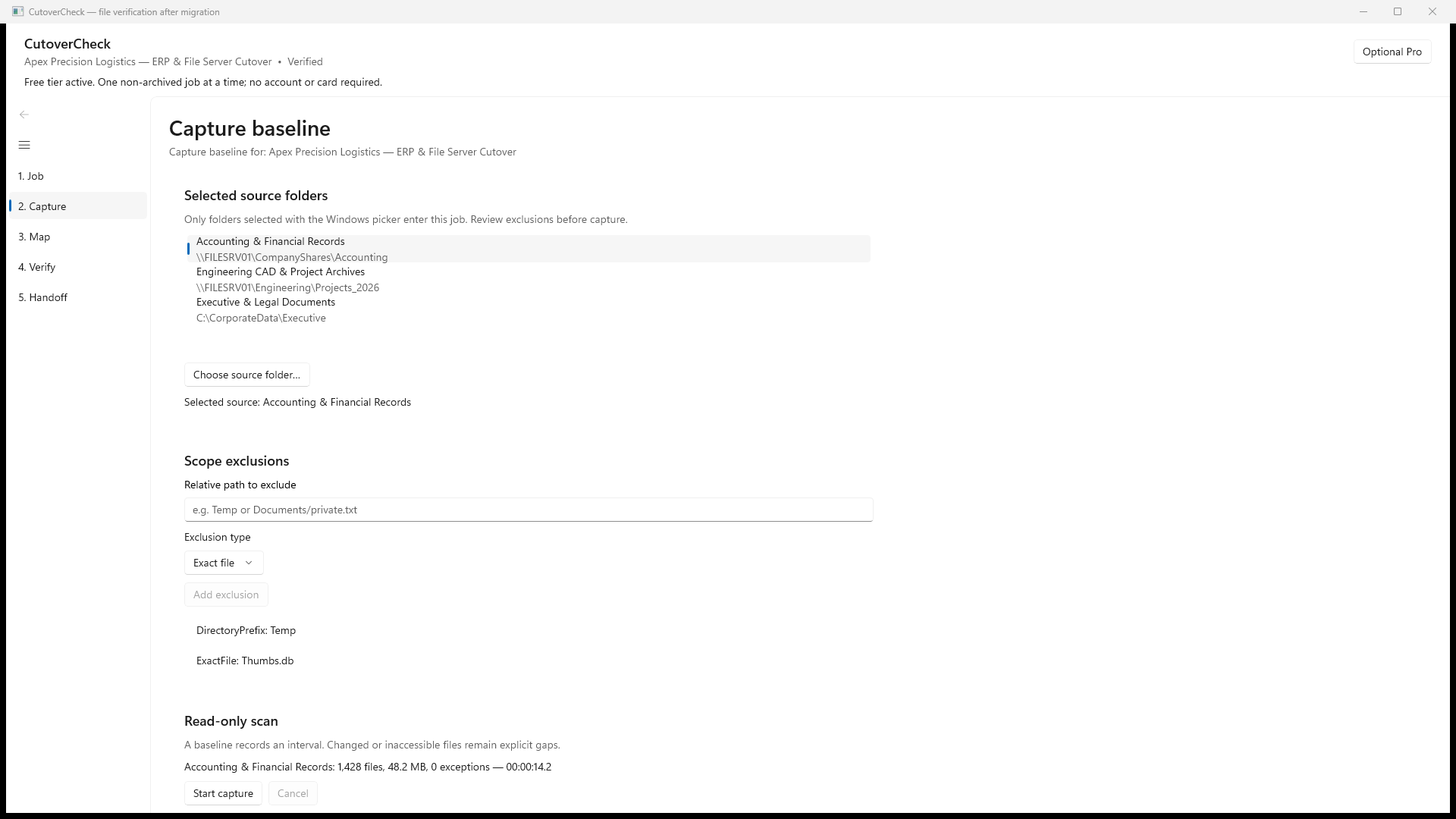
Reviewed product or Store capture. It shows the named control only; it does not prove that a later action completed.
| Control (label) | What it does | When you use it | Gotcha |
|---|---|---|---|
| Selected source folders (list) | Shows the folders you agreed to check, with their display label and full path | To review what is in scope before scanning | Only Windows-picker-selected folders ever enter the job |
| "Choose source folder…" (button) | Opens the Windows folder picker and adds the chosen folder to the scope | When agreeing scope, before capture | The folder is stored by identity as well as path — if the drive identity changes later, capture fails with "The selected folder identity changed" instead of guessing |
| "Relative path to exclude" (text box) | A path inside the selected source folder to skip, e.g. Temp or Documents/private.txt |
To exclude agreed junk up front so the report doesn't argue about it | The path is relative to the selected source folder, not a full path |
| "Exclusion type" (dropdown) | Exact file (skip one file) or Folder and contents (skip a whole folder tree) | When adding an exclusion | Exclusions are per source folder — select the source folder first |
| "Add exclusion" (button) | Saves the exclusion for the selected source folder | Before capture | Greyed out unless a source folder is selected and the job state allows scope edits; exclusions are printed in the report, so they are part of the evidence |
| Saved exclusions (list) | Lists the exclusions as ExactFile: Thumbs.db, DirectoryPrefix: Temp |
To review what will be skipped | Deleting an exclusion is not offered in this build — create a new job if scope is frozen |
| "Start capture" (button) | Runs the read-only scan over all selected folders | After the source folders are agreed | If nothing is selected it fails with "Not every source folder has an approved destination" (read: nothing to scan — pick folders first). While running, "Cancel" becomes active |
| "Cancel" (button) | Finishes the current file, then stops the scan | To stop a long or unwanted scan | Completed files are kept; unfinished files are not counted as captured. Press "Start capture" again to resume safely |
| Progress line (text) | Shows the current folder, files, bytes, exceptions and elapsed time | During capture | Reads like Documents: 1,428 files, 48.2 MB, 0 exceptions — 00:00:14.2 |
Next action. The button you want here is "🔴 Choose source folder…" first (build the scope), then "🔴 Start capture" when the list looks right. The obvious next after capture completes is: move the files, then go to 3. Map.
Gotchas for this screen.
- The scan is read-only: it streams bytes in bounded memory and never opens files for writing. It cannot damage customer files.
- The capture records an interval, not a snapshot. Files are hashed one after another, and a file that is replaced or modified while being hashed is caught by pre/post checks and reported as Changed during scan — never as a clean match.
- Cloud placeholders are not hashed. OneDrive / iCloud "Files On-Demand" stubs are detected from Windows reparse tags and counted as Not checked — the app never opens them, so it never triggers a download ("hydration"). If the old PC is wiped before those files are downloaded, they are gone. See section 7.
- Unreadable files (permissions, locks, I/O errors) are counted as Unreadable, never silently skipped.
5.3 Map screen (Stage 3 — Map, "Map destinations")
Purpose. Two things happen here: you carry the baseline between PCs with a portable .cutovercheck bundle, and you tell the app exactly which destination folder each source folder landed in. Nothing is compared until every source folder has one approved destination.
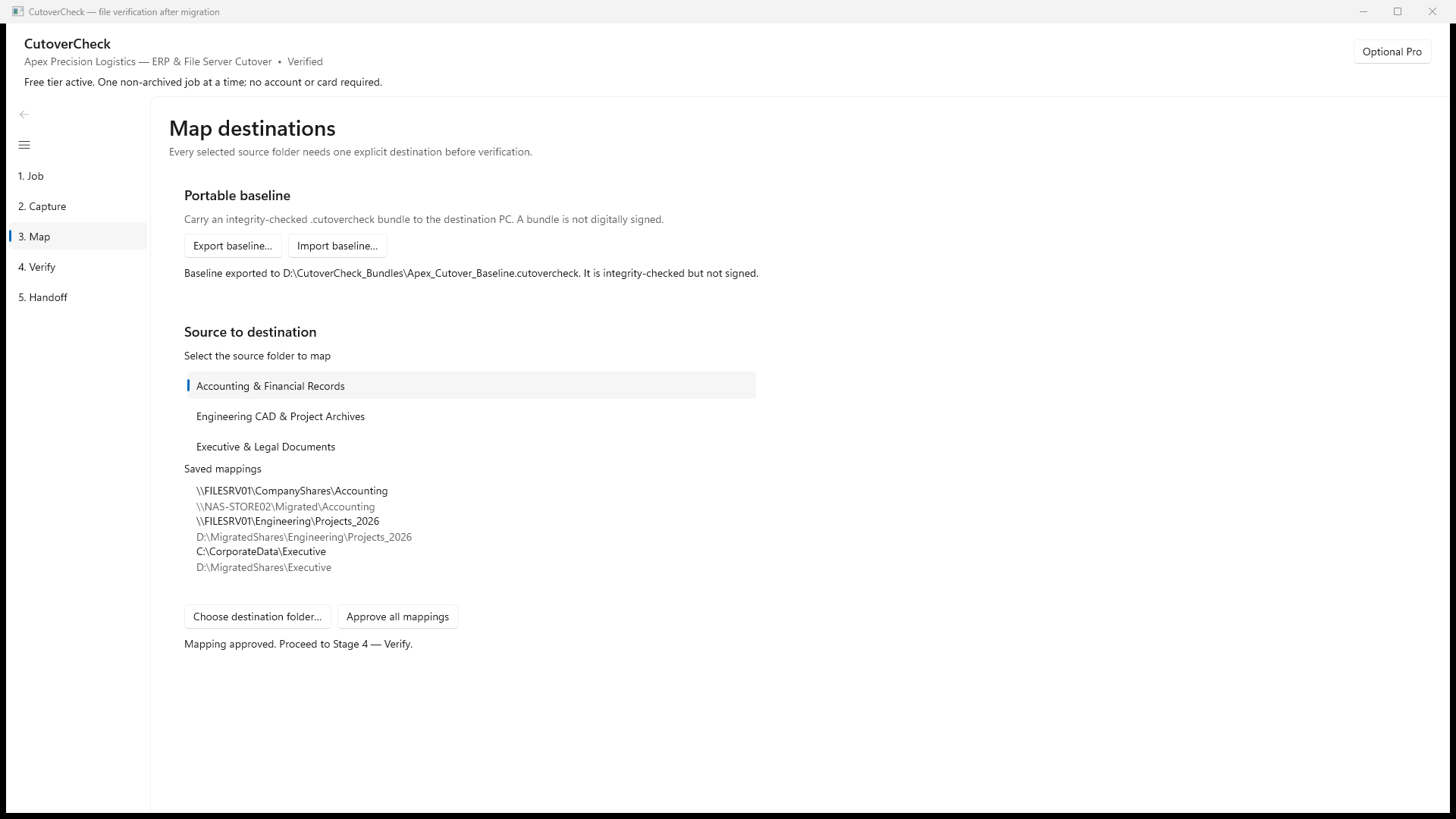
Reviewed product or Store capture. It shows the named control only; it does not prove that a later action completed.
| Control (label) | What it does | When you use it | Gotcha |
|---|---|---|---|
| "Export baseline…" (button) | Saves the captured baseline as a portable .cutovercheck bundle (suggested name baseline.cutovercheck) |
To carry the baseline to another PC over USB — the two PCs never need a network | The saved bundle is integrity-checked but not digitally signed; the UI says so |
| "Import baseline…" (button) | Opens a .cutovercheck bundle from another PC as a new job ("Imported \<filename>") |
On the destination PC, to bring the baseline with you | The bundle is treated as untrusted and fully validated before anything is created; bad or modified bundles are refused, not half-imported. Import also consumes a job slot on Free |
| Bundle status (text) | Confirms export/import with the file path and record counts | After exporting or importing | After import it says how many baseline files and hashes were loaded and reminds you: "Map every source root to a destination folder, then verify." |
| Select the source folder to map (list) | The source folders waiting for a destination | Before choosing each destination | Select a root before clicking "Choose destination folder…", or nothing happens |
| "Saved mappings" (list) | Shows every source → destination pair you have made | To review before approving | Every source root needs exactly one destination selection |
| "Choose destination folder…" (button) | Picks the destination folder for the selected source and previews example resolved paths | For each source root, after files landed on the destination PC | You cannot map the same source twice (conflict message). Folders are validated by identity too |
| "Approve all mappings" (button) | Validates the whole mapping set and, if good, prints "Mapping approved. Proceed to Stage 4 — Verify." | When every source root is mapped | Rejects overlapping/duplicate mappings and any mapped path that would escape its destination root; verification is blocked until it succeeds |
Next action. On the source PC the button is "🔴 Export baseline…" (take the baseline to the new PC); on the destination PC it is "🔴 Import baseline…" (bring it back in). On both PCs, the finish line is "🔴 Approve all mappings" — the obvious next after that is 4. Verify.
Gotchas for this screen.
- The air-gapped workflow: capture the baseline on the old PC, Export baseline… to a USB stick, then on the new PC Import baseline…. The two machines never share a network, and no customer file ever leaves the machines.
- A bundle is integrity-checked but not signed — it proves the content wasn't accidentally corrupted, not who made it. Never call it "signed" or "sealed".
- Mapping is per source root and must be approved before verification will run. The resolved-path preview shows sample destination paths so you catch "files nested in the wrong folder" before you compare.
5.4 Verify screen (Stage 4 — Verify, "Verify files")
Purpose. This is the measurement stage. The app re-hashes the mapped destination files and assigns every baseline file exactly one result: Matched, Missing, Different, Unreadable, Changed during scan, Not checked (cloud placeholder), Not checked (reparse point), Not checked (unsupported object), or Pending until the run finishes.
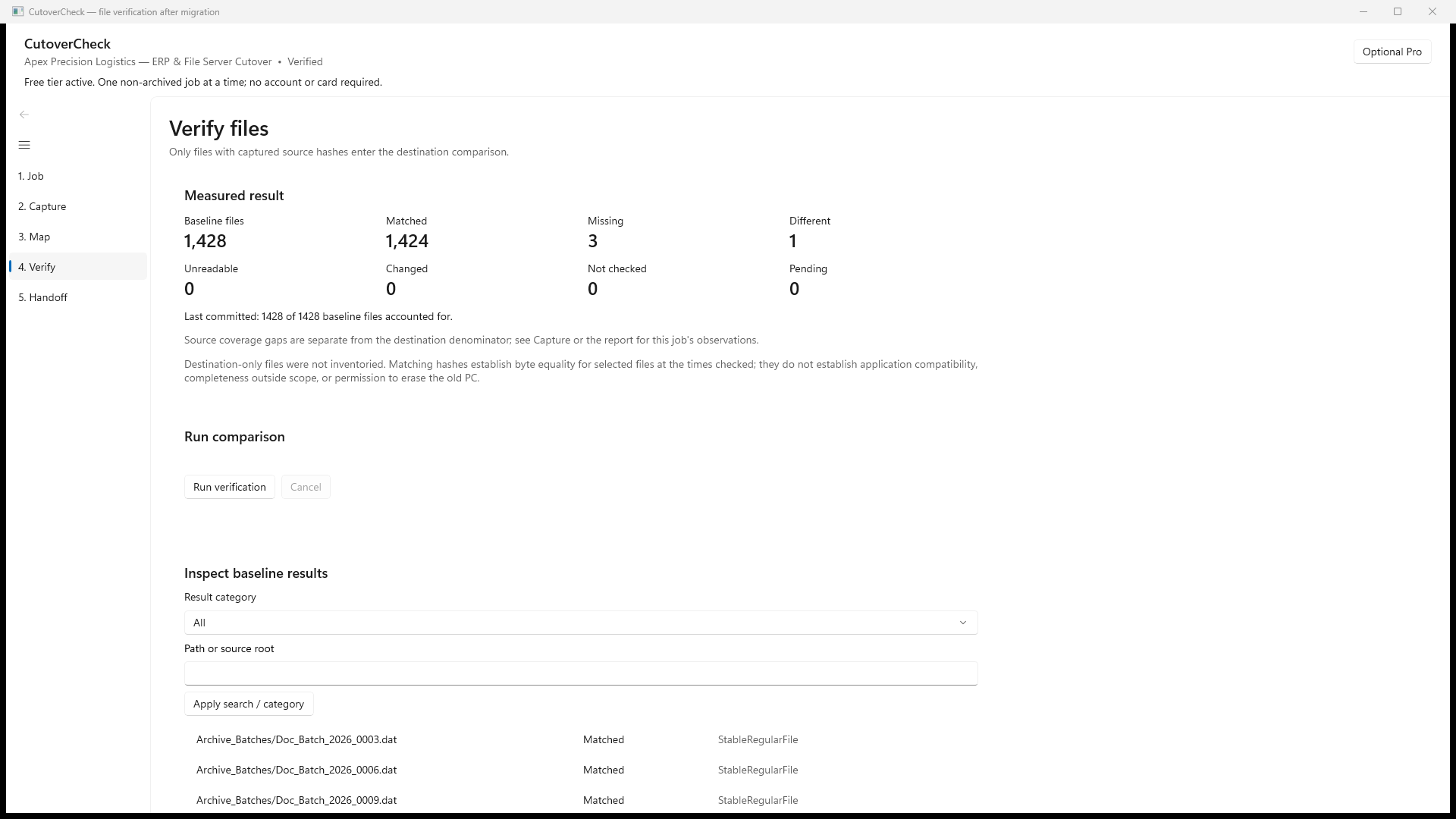
Reviewed product or Store capture. It shows the named control only; it does not prove that a later action completed.
| Control (label) | What it does | When you use it | Gotcha |
|---|---|---|---|
| Measured result grid (8 counters) | Baseline files · Matched · Missing · Different · Unreadable · Changed · Not checked · Pending | After a verification run | These are the frozen, global totals — the Baseline files number is the denominator everything must add up to |
| Reconciliation line (text) | States how many baseline files are accounted for, e.g. 1,424 of 1,428 baseline files accounted for |
Always | If it says "Totals do not reconcile: … Treat this job as incomplete" the report cannot be treated as finished |
| "Run verification" (button) | Re-hashes mapped destination files and updates the totals | After capture and approved mapping | Refused if mappings are not approved. Runs again any time — one baseline, many verification passes (re-verification) |
| "Cancel" (button) | Stops the comparison after the current file | To stop a long run | Rows completed so far are kept; everything else stays Pending |
| "Preview handoff summary" (button, on Handoff) | Shows the same numbers as the report will | See section 5.6 | — |
Next action. "🔴 Run verification" is the whole point of the app. The obvious next: if the reconciliation line shows every baseline file accounted for and the Missing/Different counts are zero, move to 5. Handoff; if not, fix the gaps and run it again.
Gotchas for this screen.
- Matched requires byte equality. A file matches only if its destination bytes hash identically to the baseline. A same name, same size, or same timestamp is never enough.
- Pending is not a match. Files that have not been measured yet are listed separately and are never counted as matched. If verification is incomplete, the job is not finished.
- Destination-only files are not inventoried. Files that exist only on the destination are explicitly outside the comparison; the report says so instead of pretending "everything matched".
- Filters and search never change the totals — see next subsection — so the numbers you hand over always reconcile with the underlying results.
5.5 Inspect baseline results (Stage 4 continued)
Purpose. Drill into exactly which files are Missing, Different or Unreadable, so you can fix the move before handoff. This view is read-only browsing over the frozen results.
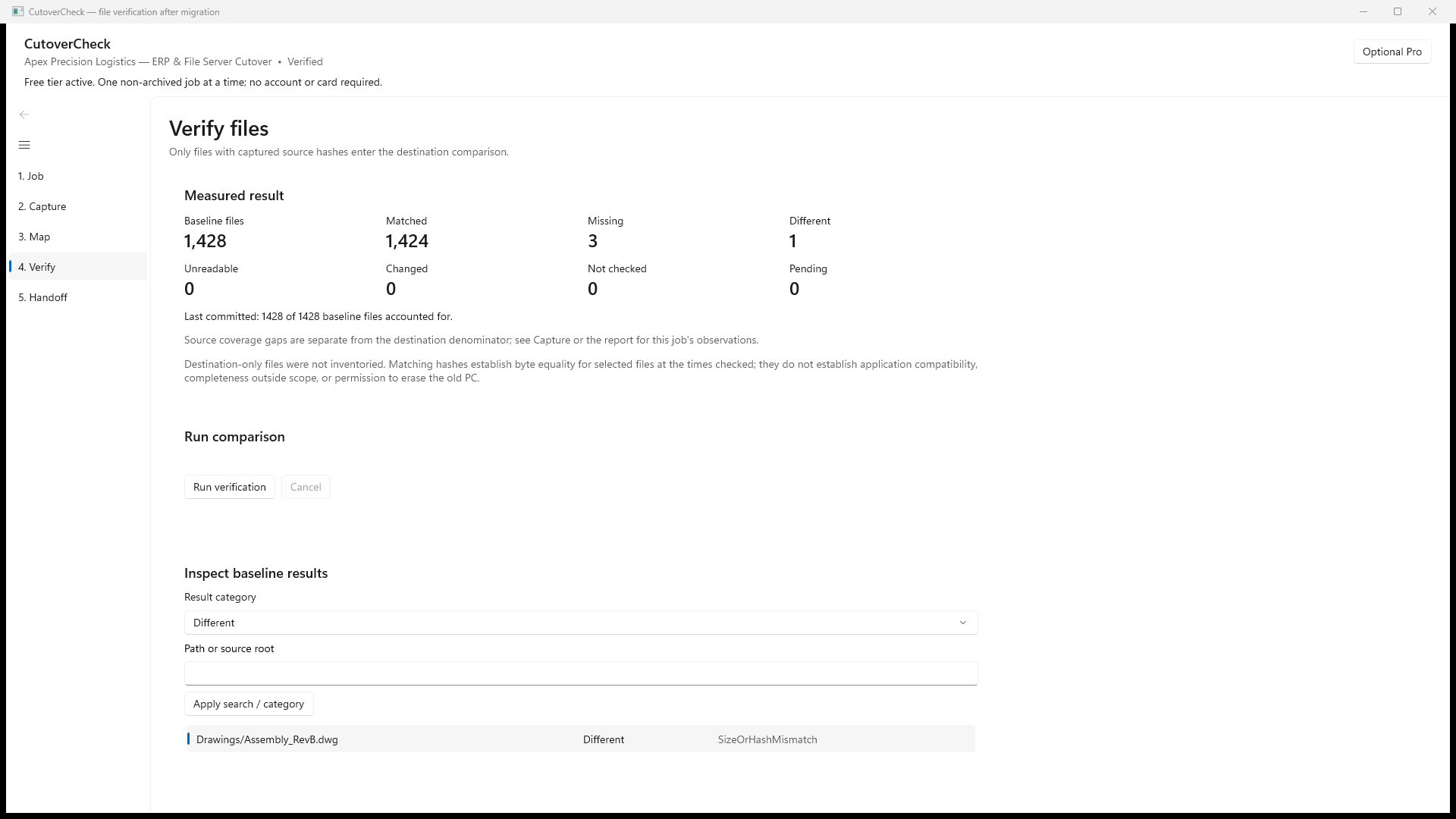
Reviewed product or Store capture. It shows the named control only; it does not prove that a later action completed.
| Control (label) | What it does | When you use it | Gotcha |
|---|---|---|---|
| "Result category" (dropdown) | All · Matched · Missing · Different · Unreadable · Changed during scan · Cloud placeholder · Reparse point · Unsupported object · Pending | To see one kind of result at a time | Filtering never changes the global counts above |
| "Path or source root" (search box) | Free-text search over relative paths or root labels | To find one file quickly | Max 256 characters; combined with the category when you apply |
| "Apply search / category" (button) | Applies the filter and reloads the list from the start | After setting the dropdown and/or search text | The list is paged (50 rows per page) |
| Results list (rows × 3 columns) | Relative path · Category · Reason code (e.g. SizeOrHashMismatch, StableRegularFile) |
To review and select a file | You may need "Next page" for long lists |
| "Previous page" / "Next page" (buttons) | Move through the filtered list | When more than 50 rows match | The page footer says e.g. Showing rows 1–50; more available. Global totals are unchanged. |
| Result detail (text) | Per-row details: source/destination bytes, last-modified time, result, reason, and what to do next | After selecting a row | The suggested action depends on the category (e.g. Missing → "Check the mapped destination folder and rerun verification after correcting the external copy.") |
Gotchas for this screen.
- If a filter shows no rows, the message says so and reminds you: "Global totals are unchanged." An empty view is a fact about the filter, not the job.
- The per-file action hints are guidance, not automation — CutoverCheck never copies or repairs files; you correct the move with your own tools and rerun.
5.6 Handoff screen (Stage 5 — Handoff)
Purpose. Two separate parts of the record come together here: the manual application checklist (your attestations about testing apps on the new PC) and the local HTML report (the measured file results). They stay separate on purpose.
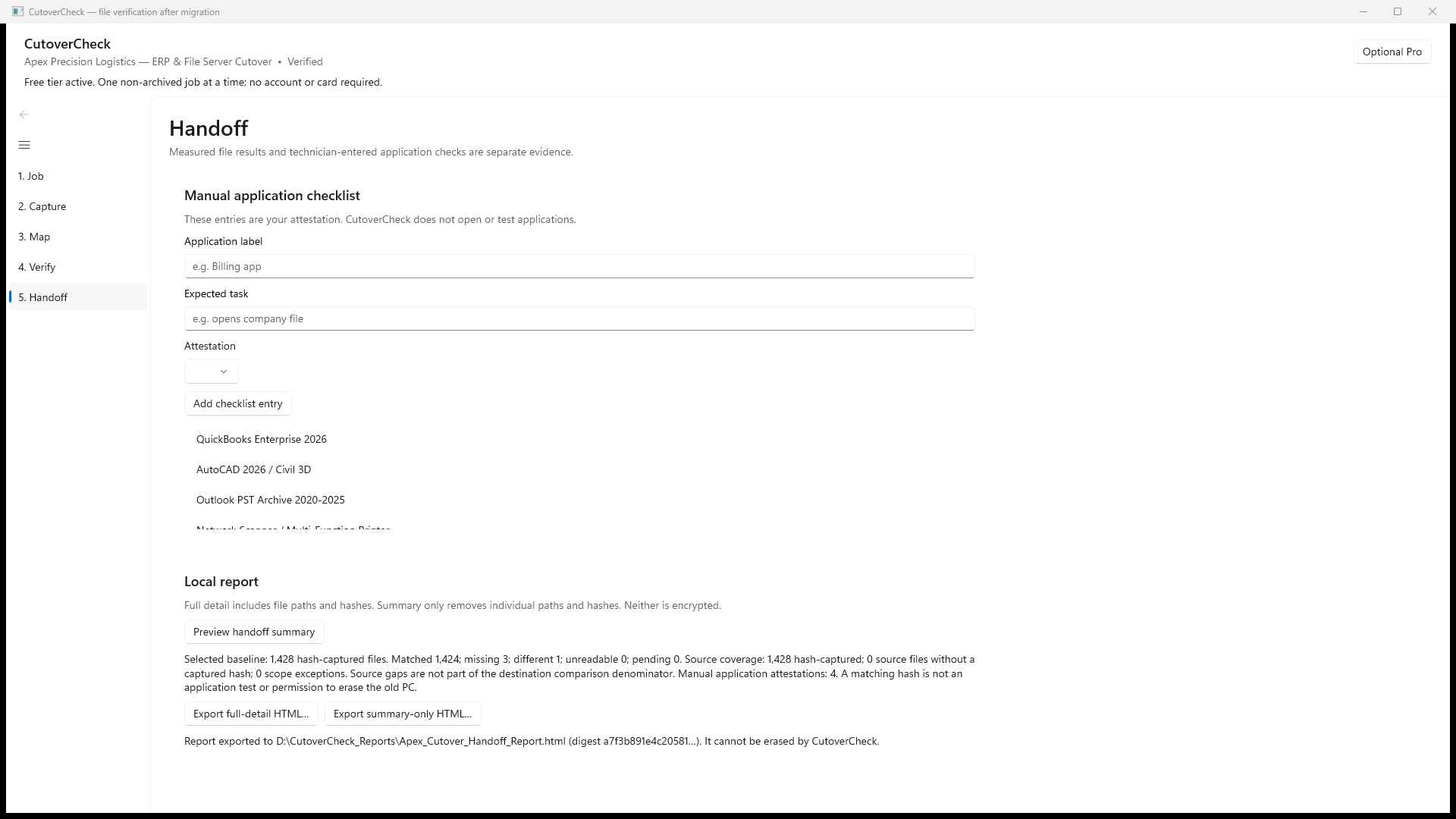
Reviewed product or Store capture. It shows the named control only; it does not prove that a later action completed.
| Control (label) | What it does | When you use it | Gotcha |
|---|---|---|---|
| "Application label" (text box) | The app you tested, e.g. Billing app |
For each app on the new PC | Required — "Add checklist entry" refuses an empty label |
| "Expected task" (text box) | What you expected, e.g. opens company file |
To make the attestation specific | Optional; stored with the entry |
| "Attestation" (dropdown) | Opened and worked · Opened with issue · Not available · Not checked | To record your actual test result | This is your attestation; the app never opens or tests the app |
| "Add checklist entry" (button) | Saves the attestation with your name ("local technician") and a UTC timestamp | After you manually test an app | Message: "Checklist entry recorded as an attestation (never a measured file result)." |
| Checklist list | Shows saved entries (label + state) | To review what you attested | Attestations never mix into file-match percentages, and the report says so |
| "Preview handoff summary" (button) | Shows the summary statistics the report will contain | Before exporting | Preview text ends with the honesty clause: "A matching hash is not an application test or permission to erase the old PC." |
| "Export full-detail HTML…" (button) | Saves the full report: relative paths, hashes, reasons | For your internal record or a full customer handoff | Warns: full-detail reveals filenames; reports are not encrypted — store them appropriately |
| "Export summary-only HTML…" (button) | Saves a summary report with no individual paths or hashes and anonymized root labels ("Root 1", "Root 2"…) | To hand the customer a clean summary while keeping forensic detail internal | Neither mode is encrypted; both embeds a self-verifying SHA-256 digest |
| Status line (text) | Confirms the export: Report exported to … (digest a7f3b891…). It cannot be erased by CutoverCheck. |
After exporting | The report is a single self-contained UTF-8 HTML file — no scripts, no remote resources |
Next action. The handoff moment is "🔴 Export full-detail HTML…" (or the summary variant for clients whose path names are sensitive). The obvious next after saving: open the .html in a browser, read the limitations section once, and hand it over.
Gotchas for this screen.
- The checklist is attestation, not measurement. "Opened and worked" is your word, recorded with your technician name and a UTC timestamp — the app never launches or tests applications.
- The report can only be exported when the job's results justify it. If verification is incomplete (Pending files), the preview says so and the job is marked Incomplete rather than Verified.
5.7 Optional Pro panel
Purpose. Free vs Pro is about how many jobs at once, nothing else. The "Optional Pro" button in the top-right corner opens a small panel that shows the current license and the few license actions.
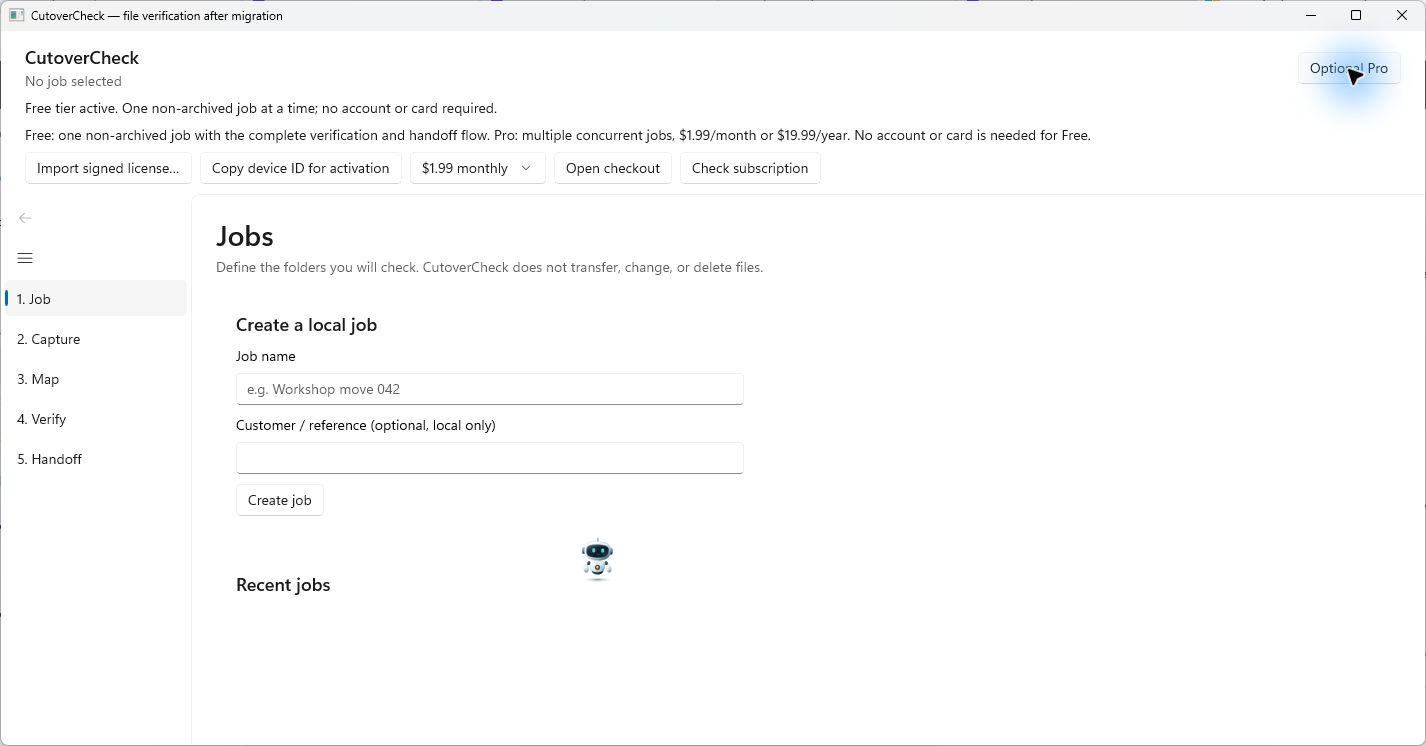
Reviewed product or Store capture. It shows the named control only; it does not prove that a later action completed.
| Control (label) | What it does | When you use it | Gotcha |
|---|---|---|---|
| "Optional Pro" (button, top-right) | Shows/hides the activation panel | To see license status or subscribe | Clicking it again hides the panel; nothing else changes |
| License status line (text under the header) | "Free tier active. One non-archived job at a time; no account or card required." or a Pro/expiry message | Whenever you wonder which tier you are on | If a stored Pro license expired or can't be verified, it reads e.g. "Free tier active. The Pro subscription has ended; existing work remains available." |
| Plan dropdown | $1.99 monthly or $19.99 yearly | Before opening checkout | Prices are verbatim from the landing page |
| "Open checkout" (button) | Opens the checkout page in your browser to buy Pro | Only if you want multiple concurrent active jobs | Purchases are not yet claimable end-to-end in every scenario — see Troubleshooting if checkout doesn't complete |
| "Import signed license…" (button) | Loads a license file you received after purchasing | After a successful purchase/claim | If the license can't be verified (wrong device, expired, tampered), the app falls back to Free with your jobs untouched |
| "Copy device ID for activation" (button) | Copies this PC's device ID to the clipboard for activation | When the purchase flow asks for the device ID | Message: "Device ID copied for subscription activation." |
| "Check subscription" (button) | Re-checks the subscription with the license service | If Pro status looks stale | Failure keeps Free active — no job data is at risk |
Gotchas for this screen.
- Pro is capacity only: more concurrent active jobs. No measured feature is paywalled.
- If Pro ends, nothing is deleted. The app falls back to Free; existing active jobs remain usable (you just can't start new ones past the Free limit). The landing page promise: "Existing active jobs remain usable if Pro ends".
- Zero per-seat fees: one price covers the whole shop — there is no per-technician license math.
6. What's supported
Legend: [verified] = confirmed on the live landing page (2026-09-27); [source] = confirmed in the shipped source/build; [page]/[store] = confirmed on the landing page / Store listing.
Job, scope & persistence
- Five-stage job workflow — 01 Job → 02 Capture → 03 Map → 04 Verify → 05 Handoff — with lifecycle states Draft → Capturing → Captured → Mapping → MappingComplete → Verifying → Verified / Incomplete → Archived, and next-safe-action gating (no verify before mapping is complete; no final report while results are pending).
[verified][source] - Multiple selected source roots per job (stable IDs, display labels, path/grant identity) plus an optional customer/reference label and capture time.
[verified][source] - Exclusions of two kinds — exact-file and directory-prefix — persisted and printed in the report.
[verified][source] - Archive & reopen: archived jobs stay readable and exportable and can be reopened to measure again.
[verified][source] - Resume after interruption: cancellation closes handles at safe boundaries and persists completed work; pressing "Start capture" again resumes safely.
[source] - Local SQLite state with an explicit schema version, migrations, and append-only/hash-chained events — nothing depends on a server.
[source]
Baseline capture
- Read-only SHA-256 baseline with streamed hashing and bounded memory; the scan never writes to customer files.
[verified][source] - Change-during-scan detection: a file replaced or modified while hashing receives ChangedDuringScan, never a digest-backed match.
[source] - Cloud-placeholder detection without hydration — OneDrive/iCloud "Files On-Demand" stubs are identified from Windows reparse tags and reported as "not checked — cloud placeholder"; the app never opens them, so it never triggers a download. (build-backed; not on the landing page)
[source] - Reparse-point and unsupported-object results each get their own distinct "not checked" state; reparse directories are never descended.
[source] - Unreadable-file results (permissions, locks, I/O errors) counted separately from missing or different.
[verified][source] - Live progress (current root/file, counts, bytes, exceptions, elapsed) with cancellation at safe boundaries.
[source] - Honest capture interval — the baseline records capture start/end and per-item observation times; it does not claim an atomic snapshot.
[source]
Portable .cutovercheck bundle
- Bundle export via the file picker (suggested name
baseline.cutovercheck) — the two PCs never need to be on the same network.[verified][source] - Bundle import treats the file as untrusted: member names/types/counts/sizes/ratios, schemas, IDs, paths, totals, JSON and SHA-256 integrity are all validated before any usable state is created.
[source] - Integrity-checked but explicitly unsigned — the UI states: "It is integrity-checked but not signed."
[source]
Source→destination mapping
- Every source root requires exactly one destination selection before verification; mappings are approved and timestamped and printed in the report.
[verified][source] - Mapping validation rejects overlapping/duplicate mappings, root/state-dir conflicts, changed root identities, and any normalised relative path that would escape its destination root.
[source] - Resolved-path preview shows how representative paths resolve on the destination before approval.
[source]
Verification & results
- Byte-level SHA-256 comparison: a match requires stable, readable destination bytes whose hash equals the baseline hash — name, timestamp or size alone never match.
[verified][source] - Closed set of distinct result states: Matched, Missing, Different (size or hash), Unreadable, ChangedDuringScan, NotCheckedCloudPlaceholder, NotCheckedReparsePoint, NotCheckedUnsupportedObject — or pending.
[verified][source] - Reconciliation guard: totals are reconciled after every committed batch; pending files are never counted as matched; if totals don't reconcile the report says "Treat this report as incomplete."
[source] - Destination-only files are explicitly outside the denominator and "not inventoried".
[source] - Filter/search never changes global counts or the frozen results.
[source] - Re-verification: a captured, mapped job can be verified again after more data is copied.
[source]
Manual application checklist
- Four attestation states: Opened and worked, Opened with issue, Not available, Not checked — each with expected task, note, technician name and UTC timestamp.
[verified][source] - Attestations never mix into file-match percentages, and the report states that.
[verified][source] - The tool never opens, tests, or automates checklist applications — an explicit boundary.
[verified][source]
Handoff report
- Self-contained local UTF-8 HTML report: no scripts, no remote resources, print-friendly CSS; renders in any browser without CutoverCheck installed.
[verified][source] - Full-detail vs summary-only privacy modes; summary-only hides paths/hashes and can anonymize root labels ("Root 1", "Root 2"…).
[verified][source] - Self-verifying SHA-256 content digest in the report and its footer.
[source] - Complete evidence anatomy: method & scope, selected roots & exclusions, mapping summary with approved timestamps, capture coverage, destination comparison with byte counts, reconciliation state, coverage exceptions, checklist, app/schema versions, digest, and a limitations section ("What the hashes establish — and what they do not").
[source]
Privacy & security
- 100% local file checks — customer paths, filenames, hashes and content are never sent anywhere.
[verified][source] - The core package requests no internet capability; the app runs with the network disabled.
[source] - Read-only authority — no copy, move, overwrite, delete, shell, credential, or upload commands exist.
[verified][source] - Defensive rendering and redacted diagnostics: imported strings, paths, archives and HTML fields are treated as untrusted; logs exclude raw customer paths, filenames, content and hashes.
[source]
Licensing & platform
- Permanent Free tier ($0): no account, no card, no trial clock; one active (non-archived) job; archive to start another; archived jobs stay readable and exportable.
[verified][source] - Pro $1.99/mo · $19.99/yr: multiple concurrent active jobs; existing active jobs remain usable if Pro ends; zero per-seat fees.
[verified][source] - Native Windows app: C# / .NET 8 / WinUI 3 / Windows App SDK / MSIX; no Python, WebView2, AI, GPU or cloud service required.
[verified][store][source] - Works offline end-to-end; the only network action in the product is user-initiated Pro activation (sends a device hash + claim secret, never file data).
[verified][source] - Microsoft Store distribution, Store ID
9MWGM28H0KZC, packageCutoverCheck-0.1.5.0-x64.msix.[verified][store][source]
Not yet available (honest notes)
- Branded handover PDFs — not in the build. The handoff artifact is the HTML report; there is no PDF code.
- Client-signed acceptance — the app does not capture customer signatures. The checklist is the technician's attestation, that's all.
- A "$95" service tier — not a CutoverCheck price. A figure like this appears only in marketing concepts as a shop's own suggested service price; nothing in the product prices a $95 tier.
- "24 unhydrated files" — an ad-concept example number, not a measured product figure. The app tells you your real counts.
- Pro payment plumbing — prices are $1.99/mo · $19.99/yr, but the end-to-end purchase/claim flow is still being finalised; if checkout does not complete a purchase, see section 8.
7. Edge cases & gotchas
-
Free only allows one active job. Symptom: Clicking "Create job" fails with "Free allows one non-archived job at a time." Why: Free capacity is one non-archived job; the limit is enforced as soon as you hit it. What to do: Select the current job in "Recent jobs", click "Archive selected job", then create the new job. Or activate Pro if you want several jobs open at once.
-
Archive is how you start another job — and it never deletes anything. Symptom: "I archived my only job — did I lose the evidence?" Why: Archiving moves the job to the archived state and frees the Free slot; evidence and exports remain readable. What to do: Nothing — the job stays in "Recent jobs" as
Archived. To measure again, select it and click "Reopen archived job" (a Free slot must be free). -
Cloud placeholders are reported as "not checked — cloud placeholder", not matched. Symptom: A file shows in Explorer, but the report lists it as Not checked and it is not in Matched. Why: OneDrive/iCloud "Files On-Demand" stubs are placeholders, not local content. CutoverCheck detects them from Windows reparse tags and never opens them, so it never triggers a download. What to do: Download (hydrate) those files with OneDrive/iCloud on the old PC before you wipe it, then capture again. If the old PC is already wiped, the stub files were never local — this is exactly the data-loss trap the app surfaces.
-
A file that changes while being hashed becomes "Changed during scan". Symptom: Capture finished but one file shows Changed during scan. Why: The file was replaced or modified between the pre- and post-checks of hashing, so the hash can't be trusted as a clean record. What to do: Close the app that is writing the file, then click "Start capture" again — completed files are kept and the changed one is re-observed.
-
Unreadable files are explicit gaps, not matches. Symptom: Capture or verify shows files as Unreadable. Why: Permissions, locks or I/O errors stopped the read; the app never collapses this into a false match. What to do: Fix access (user permissions, shared-folder rights, antivirus), then rerun capture or verification.
-
Imported bundles come from untrusted machines. Symptom: "Import baseline…" refuses a file, or the import message surprises you. Why: Bundles are treated as attacker-controlled: structure, schemas, IDs, paths, totals and SHA-256 integrity are all validated before any state is created. A bundle is integrity-checked but not signed — it proves no accidental corruption, not who made it. What to do: Only import bundles you trust; keep the USB stick they arrived on. If a friend's tool can't import it, that's the validation doing its job.
-
Destination-only files are not inventoried. Symptom: The report shows 100% matched but you know the destination has extra files. Why: Files that exist only on the destination are outside the comparison denominator by design and described as "not inventoried". What to do: Nothing is wrong. The honest statement is: matching covers the baseline files only. Extra destination files are not evidence of a problem or of success.
-
When totals don't reconcile, the job is incomplete — full stop. Symptom: Verify screen or report says "Totals do not reconcile … Treat this job as incomplete." Why: The reconciliation guard checks the baseline denominator against category totals after every batch; a mismatch means the numbers cannot be trusted as complete. What to do: Finish or resume verification (Pending must reach zero), fix whatever stopped the run, then rerun. Never export this state as a finished handoff.
-
Pro expiry fallback is graceful. Symptom: License status now reads "Free tier active. The Pro subscription has ended; existing work remains available." Why: Expired, wrong-device or tampered licenses fall back to Free. Jobs and evidence are never deleted. What to do: Keep working — existing non-archived jobs remain usable. Free's one-active-job limit applies to new job creation, bundle imports and archived-job reopens from now on.
-
Cancel mid-run never loses completed work. Symptom: You cancelled capture or verification halfway. Why: Cancellation finishes the current file and stops at a safe boundary; completed work is persisted, pending stays pending. What to do: Continue the stage by pressing "Start capture" / "Run verification" again (which resumes safely) or review the kept results.
-
"No job selected" and an empty list are normal at first. Symptom: You open the app and see "No job selected" with no jobs in "Recent jobs". Why: No job exists yet — the app has no demo data or cloud feed. What to do: Type a job name and click "Create job". Everything from here on is local.
-
The checklist is an attestation, not a measurement. Symptom: The customer asks "does the report prove QuickBooks works?" Why: A checklist entry records what you observed (Opened and worked / Opened with issue / Not available / Not checked), with your name and a timestamp. CutoverCheck never launches or tests apps, and attestations never affect the match percentages. What to do: Actually test each app on the new PC before you mark it, and keep the note field specific ("opens company file", "prints test page").
Additional plain-language limit reminders: a matching hash proves the selected bytes agreed at the times measured — it does not prove applications work, does not cover omitted or excluded folders, and does not mean the old PC is safe to erase. Reports and bundles are integrity-checked but not signed, and reports are not encrypted.
8. Troubleshooting
The app won't open after install. 1. Close and reopen it from Start — search "CutoverCheck" and press Enter. 2. If it still won't start, check your Microsoft Store library for an update and install it. 3. Restart Windows, then open the app again. 4. If it still fails, contact support (section 11) with your Windows version and the exact failure.
A button is missing or greyed out. 1. Work the stages in order: Job → Capture → Map → Verify → Handoff. Buttons unlock as the previous stage completes. 2. "Start capture" greyed out? No job is selected or the job is archived — select a job or reopen it. 3. "Choose destination folder…" doing nothing? Select a source folder in the mapping list first. 4. "Approve all mappings" rejected? Read the message — usually a missing destination for one source root, or a conflicting mapping.
Create job fails.
1. Free limit: "Free allows one non-archived job at a time" — archive the current job, or activate Pro.
2. Empty name: "The entered value is missing or invalid" — type a job name first.
3. Retry once; if the same code repeats, note it (it starts with CC-) and contact support.
The results look wrong (everything Missing, or one file Different).
1. Check the mapping: in the Map screen, confirm every source root points at the folder the files actually landed in.
2. Check exclusions from the original capture — an excluded Temp folder will not be compared, by agreement.
3. A file shown Different means its bytes changed — compare size/hash in the result detail, still see a problem? Review the destination file, correct the move with your own tools, and run verification again.
4. Remember: destination-only files are not inventoried and never count as missing.
The report says "Totals do NOT reconcile — Treat this report as incomplete." 1. Do not treat it as finished — the numbers don't add up. 2. Go to the Verify screen and inspect Pending, Unreadable, Changed during scan and Not checked results. 3. Complete or resume verification until the reconciliation line accounts for every baseline file. 4. Export the report again after a clean run.
A bundle import is refused.
1. Check the file is a .cutovercheck file exported by CutoverCheck.
2. On Free, import needs a free job slot — archive an active job first.
3. If it is still refused, the file failed validation (untrusted or corrupted). Re-export the bundle from the source job if you still have it.
4. Don't edit bundle files by hand — even a changed byte can (correctly) fail the integrity check.
Pro checkout or subscription check doesn't complete. 1. Make sure you want Pro (multiple concurrent jobs) — the whole workflow is free. 2. "Open checkout" opens the JE Horizon checkout page; purchases and license claiming are still being finalised end-to-end, so a purchase may not complete on every build. 3. Click "Check subscription" to re-check the entitlement after a purchase; if the license is for a different device it will not activate here (device-bound). 4. Whatever happens with Pro, Free keeps working and no job or evidence is harmed.
Nothing happens when I click a button.
1. Read the status line at the bottom of the current card — the app reports failures there in a standard form: code, meaning, scope, evidence, and next step.
2. If the message starts with CC-, copy it — support can use it.
3. If the button is "Apply search / category" with nothing happening, you may have cancelled during a run; wait for the run to finish (the list is disabled while capture/verification runs).
9. FAQ
Plain answers to the questions a first-time user would ask.
I don't see the "Create job" button. It is on the Jobs screen (stage "1. Job"), inside the "Create a local job" card, below the "Job name" box. If you're on another stage, click "1. Job" in the left navigation.
Can I undo that? Archiving? Yes — select the archived job and click "Reopen archived job". Exporting a report? That just saves a file; export again any time. Deleting a job? There is no permanent-delete flow in the current build — jobs are archived, not destroyed.
Where is my data saved?
Locally. All job state lives in a local SQLite database inside the app's data area on this PC. Bundles and reports are saved exactly where you choose in the file pickers (e.g. a USB stick or Documents). Nothing is stored in the cloud, and nothing is uploaded.
Will this touch my files? No. CutoverCheck has read-only authority: no copy, move, overwrite, delete, or repair commands exist. It opens files only to read them (and only those in folders you selected). It never launches applications either.
Do I need to pay? No. The Free tier is permanent: complete capture, map, verify and handoff workflow with one active job at a time — no account, card, or time limit. Pro ($1.99/mo or $19.99/yr) only adds multiple concurrent active jobs.
Can I use it offline? Yes. Everything runs locally; the core package requests no internet capability. The only network action in the product is user-initiated Pro activation, and even that sends no file data.
What happens if I close it mid-task? Completed work persists. On the next start, your jobs are still in "Recent jobs"; interrupted capture or verification can be resumed by running the stage again.
Does a green Matched mean everything is fine? It means the selected bytes matched the baseline at the times measured. It does not prove applications work, does not cover folders you didn't select, and does not mean the old PC can be erased. The report says this itself.
What if the two PCs can't be on the same network?
That's the portable-bundle workflow: on the old PC export baseline.cutovercheck to a USB stick (Map screen → "Export baseline…"), then on the new PC import it ("Import baseline…"). No network needed.
What does "integrity-checked but not signed" mean? The bundle and the report carry a SHA-256 digest so you can prove the file wasn't accidentally corrupted — that's integrity. It is not a cryptographic signature: it does not prove who produced the file or that it is tamper-proof.
10. Privacy & data
- 100% local file checks. Customer paths, filenames, hashes and content are never sent anywhere. This is stated on the landing page and enforced by the package: the core app requests no internet capability — it runs with the network disabled.
- The only network action is Pro activation, and it is user-initiated. Activating Pro sends a device hash plus a claim secret over the network — never file data, never hashes, never content.
- No account, no telemetry. The Free tier starts with no account and makes no network call. There is no telemetry channel in the product.
- Diagnostics are redacted. Logs and diagnostics exclude raw customer paths, filenames, content and hashes; exporting diagnostics is an explicit action, and the export is redacted.
- Reports and bundles stay where you put them. They are not encrypted — the app says so in the UI — so store them according to the sensitivity of the data (that is why summary-only export exists for client handoff).
- Both are integrity-checked but not signed. "Integrity-checked but not signed" is the app's own wording: the record proves it wasn't accidentally corrupted, not who wrote it. Never describe reports or bundles as signed, sealed, or tamper-proof.
11. Getting help
- Support email: [email protected]
- Support page: https://jehorizon.com/support/
- Help index: https://jehorizon.com/help/#cutovercheck
- Landing page: https://jehorizon.com/cutovercheck/
- Microsoft Store listing: https://apps.microsoft.com/detail/9MWGM28H0KZC
When you write in, include: the CutoverCheck version you see in your Store library, your Windows version, what you were doing, and the full error message — especially the code that starts with CC- if one appears. Do not include customer file names or paths in support messages — diagnostics are redacted and we won't need them.
Quick reference
This guide covers the reviewed public workflows for CutoverCheck. Controls can vary by installed version. The complete illustrated source guide appears below after current release limits. Confirm dated plan, version, and checkout details in the current app.
1. Install and open
Open the Microsoft Store listing and follow the install action shown for your account. Launch the app and check the controls visible in your installed version.
Product details · Product Help
2. Common tasks
Verify a PC move
- Create a job and select the source folders and exclusions you intend to check.
- Capture the source baseline before moving files with your own migration method.
- Map each source root to its destination folder and run Verify.
- Review matched, missing, different, unreadable, and unchecked results; test applications yourself and record the checklist.
- Export the local HTML handoff report, choosing the privacy detail appropriate for its recipient.
Carry a baseline to the destination PC
- Finish the source capture and export the portable baseline bundle.
- Move that bundle to the destination PC by your chosen secure method.
- Import the bundle, select the destination roots, and verify the mapping preview before comparison.
Resolve a partial verification
- Open the result categories and identify missing, different, unreadable, and unchecked files separately.
- Correct file placement or access with your own migration tools.
- Run verification again against the retained baseline and export an updated report.
3. Current release limits
Check every migration result and application yourself. A successful file comparison does not certify that an application works after the move.
- CutoverCheck verifies; it does not copy, move, delete, repair, launch, or test applications.
- A file hash match does not prove that an application works or that omitted folders were checked.
4. When something goes wrong
A destination file is missing or different
- Check the source-to-destination root mapping and exclusions.
- Inspect the report's result and rerun verification after correcting the move with your own tools.
The report is still a draft or incomplete
- Inspect pending, unreadable, changed-during-scan, and not-checked results.
- Complete or document the remaining checks before treating the report as a finished handoff.
5. Get help
Record your installed app version, the control you used, and the exact result. Do not include a password, license key, customer record, or private file.