Follow the steps and red lettered screenshots below. Some controls vary by installed version; confirm a send, purchase, license decision, or saved record in your app.
How to Use FilePerch — the complete guide
FilePerch · JE Horizon · updated 2026-09-27 · Microsoft Store ID 9NQXV7HD0MMX · https://fileperch.jehorizon.com/
Help center · Product page · Microsoft Store
1. What this app is
FilePerch is a Windows desktop app that finds files on your whole drive almost instantly, then helps you verify them and plan safe cleanup — without ever uploading anything. You type what you remember about a file ("Python tests modified today"), FilePerch shows you matching paths, marks each result as Verified (it checked the live drive) or Index only (it came from an index snapshot), and lets you open the file, reveal it in Explorer, or copy its path. It can also measure your drives, find byte-identical duplicates, scan for safe cleanup candidates, and plan a storage copy that is checked with SHA-256 before you trust it.
SHA-256 (say "sha two-fifty-six") is a fingerprint of a file's contents: a fixed 64-character code computed from the file's exact bytes. Two files with the same SHA-256 have identical bytes — byte for byte. This is how FilePerch can prove a copy is exact or that two files are true duplicates, instead of guessing from file names.
This guide is written for a brand-new user: every button is named, every next step is spelled out, and anything FilePerch does not do is stated plainly.
What this app is NOT
- It is NOT a cloud service. Search, indexing, duplicate checks, and storage review all run on your PC. No telemetry, no uploads, no model calls over the network. The only network use in the whole app is license sync over HTTPS when you subscribe or refresh a subscription — and the license itself is validated offline.
- It is NOT a file-eraser. FilePerch never deletes, moves, truncates, overwrites, or retires a single file on its own. The only delete-adjacent action is "Send selected to Recycle Bin", and it only runs after you review a candidate and click Yes on a confirmation dialog. Even then, it goes to the Windows Recycle Bin, where you can restore it.
- It is NOT a file-encryption tool. FilePerch verifies integrity; it does not encrypt your files. ("Vault" in this app means the settings vault that protects license state — it is not a file vault.)
- It is NOT a guarantee that your backup system works. A matching SHA-256 proves two sets of bytes were identical at the time they were hashed. It does not cover files you did not include, and it does not make old drives safe to erase — that decision stays yours.
- It is NOT a one-click disk cleaner. Cleanup candidates are recommendations with confidence levels; you review every one and choose what, if anything, goes to the Recycle Bin.
2. Before you start
| Requirement | What you need | Notes |
|---|---|---|
| Windows version | Windows 10 or Windows 11, x64 (64-bit) | Stated up front on the pricing page System Requirements. |
| Everything (optional, recommended) | Voidtools Everything 1.4 or 1.5 alpha for live IPC indexing | Everything is a free Windows indexer. If it is installed and running, FilePerch uses its live index (over a local channel called IPC). Without Everything, FilePerch falls back to on-disk manifest snapshots — same app, but results come from snapshot files instead of a live index. |
| CPU | Any x64 CPU for normal use | The optional offline semantic ranking (a nicer ordering of results) requires an AVX2-capable CPU, and the Microsoft Store build deliberately ships deterministic lexical ranking — so you never need AVX2 for the app you download from the Store. See section 6. |
| Network | None for search/verification/storage work | Everything runs 100% locally. HTTPS is only used when you subscribe or sync a subscription. |
| Account | A Microsoft account to install from the Store | No account is required inside the app; the license is validated offline against a device code. |
| Disk space | Room for the app, drive manifest snapshots, and any receipts you keep | No exact footprint is published by the vendor. |
| Version | Check the version in your installed app | Partner Center identifies the current published Store submission as FilePerch 0.13.1.0 on 2026-09-27. The screenshots below were captured from that signed submission package in an isolated profile. |
Plans & pricing (verbatim from the vendor pricing page, fetched 2026-09-27)
| Tier | Price | What you get |
|---|---|---|
| Free trial | $0 | "100% Free 30-Day Automatic Trial" per the Store listing, then $3.99/mo or $29.99/yr (Stripe or in-app). The landing page says it plainly: "Free download for Windows. The free trial is on the Microsoft Store page." |
| Subscription | "$29.99/yr or $3.99/mo" | These are the published subscription prices. The installed app's license screen and the current purchase offer must be reconciled before asserting which license options are available now. |
Plain-language notes, because "subscription" needs one:
- The public pricing page describes monthly and annual subscriptions. Confirm the current 0.13.1.0 purchase and activation screen before choosing a plan; this guide's licensing steps are pending that check.
- The trial is attached to the Microsoft Store listing. You download free, try for the trial period, then pay $3.99/mo or $29.99/yr if you keep it.
- No refund terms are stated by the vendor — nothing in the current sources asserts a refund policy, so do not assume one.
- When a subscription expires, FilePerch blocks new paid work (new searches, new scans, new copy jobs) but leaves what you already have available: existing results, open views, and in-flight copies stay usable. Importing a renewal license restores full operation. The app may also show a read-only status line: "Read-only: renew and import a license to start new operations. Existing results and files remain available."
3. Install & first launch
- Open the Microsoft Store listing page: https://apps.microsoft.com/detail/9NQXV7HD0MMX — or open the Microsoft Store app and search for FilePerch. The button marked "Get from Microsoft Store" on https://fileperch.jehorizon.com/ goes to the same listing.
- Click Get (or Install). Windows downloads and installs the app. The free 30-day trial is offered on the listing page — you do not need a card to start it.
- Click Launch, or find FilePerch in your Start menu and open it. The first launch may take a few seconds while it checks the index and your license state.
- In the tested 0.13.1.0 package, FilePerch opens on Storage Assistant. The sidebar shows 30-Day Free Trial active, the days remaining, and Full features unlocked. The Assistant shows quick actions and a Ready status. Read the sidebar status on your own device; it can differ after a trial or purchase.
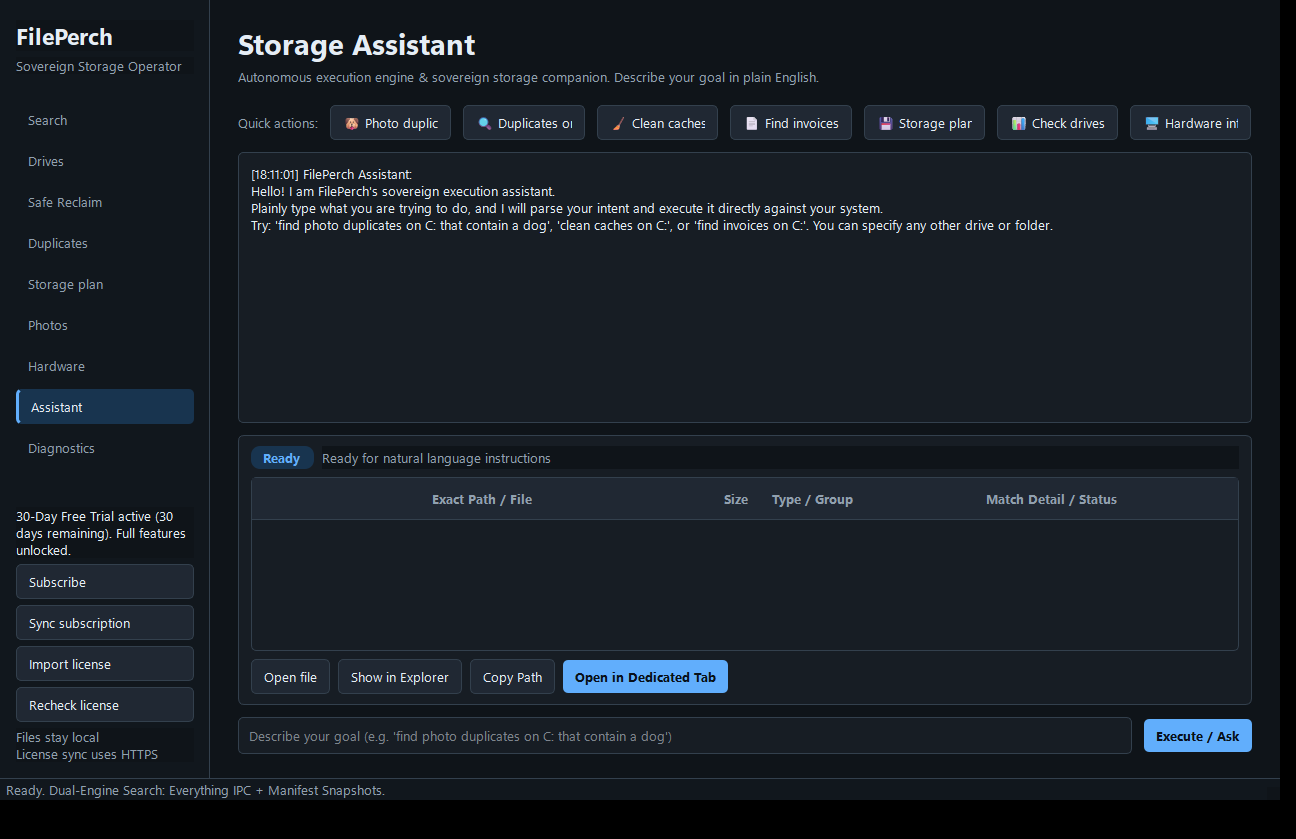
Reviewed product or Store capture. It shows the named control only; it does not prove that a later action completed.
The observed sidebar also has Subscribe, Sync subscription, Import license, and Recheck license controls. Their labels are verified in 0.13.1.0; this guide does not assume a particular purchase or import path without a completed checkout and license test. Older screenshots showing a Save activation request dialog belong to a different build and are excluded.
4. Quick start
This is the shortest path from install to your first found file — about five minutes. You can also follow along with any sample folder of your own. (🔴 marks the primary action in these steps.)
- Open FilePerch from your Start menu. You land on the Assistant tab (the default). You will see the heading Storage Assistant with the text "Autonomous execution engine & sovereign storage companion. Describe your goal in plain English."
- Click a Quick actions chip — for example "📄 Find invoices (C:)". The chip's text lands in the assistant input box and runs immediately. (You can also type anything into the text box yourself — see step 3.) A transcript appears above with your request repeated back to you.
- If you typed instead of clicking a chip: in the box at the bottom that says "Describe your goal (e.g. 'find photo duplicates on C: that contain a dog')", type what you want — for example
find invoices on C:— then click "🔴 Execute / Ask" (blue button, bottom-right of the input box). - Watch the badge above the results table flip from "Ready" to "Executing…" and then to "Complete". Results appear as rows in the table with columns Exact Path / File, Size, Type / Group, and Match Detail / Status. If FilePerch found nothing, the transcript says so plainly (for example "No files matching … were found in the index.") — see section 7, edge case 3.
- Click one result row to select it, then click "Open file" to open it in its default Windows app, or "Show in Explorer" to jump straight to the folder. Double-clicking a result row also opens it. If the file is an executable or script (
.exe,.bat,.cmd,.ps1,.msi, …), FilePerch asks you to confirm first — see SHOT 3 in section 5.1. - Find the same file by name another way: click Search in the sidebar, type a filename or keyword into the box that says "Example: Python tests modified today", and click "🔴 Find files". The results table shows Exact path, Size, Modified, Why it matched, Confidence, and Present (which reads Verified or Index only). Status line says "Search finished. Double-click a result to open it in its default app."
- Look at your drives once: click Drives in the sidebar, then click "🔴 Refresh drives". You see one row per volume: Drive, Label, Type, Total, Free, Used.
- Try a safe cleanup review: click Safe Reclaim in the sidebar, click "🔴 Scan for reclaimable caches", review the candidate list (each row shows Path, Category, Size, Files, Safety Score, Age, Confidence), then click a row to read its nine safety checks. The Recycle Bin action remains disabled if a required check is incomplete or failed, even when a row is selected. Only when all required checks pass and you agree should you click "Send selected to Recycle Bin" and confirm with Yes. Nothing is touched until you confirm.
That is the whole loop the app is built around: find → verify → review → act only after you say yes.
5. The tour
The whole app is one window with a dark theme:
- Sidebar (left, fixed width): the app name FilePerch, then the navigation buttons Search, Drives, Safe Reclaim, Duplicates, Storage plan, Photos, Hardware, Assistant, Diagnostics. Clicking one switches the main panel. License controls vary by version; use a 0.13.1.0 capture before following a license step.
- Main panel (center): the current tab's page. Every page has a large title and a one-line subtitle under it.
- Status bar (bottom): messages like "Ready. Dual-Engine Search: Everything IPC + Manifest Snapshots." and progress/results messages.
The Assistant tab is the default page you land on. Everything in the app is local; every path you see is copied from the live index or a manifest snapshot — FilePerch is architecturally forbidden from inventing paths.
5.1 Search tab
Purpose. The "where is that file?" screen. Describe the file by name, keyword, type, size, or date; FilePerch returns matching paths straight from the index, marks each result Verified or Index only, and lets you open, reveal, or copy the file safely.
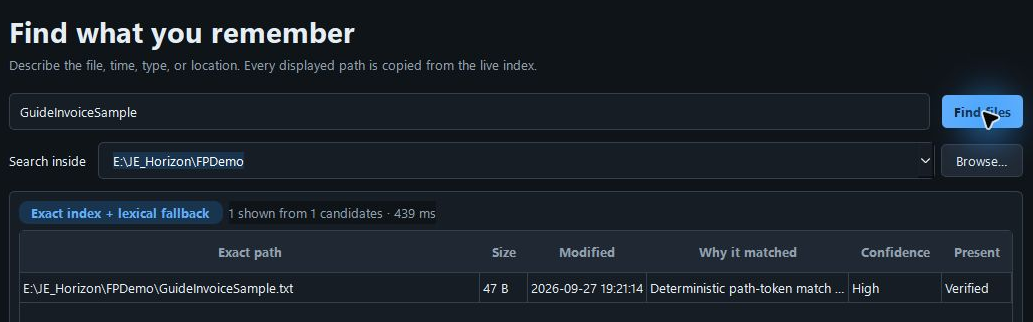
Reviewed product or Store capture. It shows the named control only; it does not prove that a later action completed.
| Control (label) | What it does | When you use it | Gotcha |
|---|---|---|---|
| Search input (text box) | Takes your plain-English description (name, keyword, type, size, date, or any mix) | Always | Pressing Enter runs the search too; the placeholder reads "Example: Python tests modified today" |
| "Find files" (button, blue) | Runs the search against the live index | After typing something | Empty query does nothing useful — FilePerch answers "Tell Windows File Intelligence what you are looking for". Button is disabled while a search is running |
| "Search inside" (dropdown + "Browse…") | Limits the search to one or more folders or drives | When you know roughly where the file is | The default is all indexed drives; several roots can be separated with ;. The dropdown lists drive roots, your user folders, and known manifest directories; typing gives live folder autocomplete |
| "Browse…" (button) | Opens the Windows folder picker and fills "Search inside" | To pick a folder visually | Part of the "Search inside" control row |
| Mode badge (pill, top of results) | Shows which engine answered: "Index ready" before a search; after it, "Exact index + lexical fallback" (or "Semantic + exact index" on builds that ship semantic ranking) | To check where results came from | The Store build ships lexical ranking; "Semantic…" appears only on builds with the optional model |
| Search summary (text, next to the badge) | Shows "No search yet" or e.g. "16 shown from 18 candidates · 8547 ms" | To see how many matches were found | The counts come from the index, not from the live drive |
| Results table | Columns: Exact path, Size, Modified, Why it matched, Confidence, Present — one row per match, single-row selection | To review where your file is | The Present column reads Verified (checked live on the drive) or Index only (came from a snapshot — reconnect the drive or refresh before trusting it). Rows with paths inside protected system areas are filtered out before you see them |
| "Open file" (button) | Opens the selected file in its default Windows app | After selecting a result | Executables/scripts trigger a confirmation dialog first (SHOT 3). If the file no longer exists, a plain error message with a recovery step is shown |
| "Show in Explorer" (button) | Opens Windows Explorer with the file highlighted | To see the file in its folder | Only enabled when a result is selected |
| Error panel (appears in the panel) | Plain-English error card: what happened, "What to do:", and technical detail | When a search or open fails | Written to be actionable — read the "What to do" line first |
Next action. The button that matters here is "🔴 Find files": type what you remember, click it, and the obvious next step is opening a result (click it, then "Open file"). If the drive's index is empty or Everything is not running, results may be empty — check the Diagnostics tab (section 5.9) to see which search engine is live.
Gotchas for this screen.
- Results come from the index, and indexes can lag small recent changes: a file you created seconds ago may not appear until the index refreshes, and a file deleted after indexing is still shown as Index only. The Present column and the Verified / Index only markers are there precisely so you never open a path on faith.
- Protected locations (C:\Windows, C:\Program Files, C:\ProgramData, $Recycle.Bin, "System Volume Information", and system files like pagefile.sys) are filtered out of results. That is a safety feature, not a search bug.
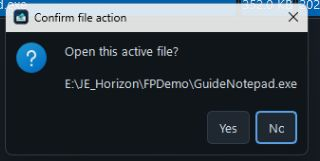
Reviewed product or Store capture. It shows the named control only; it does not prove that a later action completed.
5.2 Drives tab
Purpose. A read-only measurement of every volume Windows reports — capacity, free space, and percent used — so you know your storage estate before touching anything.
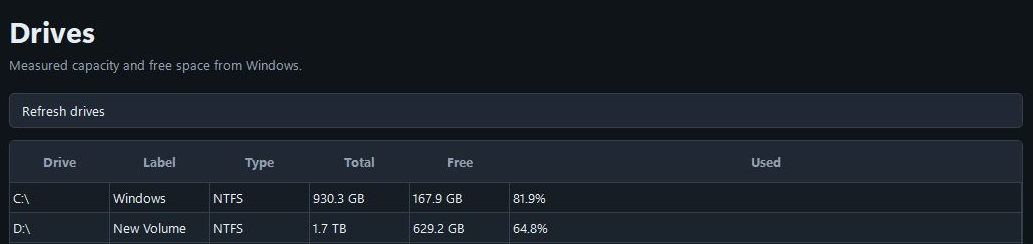
Reviewed product or Store capture. It shows the named control only; it does not prove that a later action completed.
| Control (label) | What it does | When you use it | Gotcha |
|---|---|---|---|
| "Refresh drives" (button) | Re-measures drive capacity and free space from Windows | On first visit and after plugging in a drive | The button only measures — it never writes anything |
| Drives table | Rows per volume: Drive, Label, Type, Total, Free, Used | To review space use | USB drives must be connected when you click Refresh to appear; a drive unplugged later still shows its last measurement |
5.3 Safe Reclaim tab
Purpose. The "what can I safely clean up?" screen. It scans a folder for stale build caches, temp files, and obsolete artifacts, audits every candidate against a 9-dimensional safety framework, and only then — with your explicit confirmation on a per-item basis — sends the selected item to the Windows Recycle Bin. It never hard-deletes.
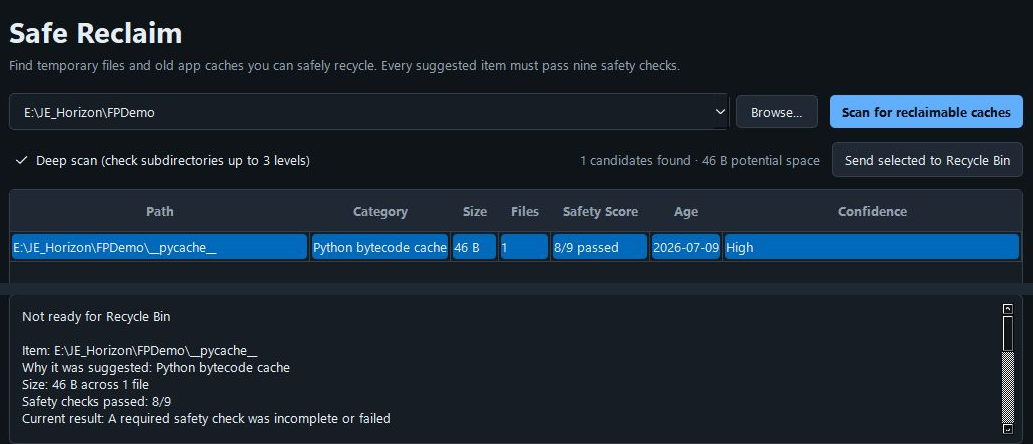
Reviewed product or Store capture. It shows the named control only; it does not prove that a later action completed.
| Control (label) | What it does | When you use it | Gotcha |
|---|---|---|---|
| Folder to scan (dropdown + "Browse…") | The folder to walk for candidates; empty means the Windows drive | Before scanning | The placeholder reads "Folder to scan, e.g. C:\myproject (empty uses the Windows drive)" |
| "Scan for reclaimable caches" (button, blue) | Runs the scan (up to 100 candidates) | After setting the folder | Big folders take time — the status bar shows "Scanning for reclaimable caches…"; you can use the Deep scan option to control reach |
| "Deep scan (check subdirectories up to 3 levels)" (checkbox) | Scans subdirectories up to 3 levels when ticked (ticked by default); unticked scans 1 level | To trade thoroughness for speed | Ticking deeper levels on a huge tree makes the scan slower |
| Summary line | "No scan yet", then "N candidates found · X potential space" | To see the payoff | Candidates are recommendations, not commands |
| Candidates table | Path, Category, Size, Files, Safety Score, Age, Confidence per candidate | To review what the scan flagged | Safety Score reads like 9/9 passed — one point per safety dimension. Confidence is High/Medium/Low. Rows are read-only; nothing is touched until you act |
| Safety audit pane | Shows the candidate's 9-dimensional audit: ✓/✗ per dimension (live process locks, code & config references, sealed/pinned provenance, resume semantics, manifest hash bindings, virtual-env dependencies, age-fallacy protection, duplicate/shard ambiguity, restore cost & USB thrashing) with details | To see why each candidate was flagged | The pane is empty until you select a row ("Select a candidate above to view its 9-dimensional safety audit.") |
| "Send selected to Recycle Bin" (button) | Moves the selected candidate to the Windows Recycle Bin (reversible) | Only after reviewing a row whose required safety checks passed | A selected row alone is insufficient. An eligible action asks "Move this item safely to the Windows Recycle Bin?" — default answer No. After Yes, the app confirms "Item moved to Recycle Bin" and the row disappears. It is not a hard delete: restore from the Recycle Bin any time. Recheck these controls in published 0.13.1.0. |
Next action. The two-step flow is: "🔴 Scan for reclaimable caches" first, then — on the row you reviewed — "🔴 Send selected to Recycle Bin" and Yes. The obvious next after the scan is reading the audit pane for the biggest candidate.
Gotchas for this screen.
- Everything here is reversible or not done at all: candidates are never deleted by FilePerch, and the only removal route is the Recycle Bin with an explicit Yes.
- Some candidates (e.g.
node_modules,dist,build,.venv-adjacent trees) are flagged because they are commonly referenced by code or tooling — that is the 9 dimensions doing their job. If a candidate's audit shows a FLAGGED dimension, treat it as "keep" unless you know better. - If the scan seems to find nothing, remember the scan is capped at 100 candidates and runs at depth 3 or 1: very deep junk below level 3 is not reported.
5.4 Duplicates tab
Purpose. Find true duplicates — files with byte-identical content — using SHA-256 hashing (size pre-filter first, then hashing only candidates of equal size). This tab is strictly read-only: it reports groups, it never deletes.
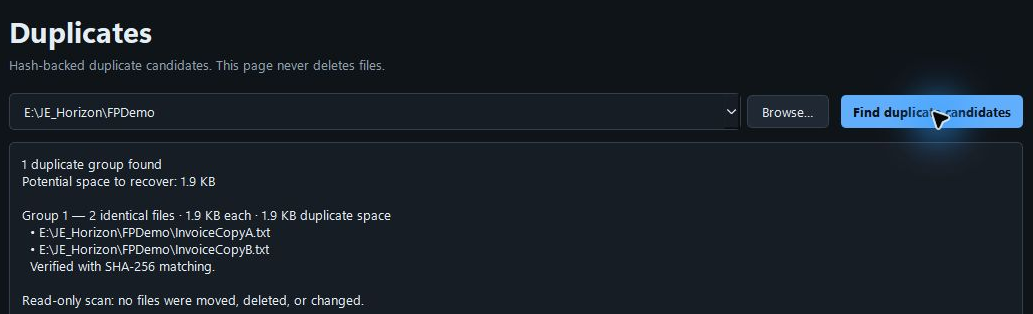
Reviewed product or Store capture. It shows the named control only; it does not prove that a later action completed.
| Control (label) | What it does | When you use it | Gotcha |
|---|---|---|---|
| Folder box (dropdown + "Browse…") | The folder to scan for duplicates | Before scanning | The subtitle says it plainly: "Hash-backed duplicate candidates. This page never deletes files." |
| "Find duplicate candidates" (button, blue) | Scans the folder and prints the duplicate-group JSON in the output pane | After choosing a folder | Only files of equal size are hashed (fast pre-filter), so the scan is quick, but "duplicate" here means identical bytes, not identical names |
| Output pane | Read-only JSON: duplicate groups with SHA-256, size, paths | To review groups | Groups show hashes like e3a3…c9f1 — two members with the same hash are byte-identical |
Gotchas for this screen.
- "Duplicate" means identical bytes, period. Two files with different names that share bytes appear as one group; two files with the same name but different bytes do not.
- The cleanup decision stays with you — this screen only proves which copies are identical. If you want a guided removal, the Assistant's duplicate flow can load the same groups into its results table (see section 5.8), and any removal is still your call.
5.5 Storage plan tab
Purpose. The "copy with confidence" screen. You choose a source folder and a destination folder; FilePerch validates a dry run of the job (what would be copied, how much space it needs), and only after a valid dry run enables "Run verified copy" — a receipt-backed copy job that computes SHA-256 hashes of source and destination and never deletes or moves the source.
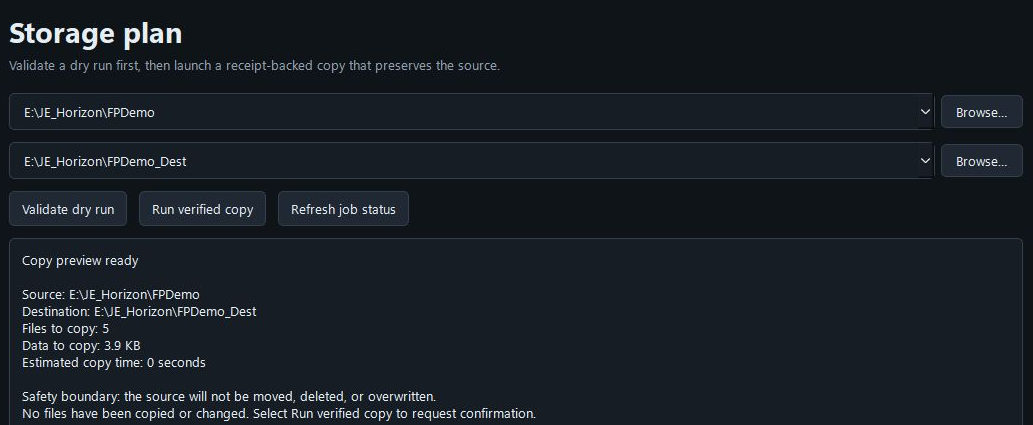
Reviewed product or Store capture. It shows the named control only; it does not prove that a later action completed.
| Control (label) | What it does | When you use it | Gotcha |
|---|---|---|---|
| Source folder (dropdown + "Browse…") | Where the files are now | Before any copy | Empty or unreachable roots are reported in the dry run, which reads the folder before anything else |
| Destination folder (dropdown + "Browse…") | Where the copy should go | Before any copy | The copy job checks destination capacity against the plan before running |
| "Validate dry run" (button) | Builds the plan, validates it, and prints validation + dry-run JSON (files and bytes that would be copied) | Every time the plan changes | Nothing is copied. If validation fails, its reason tells you what to fix (bad root, missing grant, capacity, …). Only a valid dry run enables the next button |
| "Run verified copy" (button) | Launches the receipt-backed copy worker (copies + verifies SHA-256) | Only after a valid dry run | Disabled until then — clicking it is your explicit approval; the confirmation dialog "Start verified copy" repeats the source, destination, file count and byte count with default answer No. The job runs as its own worker process; the status line says "Verified copy worker launched. Source retirement remains disabled." |
| "Refresh job status" (button) | Reads the running/finished job's phase progress (inventory source → copy → inventory destination → verify) with the durability receipt and checkpoint state | After the copy worker has launched | Disabled until the worker is launched. Say what you'll see: phase progress, verified phases, partial effects, and the receipt path |
| Output pane | Read-only; prints validation JSON, dry-run preview, launch receipt and job status | To review the whole job | The dry run and the launch are separate steps — the pane keeps scrollback so you can compare |
Next action. The sequence is "🔴 Validate dry run" → then "🔴 Run verified copy" → then "🔴 Refresh job status" until the phases show verified. The obvious next after a finished copy is checking the receipt (durable, and the product-level exported receipt is fully redacted of local paths) and then deciding yourself about the old files — FilePerch never retires them for you.
Gotchas for this screen.
- Archive ≠ delete. This screen's job is a copy-and-verify. The archive-before-delete workflow (build ZIP → compute SHA-256 → verify archive integrity → confirm deletion of loose originals) is supported by the verification halves here, but the deletion of the loose originals is always your manual act, done after the verified receipt exists — the app never deletes the source, and the status line keeps saying "Source retirement remains disabled."
5.6 Photos tab
Purpose. Read-only inspection of a media folder: it reads photo metadata and groups photos into time-based events. "Originals remain untouched" — literally, per the page subtitle.
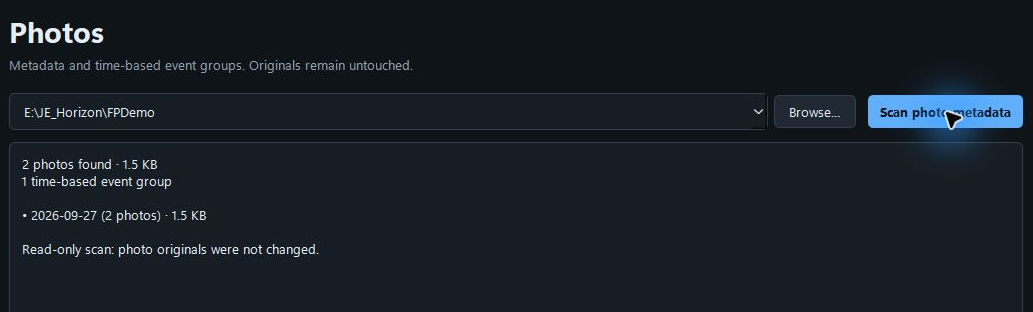
Reviewed product or Store capture. It shows the named control only; it does not prove that a later action completed.
| Control (label) | What it does | When you use it | Gotcha |
|---|---|---|---|
| Folder box (dropdown + "Browse…") | The media folder to inspect | Before scanning | This is inspection only — no file is modified |
| "Scan photo metadata" (button, blue) | Scans photo files and clusters them into events by time proximity | After choosing a folder | Output reports "Photos: N · Event groups: M" — the detail lists live in the Assistant's photo flows |
5.7 Hardware tab
Purpose. Read-only local hardware discovery: which drives Windows reports, their bus (NVMe/SATA/USB), media type (SSD/HDD), storage role, total and free space. "Know what the index sees" without admin risk.
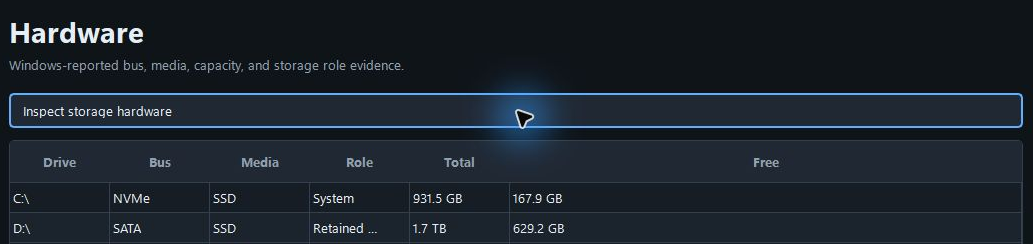
Reviewed product or Store capture. It shows the named control only; it does not prove that a later action completed.
| Control (label) | What it does | When you use it | Gotcha |
|---|---|---|---|
| "Inspect storage hardware" (button, blue) | Discovers bus, media, role, total and free per volume | To see physical drive types | Read-only; roles like "System"/"Backup" are Windows-reported labels |
| Hardware table | Drive, Bus, Media, Role, Total, Free per volume | To know what the index sees | USB drives must be connected at click time; unplugged drives do not appear |
5.8 Assistant tab
Purpose. The default home screen and the plain-English front door to the whole workbench. Type a goal in normal language ("find photo duplicates on C: that contain a dog", "clean caches on C:", "find invoices on C:"); FilePerch classifies it, executes against the local index, and returns results as interactive rows with open/show/copy and jump actions. Answer-style questions ("explain manifests", "what is my disk usage?") get grounded, deterministic answers built from your actual indexes — the assistant is architecturally forbidden from fabricating paths, and it is not an AI chatbot in the generative sense.
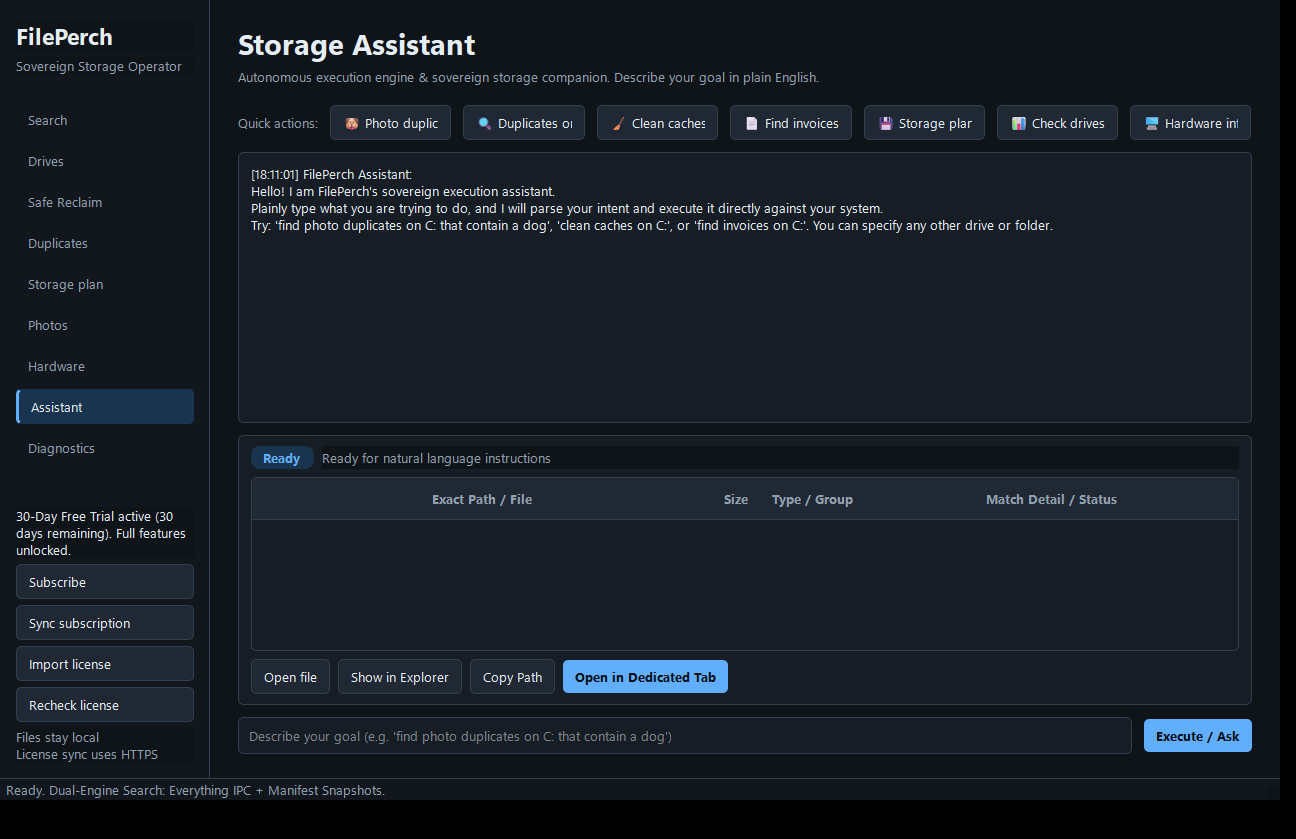
Reviewed product or Store capture. It shows the named control only; it does not prove that a later action completed.
| Control (label) | What it does | When you use it | Gotcha |
|---|---|---|---|
| Quick actions chips (buttons: "🐶 Photo duplicates (C:)", "🔍 Duplicates on C:", "🧹 Clean caches (C:)", "📄 Find invoices (C:)", "💾 Storage plan", "📊 Check drives", "🖥 Hardware info") | One-click starter requests on the Windows drive (or jump to the Storage plan tab for the 💾 chip) | To avoid typing | The drive letter in the labels matches your system drive (C: on most PCs — the placeholder text always names the system drive; on this workbook's machines that is C:) |
| Transcript (read-only text pane) | The conversation so far with timestamps: "You:" and "FilePerch Assistant:" entries | To follow what happened | Every transcript line is local; closing the app clears this session's transcript |
| Badge + status line (top of results panel) | "Ready" → "Executing…" → "Complete" (or "Error"), with a status sentence under it ("Answered question from storage context.", "Found 3 duplicate groups (1.2 GB wasted)", "No search results found", …) | To know what the assistant is doing | After an action, the status sentence summarizes the outcome — read it before acting on rows |
| Results table | Columns: Exact Path / File, Size, Type / Group, Match Detail / Status | To review/select results | Rows carry the real paths from the index; the Type/Group column tells you the kind (e.g. "Duplicate Group 1", "Photo Match", "Source Folder") |
| "Open file" (button) | Opens the selected result in its default app | After selecting a row | Executables/scripts trigger the confirmation dialog (SHOT 3) |
| "Show in Explorer" (button) | Reveals the selected path in Explorer (selects the file) | To see the file/location | For a folder row it opens the folder itself |
| "Copy Path" (button) | Copies the selected path to the clipboard and confirms in the status bar | To paste the path elsewhere | Requires a selected row |
| "Open in Dedicated Tab" (button, blue) | Jumps to the matching tab (Duplicates, Photos, Safe Reclaim, Search, Storage plan, Drives, Hardware) with the target pre-filled — its label changes to say exactly where it goes | After an action produced results | Disabled (greyed out) until a result set exists — it only appears after an action completes |
| Input box | Same as the transcript prompt: type any goal or question | Always | Pressing Enter submits; empty text is ignored |
| "Execute / Ask" (button, blue) | Sends the typed text to the assistant | After typing | Action requests run against the local index; non-action questions get deterministic answers from your drives/manifests |
Next action. The button to press on this screen is "🔴 Execute / Ask" (or any quick-action chip). The obvious next after results appear: select a row and use "🔴 Open file", "Show in Explorer", or — to keep working in the tool that produced the row — "🔴 Open in Dedicated Tab".
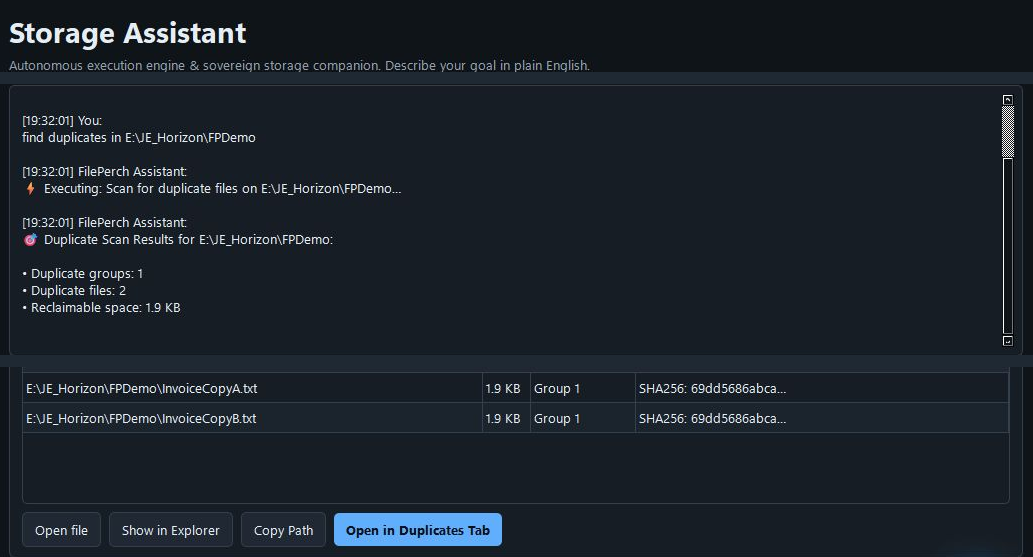
Reviewed product or Store capture. It shows the named control only; it does not prove that a later action completed.
Gotchas for this screen.
- Ask specific questions for grounded answers. The assistant answers from your live drives and manifests. If it says "I'm not sure I understand" (its UNKNOWN response), rephrase with the topic words it knows: drives, manifests, file search, archives, duplicates, cleanup, photos, hardware — or type
helpfor the topic list. - "Executing…" is a real local scan. Photo-duplicate and duplicate requests hash up to 10,000 candidate files, and cleanup requests scan up to 50 candidates; big folders take longer, and the badge shows "Executing…" until done. Nothing is changed during execution.
- Rows are evidence, not commands. If an index row looks stale, re-run the request or check the Search tab's Present column before acting on the result.
5.9 Diagnostics tab
Purpose. The honesty screen: what is active, what is degraded, and where file evidence comes from. It prints a JSON payload you can read like a checklist (status, search engine used, Everything path, how many drive manifests are active, semantic model state, network calls, destructive-actions policy, product version, license status, archive runtime, semantic prerequisites).
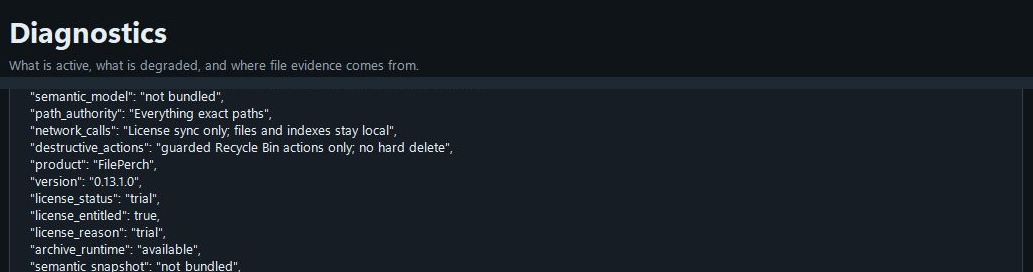
Reviewed product or Store capture. It shows the named control only; it does not prove that a later action completed.
| Control (label) | What it does | When you use it | Gotcha |
|---|---|---|---|
| Diagnostics payload (read-only text) | The JSON status of search engines, license, and runtime | When search returns nothing, or support asks for it | It is a snapshot at the moment you open the tab — refresh by switching tabs away and back |
Gotchas for this screen.
"status": "degraded"= no Everything CLI found and no drive manifests found. Search then has no engine behind it — see edge case 1 in section 7."semantic_model"showsnot bundledin packaged Store builds — that is by design, not an error. The Store build ships deterministic lexical ranking.
6. What's supported
Platform. Windows 10/11 x64 only — native desktop app (PySide6), no web views. Microsoft Store ID 9NQXV7HD0MMX is the official distribution channel (free download, trial on the listing, automatic updates).
Search. Filename and keyword search, with filters for type (python, image, photo, video, audio, document, spreadsheet, archive, model, code, config, log, database, exe, notebook — each maps to real extensions), size ("over 200 MB", "less than 1 GB", "around 500 MB"), date ("today", "this week", "this month", "2024-01-15"), and location ("in projects"). Exact-path, basename, and glob queries are supported as deterministic modes. Plain phrases in quotes are matched as a name pattern. Every result row shows size, modified time, why it matched, confidence, and a Present column with Verified / Index only.
Search engines. Dual-engine resilient search: Everything IPC (live candidate resolution; requires Everything 1.4 or 1.5 alpha) paired with continuous NTFS atomic manifest snapshots (on-disk .MANIFEST.paths.txt per drive). If Everything is paused or restarting, FilePerch falls back to the manifests — search never goes blind. Drives without Everything are indexed via the snapshots.
Semantic ranking. Optional offline reranking (BAAI/bge-small-en-v1.5, CPU-only, requires AVX2) is admission-gated; the Store package deliberately ships deterministic lexical ranking, which is always available.
Volumes. Local SSDs/HDDs, external USB drives, and network shares (NAS) are searchable from one workbench — as long as the volume is present and indexed.
Verification. SHA-256 byte-identical duplicate detection; SHA-256 integrity verification of every storage-copy job (source vs destination, from disk); durable, fully redacted integrity receipts; pre-flight dry runs with space calculations; archive-member safety inspection for zip/tar (per-member byte caps, total-size caps, compression-ratio zip-bomb guard, nesting caps, name-length caps, name-collision/symlink/hardlink/device/FIFO refusal, absolute-path traversal refusal, destination containment).
Safe actions. Open in the default viewer, Show in Explorer, Copy Path; confirmation before opening executables/scripts (extensions: .exe, .bat, .cmd, .ps1, .vbs, .msi, .lnk, .scr, .pif, .js, .wsf, .com, .hta, .cpl); protected-path filters that exclude C:\Windows, C:\Program Files, C:\Program Files (x86), C:\ProgramData, $Recycle.Bin, "System Volume Information" and system files, and refuse paths with dangerous characters or traversal; policy guards against accidental execution of binaries or exposure of credential stores while inspecting folders.
Cleanup. Review-before-reclaim with a 9-dimensional adversarial preservation framework; candidates flagged High/Medium/Low confidence; Recycle-Bin-only reclaim (never hard-deleted); zero automatic destructive actions — nothing moves without an explicit interactive confirmation.
Storage plans. Copy-only, receipt-backed jobs: inventory source → copy → inventory destination → SHA-256 verify, with dry runs, capacity checks, durable receipts, and the source strictly preserved ("Source retirement remains disabled").
Assistant. Plain-English requests → interactive result rows; deterministic, zero-hallucination design (paths come only from the index; the model — where present — can only reorder candidates); directory autocomplete powered by live NTFS trees; plain-English errors with cause, recovery step, and technical detail.
Photos & hardware. Read-only photo metadata/event grouping and read-only hardware topology discovery.
Per-plan feature coverage. The 30-day trial covers the full feature set (all tabs, search, verification, plans). The subscription continues the same features; there is no paid-only tab in the shipped build. On expiry, new paid work is blocked but existing results, open views, and in-flight copies remain available; importing a renewal restores operation.
Version-sensitive controls. The published Store submission is 0.13.1.0, while older screenshots describe different license controls. Capture the 0.13.1.0 license screen and confirm purchase terms before relying on any subscription or semantic-mode instruction here.
7. Edge cases & gotchas
-
Symptom: search returns nothing, and Diagnostics says
"status": "degraded". Why: no Everything CLI (es.exe) was found and no drive manifests are active — FilePerch has no index behind the search. What to do: install and start Everything (free, from voidtools.com — FilePerch is designed to sit on top of it), or make sure your drives have current manifest snapshots (.MANIFEST.paths.txtat the drive root). Reopen the Diagnostics tab to confirm the engines are back. -
Symptom: a drive that should be searchable is missing from results. Why: the drive is not connected, not indexed yet, or Everything is paused. What to do: connect the drive, open the Drives tab and click "Refresh drives", then re-run the search. Results from before the drive came back are marked "Index only" — re-query after the drive is present, and trust the "Verified" marker.
-
Symptom: "I know the file is there, but FilePerch can't find it." Why: index lag (a very new or very recently moved file), a protected path (results inside C:\Windows, Program Files, ProgramData, $Recycle.Bin, or "System Volume Information" are filtered out on purpose), or a stale manifest snapshot. What to do: check the Diagnostics tab for the active engine; give Everything a moment to catch up or confirm the manifest is fresh; re-search inside a narrower "Search inside" root. If everything is healthy and the file is still missing, double-check the file is on a local drive and not only in the cloud (next entry).
-
Symptom: results marked "Index only" — the file may not still exist. Why: the hit came from a manifest snapshot, not a live check. What to do: confirm the drive is connected and the path still exists before acting on the row; FilePerch does not fabricate paths, but snapshots can describe files that have since moved or been deleted. The "Present" column exists exactly so you never open a path on faith.
-
Symptom: cloud-only OneDrive files (Files On-Demand placeholders) behave oddly — searchable by name, maybe not openable, marked "Index only". Why: online-only placeholder files are placeholders on disk; Windows itself indexes them by name only, and opening one triggers a download ("hydration"). What to do: treat the row as a pointer, not a guarantee — make the file available offline (OneDrive "Always keep on this device") before verifying or copying it. FilePerch never triggers hydration on its own during a read-only scan. This is exactly where the "Verified vs Index only" marker matters most.
-
Symptom: permission-denied files or folders. Why: some folders (system areas, other users' profiles, encrypted containers) are unreadable to the app or excluded by policy — Windows simply refuses. What to do: this is expected and safe; FilePerch skips protected areas outright and reports plain-English errors with a "What to do" step for anything else. If you genuinely need to search inside an administrative folder, run the operation from an account that has access — and be aware the policy guards still protect the system trees listed in section 6.
-
Symptom: "Reclaim" feels like it won't do anything by itself. Why: by design — review-before-reclaim means nothing moves without your review plus an explicit Yes on "Send selected to Recycle Bin". That is the product's core promise (recycle-bin-only, never hard-deleted). What to do: scan, select a candidate, read its 9-dimensional safety audit, and only then confirm. If you ever send something to the Recycle Bin by mistake, restore it from the Windows Recycle Bin — it is fully reversible.
-
Symptom: I thought "Archive" meant the app would delete the originals after copying. Why: the Storage plan tab is copy-and-verify only; the status line explicitly says "Source retirement remains disabled". The archive-before-delete workflow is: build the archive/copy → verify SHA-256 → then you delete the loose originals (in Explorer, into the Recycle Bin — your act, after the verified receipt exists). What to do: treat the verified receipt as the go/no-go evidence; only then clean up the originals with your own tools.
-
Symptom: a huge directory takes a long time (or a scan seems to stop early). Why: scans have real caps — Safe Reclaim reports up to 100 candidates at depth 3 (or 1) and the Assistant's cleanup flow asks for up to 50; duplicate and photo scans hash up to 10,000 candidate files; search results show the top 50 of up to 300 candidates by default. What to do: this is bounded-memory behavior on purpose, so the app stays responsive on multi-terabyte drives. For deeper coverage, run the same scan from a narrower folder, turn off "Deep scan" for speed, or accept the cap. The summary line always tells you what was counted.
-
Symptom: "Run verified copy" is greyed out. Why: it only enables after a valid dry run ("Validate dry run" must print a valid plan first). What to do: click "Validate dry run", read the validation (invalid roots, unprovable paths, capacity — the JSON prints the reason), fix it, re-validate, and only then is "Run verified copy" available. "Send selected to Recycle Bin" needs a selected row whose required safety checks passed; "Open in Dedicated Tab" needs a completed assistant result.
-
Symptom: the app is offline and the status bar says "Subscription sync is unavailable." Why: everything else in FilePerch is 100% local and offline-capable — search, verification, scans, copy jobs all run with the network disabled. Only the optional subscription sync needs the network ("Files stay local / License sync uses HTTPS"), and its failure does not block anything already available. What to do: ignore the message when offline; sync again when you have a connection. Your existing signed access stays valid until its paid date because the license validates offline (Ed25519) against machine identity.
-
Symptom: "I don't see the button the guide mentions" (e.g. sidebar license buttons). Why: the installed build may differ from an older screenshot or guide draft. What to do: check your app version, update from Microsoft Store, and use the controls shown in your version. If the license controls still differ, send support the version and a screenshot with private details hidden.
-
Symptom: results look worse than expected (order, relevance). Why: the Store build ranks deterministically (lexical), not semantically — "Exact index + lexical fallback" is the expected badge, and no AI reordering is bundled. What to do: narrow the query (type, size, date, location — see section 6) rather than hoping for smarter ordering; exact-path/basename/glob queries are the deterministic power modes.
-
Symptom: I closed the app mid-copy. Why: the verified-copy job runs as its own worker process with durable checkpoints and receipts. What to do: reopen FilePerch, go to the Storage plan tab, and click "Refresh job status" to read the job's phase progress and receipt. The product keeps in-flight copies available even after a license expiry.
8. Troubleshooting
The app won't install or open. 1. Confirm the Store listing loads: https://apps.microsoft.com/detail/9NQXV7HD0MMX — if it does not, wait and retry (Store outages are outside the app). 2. Make sure you are on Windows 10/11 x64 (the app is 64-bit only). 3. Run Windows Update, restart, then install again from the Store. Store apps update automatically, so check the Store's "Downloads" page if a version is pending. 4. If a fresh install still will not launch, uninstall, restart, and reinstall from the listing — then contact [email protected] with the exact symptom.
The activation dialog appears even though I took the Store trial.
1. Read the dialog's status line ("No valid license is installed on this device." means no local license file).
2. The Store trial is attached to the Store listing — close the dialog, relaunch the app, and let the Store deliver the trial state; if the dialog reappears, wait a few minutes and relaunch once more.
3. If you purchased a license directly from the publisher, click "Save activation request" (saves activation.wfirequest), send that file per the publisher's instructions, then click "Import license" and pick the returned .wfilicense/.json file.
4. If it still will not activate, include the device code and the dialog's status text in an email to [email protected] (staff can verify the license signature remotely; the code itself contains no file names or personal data).
A button is missing or greyed out. - Greyed-out is a gate, not a bug: "Run verified copy" needs a valid dry run; "Send selected to Recycle Bin" needs a selected row and passing safety checks; "Open in Dedicated Tab" needs a completed assistant result; "Refresh job status" needs a launched worker. Do the previous step, then re-check. - If a button is missing, compare the installed version with the current Store listing and use the controls on your screen; see edge case 12.
Search returns nothing or wrong results.
1. Check the Diagnostics tab: status says "ready" or "degraded"; everything_cli shows the Everything path or "NOT_FOUND"; manifest_snapshots counts active drive manifests.
2. If degraded, install/start Everything, or confirm fresh manifest snapshots exist on the drive roots.
3. Re-run the search with a narrower "Search inside" root; remember protected system paths are excluded on purpose.
4. If a hit is "Index only", reconnect the drive and re-query before acting.
A scan or copy seems stuck. 1. Read the status bar — scans print progress ("Scanning for reclaimable caches…", "Searching the live index…") and complete with a summary line ("Reclaim scan complete: N items identified."). 2. Huge folders legitimately take minutes (bounded caps keep it responsive — edge case 9). Give it a little longer before assuming a hang. 3. For a verified copy, use "Refresh job status" rather than restarting the app — the worker runs separately with durable receipts.
Payment, trial, or subscription questions. - Trial and pricing terms come from the current purchase screen. The published 0.13.1.0 activation and checkout path needs an end-to-end check before this guide gives license-specific steps. - If "Subscribe" (candidate builds) or checkout errors with "Cannot pair this device for checkout", the device could not be paired for the Stripe checkout — retry later and confirm your connection; the license itself stays validated offline. - On expiry the app blocks new work and shows the read-only status line; importing a renewal license restores operation, and existing results and in-flight copies remain available.
The app won't let me open a file it found. - Executables/scripts require the "Confirm file action" Yes (SHOT 3) — that is the policy guard working. - If the file no longer exists, FilePerch surfaces a plain missing-file error instead of silently doing nothing — reconnect the drive or re-verify the path. - Files inside protected roots are never opened through the app by design.
You still cannot find it. - Anything else: email [email protected] with (a) the FilePerch version from the Diagnostics tab, (b) the exact button/screen and what you clicked, (c) any error text from the plain-English error panel or the status bar, and (d) which of the steps above you tried.
9. FAQ
"I don't see the button." Check the sidebar first: everything lives on one of the nine tabs (Search, Drives, Safe Reclaim, Duplicates, Storage plan, Photos, Hardware, Assistant, Diagnostics). Buttons that are only enabled under conditions (Run verified copy, Send selected to Recycle Bin, Open in Dedicated Tab) look greyed out until their precondition is met — edge case 10. The exact license controls vary by installed package; compare the installed version with current Store release notes before following older screenshot instructions.
"Can I undo that?" Yes for reclaim: "Send selected to Recycle Bin" is the only removal action and it is fully reversible from the Windows Recycle Bin. Copies never alter the source, so a copy is undoable by deleting the destination copies. There is no "undo" for a finished scan — scans change nothing.
"Where is my data saved?" All on your device: the index comes from Everything's local index or local manifest snapshots (.MANIFEST.paths.txt at drive roots), receipts and license state live in local storage, and the settings/license vault uses Windows' current-user DPAPI protection. Nothing is saved to a JE Horizon server by the app; website analytics and checkout are separate web services with their own policies.
"Will this touch my files?" Not without you. Scans are read-only, duplicate and photo inspection is read-only, copy plans preserve every original in place until you review the verified result, and the only removal path is a per-item, confirm-then-Recycle-Bin action. Executables need an extra confirmation before opening.
"Do I need to pay?" The published offer describes a 30-day trial, then $3.99/month or $29.99/year. Check the current Store and checkout terms before buying; license choices shown by a locally installed build differ from the older pricing copy. Existing results and in-flight copies remain available if paid access expires.
"Can I use it offline?" Yes. Search, verification, cleanup review, and copy plans run 100% locally with no network. Only subscription sync uses HTTPS, and it fails gracefully offline (edge case 11).
"What happens if I close it mid-task?" In-flight verified copies are separate worker processes with durable checkpoints and receipts — reopen the app and use "Refresh job status" on the Storage plan tab. A closed scan just stops; start it again.
"Do I need Everything installed?" Not strictly. Everything 1.4/1.5 alpha gives the fastest live IPC search; without it, drives are covered by manifest snapshots (see section 5.9, and edge case 1 when both are absent). The app is designed to complement Everything, not fight it.
"Is AI going to invent file paths?" No. The assistant is deterministic and grounded: paths come from the index or manifests only, and the note "no paths are ever fabricated" is the app's design contract (edge-less by construction — see section 5.8 gotchas). The optional offline ranker can only reorder candidates the index already supplied, and it is not bundled in the Store build anyway.
"Does FilePerch encrypt my files?" No — and nothing in the app claims it does. It verifies integrity with SHA-256. The AES-256-GCM sealing on packaged releases protects the app's own code at rest, and the DPAPI vault protects app settings/license state. Neither makes "your files are encrypted" a true statement.
10. Privacy & data
Verbatim privacy contract from the pricing page: "Zero cloud inference, zero external API keys, and zero telemetry" — and from the source README, "No application telemetry or model network calls."
- 100% local. File search, metadata indexing, semantic ranking (where present), and storage analytics run strictly on the local device. Your file inventory never leaves the machine and is never turned into a product.
- Zero network traffic. The app makes no telemetry calls and no model calls over the network. The only HTTPS use is license sync when you subscribe or refresh a subscription ("Files stay local / License sync uses HTTPS" on candidate builds; the shipped build prints
"network_calls": "License sync only; files and indexes stay local"in Diagnostics). - Offline license. Licenses are "validated 100% offline against machine identity" with cryptographic Ed25519 signatures (a modern digital signature scheme checked locally) and "No background phoning home". Subscription licenses are bound to a privacy-preserving device code — per-device activation without beaconing personal identifiers.
- Settings vault. Trial state, license state, and settings persist in a Windows current-user DPAPI-protected vault (DPAPI = Windows' built-in per-user data protection). This is settings protection, not file encryption.
- Receipts are redacted. Completed copy jobs leave durable receipts; the product-level exported receipt is fully redacted of local paths.
- What is NOT covered by the app's privacy promise: the separate website (https://jehorizon.com/ and the checkout flow) has its own analytics and checkout policies; the Microsoft Store manages install/trial/billing data per Microsoft's policies. On this site's landing page those are explicitly separate.
11. Getting help
- Support email: [email protected]
- Support page: https://jehorizon.com/support/
- Help hub for this app: https://jehorizon.com/help/#fileperch
- Store listing (version, requirements, pricing): https://apps.microsoft.com/detail/9NQXV7HD0MMX
- Landing page: https://fileperch.jehorizon.com/
When you write in, include: (1) the FilePerch version from the Diagnostics tab, (2) the button or screen involved and what you clicked, (3) any error text exactly as shown (the plain-English error panel or the status bar), (4) whether you are on the current Store build, and (5) what you already tried from this guide. Do not send a license key, device request, or private file path through ordinary email or text unless staff provide an approved secure verification flow.
Quick reference
This guide covers the reviewed public workflows for FilePerch. Controls can vary by installed version. The complete illustrated source guide appears below after current release limits. Confirm dated plan, version, and checkout details in the current app.
1. Install and open
Open the Microsoft Store listing and follow the install action shown for your account. Launch the app and check the controls visible in your installed version.
Product details · Product Help
2. Common tasks
Find and review a file
- Open FilePerch and search for a filename or keyword.
- Inspect the matching path and confirm the file is the one you want before opening or changing it.
Review storage safely
- Open the storage view to see where space is used.
- Inspect each cleanup candidate and its path before choosing any reclaim action.
3. Current release limits
The published package is 0.13.1.0. Older local screenshots and activation instructions may differ; follow the controls in your installed version and contact support before a purchase you cannot verify.
- Search results and cleanup suggestions require review; FilePerch does not delete files merely because they appear as candidates.
4. When something goes wrong
A file is not in search results
- Check the search term and the expected drive or path.
- Check the indexing or manifest status and confirm the drive is connected.
5. Get help
Record your installed app version, the control you used, and the exact result. Do not include a password, license key, customer record, or private file.