Follow the steps and red lettered screenshots below. Some controls vary by installed version; confirm a send, purchase, license decision, or saved record in your app.
How to Use Line (ContractorDesk) — the complete guide
Line (ContractorDesk) · JE Horizon · updated 2026-09-27
Help center · Product page · Microsoft Store
1. What this app is
Line is the always-on trade-contractor desk: customers, jobs, estimates and quotes, invoices, a price book, a schedule, a leads inbox, teammates, and settings, all in one web app at cmd.jehorizon.com. It also ships as a packaged Windows desktop app from the Microsoft Store under the name ContractorDesk (Store ID 9NZQV4GSJTJH).
It is built for independent US trade contractors — HVAC, plumbing, electrical, roofing, landscaping, and 15+ blue-collar trades — who run their own books. The desk keeps the paperwork in one place: a call or web-form inquiry becomes a lead, the lead rides into a scheduled visit, a quote, a job, and finally an invoice. Everything is tied to a job or a customer record, so nothing is re-typed.
Line is a workspace. It does not generate leads or promise booked work. The site FAQ states it verbatim: "Line is a workspace for managing your own customer and job information. It does not promise new leads or booked work." You bring your own customers; the desk organizes them.
What this app is NOT:
- Not a lead generator. Line never sells or promises leads. You bring your own (your own website, referrals, walk-ins, phone calls).
- Not a fully local desktop database. The Windows app shells the live online desk; your data lives in Line's US-hosted service and you sign in over the internet. Data is not stored only on your PC.
- Not a text-message service yet (today). Missed-call SMS text-back, customer two-way SMS, and the AI voice receptionist are being rolled out. Do not rely on them until current status says they are live — the "Not yet available / known limits" section (section 7) explains exactly what is pending.
- Not a payment processor. Line never holds your customer's money. Payment collection is planned through your own payment provider's links; online payment links are listed on Line's own Invoices page as "(later)". You collect payment the way you do today (check, card at the door, your own payment link).
- Not a replacement for emergency services. A fire, gas leak, or immediate danger means you call emergency services first, not Line.
2. Before you start — what you need
| Need | Requirement |
|---|---|
| A computer | Any PC, Mac, or tablet with a modern web browser (Chrome, Edge, Safari, Firefox). The Windows desktop app needs a Windows 10 or Windows 11 x64 PC with the WebView2 runtime (ships with Windows 10/11; the app was built and tested against WebView2 Runtime 153). |
| A phone | Optional for sign-in security: Line can text you a one-time login code (SMS two-factor). A number is strongly recommended. |
| An email address | Required to sign up. You can also sign in with a Google account. |
| Internet connection | Required. The desk runs online and your records live in the cloud; there is no meaningful offline mode in the web build. |
| No credit card for the free plan | The Free Core Desk is $0 forever and does not ask for a card. |
| Version | Partner Center identifies the published ContractorDesk package as 1.0.1.0 on 2026-09-27. In the Microsoft Store search for ContractorDesk (Store ID 9NZQV4GSJTJH) and keep Store app updates on. The hosted desk updates separately, so control labels may differ from older screenshots. |
Plans and pricing from Line's published catalog, 2026-09-27. The published plan names and prices below do not mean every listed feature is live on your account. Customer SMS, missed-call text-back, and AI voice are still in the carrier rollout. Seat and quota numbers differ across published pages; read the current checkout terms before subscribing.
| Plan | Price | What it includes (published) |
|---|---|---|
| Free Core Desk | $0 forever, no card | Customer CRM, jobs, Kanban dispatch board, estimates, price book, Stripe digital invoicing (draft + PDF + email delivery). Instant sign-up, no setup fee. |
| Alerts | $9/mo, no trial | Contractor-only lead alerts by text/email when a lead hits the desk. No customer texting, no AI, no 10DLC setup fee (10DLC = the carrier identity registration needed to text customers). We do not sell leads. |
| Text-Back | $29/mo | Listed by Line, but customer texting remains in progress pending carrier approval. The live landing does not confirm a setup fee or trial terms. |
| Starter | $49/mo | Listed by Line. Its landing page says voice handling needs production verification; do not assume SMS or voice features are active. |
| Pro | $79/mo | Listed by Line. The live landing does not confirm detailed quotas, add-ons, promo codes, setup fees, or trial eligibility. Check the current checkout terms before subscribing. |
The current public Line page lists the tier names and monthly prices above. It does not verify the detailed quotas or billing terms described in older materials. This guide does not verify a TCR/10DLC setup fee, add-on prices, promotional codes, or paid-history trial rules; do not rely on those older claims or enter payment details based on them. Review the current checkout terms before purchase.
3. Install & first launch
Line runs in two places: the web desk at https://cmd.jehorizon.com/ (works on any device, and is the official mobile fallback) and the Windows desktop app.
Install the Windows app from the Microsoft Store:
- Go to the Store page:
https://apps.microsoft.com/detail/9NZQV4GSJTJH— or open the Microsoft Store app on your PC and search for ContractorDesk. - On the website, click "Download" to open the Microsoft Store install flow. In the Store app, choose "Get" or "Install" if prompted.
- Wait for the download to finish. The app appears in your Start menu as ContractorDesk.
- Open it. You will see Line's branded shell, then the live desk. The app asks you to sign in (see SHOT 3 below).
- The Windows app is a WebView2 shell around the live website: same account, same data, same login. It shows friendly loading, offline, error, and "not signed in" states instead of a broken page, and it guards which links open outside. (Master-doc caveat: the Line site once said "the Microsoft Store listing is coming soon" while a live Store page titled "ContractorDesk" resolves at this ID — Store publication status is operator-confirm. If the Store page does not load for you, use the web desk; it is functionally identical.)
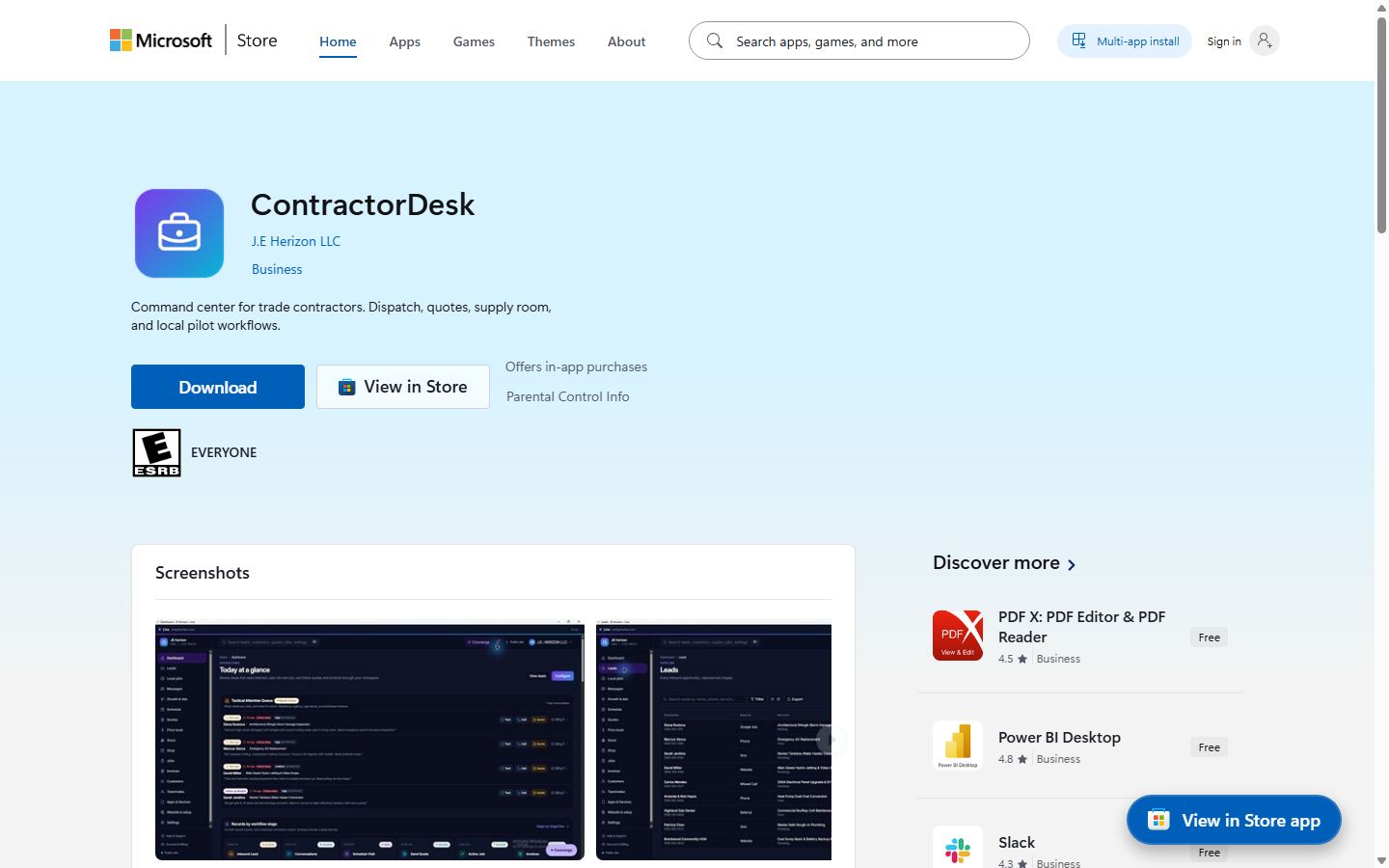
Reviewed product or Store capture. It shows the named control only; it does not prove that a later action completed.
First launch — what you see: the desktop app opens with Line's branded window. If you are not signed in, it shows the sign-in screen. If the network is down, it shows an offline state instead of a blank page. Your sign-in session lives in the app's own isolated web profile, so you usually stay signed in between launches.
No simpler install needed for the web version: just open https://cmd.jehorizon.com/ in your browser. You can also "install" the web desk as a PWA (Progressive Web App — an app-like shortcut with its own window and notifications) — instructions are in section 5.24.
4. Quick start — your first customer job in 10 minutes
This is the shortest path from signing up to a booked, quoted job. It follows the desk's own "Lead-to-Invoice" pipeline order: Lead → Schedule → Quote → Job → Invoice.
Release check required before publishing this walkthrough: on 2026-09-27,
the live /signup and /login pages initially stayed on loading placeholders;
after the site repair, both rendered their forms in a controlled browser check.
Submitting a new account and completing the first-run sequence have not passed
a live end-to-end test. Do not promise a ten-minute setup until those steps do.
- Choose your plan before creating an account. Open
https://cmd.jehorizon.com/signup. The observed page initially selected Starter and displayed $78.99 Due Today (plan plus 10DLC setup). To use the free plan, explicitly select 🔴 Free Desk in the plan selector and verify the page shows $0 due today before continuing. Then complete the form and consent boxes shown. A login code or Google sign-in path may be offered, but successful account creation and email delivery still need an end-to-end test. - Finish the onboarding wizard. You land on "Business setup" (sidebar item "Website & setup"). Set your shop name and pick your trade (for example HVAC) with the "Update trade" button. Then click "Complete Setup & Open My Contractor Desk →" at the bottom of the wizard.
- Add your first lead. From the left sidebar open Leads, then click the "New lead" button (top right, purple). Type the customer's name, phone, the service they need, and a message. Click "Create lead". The lead now sits in the inbox.
- Open the lead. Click the lead row. Read the summary, then click "Next: Draft Quote →" (top right).
- Draft the quote. The new-quote screen opens with the lead already linked. Type an estimated total and click "Create Quote & Customize →".
- Polish the quote. In the quote builder you see a paper-style PDF preview. Click "Customize & Edit" to adjust line items, tax, and terms; click "Save Changes".
- Send it. Click "Email to Client" (the customer email must be filled in under "Customize & Edit" first). SMS delivery of quotes is part of the pending SMS rollout — see section 7. Confirm email delivery to a controlled test recipient before relying on this step.
- Convert to a job, then invoice. After the customer approves, click "Next: Convert to Job →", then from the job detail click "Next: Create Invoice →". Fill the invoice total and click "Create Invoice & Open Editor →". When the work is done and paid, click "Mark as Paid" on the invoice.
That is the whole loop: lead → schedule → quote → job → invoice. Nothing else is required to run the desk.
5. The tour — every screen, every button
5.0 Navigating the desk (the shell)
Every screen shares the same frame. On the left is the sidebar, on top is the top bar, and the middle is the working area (the "workspace").
Sidebar (left). This is the desk's index. Items in the current build: Dashboard, Leads, Local pilot, Messages, Growth & Ads, Schedule, Quotes, Price book, Stock, Shop, Jobs, Invoices, Customers, Teammates, Apps & Devices, Website & setup, Settings. At the bottom: Help & Support, Account & Billing, and Public site (a green dot means the public site is up).
Top bar (right side). From left to right on a desktop window: the "Quick search…" box (finds leads, customers, jobs, quotes, invoices across the desk), "Back to Dashboard", the "Concierge" button (opens the Trade Concierge & Snap assistant panel), the notification bell, "Public site" (opens line.jehorizon.com), and your account menu (avatar + your name — opens Account, Apps & Devices, Billing & Subscription, Settings, Help & Support, Docs, and "Sign out").
Mobile: on a phone the sidebar collapses into a "Menu" button, and a bottom thumb bar shows the four most-used screens (Stock, Shop, Jobs, Leads). See section 5.29.
| Control (label) | What it does | When you use it | Gotcha |
|---|---|---|---|
| Sidebar item (e.g. "Leads", "Jobs") | Opens that screen of the desk | To move around the app | Teammate (member) accounts see a limited menu — a crew member mainly sees Jobs and Schedule with their own assignments |
| "Quick search…" (top center) | Searches the whole desk | To jump to a customer, lead, job, quote, or invoice | Hidden for member accounts; it searches records in your business only |
| "Concierge" (top right, violet) | Opens the Trade Concierge & Snap panel (in-app guidance + photo snap) | When you want help inside the app | Some Concierge answers rely on AI features that are plan-gated; a locked control tells you which plan unlocks it |
| Notification bell | Shows in-app alerts for lead / quote / invoice events | To see what changed while you were away | Email/SMS delivery of alerts depends on channel status (section 7) |
| "Public site" | Opens line.jehorizon.com in a new tab |
To view the marketing site | The public site does not log you in; sign in happens on the desk only |
| Account menu (avatar) | Opens Account, Apps & Devices, Billing, Settings, Help, Docs, Sign out | To reach account-level screens fast | Only the billing admin sees Account and Billing entries; teammates just get Help and Sign out |
| "Sign out" (inside account menu) | Ends your session on this device | When you leave a shared machine | The Windows app keeps the session in its own profile, so closing the window does NOT sign you out |
| "Menu" (mobile) | Opens the sidebar on a phone | Any time on mobile | On a phone, the bottom thumb bar replaces most sidebar taps |
The pipeline stepper. On lead, schedule, quote, job, and invoice screens you see the five-stage "Lead to Invoice" progress bar: 1. Lead → 2. Schedule → 3. Quote → 4. Job → 5. Invoice. Completed stages show a green check; the current stage is highlighted; the rest are grey. Click a completed stage to jump back to that record. This stepper is your compass — whatever stage you are on, it shows where the record is in the loop.
5.1 Sign up, first login, and the onboarding wizard
Sign up at https://cmd.jehorizon.com/signup. The page offers the plan switcher (Free Core Desk $0, Alerts $9, Text-Back $29, Starter $49, Pro $79 — plus add-ons and a promo-code field). Paid customer-texting plans require checking the consent boxes shown (the "Program, MSA, 10DLC, pay" step with six consent checkboxes, including 10DLC disclosure and the MSA agreement). You will also enter your legal business name, shop name, published customer phone, owner mobile, email, and optionally your website.
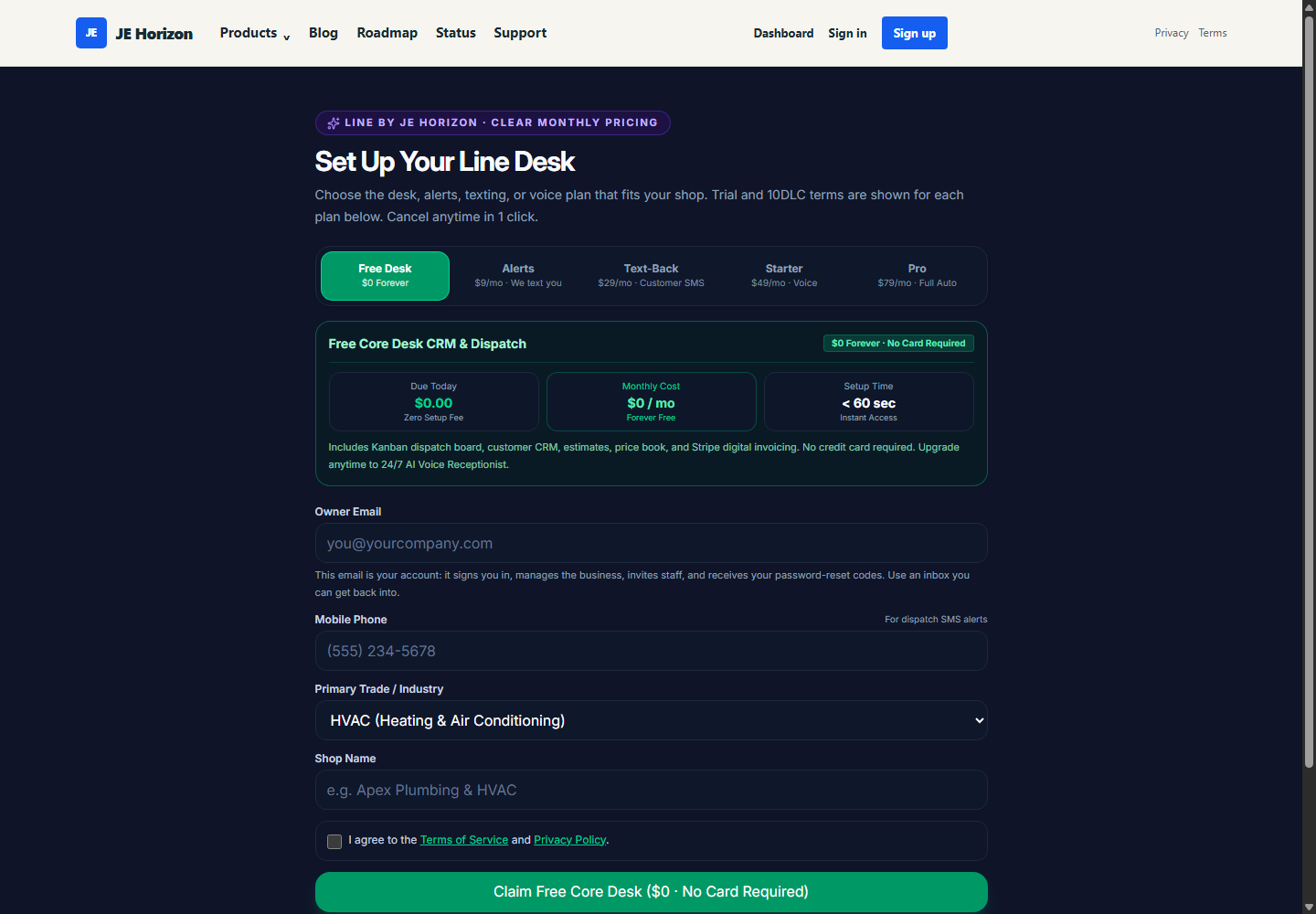
Reviewed product or Store capture. It shows the named control only; it does not prove that a later action completed.
First login. After sign-up you are asked to sign in. Line uses email magic-link style codes and Google sign-in, plus an optional SMS two-factor step (2FA = a second code texted to your phone). You cannot skip the security step protecting your business data.
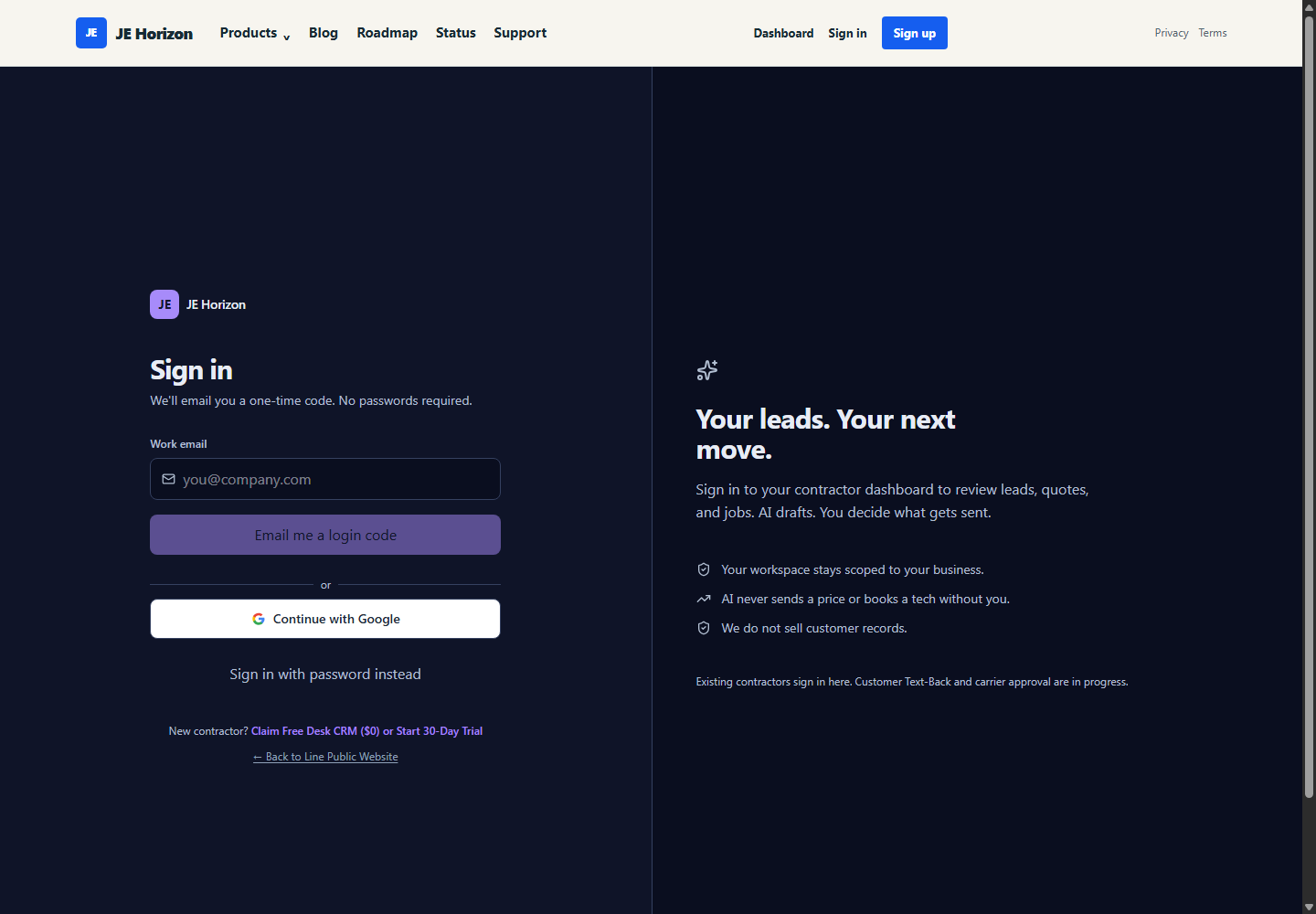
Reviewed product or Store capture. It shows the named control only; it does not prove that a later action completed.
The onboarding wizard (screen title "Business setup"). After sign-in you are guided through a tier-aware setup. The steps shown depend on your plan:
- Free: Shop profile → Price book → First lead → Concierge for quotes → Upgrade preview.
- Alerts ($9): Shop profile → Where leads come from → Your alert phone/email → First lead alert → Upgrade to Text-Back.
- Text-Back ($29): Shop profile → 10DLC text-back → Customer text-back → AI drafts → Upgrade preview.
- Starter ($49): Program & pay → Website & documents → Trade & pricing → Phone & alerts → Autopilot & go-live.
- Pro ($79): Program & pay → Website & documents → Trade & pricing → Voice & calendar → Autopilot & go-live.
The Pro/Starter setup flow has several steps. If the setup wizard appears, follow the labels on your screen; customer texting and voice availability depend on the carrier rollout described in section 7.
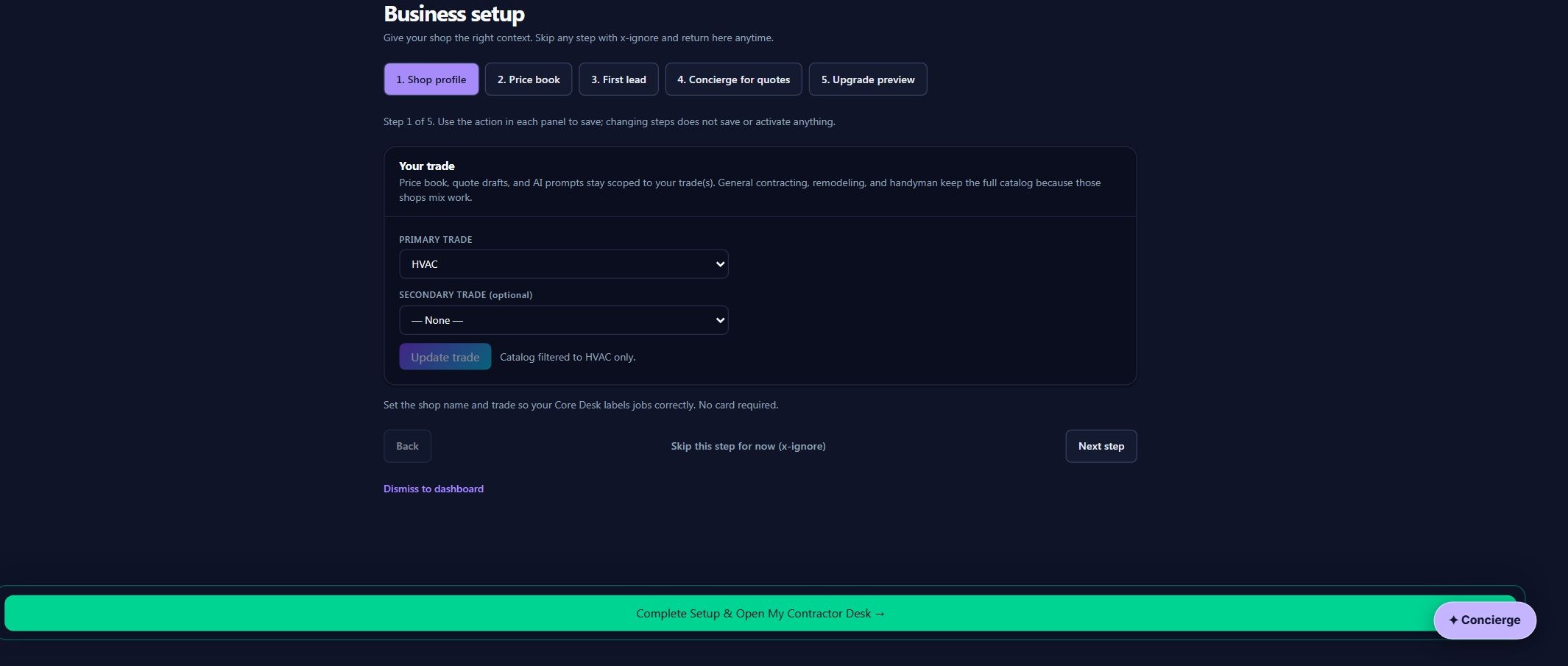
Reviewed product or Store capture. It shows the named control only; it does not prove that a later action completed.
| Control (label) | What it does | When you use it | Gotcha |
|---|---|---|---|
| Step tabs 1..5 (Free Desk: "Shop profile" through "Upgrade preview") | Switch between wizard steps | To visit steps in any order | "Changing steps does not save or activate anything" — each panel has its own save action |
| "Update trade" | Saves your primary/secondary trade | Early in setup, so the price book and quotes stay scoped to your trade | General contracting / remodeling / handyman keep the full catalog because those shops mix work |
| "Skip this step for now (x-ignore)" | Marks the step skipped and moves on | When you want to finish setup later | A "Skipped" tag appears on the tab; you can come back anytime |
| "Back" / "Next step" | Move between steps | To navigate | Nothing is saved by moving; use each panel's own save button |
| "Complete Setup & Open My Contractor Desk →" | Labeled as the action to leave setup and open the desk | When you are ready to start work | The action and resulting state were not tested in this capture; check the dashboard and setup state after use |
| "Dismiss to dashboard" | Leaves the wizard without completing it | When you need to start working first | You can reopen it anytime from sidebar "Website & setup" |
| Plan cards + add-on checkbox ("AI Webchat Bubble" etc.) | Choose/change the plan during paid-tier onboarding | Only on paid (Starter/Pro) flows | Changing plan here goes through checkout; consent text changes with the plan |
5.2 Dashboard
The dashboard is the at-a-glance operations view — the first thing you see after login. It answers "what needs me today?" in one screen: attention queue, lead pipeline, metrics, recent leads, quick actions, and a safe test simulator.
What you see, top to bottom: the "Today at a glance" header with "View leads" and "Configure" buttons; a free-tier banner (when on Free: "Core Desk CRM Active · Telephony Paused", with a "Compare paid plans" button); the Tactical Attention Queue (leads needing reply); the "Lead-to-Invoice Automated Flow" pipeline with six clickable steps (Inbound Lead → AI Triage & MMS → Schedule Visit → Send Quote → Active Job → Invoice & Paid); a metrics strip (Cash collected, Outstanding AR, Leads this month, Avg response time, Booked jobs, Quote acceptance); Contractor quick actions; Recent leads; the Interactive Test Lead Simulator; Hot lead counter; the Mobile PWA hub strip; and the Free CRM invitation loop card.
Reviewed product or Store capture. It shows the named control only; it does not prove that a later action completed.
| Control (label) | What it does | When you use it | Gotcha |
|---|---|---|---|
| "View leads" (header, outline) | Opens the Leads inbox | To start triaging | The same as the Leads sidebar item |
| "Configure" (header, purple) | Opens Settings | First-time setup | Settings is account-level, not per-record |
| "Compare paid plans" (free-tier banner) | Opens Account & Billing to compare Starter/Pro | When you want the AI/SMS layer | The banner text is honest: "Customer messaging requires carrier approval" |
| "Claim 30-Day Pro Trial" (if eligible) | Activates the earned Pro trial | Only if you are Pro-trial eligible (paid history) | Eligibility is gated by paid history (section 2) |
| Pipeline step cards ("View Leads >", "View Inbox >", "View Schedule >", "View Quotes >", "View Job Board >", "View Invoices >") | Jump into the screen that owns that stage | To move a record forward the recommended way | Each card shows the current count, e.g. "9 active" |
| Quick actions: "Customer Messages & 2-Way SMS", "Local Ads & Growth Engine", "Price book starter rates", "Line Apps & Mobile PWA", "Train AI receptionist" | One-tap shortcuts to those screens | Speed navigation | Two-Way SMS and AI receptionist depend on pending rollouts (section 7) |
| "View all leads →" | Opens the full Leads table | When recent-leads feed is not enough | The feed already shows the newest 25 |
| Test Lead Simulator (fields Caller Name, Caller Mobile Phone, Inbound Voice/SMS Need + "Submit Test Lead") | Creates a safe test lead through the real intake path | To see what an inbound lead looks like | It says so itself: "Does not send paid SMS to real callers. Safe test mode." |
| "View App Hub →" | Opens Apps & Devices | To install the PWA on a phone or PC | The PWA is live; iOS/Android store apps are coming soon |
| "Invite a Contractor" (invitation loop card) | Copies an invite link to grow the CRM for free | To bring another contractor onto a free desk | Never looks like it sends leads — invites are people you know |
5.3 Leads inbox
The Leads screen is the pipeline inbox: "Every inbound opportunity, captured and triaged." Every lead — phone, SMS, website, missed call, or referral — lands here as a row, and manual walk-ins are added with "New lead". The pipeline stepper's "Inbound Lead" stage owns this screen.
The screen: a table with columns Customer, Source, Service, Urgency, Status, Created. Each row is clickable and opens the lead detail. Sources shown include Google Ads, Phone, SMS, Website, Missed Call, Referral. Statuses include New, Contacted, Quoted, Scheduled, Won, Completed. Above the table is the toolbar: search box ("Search leads by name, phone, service…"), "Filter", table/grid view toggle, and "Export".
Reviewed product or Store capture. It shows the named control only; it does not prove that a later action completed.
| Control (label) | What it does | When you use it | Gotcha |
|---|---|---|---|
| "Import CSV" | Uploads a leads CSV (name, phone, service…) | When you come from a spreadsheet | Header row must match the import schema; bad rows are reported, not silently dropped |
| "+ New lead" | Opens the new-lead form | Walk-ins, phone calls, referrals | Manual leads get source "manual" |
| Search box ("Search leads by name, phone, service…") | Live-filters the table | Finding one lead fast | Filters what is loaded — no server paging on huge lists |
| "Filter" (funnel icon) | Opens column/status filters | Narrowing a long inbox | Filters combine with the search box |
| Table / grid view toggle | Switches between table rows and card grid | Visual preference | Cards in grid view show name, service, message preview, source, and status |
| "Export" (upload icon) | Downloads the current view | Backups or spreadsheets | Exports what the toolbar shows after your filters |
| Row (click) | Opens lead detail | Working a lead | Your next buttons live on the detail screen |
5.4 New lead
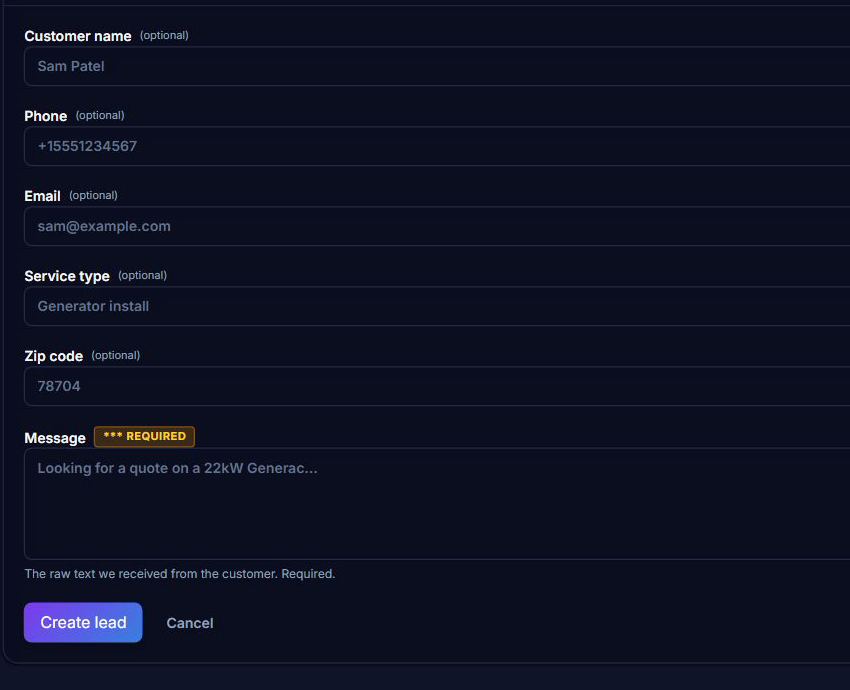
The new-lead form is one screen: Lead details. Fields: Customer name, Phone, Email, Service type, Zip code, and Message (required). Required fields carry an amber " REQUIRED"* tag; optional fields say "(optional)". Submitting posts to the leads API and returns you to the inbox, where the new lead is the top row.
Reviewed product or Store capture. It shows the named control only; it does not prove that a later action completed.
| Control (label) | What it does | When you use it | Gotcha |
|---|---|---|---|
| "Customer name" | The caller / customer | Always | Typo here duplicates records later; customers dedupe by phone/email |
| "Phone" | Contact number | For SMS/voice-linked records | Format any way; the desk normalizes for dedupe |
| "Email" | Contact email | Optional | |
| "Service type" | What they need (e.g. "Generator install") | Always | Free text — match it to your trade naming so reports stay clean |
| "Zip code" | Service zip | Optional, helps dispatch | |
| "Message" (required, amber tag) | The raw customer request text | Always | "The AI will qualify, route, and reply based on your AI rules" — a good message improves auto-triage |
| "Create lead" | Saves the lead | When the form is complete | Nothing saves until you click it — closing the tab throws the form away |
| "Cancel" | Leaves the form | Changed your mind | No data is kept |
5.5 Lead detail
The lead detail screen is where a lead becomes work. It shows: the pipeline stepper (stage 2 active); the header with "Back", "Message Customer", "Next: Schedule Visit", and "Next: Draft Quote →"; a Customer MMS Photos card (badge "No MMS photos yet" when empty); the Lead summary card (status, urgency, source, service-category badges + service type, estimated value, requires site visit, missing info); the Customer card with "Open customer record"; the AI Lead Assistant card; Conversation & SMS History; and Pipeline Next Steps (four numbered rows ending in "4. Promote Directly to Active Job").

Reviewed product or Store capture. It shows the named control only; it does not prove that a later action completed.
| Control (label) | What it does | When you use it | Gotcha |
|---|---|---|---|
| "Back" | Returns to the Leads list | Done here | |
| "Message Customer" | Opens Conversations threaded to this lead | To reply to the customer | SMS delivery depends on the SMS rollout (section 7) |
| "Next: Schedule Visit" | Opens the new-appointment form with this lead | To book the site visit | It carries the lead ID, address, and service into the form |
| "Next: Draft Quote →" | Opens the new-quote form pre-linked to this lead | The fastest path to an estimate | It pre-fills the quote's lead, service, and address |
| "Open customer record" | Opens that customer's CRM page | To see history across all their leads/jobs | The customer record already exists because every lead carries one |
| AI Lead Assistant card ("Submit to AI", or "Upgrade to Starter" when locked) | Runs AI qualification (urgency, competitor match, reply draft) | When you want triage help | Locked on Free: "Upgrade to Starter" appears; AI features are plan-gated |
| "Open Live Chat →" / "Send reply via SMS" | Open/jump into the conversation thread | To keep the thread with the job | Button exists even when SMS delivery is pending — check channel status |
| Pipeline Next Steps rows (1. Open Live SMS & MMS Conversation, 2. Schedule Appointment, 3. Draft & Send Estimate, 4. Promote Directly to Active Job) | One-click jumps to each next stage | To advance the record in the recommended order | Steps 1 and 3 touch SMS send — see section 7 |
| Status/urgency/source badges | Quick color-coded triage at a glance | Scanning the inbox | Urgency "High" (orange) is what the attention queue escalates |
5.6 Conversations (Messages)
The Messages screen (sidebar label "Messages", screen title "Conversations & MMS") is the desk's thread inbox. Every customer thread — inbound call, SMS, MMS photo, email, webchat — is meant to live here tied to the lead record. Important current-state note: customer two-way SMS and photo MMS delivery are part of the SMS/10DLC rollout; the screen exists and the channel cards show live configuration, but do not rely on SMS delivery until current status confirms it (section 7 has the full list).
What you see: the conversation thread list on the left (customer name, last message preview, badge, time, search box "Search conversations…"); the open thread on the right (messages, Quick Reply: suggestion chips, the reply composer with the text box "Type SMS or chat reply (press Enter to send)…", an image-URL field, and the "Send SMS" button). Below that: the "Channel Status & Policy" card with per-channel cards (SMS & MMS, Email, Voice call, Voicemail, Website chat, Manual notes), each showing Active or Setup needed, and the "Feed Webchat & Forms into Lead Rescue via API" card with the POST https://cmd.jehorizon.com/api/leads endpoint example and a "Generate API Key" button.

Reviewed product or Store capture. It shows the named control only; it does not prove that a later action completed.
| Control (label) | What it does | When you use it | Gotcha |
|---|---|---|---|
| Thread list rows | Open a conversation in the right pane | Switching customers | Leads without messages are merged in so you can start chatting immediately |
| "Search conversations…" | Filters the thread list | Finding a thread | |
| Quick Reply: chips | Insert a canned reply with one tap | Fast, consistent replies | The chips are suggestions, not AI-generated on every open |
| Reply text box ("Type SMS or chat reply (press Enter to send)…") | Write the message | Before sending | Pressing Enter sends — don't press Enter to make a line break |
| Image URL field | Attach a photo link (damage photo, plate) | Adding photos to the thread | MMS photo delivery is part of the SMS rollout |
| "Send SMS" | Sends the reply | To answer the customer | If the channel card shows "Setup needed", sending may not reach the customer — check channel status first |
| Channel cards (SMS & MMS, Email, Voice call, Voicemail, Website chat, Manual notes) | Show each channel's Active / Setup needed state + a "Configure →" link | Verifying what works today | A channel that says Active is configured in the current session; customer SMS still pending 10DLC approval per section 7 |
| "Generate API Key" / "N API Key(s) Configured" | Creates the key used to POST leads into the desk from a website | Wiring your website form or chat into the desk | Keys are created in Account; website-chat delivery also feeds the conversations inbox |
5.7 Schedule (calendar)
The Schedule screen ("Internal scheduling with Google Calendar two-way sync") is the book of visits. Appointments appear as rows in time order with date/time, a status badge (Confirmed green, Held/Tentative amber), customer name, phone, address, and any notes. Each row has "View job" (when linked) and "Add to GCal" (adds the visit to your Google Calendar as an event). Empty state: "No appointments yet" with a "View leads" button.
Reviewed product or Store capture. It shows the named control only; it does not prove that a later action completed.
| Control (label) | What it does | When you use it | Gotcha |
|---|---|---|---|
| "Sync Calendar" | Jumps to Settings → Calendar Sync | To set up iCal/Google sync | Opens Settings section "automations"; the sync card explains the Google Calendar steps |
| "New appointment" | Opens the booking form | Adding a visit manually | The form also opens pre-filled from lead or job screens |
| Appointment row status badge (Confirmed / Held) | Shows booking state | Scanning the book | Held = tentative; confirm before you dispatch |
| "View job" (on row) | Opens the linked job detail | When the visit belongs to a job | Only on rows with job_id |
| "Add to GCal" | Builds a Google Calendar event for this visit | To see it on your own calendar | Opens the Google Calendar "add event" page in a new tab with details pre-filled — you still confirm it there |
| "View leads" (empty state) | Jumps to the leads inbox | When the book is empty |
5.8 New appointment (book a visit)
The booking form (title "Schedule Service Visit") is reachable from the Schedule screen ("New appointment"), from a lead ("Next: Schedule Visit"), or from a job ("Schedule visit"). Fields: Appointment Date & Time (required), Service address (required), Status (dropdown: Confirmed / Held / Tentative), Linked lead (optional, pre-filled when you came from a lead). When linked to a lead, a banner shows "Booking appointment for Lead #… · Step 2 of 5" and a "Skip to Quote →" shortcut is available.
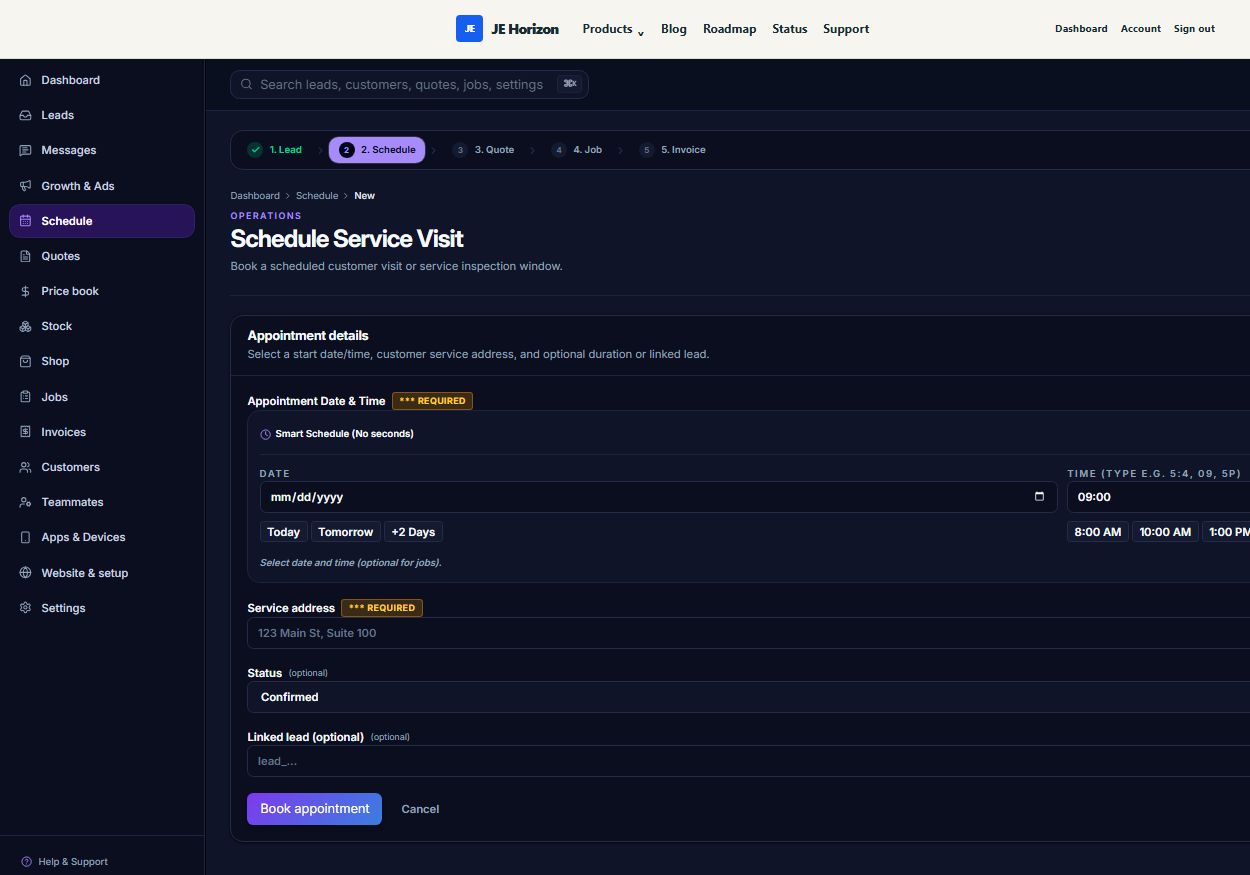
Reviewed product or Store capture. It shows the named control only; it does not prove that a later action completed.
| Control (label) | What it does | When you use it | Gotcha |
|---|---|---|---|
| "Appointment Date & Time" (required) | The visit start | Always | Uses the smart date-time picker; there is no "pick any time tomorrow" shortcut |
| "Service address" (required) | Job site location | Always | Pre-filled from the lead when coming from one |
| "Status" dropdown (Confirmed / Held / Tentative) | Booking state | Booking at all | "Held" is for tentative windows |
| "Linked lead" | Optional lead ID | When the visit came from a lead | Pre-filled; leave it to keep the thread attached |
| "Skip to Quote →" | Jumps to the quote stage without booking | When you only needed the quote | Only visible when a lead is linked |
| "Book appointment" / "Book Visit & Continue to Quote →" / "Book job visit" | Saves the appointment | Finishing the form | Label depends on where you started; after booking, a linked lead advances to Quotes, a linked job returns to the job |
| "Cancel" | Discards the form | Changed your mind | Nothing is saved |
5.9 Quotes (estimate register)
The Quotes screen (eyebrow "Estimates") is the estimate ledger. What you see: the "Quote builder rules" card first — "Drafts are not legally binding until the contractor approves" — with the warning "AI should create drafts, not final quotes. The contractor owns scope, price, taxes, terms, and send action." and a grid of supported features (manual quote creation, AI-assisted quote drafts, line items, labor, materials, taxes, discounts, terms, expiration date, customer approval link). Below it, the "Quote register": one card per quote showing quote ID, a status badge (Draft amber, Sent blue, Accepted blue/green), the total, and created/sent dates. Each card opens the quote builder. Empty state: "No quotes yet" with a "View leads" button.
Reviewed product or Store capture. It shows the named control only; it does not prove that a later action completed.
| Control (label) | What it does | When you use it | Gotcha |
|---|---|---|---|
| "+ New quote" | Opens the new-quote form | Starting an estimate from scratch | Starting from a lead prefills everything — prefer "Next: Draft Quote →" on the lead |
| Quote register card (click) | Opens the quote builder for that quote | Editing or sending an existing quote | A quote stays "Draft" until you send it — drafts are not legal offers |
| Status badge (Draft / Sent / Accepted / Expired) | Lifecycle state of the estimate | Scanning which quotes are out | Accepted quotes can be converted to jobs |
| "Quote builder rules" card | Honest rules of the game | Read once | It is permanent and on every visit: AI drafts, contractor approves |
5.10 New quote
The new-quote form (title "New Quote", eyebrow "Sales") has three fields: Estimated Total ($) (money, required, default $350.00 — "Initial estimate; you can add labor and materials line items after creating"), Linked lead (pre-filled when you came from a lead, else blank), and Service scope & technician notes (pre-filled with the lead's service and address). When linked to a lead, a banner shows "Drafting estimate for Lead #… · Step 3 of 5" and a "Skip to Job →" shortcut appears.
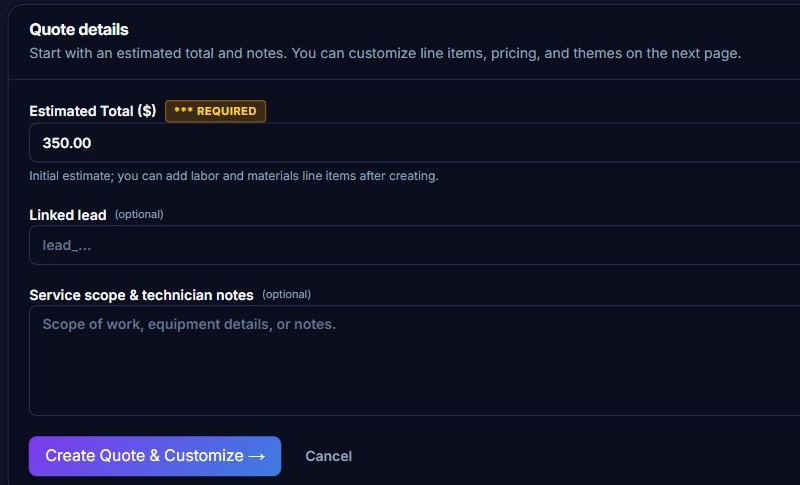
Reviewed product or Store capture. It shows the named control only; it does not prove that a later action completed.
| Control (label) | What it does | When you use it | Gotcha |
|---|---|---|---|
| "Estimated Total ($)" (required) | Starting total in dollars | Always | This is a seed number — the real math happens in the builder (line items + tax) |
| "Linked lead" | Lead ID the quote belongs to | Usually automatic | Leave the prefill; unlinked quotes still work but lose the thread |
| "Service scope & technician notes" | Scope description | Optional | Pre-filled from the lead; shows on the printed quote as the scope |
| "Create Quote & Customize →" | Saves and opens the builder | Finishing this step | Quote ID is generated here — it appears on the builder |
| "Skip to Job →" | Creates a job instead of a quote | When the customer already said yes | Only when a lead is linked |
| "Cancel" | Leaves the form | Changed your mind | Draft not saved |
5.11 Quote detail builder
The quote builder is the estimate document editor — the biggest single screen in the desk. Top-down: the pipeline stepper; the action bar with "← Quotes" back link, the quote ID + status badge + issue date, then "PDF Preview" / "Customize & Edit" mode toggle, "Download / Print PDF", "Copy Link", "Email to Client", and the green "Next: Convert to Job →". In Customize & Edit mode you get: PDF Appearance & Branding (6 theme accent colors; Company/Shop Name, Tagline/License #, Phone Number, Business Email), Client & Service Property (customer full name, email, phone, service address), Scope & Line Items (add/remove rows with type Labor / Material / Permit/Fee / Discount, quantity, unit price; "Import from Lead" and "Add Item"), Tax Rate (%), Quote Valid Until (date), Terms & Warranty Conditions (payment terms textarea + guarantee/footer note), and the "Save Changes" bar. The white paper preview renders live below: header with your business letterhead, Prepared For / Project & Scope blocks, the line-items table, Subtotal / Estimated Tax / Estimated Total, terms, signature blocks, and the online acceptance URL (https://cmd.jehorizon.com/quotes/<quote_id>/accept).

Reviewed product or Store capture. It shows the named control only; it does not prove that a later action completed.
| Control (label) | What it does | When you use it | Gotcha |
|---|---|---|---|
| "← Quotes" | Back to the register | Done here | Unsaved changes are lost — use "Save Changes" first |
| "PDF Preview" / "Customize & Edit" | Toggle between the read-only document and the editors | To see or to change the quote | The paper preview renders on screen in both modes |
| "Download / Print PDF" | Opens the print dialog to save as PDF | Sending a paper copy / quoting by hand | Print the preview — the action bar is hidden when printing |
| "Copy Link" | Copies the public accept URL (…/quotes/<id>/accept) |
Sharing the accept page by text or in person | You can send this link yourself without email |
| "Email to Client" | Emails the quote to the customer | Sending the estimate | Requires customer email under Customize & Edit; if SMS approval links are not live yet (section 7), email is the reliable channel |
| "Next: Convert to Job →" | Creates the job from this quote | After acceptance | Jumps to the new-job screen with the quote attached ("Step 4 of 5") |
| Theme color row (Navy/Classic, Ocean Blue, Emerald, Charcoal, Crimson, Bronze) | Sets the PDF accent color | Branding | Selected swatch is ringed; saved with the draft |
| "Import from Lead" | Builds two starter line items (labor 70% / materials 30%) from the lead | Speeding up drafting | Only when a lead is linked; it overwrites current line items |
| "Add Item" / row trash icon | Add or remove a line item | Building the scope | Line items drive the totals: quantity × unit price, then tax |
| Type dropdown (Labor / Material / Permit/Fee / Discount) | Tags each line | Itemization | Discount lines reduce the total |
| "Tax Rate (%)" | Percent tax (default 7.5%) | When state tax applies | Applied to the subtotal automatically |
| "Quote Valid Until" | Expiration date (default +30 days) | Setting urgency | The public accept page refuses after this date: "This quote has expired" |
| "Terms & Warranty Conditions" (terms + footer note) | Payment terms and guarantee text | Every quote | Default terms: "50% deposit upon acceptance, balance due on completion"; the deposit is a term, not a Line payment feature |
| "Save Changes" | Persists the draft_json | After every edit | The status stays Draft until you send |
| "Copy Link" → public accept page | Customer opens the accept page | After sharing the link | Reaching it again: "Already accepted" if accepted, "This quote has expired" if past validity |
The public accept page. The customer opens https://cmd.jehorizon.com/quotes/<quote_id>/accept (no login needed — the quote ID itself is the ticket). The page shows your business name, an amount, and a big "Accept this quote" button. On the current sample draft, the internal PDF preview showed a $650 subtotal plus $49 estimated tax for a $699 estimated total, while the public page showed $650.00. This mismatch must be resolved before the acceptance page can be recommended to customers. The acceptance action itself was not tested in this review.
5.12 Price book
The Price book is your catalog: parts, labor, and markup in one editable table used by quote drafting. The screen (title "National starter prices (2026)") loads national 2026 starter rates per trade at setup. Controls: "Load missing national prices", "Reset national rows", "Upload CSV", and a "Sample CSV" download link (columns: trade,name,unit,price,kind,notes). Below: trade dropdown, "Search items" box, "Delete selected (N)" button, and the table (columns Trade, Item, Price, Unit, Source — with source badges national_2026, upload, manual). Right side: the "Add your own" card (Trade dropdown, Name, Price) with "Add item".
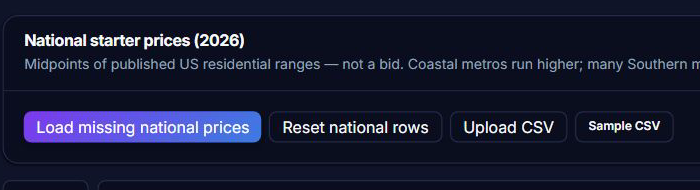
Reviewed product or Store capture. It shows the named control only; it does not prove that a later action completed.
| Control (label) | What it does | When you use it | Gotcha |
|---|---|---|---|
| "Load missing national prices" | Seeds national rates for your trade | First setup | "Loaded N national prices (M already present)" — it only adds missing rows |
| "Reset national rows" | Refreshes all national rows to defaults | After heavy editing | Overwrites your edits to national rows — manual rows are untouched |
| "Upload CSV" | Imports your own book | Coming from a spreadsheet | Header format: trade,name,unit,price,kind,notes; price in dollars |
| "Sample CSV" | Downloads a template file | Before uploading | Example row: plumbing,Drain cleaning,job,225,labor,Snake one line |
| Trade dropdown + "Search items" | Filter the table | Finding a price | Filters combine |
| Checkboxes + "Delete selected (N)" | Bulk delete | Cleaning the book | Confirmation dialog: "This cannot be undone." There is no recycle bin — see section 7 |
| Row "Delete" link | Delete one item | One-off cleanup | Same permanent-delete warning |
| "Add your own" card → "Add item" | Add one manual price | Your local rates | Manual rows get the manual source badge |
5.13 Jobs board (Kanban)
The Jobs screen is the drag-and-drop dispatch board. Once a quote is accepted or an appointment is booked, the record becomes a job here with customer, address, quote, invoice, notes, photos, and conversation history attached. What you see: the header with "Import jobs CSV" and "+ New job"; a quick metrics row (Active Jobs, Scheduled, In Progress, Completed); the notice "Drag & Drop Enabled: Drag cards between Scheduled, In Progress, and Completed to advance jobs"; the Kanban board with eight columns — New, Scheduled, In Progress, Needs Quote, Quote Sent, Won, Completed, Lost — each with colored dot, name, and count; and a Job Records list below the board.
Each job card shows the service type, address, created date, a Lead or Quote badge, and a "Move to:" dropdown (New / Scheduled / In Progress / Needs Quote / Quote Sent / Won / Completed / Lost) as the touch-friendly alternative to dragging. Empty columns say "Drag jobs here to update". Empty state (no jobs at all): "No jobs yet" with a "View leads" button.
Reviewed product or Store capture. It shows the named control only; it does not prove that a later action completed.
| Control (label) | What it does | When you use it | Gotcha |
|---|---|---|---|
| "Import jobs CSV" | Uploads jobs from a spreadsheet | Moving books from another tool | Same import discipline as leads: schema-matched columns |
| "+ New job" | Opens the new-job form | Direct work | Prefer converting from a quote/lead to keep the thread |
| Quick metrics (Active Jobs / Scheduled / In Progress / Completed) | Live counts | Scanning the workload | "Active" = everything except Completed and Lost |
| Board column drop zones | Receive dragged cards | Moving jobs | Dropping changes the job's status immediately |
| Job card drag handle | Drag to reorder / move | Reordering within or between lanes | The "Move to:" dropdown is the reliable alternative on touch screens |
| "Move to:" dropdown | Status jump without dragging | Touch users / precision | Options include all eight statuses |
| Lead / Quote badge on card | Shows where the job came from | Traceability | Click the badge region to open the source record on the detail page |
| Job card (click) | Opens job detail | Working a job | |
| "View leads" (empty state) | Jumps to the leads inbox | Empty board | Jobs are usually born from leads or quotes — start there |
5.14 New job
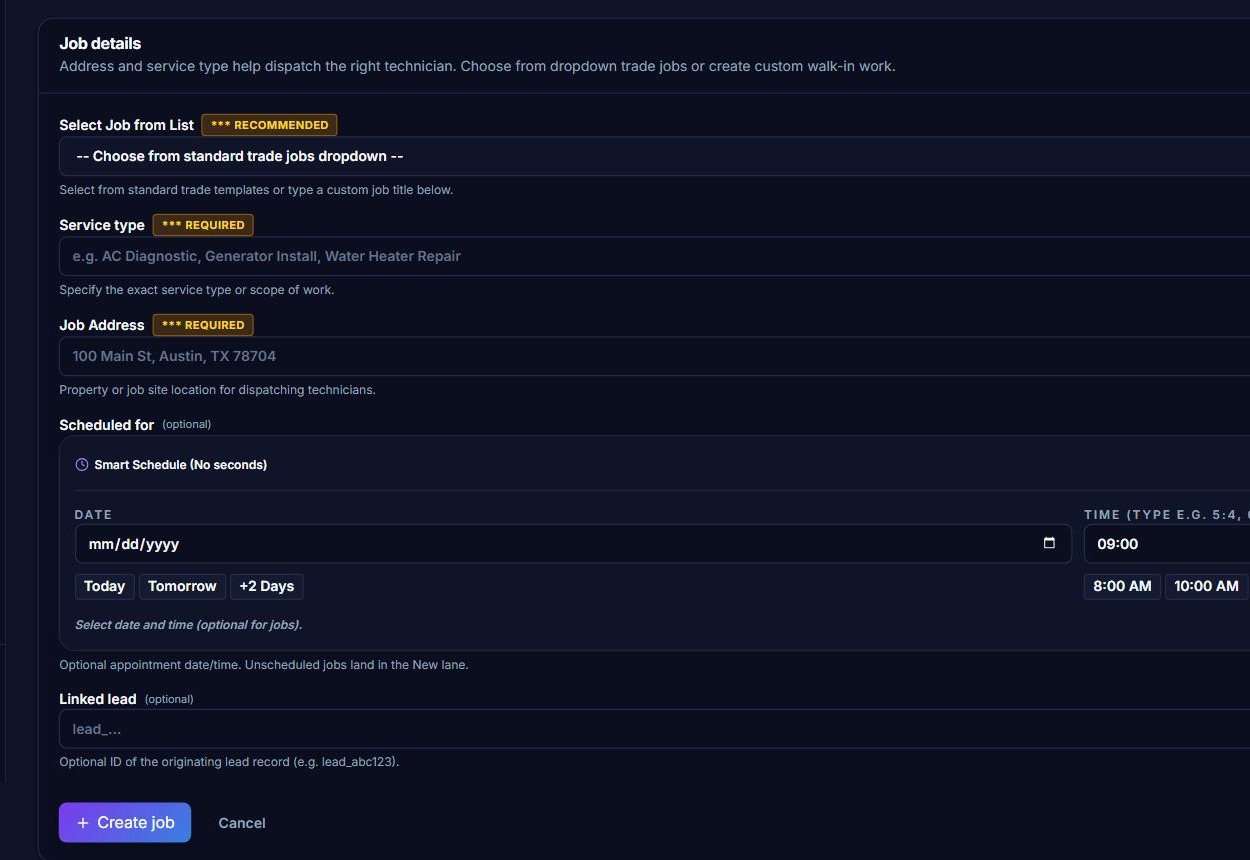
The new-job form (screen title "Schedule New Job", eyebrow "Operations") creates an active field job. The star control is the "Select Job from List" trade-template dropdown (marked " RECOMMENDED"): grouped by trade — HVAC, Plumbing, Electrical, Roofing & Exterior, General Contracting — with about 20 standard jobs (e.g. "HVAC: AC Repair & Tune-Up", "Plumbing: Water Heater Replacement", "Electrical: 200A Service Panel Upgrade"), plus a *"+ Custom / Other Service" option that unlocks the free-text Service type field. Also required: Job Address. Optional: Scheduled for (date-time) and Linked lead. A banner shows "Converting into Job: Lead #… / Quote #… · Step 4 of 5" when the job comes from a quote or lead.
Reviewed product or Store capture. It shows the named control only; it does not prove that a later action completed.
| Control (label) | What it does | When you use it | Gotcha |
|---|---|---|---|
| "Select Job from List" dropdown (RECOMMENDED) | Choose a standard trade job | Most jobs | Titles map to your trade naming so boards read cleanly |
| "+ Custom / Other Service" | Use the free-text service field | Non-standard work | Selecting it clears the service field for typing |
| "Service type" (required) | Exact scope of work | Always | Auto-filled by the dropdown; edit if needed |
| "Job Address" (required) | Dispatch location | Always | "Job address is required" blocks submission otherwise |
| "Scheduled for" | Optional appointment time | When you know the date | Unscheduled jobs land in the New lane |
| "Linked lead" | Optional origin lead ID | When converting | Pre-filled from the lead/quote flow |
| "Create job" | Saves the job | Finishing the form | Validates service type + address before saving |
| "Cancel" | Discards | Changed your mind |
5.15 Job detail
The job detail screen is the operational heart of the job. What you see: the header with "Back to Jobs", "View Lead" (when linked), "Schedule visit", and the purple "Next: Create Invoice →"; the Job Assignment Controls (assign the job to a teammate); a green banner "Active Job Status: …" with "Draft Final Invoice →"; the Job Status & Tracking card (originating lead with link, service type, scheduled date, completed at, job ID, created date); the Service Location card with "Open in Google Maps →"; and the Job Site Photos & Customer MMS Attachments card.

Reviewed product or Store capture. It shows the named control only; it does not prove that a later action completed.
| Control (label) | What it does | When you use it | Gotcha |
|---|---|---|---|
| "Back to Jobs" | Back to the board | Done here | |
| "View Lead" | Opens the originating lead | Tracing the job back | Only when a lead is linked |
| "Schedule visit" | Booking form pre-linked to the job | Adding an appointment | After booking you return here ("Book job visit" label) |
| "Next: Create Invoice →" / "Draft Final Invoice →" | Open the invoice form for this job | When work is completed | The invoice links to job_id and carries service type + address |
| Job Assignment Controls | Assign this job to a teammate (accept/decline offer flow) | Dispatching work | Assignment offers and job-text notifications are part of teammate dispatch — see section 7 status note |
| Active-status green banner | Current job status + hint | Quick awareness | Status is controlled on the board (drag or "Move to:") |
| "Open in Google Maps →" | Opens the address in Google Maps | Driving to the job | Only when an address exists |
| Job Site Photos card | Shows photos attached to the lead's thread | Reviewing site photos | Photos come from inbound MMS — subject to the MMS rollout (section 7) |
| Originating lead link | Jumps to the leads screen | Traceability | Clickable only when linked |
5.16 Invoices
The Invoices screen (eyebrow "Billing") is the invoice ledger. Honesty first, because the screen itself is honest: the subtitle reads "Invoice drafts and payment reminders come after the quote/job loop. MVP keeps invoices lightweight." and the "Invoice support" card lists what is here today — Invoice drafts, Line items, Payment reminders, Paid/overdue status — alongside what is explicitly later: "Stripe payment links later" and "Accounting export later". So: you can draft, itemize, save, print/PDF, email, and mark invoices — but online payment links are not part of the current build. What you see below the card: one invoice card per invoice (ID, created date, status badge — Draft amber / Paid green, total). Empty state: "No invoices yet" with a "View jobs" button.
Reviewed product or Store capture. It shows the named control only; it does not prove that a later action completed.
| Control (label) | What it does | When you use it | Gotcha |
|---|---|---|---|
| "+ New invoice" | Opens the new-invoice form | Invoicing from within Invoices | From the job, "Next: Create Invoice →" pre-links the job |
| "Invoice support" card | States what is supported vs later | Read once | Payment links and accounting export are listed as "(later)" — collect payments the way you do today |
| Invoice card (click) | Opens the invoice editor | Editing or sending | Status stays Draft until you send or mark paid |
| Status badge (Draft / Sent / Paid) | Lifecycle state | Scanning who owes what | Paid is a manual toggle — the desk does not process payments |
| "View jobs" (empty state) | Jumps to the job board | Empty ledger | Create invoices from completed jobs to keep them linked |
5.17 New invoice
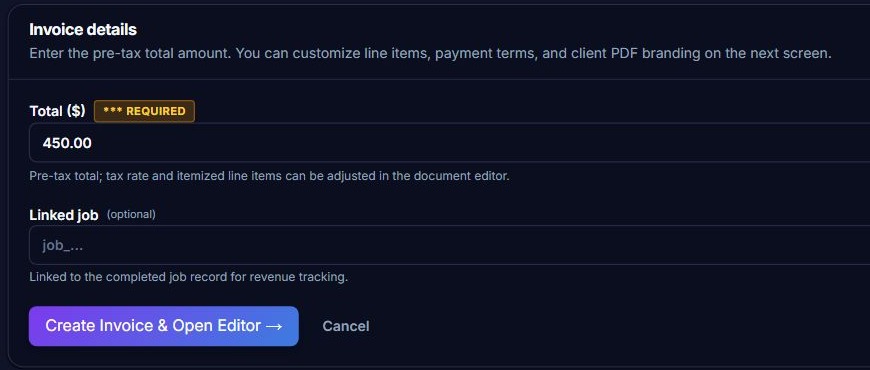
The new-invoice form (title "New Invoice", eyebrow "Billing") has two fields: Total ($) (money, required, default $450.00 — "Pre-tax total; tax rate and itemized line items can be adjusted in the document editor") and Linked job (pre-filled from the job flow). A green banner shows "Finalizing invoice for Job #… · Step 5 of 5 (Final Step)" when the invoice comes from a job.
Reviewed product or Store capture. It shows the named control only; it does not prove that a later action completed.
| Control (label) | What it does | When you use it | Gotcha |
|---|---|---|---|
| "Total ($)" (required) | Pre-tax starting total | Always | Like quotes, this is a seed — tax and items are set in the editor |
| "Linked job" | Job record this invoice bills | Usually automatic | Keeps revenue tracking tied to the job |
| "Create Invoice & Open Editor →" | Saves and opens the editor | Finishing this step | |
| "Cancel" | Discards | Changed your mind |
5.18 Invoice detail (invoice document editor)
The invoice editor mirrors the quote builder: an action bar, a Customize & Edit mode, and a white paper document. Action bar: "← Invoices" back link; invoice ID + status badge; "Mark as Paid" (toggles to "Mark as Unpaid" when paid — this is a manual bookkeeping toggle, not a payment confirmation); "Download / Print PDF"; "Email to Client"; and the "Save Changes" bar in edit mode. If the document has unsaved changes, an amber notice appears: "This preview has unsaved changes. Review and save before emailing or printing so the amount matches the saved invoice." The paper document prints a PAID IN FULL or PAYMENT DUE stamp, your letterhead, client block, itemized table (subtotal, tax, Balance Due), and terms, plus "Payment Received: " when paid.

Reviewed product or Store capture. It shows the named control only; it does not prove that a later action completed.
| Control (label) | What it does | When you use it | Gotcha |
|---|---|---|---|
| "← Invoices" | Back to the ledger | Done here | Unsaved changes are lost — save first |
| "Mark as Paid" / "Mark as Unpaid" | Toggle paid status | When payment arrives | Manual toggle; no payment processor involvement — never implies the customer paid through Line |
| "Download / Print PDF" | Print/save the invoice | Paper copies | Disabled while there are unsaved changes or an invalid amount |
| "Email to Client" | Emails the invoice PDF | Collecting faster | Requires customer email; disabled until saved; says "accepted for email delivery" on success |
| "Save Changes" | Persists edits (items, tax, letterhead, totals) | After every edit | The amber unsaved-changes warning is your cue |
| Paper stamp (PAID IN FULL / PAYMENT DUE) | Document status | On the printed copy | Rendered from the paid toggle |
| Client/business editing fields (letterhead, client name/email/phone/address, notes) | Same pattern as the quote editor | Branding and addresses | Customer email must be correct for "Email to Client" |
| Line items + Tax Rate (%) | Itemization and tax | Every invoice | Totals recompute on save |
5.19 Customers CRM
The Customers screen (eyebrow "CRM") is the master record book. Subtitle: "Customers are deduped by phone/email so one person does not become five disconnected leads." What you see: "Import CSV" and "Add customer" buttons; then customer cards showing the customer's name, phone/email/address, and the count of their leads and jobs ("Lead history" and "Jobs" chips). Clicking a card opens the customer detail with all their history in one place. Empty state: "No customers yet" with a "View leads" button — "Customers appear automatically when a new lead's phone or email isn't matched to an existing record."
Reviewed product or Store capture. It shows the named control only; it does not prove that a later action completed.
| Control (label) | What it does | When you use it | Gotcha |
|---|---|---|---|
| "Import CSV" | Bulk-imports customer records | Moving books | Dedupe runs on phone/email — import clean numbers |
| "Add customer" | Opens the new-customer form | Manual entry | Only needed when no lead created the record |
| Customer card (click) | Opens the customer detail | Viewing a customer's world | Cards show their leads/jobs/invoices counts |
| "View leads" (empty state) | Jumps to leads | Empty CRM | Most customers are born from leads |
5.20 New customer
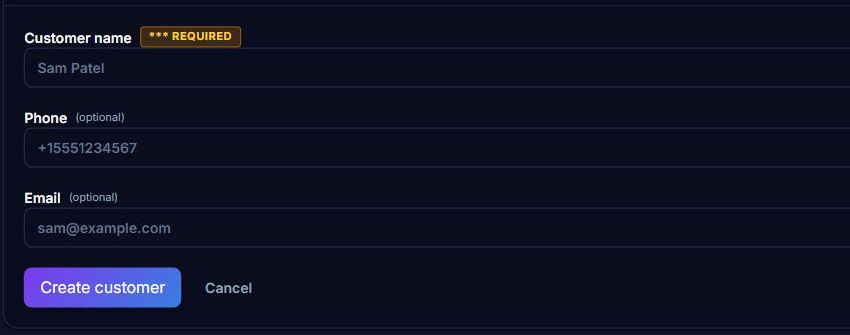
The new-customer form (title "New customer", eyebrow "CRM") has three fields: Customer name (required), Phone, Email. Card hint: "Name is required. Phone or email helps the AI deduplicate against future leads." Buttons: "Create customer" and "Cancel".
Reviewed product or Store capture. It shows the named control only; it does not prove that a later action completed.
| Control (label) | What it does | When you use it | Gotcha |
|---|---|---|---|
| "Customer name" (required) | Record name | Always | |
| "Phone" / "Email" | Contact details | Always, if you have them | Phone or email drives dedupe against future leads |
| "Create customer" | Saves | Finishing | |
| "Cancel" | Discards | Changed your mind |
5.21 Customer detail
The customer detail unifies every record: Contact card (phone with tel: link, email, property address), Pipeline card (leads / jobs / invoices count badges), Notes card ("No notes yet."), and the Lead history card — every lead ever attached to this customer, each with service, date, status, and a link into the lead detail. Header actions: "Back" and "Message Customer".
Reviewed product or Store capture. It shows the named control only; it does not prove that a later action completed.
| Control (label) | What it does | When you use it | Gotcha |
|---|---|---|---|
| "Back" | Returns to the Customers list | Done here | |
| "Message Customer" | Opens their thread in Conversations | Starting/rejoining a conversation | Threads route through the lead record |
| Contact card (phone/email links) | Tap-to-call / tap-to-email | Reaching the customer | Works from any device |
| Pipeline badges (N leads / N jobs / N invoices) | Counts across the CRM | At-a-glance history | Click-through lives in the Lead history card |
| Lead history rows | Open the linked lead | Full audit trail | A customer can have many leads over years |
| Notes card | Free-form context | Later use | Currently always "No notes yet." — the desk keeps notes at the lead level |
5.22 Teammates & dispatch
The Teammates screen is where the team is managed. Two sections. People: each teammate row shows name, email, last-login date, and a role control — Manager or Teammate (role select), plus a red "Revoke" button that signs them out; the billing admin is marked "Admin · billing" and cannot be changed or removed from here. Pending invites: each open invite shows the invited email, role, and expiry, with "Resend" and "Revoke" buttons. The invite box has an email field, a role dropdown (Teammate / Manager), and the purple "Invite" button. Invitees click the emailed accept link to join; dispatch-text opt-in requires phone verification and consent (part of the teammate-dispatch feature — see section 7 status note). Note the role guide printed on the screen: "Admin controls billing, integrations and team access. Managers coordinate daily operations. Teammates work on jobs assigned to them."
Reviewed product or Store capture. It shows the named control only; it does not prove that a later action completed.
| Control (label) | What it does | When you use it | Gotcha |
|---|---|---|---|
| Role dropdown (Manager / Teammate) | Change a person's role | Adjusting access | "Manager" maps to admin privilege; only the admin can change roles |
| "Revoke" (per person) | Removes access and signs them out | Someone leaves | Confirmation dialog: "They will be signed out." The billing admin has no revoke button |
| "Admin · billing" badge | Marks the billing admin | Identification | Cannot be changed or removed from this screen |
| "Pending invites" list (Resend / Revoke) | Manage open invitations | Invitee never clicked the email | Invites expire — the expiry date is shown on the row |
| Email field + role dropdown + "Invite" | Send a new invitation | Adding crew | Uses the invited email; role chosen here |
| Job Assignment Controls (on job detail) | Offer a job to a teammate (accept/decline) | Dispatching | Job-text notifications need verified phone + consent — see section 7 |
5.23 Stock & Shop (inventory and parts search)
Two screens live under the parts area: Stock (sidebar label "Stock", your inventory ledger) and Shop (sidebar label "Shop", a parts price-comparison search). Current-state note: Line's own product pack tags the inventory module ("stock levels, per-truck stock, reorder logic, imports") as pending live verification — these screens exist in the build; treat reorder automation and supplier pricing as build features whose live behavior is still being confirmed (section 7).
Stock shows: a Stock/Shop tab bar; your supply room (parts ledger with quantities), scan buttons ("Scan received parts", "Scan parts used" — barcode scanning via the camera), trade dropdown, search, "Refresh stock", stat cards (Recorded stock cost, Parts tracked, At or below minimum), the stock table, reorder/low-stock flags, Stock assistant suggestions with a "Compare suppliers" button (Amazon, eBay, SupplyHouse, Ferguson, Zoro), reorder settings, CSV import, and an add/edit part form ("Create part", "Save details", "Cancel edit").
Shop is the "Find the part. Compare the options." screen: a "Part, model number or SKU" search box, a "Legacy & surplus parts — focus on eBay" checkbox, the "Search suppliers" button, offer cards (supplier, price, shipping, condition, availability, match note) with "Compare" checkboxes (up to four) and "View at supplier" buttons, plus a "Check supplier catalogs" row of links. Honest note printed on the screen: supplier prices come from the sellers, listings can differ in condition and fit, and affiliate earnings "can help fund Line's free CRM" — "Rewards and purchase credits are not active."
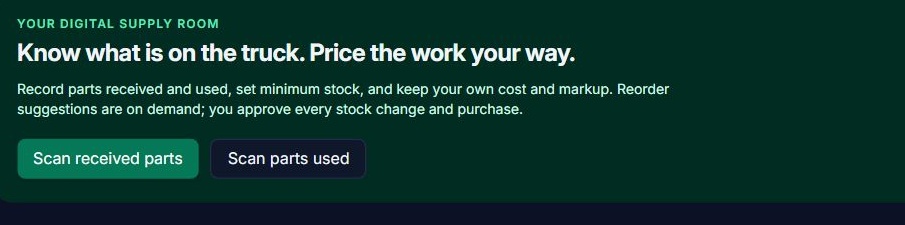
Reviewed product or Store capture. It shows the named control only; it does not prove that a later action completed.
| Control (label) | What it does | When you use it | Gotcha |
|---|---|---|---|
| Stock / Shop tab bar | Switches between ledger and parts search | Both, regularly | The sidebar also lists them separately |
| "Scan received parts" / "Scan parts used" | Barcode/camera intake and outtake | Truck stock and receiving | Needs a camera or scanner; scanner modal closes on cancel |
| Stat cards (Recorded stock cost / Parts tracked / At or below minimum) | Live inventory facts | Stock review | "At or below minimum" flags the reorder list |
| "Refresh stock" + trade dropdown + search | Re-read and filter the ledger | After edits / filtering | Filters combine |
| Stock assistant + "Compare suppliers" | Suggests reorders and opens supplier search | Reordering | Supplier prices live at the seller — verify before buying |
| Reorder settings + CSV import + "Create part" / "Save details" | Configure minimums, import, add parts | Setup and restock | "Per-truck stock" and reorder automation are among the features being verified live (section 7) |
| Shop: "Part, model number or SKU" + "Search suppliers" | Live price comparison across suppliers | Pricing a part | Offers are seller listings — "confirm the exact part, pack size and compatibility before buying" |
| Shop: "Legacy & surplus parts — focus on eBay" checkbox | Adds discontinued/surplus focus | Obsolete parts | |
| Shop: "Compare" checkboxes (max 4) + "View at supplier" | Side-by-side compare / open the offer | Choosing a listing | Compare table shows supplier, price, shipping, condition, seller |
5.24 Apps & Devices
The Apps & Devices screen (title "Line Apps & Devices") is the fleet hub for the desk's app surfaces. What actually works today is the "Command Center Mobile Web & Desktop PWA" card — live now, zero install required. It gives tap-by-tap install instructions for: iPhone & iPad (iOS Safari) — open cmd.jehorizon.com, tap the Share icon (square with arrow up), tap "Add to Home Screen", launch like a native app; Android (Chrome) — open cmd.jehorizon.com, tap the three dots (⋮) menu, tap "Install App" or "Add to Home Screen"; Shop PC (Windows Edge/Chrome) — click the Install icon in the URL bar and confirm "Install Command Center". Everything else on this screen is a roadmap card with explicit status labels — treat them as not available: JE Horizon for Windows ("Private Alpha", "Testing In-House", distribution "Direct MSI / Winget"), JE Horizon for iOS ("TestFlight Coming Soon", "In Development"), JE Horizon for Android ("Private Smoke Testing", "Smoke Verified", distribution "APK / Google Play"). Two policy cards wrap up: "Real-Time Dispatch Relay" (push events for missed calls — depends on the telephony rollout) and "Unified Licensing & Multi-Tech Access" (one subscription covers every device; manage people under Teammates).
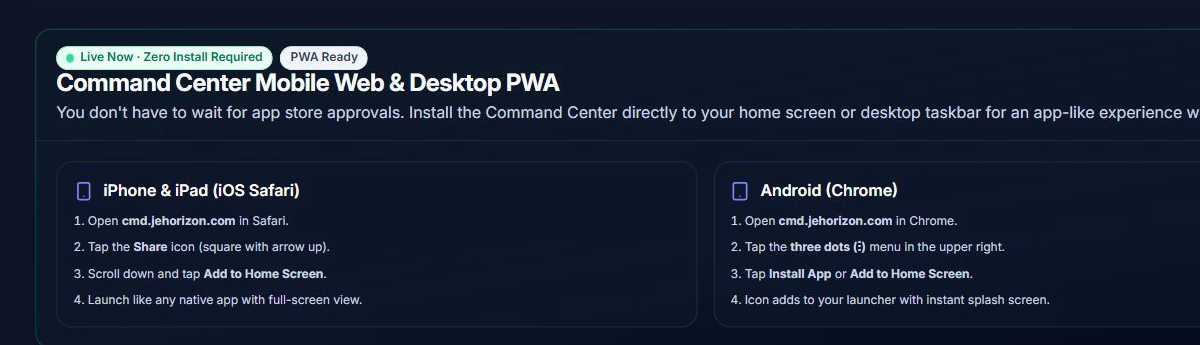
Reviewed product or Store capture. It shows the named control only; it does not prove that a later action completed.
| Control (label) | What it does | When you use it | Gotcha |
|---|---|---|---|
| PWA hero card (Live Now · PWA Ready) | Install instructions for iOS, Android, Windows | Every device you use | "Zero Install Required" — it is a shortcut, not a separate app |
| Native fleet roadmap cards (Windows/iOS/Android) | Status + feature bullets | Awareness only | All three are NOT available: "Private Alpha / TestFlight Coming Soon / Private Smoke Testing" — do not plan around them |
| "View live conversation inbox →" (in the relay card) | Opens Messages | After a missed call | Missed-call push depends on telephony status (section 7) |
| "Manage teammates & permissions →" (in the licensing card) | Opens Teammates | Adding users | One subscription covers all devices; seats come from your plan |
5.25 AI rules & autopilot
The AI behavior controls live inside Settings under the "AI Autopilot & Quoting Boundaries" section (the sidebar's AI-rules route redirects here). The screen shows: AI scope (card "What the AI is allowed to do" — toggles that control whether the AI drafts replies and quotes, marked "Pro required." when locked); Competitor Price Match (card "Beat Competitor Quote" — competitor-beat % and minimum safety floor settings, Pro); Follow-up sequences (card "Follow-up sequences" plus "Create Custom Follow-up Sequence" with Sequence Name, Trigger Timing/Delay, and Message Template fields); and the "What the AI will never do" safety card — hardcoded guardrails titled: "Never quotes prices on its own", "Never books a tech without checking your calendar", "Always flags emergencies right away", "Respects quiet hours", plus the autopilot line: either "Autopilot active (Contractor enabled)" — full automation on, quotes and replies go out without manual approval — or "Drafts only — you approve" — "Every quote and customer reply is a draft until you tap Approve. Nothing leaves without your OK."

Reviewed product or Store capture. It shows the named control only; it does not prove that a later action completed.
| Control (label) | What it does | When you use it | Gotcha |
|---|---|---|---|
| AI scope card ("What the AI is allowed to do") | Master toggles for AI drafting/replying | Governing AI behavior | Marked "Pro required." on plans without the entitlement |
| "Beat Competitor Quote" card | Competitor-beat % + minimum floor | Pro pricing strategy | Only meaningful once competitor-quote features are live (section 7) |
| "Follow-up sequences" / "Create Custom Follow-up Sequence" | Name, delay, message template for auto follow-ups | Recurring no-reply handling | Auto-send of follow-ups rides the messaging rollout (section 7) |
| "What the AI will never do" card | Hardcoded safety guardrails | Read-only | "You cannot accidentally disable these rules." |
| Autopilot status line | "Autopilot active" vs "Drafts only" | Awareness of current mode | Contractor flips it; drafts-only is the safe default |
5.26 Settings
The Settings screen (eyebrow "Account & rules", title "Settings") is the shop's control room. Tab bar: General & Trade · Voice Receptionist · Calendar & Sync · AI Autopilot · Webchat & Knowledge. Sections in order:
- General & Trade Profile — Company & Team Role card (company, owner phone, email, role badge); Your trade card (primary/secondary trade dropdowns + "Update trade"); Current plan card ("Subscription billing lives on Account. This page does not subscribe you." + "Manage billing on Account →"); Price Book & Labor Rates card ("Open Price Book Manager →").
- Voice Receptionist (Marcus Default) & Call Forwarding — the voice/phone card (Starter/Pro badges on "Instant SMS Text-Back" and "AI Voice Receptionist"; alert delivery choices "Both Email & SMS" (Recommended), "SMS Text Only", "Email Only"; consent and opt-in fields; the relay/number disclosure). Customer-facing SMS and the voice receptionist are pending the carrier rollout — the dashboard itself says "Telephony Paused" on Free.
- Calendar Sync & Lead Ingestion Channels — Google Calendar & iCal Sync card (paste your calendar's iCal secret address; shows the Google Calendar steps: Gear ⚙ → Settings → Settings for my calendars → Integrate calendar → copy "Secret address in iCal format") and the Integrations card (webhook/API-key lead ingestion).
- AI Autopilot & Quoting Boundaries — covered in 5.25.
- Local Ads & Growth Engine — the Ads card (budget planning, negative-keyword controls; Q-score-style planning for Google Ads).
- Website AI Chat Bubble & Trade Knowledge — Webchat card (embed script for WordPress/Wix/Webflow/Squarespace; "How to install on…" steps per platform) and Knowledge card ("Use your own company website. Public pages are imported on demand with page and time limits." + document upload).
- Payments & Customer Invoicing — Stripe Payouts / Direct Pay card: "Homeowners pay through your own payment provider. JE Horizon does not take custody of job payments." Supports Stripe Payment Links, Square Checkout, QuickBooks Online, and Venmo Business — this is where you paste your own payment links; Line does not process payments.
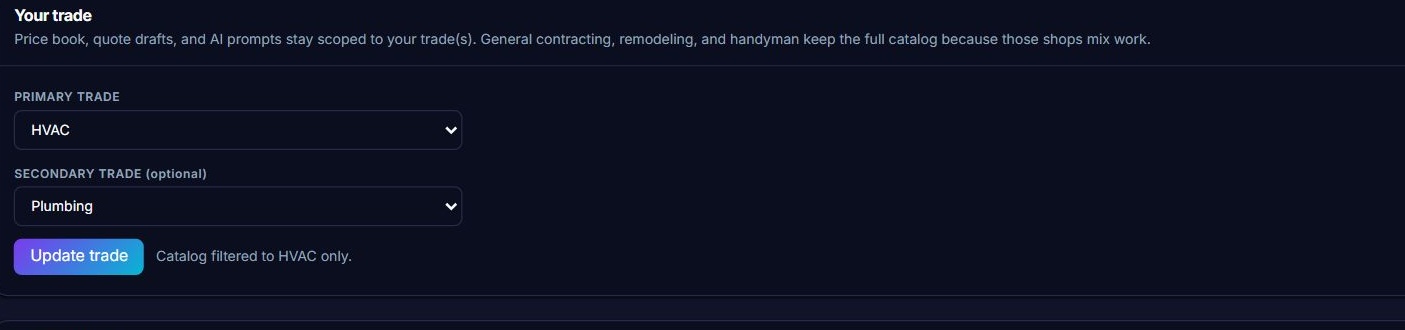
Reviewed product or Store capture. It shows the named control only; it does not prove that a later action completed.
| Control (label) | What it does | When you use it | Gotcha |
|---|---|---|---|
| Settings tab bar (General & Trade / Voice Receptionist / Calendar & Sync / AI Autopilot / Webchat & Knowledge) | Section jumping | Fast navigation | Anchors like #trade, #automations, #calendar-sync deep-link from buttons elsewhere |
| "Update trade" | Saves primary/secondary trade | Setup | Non-trade options keep the full catalog |
| "Current plan" → "Manage billing on Account →" | Jumps to billing | Plan changes | Billing deliberately lives on Account, not here |
| "Open Price Book Manager →" | Opens the price book | Pricing review | |
| Voice/phone card (Starter/Pro badges) | Configure forwarding number, alerts, consent | Telephony setup | Customer SMS + voice pending rollout; consent must be recorded first |
| "Both Email & SMS" (Recommended) / SMS Text Only / Email Only | Choose alert delivery | Owner alerts | Owner lead-alert SMS is the live approved campaign; customer texting is not |
| Google Calendar & iCal Sync card | Paste iCal secret address for two-way sync | Calendar sync | Sync is part of the pending-verification list (section 7); the card's steps are for configuring it |
| Integrations card | Webhook + API-key lead ingestion | Wiring your website in | Keys are managed in Account |
| Webchat card | Embed script for your website | Website intake | Webchat add-on pricing appears on onboarding; confirm at checkout |
| Knowledge card | Import public pages/documents (with page & time limits) | Teaching the AI your shop | "Check the results for outdated prices or policies before relying on them" |
| Stripe Payouts / Direct Pay card | Paste your own payment links | Collecting without Line custody | Line never holds customer payments; your provider's fees apply |
5.27 Account & Billing
The Account & Billing screen (opened from the sidebar's "Account & Billing" or the account menu) is where the account is run. What you see:
- Security & two-factor — the SMS 2FA card: enable a texted login code after Google sign-in; shows whether 2FA is on and your masked phone.
- Billing & subscription — plan and billing controls are described in this source guide. The live public page confirms tier names and monthly prices only; current checkout, add-on, promo, portal, cancellation, and trial terms are not verified here. Review current terms before acting.
- Cancel & close — cancellations take effect at the end of the current billing period ("1-click cancellation anytime", no retention loop); account deletion exists but requires canceling the subscription first and mentions downloading the CSV export before closing.
- API keys — create (
ccc_pk_…-prefixed), copy, and manage keys used to POST leads into the desk (keys require Pro or above: "API keys require Pro or above."). - Teammates summary is reachable from Account too (users + invites data load here), though the full management UI lives on the Teammates screen.
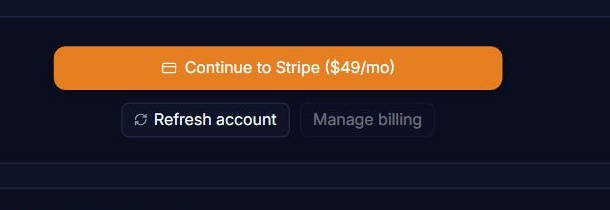
Reviewed product or Store capture. It shows the named control only; it does not prove that a later action completed.
| Control (label) | What it does | When you use it | Gotcha |
|---|---|---|---|
| SMS 2FA card (enable/toggle) | Adds a texted code to sign-in | Security-conscious accounts | Shows the masked registered phone after setup |
| Plan switcher + checkout | Change plans / add-ons | Upgrading or downgrading | First free month on Starter/Pro is gated by paid history (see checkout wording) |
| Billing portal button | Stripe portal: cards, invoices, cancel | Payment upkeep | Cancellation applies at period end; paid features stop when it ends |
| API keys (create/copy) | Keys for POST /api/leads webhook ingestion |
Wiring websites | "API keys require Pro or above." — revoke keys you no longer use |
| Cancel / delete account | End subscription / close account | Leaving Line | Delete requires canceling the subscription first; export your CSV before closing |
5.28 Help & Support
The Help & Support screen (sidebar bottom link, or account menu) is the support hub. What you see: three support cards — Email Support ([email protected], "Direct founder & engineering support", "Typical response under 4 business hours"), System Status (jehorizon.com/status, "Continuously monitored 24/7"), and Billing & Plans ("Open Account & Billing →"). Below: the "Setup & Go-Live Checklist" (5 numbered items: 1. Phone Routing Setup, 2. AI Brain & Trade Rules, 3. Price Book & Services, 4. Billing & Payment Profile, 5. Put us in the middle), the "Step 5 — Carrier forwarding directions" card with the tap-by-tap forwarding codes (AT&T *61, Verizon *71, T-Mobile **61*1#…, plus UScellular, Google Voice, landline, VoIP), and the FAQ list (missed-call receptionist, SMS status, call forwarding, AI pricing, subscription rates and caps, cancellation).
Reviewed product or Store capture. It shows the named control only; it does not prove that a later action completed.
| Control (label) | What it does | When you use it | Gotcha |
|---|---|---|---|
| "Email Support" card | Mailto [email protected] |
Real problems | Include account email + steps you took |
| System Status card | Opens jehorizon.com/status |
Suspected outage | Check this before emailing about downtime |
| "Open Account & Billing →" | Jumps to billing | Plan/payment questions | |
| Setup & Go-Live Checklist (5 items) | Ordered setup path | After onboarding | Item 5 (call forwarding) is last on purpose |
Step 5 carrier codes (AT&T *61, Verizon *71, T-Mobile **61*1#…) |
Forwarding codes per carrier | Enabling missed-call forwarding | Only relevant once telephony is live for you (section 7) |
| FAQ entries | Plain answers | Quick questions | The FAQ quotes plan caps honestly (e.g. draft counts per tier) |
5.29 On the phone (mobile web desk)
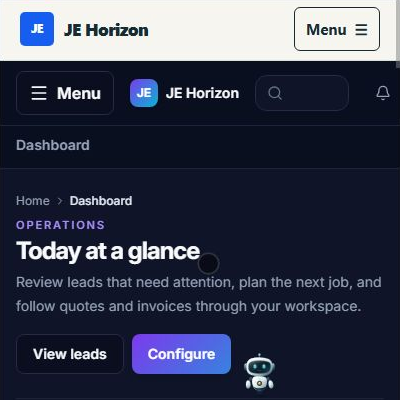
The same desk runs in the browser on your phone — the official mobile fallback. Open cmd.jehorizon.com and sign in. The mobile layout collapses the sidebar into a "Menu" button; the top bar keeps the bell and avatar; a bottom thumb bar docks the four most-used screens (Stock, Shop, Jobs, Leads) for one-thumb use; and the dashboard, leads, conversations, schedule, quotes, jobs, invoices, and customers screens render in a single-column layout. For an app-like experience, install the PWA (section 5.24). The mobile screenshots in Line's shot library (MARKETING_ASSETS/LINE/screenshots/mobile/) show the dashboard, leads inbox, lead detail, conversations, schedule, quotes, jobs, invoices, customers, and settings on a phone — the buttons are the same as desktop, just stacked.
Reviewed product or Store capture. It shows the named control only; it does not prove that a later action completed.
| Control (label) | What it does | When you use it | Gotcha |
|---|---|---|---|
| "Menu" (top-left) | Opens the sidebar drawer | Navigating on mobile | Equivalent to the desktop sidebar |
| Bottom thumb bar (Stock / Shop / Jobs / Leads) | One-thumb jumps | Field use | Only the four core screens; everything else is in "Menu" |
| Bell + avatar (top-right) | Notifications + account menu | Same as desktop | |
| PWA install prompt | "Add to Home Screen" / "Install App" | Making it feel native | Follows section 5.24 steps per platform |
5.30 Growth & Ads (one-tap overview)
The sidebar's Growth & Ads screen (sidebar label "Growth & Ads") is the Local Ads & Growth Engine surface: Google Ads planning with a configurable weekly budget and negative-keyword controls, driven from your trade and shop profile. Full configuration lives in Settings → Local Ads & Growth Engine; the dashboard's "Local Ads & Growth Engine" quick action also lands here. The Growth Engine is a planning/management surface — it does not place spend without your explicit setup, and its budget/quality-score figures are planning estimates, not live ad accounts.
6. What's supported
Every module in the desk, and its live state (2026-09-27):
| Module (screen) | What it does | Live state |
|---|---|---|
| Dashboard | Operations overview, pipeline, metrics, test-lead simulator | Working in the build |
| Leads (inbox / new / detail) | Lead capture, triage, statuses, CSV import | Working in the build |
| Customers CRM (list / new / detail) | Deduped customer records with history | Working in the build |
| Jobs board (board / new / detail) | 8-lane Kanban with drag & drop and "Move to:" | Working in the build |
| Quotes (register / new / builder) | Line-item quotes, PDF preview/print, email, public accept page | Working in the build; AI auto-drafted drafts and SMS approval-link delivery are pending verification |
| Price book | National 2026 starter rates, CSV import, editing | Working in the build |
| Invoices (list / new / editor) | Draft, itemize, PDF/print, email, paid toggle | Working in the build; payment links and accounting export are explicitly "(later)" |
| Schedule (calendar / new) | Appointments, statuses, "Add to GCal" | Working in the build; Google Calendar two-way sync pending verification |
| Conversations (Messages) | Thread inbox, quick replies, composer, channel status | Screen working; customer two-way SMS/MMS pending carrier rollout |
| Teammates | Invites, roles (Manager/Teammate), revoke | Working in the build; dispatch-text notifications need verified phone + consent and ride the messaging rollout |
| Stock & Shop | Parts ledger, barcode scan, supplier price comparison | Screens working; inventory automation (reorder, truck stock) pending verification |
| Apps & Devices | PWA install hub + native-app roadmap | PWA live; native Windows/iOS/Android apps NOT available yet |
| Settings | Trade, price book link, voice/phone card, calendar sync, AI scope, webchat, knowledge, direct-pay links | Working in the build; linked services pending where noted |
| Account & Billing | Plan switcher, Stripe checkout/portal, 2FA, API keys | Working |
| Help & Support | Support cards, checklist, carrier codes, FAQ | Working |
| Growth & Ads | Google Ads planning surface | Planning surface in the build |
Included file formats and integrations:
- CSV import — leads (
/api/leads/import), customers, jobs, price book (trade,name,unit,price,kind,notes), inventory. Exports: leads toolbar "Export" button; account-level CSV export mentioned at account close. - Document output — quotes and invoices print to PDF through the browser print dialog ("Download / Print PDF"); a paper-style document renders on screen and in print.
- Email delivery — "Email to Client" sends quote and invoice PDFs to the customer email address (confirmed working in the build; SES relay based).
- Google Calendar — "Add to GCal" per appointment (works now); two-way sync via iCal secret address in Settings (pending verification).
- API —
POST https://cmd.jehorizon.com/api/leadswith a Bearer API key ingests leads from your website/form/chat (keys require Pro: "API keys require Pro or above."). - Sign-in — email one-time codes and Google sign-in, plus optional SMS two-factor.
- Platforms — any modern browser; Windows desktop shell (Microsoft Store, ContractorDesk
9NZQV4GSJTJH); mobile PWA on iOS/Android.
Feature-per-plan (published, verbatim from the in-app Help page): Free $0 (2 seats, no AI drafts) · Alerts $9 (3 seats) · Text-Back $29 (25 AI drafts, 5 seats, 10DLC) · Starter $49 (100 voice minutes, 500 conversations, 50 quote drafts, seats vary by page — verify at checkout) · Pro $79 (250 voice minutes, 1,000 conversations, 150 quote drafts, seats vary by page — verify at checkout). Dedicated local number +$5/mo; webchat add-on listed as +$15/mo in the price catalog (onboarding screens may print a different figure — confirm at checkout).
7. Edge cases & gotchas
Not yet available / known limits (2026-09-27, mirroring Line's reviewed product pack). These features are named in Line's catalog but are being rolled out or are not verified live. Do not rely on them — check current status before planning around any of them:
- Missed-call SMS text-back and carrier 10DLC/TCR activation are in progress — do not assume they are live. (Line's landing page states this verbatim and adds: don't advertise SMS as live until a test inbound missed call produces an opt-out-compliant text.)
- The automated AI voice receptionist is not verified for the current release. The dashboard shows "Telephony Paused" on the Free tier; Settings' voice card is where it will be configured once live.
- Customer two-way SMS/MMS is pending carrier approval. Owner lead-alert SMS is the live approved campaign; customer-directed texting is a separate 10DLC campaign still in progress.
- AI auto-drafted estimates, the SMS approval link, quote-draft meters, competitor quote matching, and trade knowledge ingestion are cataloged but their live delivery is pending verification.
- Google Calendar two-way sync, schedule arrival-window holding, teammate dispatch, zero-custody payment links, deposits via quote terms, billing reminders, the notifications bell, the Kanban board, inventory automation, leads pipeline, and conversations inbox are source-documented build features; the current release review could not verify each one live — the screens exist, the services are being confirmed.
- Inbound photo MMS and the AI webchat bubble (Pro/add-on) are pending the same rollout.
Edge cases, in the order you will meet them:
- Symptom: I expect a missed-call text and none arrives. Why: Text-Back and 10DLC/TCR carrier activation are in progress — not assumed live. What to do: use the desk for the customer/job workflow, and contact support for current activation status. Do not build your business process on the text.
- Symptom: a paid messaging or receptionist control is missing or greyed out. Why: Text-Back / voice activation is pending the carrier rollout, and AI controls are plan-gated. What to do: use the Core Desk features; check Settings' channel cards and contact support for activation status.
- Symptom: the sign-in code email is slow or I typed it wrong. Why: email delivery can lag, and codes expire. What to do: request a new code; check spam; if SMS 2FA is on, you need the phone that was registered.
- Symptom: my Line login does not work on other JE Horizon products. Why: Line uses a separate Line sign-in at
cmd.jehorizon.comdistinct from other JE Horizon accounts. What to do: sign in atcmd.jehorizon.comwith the email you used for Line; your business data is scoped to this account. - Symptom: a teammate says the invite expired. Why: invites carry an expiry date shown on the Pending invites row. What to do: click "Resend" on the Teammates screen and have the invitee accept promptly.
- Symptom: the quote's "Email to Client" fails or warns about a missing address. Why: email sending requires a customer email under "Customize & Edit", and on invoices it is disabled until changes are saved. What to do: fill the customer email, click "Save Changes", then email again.
- Symptom: the quote/builder changes look lost. Why: drafts only persist on "Save Changes"; closing the tab or navigating away discards them. What to do: save before leaving a builder screen.
- Symptom: the invoice total in the paper preview disagrees with the saved invoice. Why: unsaved edits. The editor shows the amber warning: "This preview has unsaved changes. Review and save before emailing or printing." What to do: save, then email/print.
- Symptom: I deleted a price-book row by accident. Why: deletion is permanent — the dialog says "This cannot be undone." What to do: re-add the row via "Add your own" or "Reset national rows" for national items; export the book as a backup first.
- Symptom: the customer has five disconnected records. Why: leads created separate customer records because phone/email didn't match. What to do: the desk dedupes by phone/email; import clean numbers and use the same customer from the lead/customer flow.
- Symptom: jobs/leads missing from my board. Why: on team accounts a Teammate role only sees jobs and schedules assigned to them. What to do: ask the admin to assign the job (Job Assignment Controls on the job detail) or switch to the admin account.
- Symptom: the free tier banner says "Telephony Paused". Why: customer messaging and voice depend on activation. What to do: check the current public status and checkout terms; this guide does not verify a setup fee or feature activation.
- Symptom: checkout shows a trial, setup fee, add-on, or promotion. Billing terms can change. Review the current checkout and contact support if anything is unclear; this guide does not verify those terms.
- Symptom: a customer asks how to approve the quote. Why: the accept page needs the link. What to do: send it via "Copy Link" (
…/quotes/<id>/accept) in an email/text, or "Email to Client". If the quote's Valid Until date passed, the page says "This quote has expired" — extend the date, save, and resend. - Symptom: "Stripe payment link" is not on my invoice. Why: payment links are listed on Line's own Invoices page as "(later)". What to do: paste your own Stripe/Square/QuickBooks/Venmo payment link into the direct-pay card in Settings → Payments & Customer Invoicing, or collect normally.
- Symptom: the Windows app shows an offline/error screen. Why: the shell needs the network for the live desk, and it renders a friendly state instead of a blank page. What to do: check the connection, confirm
cmd.jehorizon.comloads in a browser, then reopen the app; checkjehorizon.com/status. - Symptom: closing the Windows app window "logs me out". Why: it does not. The session persists in the app's isolated profile; close and reopen normally stays signed in (measured behavior in the packaged client).
- Symptom: the desk says "API keys require Pro or above." Why: API-key lead ingestion is a Pro entitlement. What to do: upgrade, or use the CRM flows without the API.
- Symptom: a Settings option links to something "later". Why: integrations and services are still being activated per the pending list above. What to do: read the section-7 list; contact [email protected] for the current status of a specific feature.
- Symptom: urgent lead says "Emergency Inquiry Awaiting Reply (>30m)". Why: an emergency-marked lead passed 30 minutes without an outbound reply — the dashboard's graduated speed-to-lead alert. What to do: reply via the desk immediately; the alert estimates the value "at risk".
8. Troubleshooting
The app won't install or open.
1. Confirm you are installing ContractorDesk (Store ID 9NZQV4GSJTJH) from the Microsoft Store page or the Store app.
2. Check that your PC is Windows 10/11 x64 and Windows Update is current (the shell needs the WebView2 runtime, which ships with Windows).
3. Restart the PC and try "Get" again. If the Store page does not load, use the web desk at cmd.jehorizon.com — it is the same app.
4. For dev-mode re-registration errors (0x80073CFB): an unchanged dev package refuses re-registration; the documented workaround removes the package, which also deletes its profile. Remove and reinstall the Store build instead.
5. Still stuck? Write to [email protected] with the Store error code and the Windows version.
The app opens to an offline or error state.
1. Confirm the internet is up — open cmd.jehorizon.com in a browser.
2. Check jehorizon.com/status for an outage banner.
3. Reopen the app. The offline/error states are deliberate shells, not broken pages.
App stuck signed out (Windows).
1. Open the app and sign in again at cmd.jehorizon.com/login inside the app window.
2. If that fails, do the same in your browser once, then reopen the app — the session is shared through the same account, not the same cookie jar.
3. A genuine network-outage run and account-switch run are still listed as not-checked in the shell's status — report oddities to support.
A button is missing or greyed out. 1. Check which plan you are on (Settings → Current plan, or Account & Billing). AI buttons say "Pro required." or "Upgrade to Starter"; API keys require Pro. 2. Check section 7's pending list — some controls (SMS, voice) exist but are not live yet. 3. On a teammate account, admin-only menus are hidden by design.
Results look wrong (quote totals, invoice amounts). 1. Open the document in "Customize & Edit" and recheck line items (quantity × unit price), "Tax Rate (%)", and any Discount-type rows. 2. Click "Save Changes" — the paper preview reflects the saved draft only after saving. 3. Reprint from "Download / Print PDF" after saving so the printed amount matches.
Payment or subscription problems. 1. Current billing provider and portal behavior are not verified here. Use only the official current checkout and confirm its terms before acting. 2. Cancellation applies at the end of the current billing period; paid features stop when the period ends. 3. If checkout presents trial language, review its current terms before proceeding. This guide does not verify eligibility or trial length.
App stuck on a screen. 1. Refresh the page (browser) or close and reopen the app (Windows). 2. If a form does not submit, look for the error message under the form — required fields are tagged "*** REQUIRED". 3. Report repeatable freezes to [email protected] with the screen name and what you clicked.
I accidentally deleted something. 1. Price book rows: permanent. Re-add via "Add your own" or "Reset national rows". 2. Teammate revoked: reinvite with the "Invite" box. 3. There is no recycle bin anywhere in the desk — export CSVs regularly as your backup.
9. FAQ — common questions
I don't see the "New lead" button. It is on the Leads screen top-right (purple, "+ New lead"). From the dashboard, "View leads" gets you there.
Can I undo that? Deletes are permanent (with a confirmation dialog). Saves are manual — click "Save Changes" in builders. There is no undo button.
Where is my data saved? In Line's US-hosted service, scoped to your business account. The Windows app shells the live web desk; nothing important lives only on your PC.
Will this touch my files? No. Line is a web desk; the Windows app is a WebView2 shell around the live site. It cannot read or modify your local files.
Do I need to pay? No — the Free Core Desk ($0, no card) runs customers, jobs, quotes, price book, and invoicing. Paid plans add the AI/SMS/voice layer.
Can I use it offline? No meaningful offline mode. The desk needs the internet; the Windows shell shows a friendly offline state instead.
What happens if I close the app mid-task? Unsaved form/draft edits are lost (see edge case 7). Saved records are safe — they live in the cloud.
Does Line give me new jobs or leads? No. Verbatim from Line's site: "Line is a workspace for managing your own customer and job information. It does not promise new leads or booked work." You bring your own leads; the desk organizes and converts them.
Why does the app say "Telephony Paused"? You are on the Free tier. Texting and voice are paid-tier features that are also still being rolled out (section 7). The phrase is Line's honest status for the Free desk.
Can I send an SMS right now? Customer two-way SMS is pending the carrier rollout. The composer exists; delivery is not guaranteed until status says live. Owner alert SMS is the live approved campaign.
How do I get the paid plans? Account & Billing → plan switcher → checkout (Stripe). Review current checkout terms; this guide does not verify trial eligibility.
Which browser should I use? Chrome, Edge, Firefox, or Safari — the desk works in all of them. iOS and Android work through the mobile web desk or the installed PWA.
What if a customer refuses to accept the quote? The quote has a Valid Until date; you can edit terms or pricing on the builder, save, and resend. Nothing is binding until sent and accepted — drafts are not legal offers.
10. Privacy & data
- Where data lives. Line's business data is stored in an authenticated, US-hosted web service (Postgres on the US cluster), and every query is scoped to your business account. The Windows app is a shell around that service — do not think of it as a fully local desktop database.
- What stays on your device. Almost nothing. Your sign-in session is kept in the app's own isolated WebView2 profile so you stay logged in between launches. No local database of customers or jobs is kept by the desk.
- What goes to the network. The desk itself, when you use it. Optional email/SMS delivery (when live) sends quote/invoice PDFs or messages to the customer's email/phone at your instruction.
- Customer data use. Line states "We never train models on your customer data." Customer records are business-scoped and are not sold. SMS consent data is never shared with third parties for marketing.
- Consent and opt-out. Paid customer-texting plans record explicit consent (the consent checkboxes at sign-up, and opt-in fields in the voice/phone card). Reply STOP to any Line SMS to suppress further messages; outbound texts are checked against suppression.
- Account deletion. You can cancel and close the account from Account & Billing; deletion cancels/requires cancellation of the subscription first, and the email is tombstoned. Download the available CSV export before closing.
- Third parties. Payments happen on Stripe's pages (your card never enters the desk); supplier links in Shop open the seller's own site; affiliate disclosure is printed on the Shop screen.
11. Getting help
- Email support:
[email protected]— "Direct founder & engineering support", typical response under 4 business hours. - Support page:
https://jehorizon.com/support/and the help hubhttps://jehorizon.com/help/#line. - System status:
https://jehorizon.com/status— check before reporting downtime. - In-app Hub: the Help & Support screen (sidebar bottom) has the checklist, carrier forwarding codes, and FAQ — always read it first.
- What to include when you write in: the account email you signed up with, which screen you were on, exactly what you clicked, the message on screen, and (if on Windows) the app version from the Microsoft Store page. Screenshots help — the desk is heavily visual.
Quick reference
This guide covers the reviewed public workflows for Line (ContractorDesk). Controls can vary by installed version. Reviewed control images from the complete source draft appear in the visual tour below. The completed source guide follows the reviewed public workflows. Read the current release limits first; source fixes are not the same as a deployed release, and images do not verify action outcomes.
1. Install and open
Open the Microsoft Store listing and follow the install action shown for your account. Launch the app and check the controls visible in your installed version.
Product details · Product Help
2. Common tasks
Start with Core Desk
- Open the Line page and follow its Core Desk sign-up link.
- Select Free Desk explicitly and confirm $0.00 Due Today before continuing; the signup page can initially select paid Starter ($78.99 due today in the reviewed capture).
- After account setup succeeds, sign in to the Line desk, add a customer, and create a job for that customer.
- Use the price book and job details to prepare an estimate; review it before issuing an invoice.
Prepare an estimate
- Sign in to the Line desk and select or add the customer and job.
- Review the price-book entries and the work details while composing the estimate.
- Check amounts and customer details before sharing through the currently available desk workflow.
Follow a job into invoicing
- Open the existing customer and job record.
- Review the completed work and create the invoice in the desk.
- Confirm the invoice details and use your own delivery or payment process as appropriate.
3. Current release limits
A source repair now aligns the editor default with the saved quote total and makes send fail closed if saving fails; focused tests passed. No coordinated live release/readback is recorded here, so the production quote fix and acceptance-link path remain NOT VERIFIED: do not send an acceptance link until the same saved quote shows the same amount in the editor and public page. Customer SMS and voice activation remain unverified.
- Text-Back, missed-call SMS automation, and carrier 10DLC/TCR activation are in progress; do not assume they are live.
4. When something goes wrong
Expected a missed-call text
- Do not rely on Text-Back during the pending rollout.
- Use the Line desk for the available customer and job workflow, or contact support for status.
A paid messaging or receptionist control is missing
- Do not assume Text-Back or voice activation is available during the carrier rollout.
- Use the Core Desk features and contact support for current activation status.
5. Get help
Record your installed app version, the control you used, and the exact result. Do not include a password, license key, customer record, or private file.