Follow the steps and red lettered screenshots below. Some controls vary by installed version; confirm a send, purchase, license decision, or saved record in your app.
How to Use OmniHorizon AI CRM — the complete guide
OmniHorizon AI CRM · JE Horizon · updated 2026-09-27
One name note up front: the Microsoft Store and the app call this product "OmniHorizon AI CRM". The website calls it "OmniHorizon for Windows". Same product, same download, same Store page — one of those two names just depends on where you are looking.
Help center · Product page · Microsoft Store
1. What this app is
OmniHorizon is a business workspace that runs on your Windows PC and keeps your customers, stock, quotes, and invoices together in one place. It is a CRM (Customer Relationship Management — a place where you store the people you do business with), an inventory tracker, a quote writer, and an invoicer — all in one desktop app, using one local database on your computer.
It is made for small businesses that run a counter, a shop, a repair bench, or a field team: find the customer, check the stock, prepare a quote, turn it into an invoice — without retyping the job between quote, email, and invoice. Everything runs locally on your PC, so it keeps working when the internet doesn't. The full workflow — find customer, check stock, build quote, print invoice — runs with no internet at all.
What this app is NOT
- Not a cloud SaaS. Your data does not live on a JE Horizon server or in "the cloud". It lives in one SQLite database file on your PC. (SQLite = a common, dependable single-file database format.) If someone deletes the folder or the PC dies, your data goes with it — the app has no automatic cloud backup.
- Not an accounting package. It produces quotes and printable invoices with tax and discounts, but it is not bookkeeping software (no bank feeds, no tax filing).
- Not a Mac app or an Android/iOS app. Windows only. Your phone is used only as a barcode scanner companion (see the scanner section).
- Commercial terms are not confirmed by this guide. Older Store and app copy describes trial and paid-license terms, but the published 1.0.18.0 activation path is under security review. Do not rely on a trial state or enter payment details based on those older terms; check the current official checkout and wait for a verified release.
- Not a live-sync system. Install it on up to ten of your own Windows devices, but each device keeps its own database — a change on the counter PC does not automatically appear on the office laptop.
2. Before you start — what you need
| Need | Requirement |
|---|---|
| Operating system | Windows 10 (64-bit, version 1809 or newer — that's the version released October 2018 or later) or Windows 11. The package is built for x64 (standard 64-bit Intel/AMD PC). |
| Processor | 64-bit (x64). Any modern Intel or AMD PC. |
| Memory (RAM) | 4 GB minimum to run the app itself. Optional local AI features get recommendations per hardware tier: 8 GB+ RAM for CPU-only AI models; 2–4 GB dedicated video memory (VRAM) for mid-size GPU models; 6 GB+ VRAM for the largest models. Without a suitable GPU the app simply runs its deterministic (rule-based) engine — see "Local AI" in the tour. |
| Disk space | About 17 MB for the app package, plus whatever you store in it. Optional AI model downloads add roughly a few hundred MB to several GB depending on the model tier. |
| Web browser component | Microsoft Edge (WebView2) — it ships with Windows 10/11 and is used to display the app's interface. No install needed. |
| Internet | Local business workflows are described as offline-capable. Store download, optional model download, feedback, and any purchase require internet. License behavior in the published build is under review. |
| Account | The app may show account/license prompts. Do not treat a displayed trial or activation state as verified entitlement; see the current release limit before taking a payment action. |
| Version | Partner Center identifies the published package as 1.0.18.0 on 2026-09-27, and the local Store-associated Appx matches. Check the version installed on your PC; rollout may differ. |
Historical Store and app copy (2026-09-27; not verified purchase terms):
The listing and some 1.0.18.0 screens describe trial, paid-license, and device-bound licensing terms. These statements are not proof that the published package correctly enforces or activates a paid entitlement. The activation path remains under security review. Do not pay, enter a key, or rely on trial-expiration behavior based on this draft; check with support for the current verified purchase path.
3. Install & first launch
Step 1 — get the app. On the website https://jehorizon.com/omnihorizon/ there is a green button labeled "Get from Microsoft Store" — that is the download. It opens the store page for OmniHorizon AI CRM (9NJSG0QJ7WCF, at https://apps.microsoft.com/detail/9NJSG0QJ7WCF).
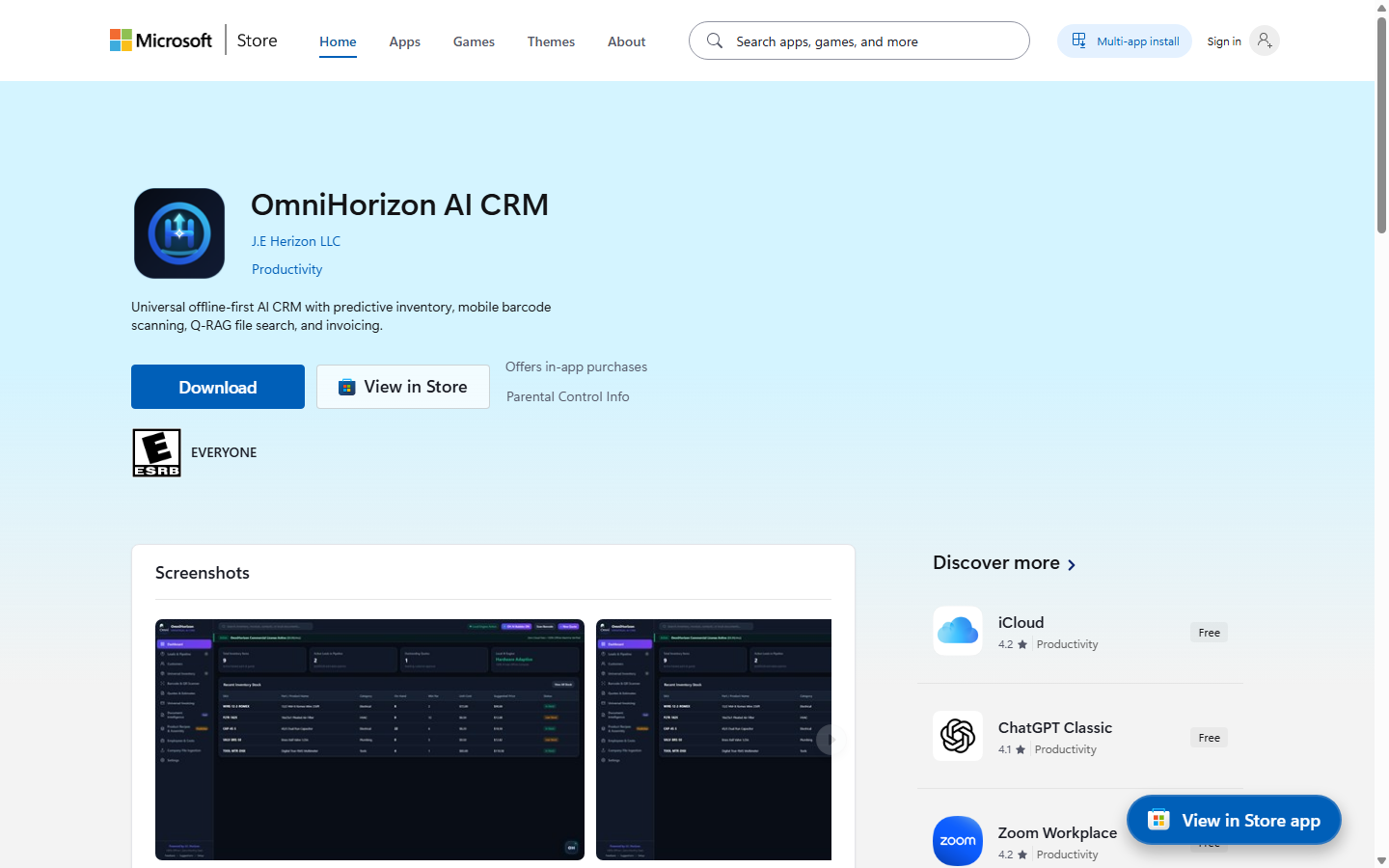
Reviewed product or Store capture. It shows the named control only; it does not prove that a later action completed.
Step 2 — install. Click Download on the web listing, then follow the Microsoft Store installation prompts. The Store handles subsequent updates.
Step 3 — first launch. Open OmniHorizon AI CRM from the Start menu. A launcher starts the local engine in the background (silently — no terminal window) and opens the app in a desktop window. The first thing you may see is the Workspace Setup wizard. Go to section 5.2 for its described controls. Older wizard copy includes trial wording; this guide does not verify a trial start or entitlement.
Step 4 — review any license banner. Some 1.0.18.0 screens show older trial or activation wording. Treat it as an unverified UI state; do not use it to determine purchase status or make a payment.
If the app window opens but shows "cannot reach" or a blank page: the local engine listens on
127.0.0.1:8765— the addresshttp://127.0.0.1:8765in your browser shows the same interface. If even that fails, see Troubleshooting.
4. Quick start — first win in 10 minutes
This gets a brand-new user from zero to a finished quote in about ten minutes. Every button named.
- Install and open the app (section 3). You will land in the Workspace Setup wizard. Pick a business type by clicking one of the four preset cards (Coffee/Roastery, Trades, Retail, Services) — the preset fills in your company name, tagline, and tax rate. Then click the "Continue to Hardware Diagnostics →" button — this just checks your PC (RAM, CPU, graphics) and needs no action from you.
- If the wizard presents a commercial-license or trial screen, do not enter payment details. The published activation flow is under review; contact support before proceeding with any license or purchase action.
- Add a customer: click "🔴 + New Customer" in the Customers section (use the left navigation: Customers). Fill in a name and a phone or email, then click "Save Customer".
- Build a quote: click the "🔴 + New Quote" button at the top right of the window. Give the quote a title, pick the customer in the Customer dropdown, and check the line item that is listed (you can edit the name, quantity, and price, or add more with "+ Add Line"). Click "Create Quote".
- The quote appears in Quotes & Estimates with a "View / Print" button. Click it to open the quote on screen.
- Check the numbers, then click the "🔴 Convert to Invoice" button inside the quote. The app builds the invoice from the quote — customer, line items, and prices carry over automatically. You are taken to the Universal Invoicing screen.
- Click "View / Print" on the new invoice, review it, then click "Print Invoice" and choose "Microsoft Print to PDF" to save it as a PDF.
- Done — that is the whole core loop: customer → quote → invoice, typed once.
If the "+ New Quote" button is greyed out or missing, you are not on a screen that has it — the top bar "+ New Quote" exists on every screen; the one in the Quotes section header is "+ Create Quote". Use the top-bar one from anywhere.
5. The tour — every screen, every button
The screens below are ordered the way you meet them. Each screen's controls are explained in the table that follows.
5.1 The launcher (behind the scenes)
When you start the app, OmniHorizonLauncher.exe (a small program) checks whether the local engine is already running on port 8765; if not, it starts it silently using a Python runtime that is bundled with the package, waits until it is listening, then opens the interface in a dedicated window (Edge in app mode, 1440×900). You never see a console window. Closing the app window closes the interface; the engine itself stops when you sign out or shut down — it makes no network calls to JE Horizon. Nothing about this needs you to do anything; it is explained here so that "why is a window flashing / why is something on port 8765" makes sense.
5.2 First-run onboarding — Workspace Setup (4 steps)
This appears automatically at first launch (about half a second after the window opens) and only until you finish or skip it once. It has four steps: Workspace Setup → Live System Diagnostics → Commercial License & Free Trial → Workspace Ready.
What you see (step 1): - Business / Organization Name — your company's name (a sample is pre-filled from the preset). - Tagline or Operating Specialty — one line about what you do. - Select Industry Configuration Preset — four clickable cards: FOOD & BEVERAGE (Roastery & Culinary Operations), CONTRACTING & TRADES (Trades & Field Operations), RETAIL & COMMERCE, PROFESSIONAL SERVICES. Clicking one fills the name/tagline and picks a starting tax rate. - Currency Symbol — dropdown: USD ($), EUR (€), GBP (£), CAD ($), AUD ($). - Default Sales Tax Rate (%) — a percentage used when you build quotes/invoices (you can still change tax per document). - Use Defaults & Skip — closes the wizard and skips setup (you can re-run it later from the Setup link in the sidebar footer). - Continue to Hardware Diagnostics → — to step 2.
Step 2 — Live System Diagnostics: the app measures your PC (System Memory, Processor Architecture, Acceleration Core) and records a "Hardware Profile". It tells you plainly: "No model has been installed or started by this step — inventory depletion projections, document search and quoting run on deterministic local code either way." It also shows where local storage lives: %LOCALAPPDATA%\OmniHorizonCRM\data\. The Continue to Commercial License → button is disabled until the audit finishes (usually 1–3 seconds).
Step 3 — Commercial License & Free Trial: older interface copy describes a trial and monthly license. These terms and the current activation path are unverified; do not treat the screen text as an offer. Continue only if you choose to use the app without relying on a trial or paid entitlement.
Step 4 — Workspace Ready: a green checkmark and "…is Armed". Click Launch Command Center → to land on the Dashboard. (The × close button on any step finishes setup and skips straight to the app.)
| Control (label) | What it does | When you use it | Gotcha |
|---|---|---|---|
| Preset cards (Food & Beverage / Trades / Retail / Services) | Fills in company name, tagline, and tax | First-run, to start from a realistic setup for your trade | They only pre-fill text — you can edit the text after clicking |
| Business / Organization Name | Sets what shows on quotes/invoices as your business | First run | Required by the form if you don't skip |
| Currency Symbol / Default Sales Tax Rate (%) | New quotes/invoices start with these | First run | Changeable later per document and in Settings |
| Use Defaults & Skip | Closes the wizard without saving business details | When you want to explore first | You can reopen it anytime via sidebar footer Setup |
| Continue to Hardware Diagnostics → | Saves settings, runs step 2 hardware audit | Always at first run | The audit measures your PC only — nothing is uploaded |
| Continue to Commercial License → | Step 2 → 3 | After the audit completes (button is disabled until then) | If it stays disabled longer than 10 seconds, restart the app |
| Continue to Launch → / Launch Command Center → | Advances the setup flow | When the control appears | Does not establish trial status or paid entitlement |
5.3 The main workspace — top bar & left sidebar (every screen)
Every screen shares the same chrome: a top bar and a left sidebar.
Top bar: a search box that says "Search inventory, invoices, contacts, or local documents..." — type something and press Enter and you jump to the Document Intelligence screen with that search run. Next to it a green "Local Engine Active" pill (the local engine status), the "OH AI Bubble: ON" toggle (turns the floating assistant on/off), "Scan Barcode" (takes you to the scanner screen), and "+ New Quote" (opens the quote form from anywhere).
Left sidebar (12 sections): Dashboard, Leads & Pipeline (shows a count badge), Customers, Universal Inventory (count badge), Barcode & QR Scanner, Quotes & Estimates, Universal Invoicing, Document Intelligence (badge "Fast"), Product Recipes & Assembly (badge "Predictive"), Employees & Costs, Company File Ingestion, Settings. Clicking any entry opens that screen. The sidebar footer shows Powered by J.E. Horizon, "100% Offline • Zero Monthly SaaS", and three links: Feedback, Suggestions, Setup (Setup reopens the onboarding wizard).
| Control (label) | What it does | When you use it | Gotcha |
|---|---|---|---|
| Global search box (top bar) | Jumps to Document Intelligence and searches | When you need a file, invoice, or contact fast | Press Enter — there is no search button up there |
| Local Engine Active (pill) | Status readout, not a button | Just to check the engine is up | If it ever says otherwise, the local engine needs a restart (Troubleshooting §8) |
| OH AI Bubble: ON | Toggles the floating assistant bubble | When the bubble is in the way | Label flips to "OH AI Bubble: OFF" when hidden |
| Scan Barcode | Opens the scanner screen | Before/after scanning items | Just a shortcut to the Barcode & QR Scanner screen |
| + New Quote | Opens the quote form from any screen | Whenever you need a new quote | Same form as "+ Create Quote" on the Quotes screen |
| Sidebar entries | Switch screens | All the time | A section's counts (badges) refresh when you open it |
5.4 Dashboard — the command center
The first screen. Four summary cards on top, then the Recent Inventory Stock table.

Reviewed product or Store capture. It shows the named control only; it does not prove that a later action completed.
Cards: Total Inventory Items (every part/product you track), Active Leads in Pipeline (with estimated $ value), Outstanding Quotes (waiting on customers), and Local Compute — this one reports exactly what the local AI engine is doing, e.g. "Deterministic engine" with the note under it "Rules, SQL and Q-RAG run on this PC. No model is asserted here until the runtime status endpoint reports one." If a model were actually running, the card would say so (e.g. "CPU model ready"). The app never claims a model is running when it isn't.
The Recent Inventory Stock table shows up to five items: SKU, name, category, On Hand, Min Par, Unit Cost, Suggested Price, and a green In Stock / amber Low Stock badge (Low = on hand at or below the minimum par level). View All Stock jumps to the Inventory screen.
| Control (label) | What it does | When you use it | Gotcha |
|---|---|---|---|
| View All Stock | Opens the full Inventory screen | Table only shows 5 items | — |
| Stat cards | Read-only summaries | Glancing at business state | "Local Compute" wording is dynamic — read what it says verbatim |
| Recent Inventory Stock rows | Read-only preview | Checking what's low | Editing happens on the Inventory screen |
5.5 Leads & Pipeline
Commercial Leads & Inquiries — a table of the people who have asked about your business. Columns: Contact Name, Interest, Status, Urgency, Est. Budget, AI Insight, Actions.

Reviewed product or Store capture. It shows the named control only; it does not prove that a later action completed.
- "+ Add Lead" opens Create New Commercial Lead: Contact Name (required), Phone or Email, Service Interest, Customer Inquiry Message → Cancel or Create Lead.
- Each lead row has "AI Qualify" — opens the OH Assistant Lead Qualification modal, which evaluates the inquiry locally (deterministic rules + local retrieval — nothing leaves the PC) and shows a Priority Level, an Estimated Budget, and an Assessment, plus a "Draft Follow-up Email" button.
- Status shows a badge per lead (the pipeline stages: New → Contacted → Qualified → Quote Drafted → Quote Sent → Won/Scheduled → Invoiced → Completed, or Lost). Urgency shows as EMERGENCY / HIGH / NORMAL.
- Est. Budget is the dollar value of the opportunity. AI Insight is a one-line local assessment (or "Awaiting AI review").
| Control (label) | What it does | When you use it | Gotcha |
|---|---|---|---|
| + Add Lead | Opens the new-lead form | A customer asks a question or sends an inquiry | The inquiry message feeds the AI qualification |
| AI Qualify | Runs a local evaluation of the lead | Before you spend time on a lead | It runs on this PC; results are an aid, not fortune-telling |
| Draft Follow-up Email | Opens the email drafter with a draft | Right after qualifying | It only drafts — see the email drafter in §5.6 |
| Status / Urgency badges | Read-only labels | Sorting the funnel | — |
5.6 Customers
Customer Dossiers & Contacts — every person or business you deal with. Columns: Name, Company, Phone, Email, Address, Actions.

Reviewed product or Store capture. It shows the named control only; it does not prove that a later action completed.
- "+ New Customer" opens Add New Customer: Customer / Contact Name (required), Company / Organization, Phone Number, Email Address, Billing & Service Address, Notes → Cancel / Save Customer.
- Row action "Email Contact" opens the OH Assistant Email Drafter: a Recipient (read-only), Subject, and Message Body — with "Copy to Clipboard". Important: it drafts an email and copies it; it does not send email by itself. Paste into your own mail app.
| Control (label) | What it does | When you use it | Gotcha |
|---|---|---|---|
| + New Customer | Opens the customer form | Someone you'll do business with | Saved instantly on Save Customer — no undo dialog |
| Email Contact | Drafts a message from local data | Following up with a customer | It copies to the clipboard — sending is up to you |
| Copy to Clipboard | Copies the drafted message | After reviewing the draft | If the clipboard fails, select the text and Ctrl+C |
5.7 Universal Inventory
The stockroom truth: Universal Inventory & Stock with a filter box ("Search SKU, Part Name, Barcode..."), a Category dropdown, and two buttons: "Scan to Restock/Use" (jumps to the scanner) and "+ Add Part". Table columns: SKU, Barcode, Part / Product Name, Category, On Hand, Min Par, Cost, Selling Price, Actions.

Reviewed product or Store capture. It shows the named control only; it does not prove that a later action completed.
- "+ Add Part" opens Add Inventory Part / Product: SKU (required), Barcode / UPC / QR, Part / Product Name (required), Category, Storage Location (e.g. "Aisle 3, Bin B"), Initial Stock, Minimum Par, Unit Cost ($), Markup (%), Selling Price ($). The selling price auto-calculates from cost × markup as you type, and you can override it. Cancel / Create Item.
- Row actions: +1 (add one to stock), -1 (use one), Details.
- Details opens the item modal with SKU, Barcode, Category, Storage Location, Unit Cost, Markup Rate, Selling Price, Reorder Pack Size — and a Fast Audit Adjustment box: type a delta (e.g.
+5or-3) and click "Apply Stock Delta" to correct a physical count. The modal's ✕ closes it. - When On Hand ≤ Min Par the quantity shows amber and the status badge says Low Stock.
| Control (label) | What it does | When you use it | Gotcha |
|---|---|---|---|
| Filter box / Category dropdown | Filters the list as you type / by category | Finding an item | The filter re-queries on every keystroke — type, then wait a beat |
| Scan to Restock/Use | Jumps to the scanner screen | Restocking shelves or issuing parts | It doesn't scan by itself — switch to scanner mode there |
| + Add Part | Registers a new item | A new part or product arrives | SKU and name are required — the form won't submit without them |
| +1 / -1 | Instant stock adjustment | Quick count fixes | These have no confirmation — a mis-click changes stock immediately |
| Details | Opens the full item record + audit box | Full info or a count correction | — |
| Apply Stock Delta | Applies the typed change | Physical-audit corrections | Leave empty or 0 and click it and nothing changes (safe) |
5.8 Barcode & QR Scanner (and the phone bridge)
Release check required before publishing phone-pairing steps: the product knowledge pack marks the zero-install phone camera bridge as documented in feature material but unverified in the packaged release. The controls and pairing behavior below must be tested against the current Store app before customers are instructed to use them. Do not publish this section as a live feature until the pairing test passes.
Multi-Channel Barcode & QR Scanner — one screen, four ways to get a code in: webcam, photo drop, a USB/Bluetooth barcode gun, or typing a code. On top is a blue panel: "Connect Smartphone Camera (Zero App Install)" with a "Pair Phone Camera" button — the phone bridge.
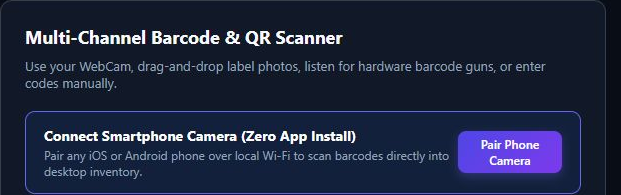
Reviewed product or Store capture. It shows the named control only; it does not prove that a later action completed.
Modes: "Restock (Receive Stock)" (first button, the mode you start in) means a scanned code adds quantity. "Use on Job (Consume Stock)" means a scanned code subtracts quantity. Click the one you want — the active mode is the filled (primary) button.
The camera — "Start WebCam" opens your webcam feed with a reticle; hold a barcode up and it decodes automatically (UPC-A, UPC-E, EAN-13, EAN-8, Code 128, Code 39, QR). "Stop WebCam" turns it off. If your browser blocks camera access, the app shows an alert telling you so.
The dropzone — "Drag & Drop Barcode Photo Here". Drop a label photo, or click it to browse for an image. Supported types are listed right there: UPC-A, UPC-E, EAN-13, Code 128, QR Code.
The hardware gun — plug in a USB or Bluetooth barcode gun and scan; the app listens for its rapid key presses (it ignores normal typing) and treats an Enter-terminated burst as a scanned code.
Manual entry — type a SKU or barcode in the box and click "Lookup".
What happens after a code is read: the app looks the code up. If found, a result card shows the item (name, SKU, barcode, category, in-stock badge) with a Quantity box (defaults to the reorder pack size when Restocking, or 1) and a "Confirm Receive & Restock" button (or "Confirm Consume on Job" in Use mode). Click it and the stock count changes. If not found, you get: "⚠️ Barcode '…' not found in current inventory." with a "+ Register New Part with Barcode" button — which opens the Add Part form with the barcode already filled in.
Phone bridge details: your phone must be on the same local Wi-Fi network as the PC. The QR code encodes a short local address (a pairing token). If the QR doesn't render (offline), the modal shows a plain URL — type that into the phone's browser instead. The modal reads "Waiting for smartphone camera scan..." until a code arrives; then it shows "✅ Received barcode: …" and the desktop looks the item up with the mode you selected. Close the modal with the × to cancel pairing.
| Control (label) | What it does | When you use it | Gotcha |
|---|---|---|---|
| Pair Phone Camera | Shows the pairing QR/URL | Stockroom counts, fast receiving | Phone must be on the same Wi-Fi as the PC; if offline use the URL, not the QR |
| Restock (Receive Stock) / Use on Job (Consume Stock) | Sets whether scans add or subtract | Before every scanning session | Mode persists as you scan — check which is lit before confirming |
| Start WebCam / Stop WebCam | Turns the barcode-decoding camera on/off | Desk scanning | Camera permission needed; blocking it disables this channel only |
| Barcode dropzone | Decodes a photo of a label | Label photos from a phone/email | If decode fails it may fall back to matching the file name |
| Lookup (manual box) | Looks up a typed SKU/barcode | No scanner handy | Unknown codes get the "register new part" path |
| Confirm Receive & Restock / Confirm Consume on Job | Applies the stock change | After a confirmed scan | The quantity box defaults to pack size (restock) or 1 (use) — change it before confirming |
| + Register New Part with Barcode | Opens Add Part with the barcode pre-filled | A scanned code isn't in stock yet | You still need to fill SKU + name to save |
5.9 Quotes & Estimates
Universal Quotes & Estimates — a table of quotes: Quote #, Title, Customer, Subtotal, Tax, Total, Status, Actions. If empty it says: "No quotes yet. Click "+ Create Quote"."

Reviewed product or Store capture. It shows the named control only; it does not prove that a later action completed.
The quote form ("Draft New Universal Quote"): - Quote Title (required) — pre-filled with "Commercial Service & Supply Estimate"; change it. - Customer — dropdown of your customers ("-- Select Customer --" first). - Line Items — one starter line ("Standard Service / Product", qty 1, $150.00). Edit the name, quantity, and unit price in place; add more with "+ Add Line"; remove a line with its ✕. - Estimated Tax ($), Discount ($) — flat amounts added/subtracted. - Terms & Notes — pre-filled "Net 30. Estimate valid for 30 days." - Cancel / Create Quote.
"View / Print" on a row opens the quote: title, customer, line-item table (Description, Qty, Unit Price, Total), the totals line (Subtotal · Tax · Discount · Total), a "Print Quote" button, and the big one — "Convert to Invoice".
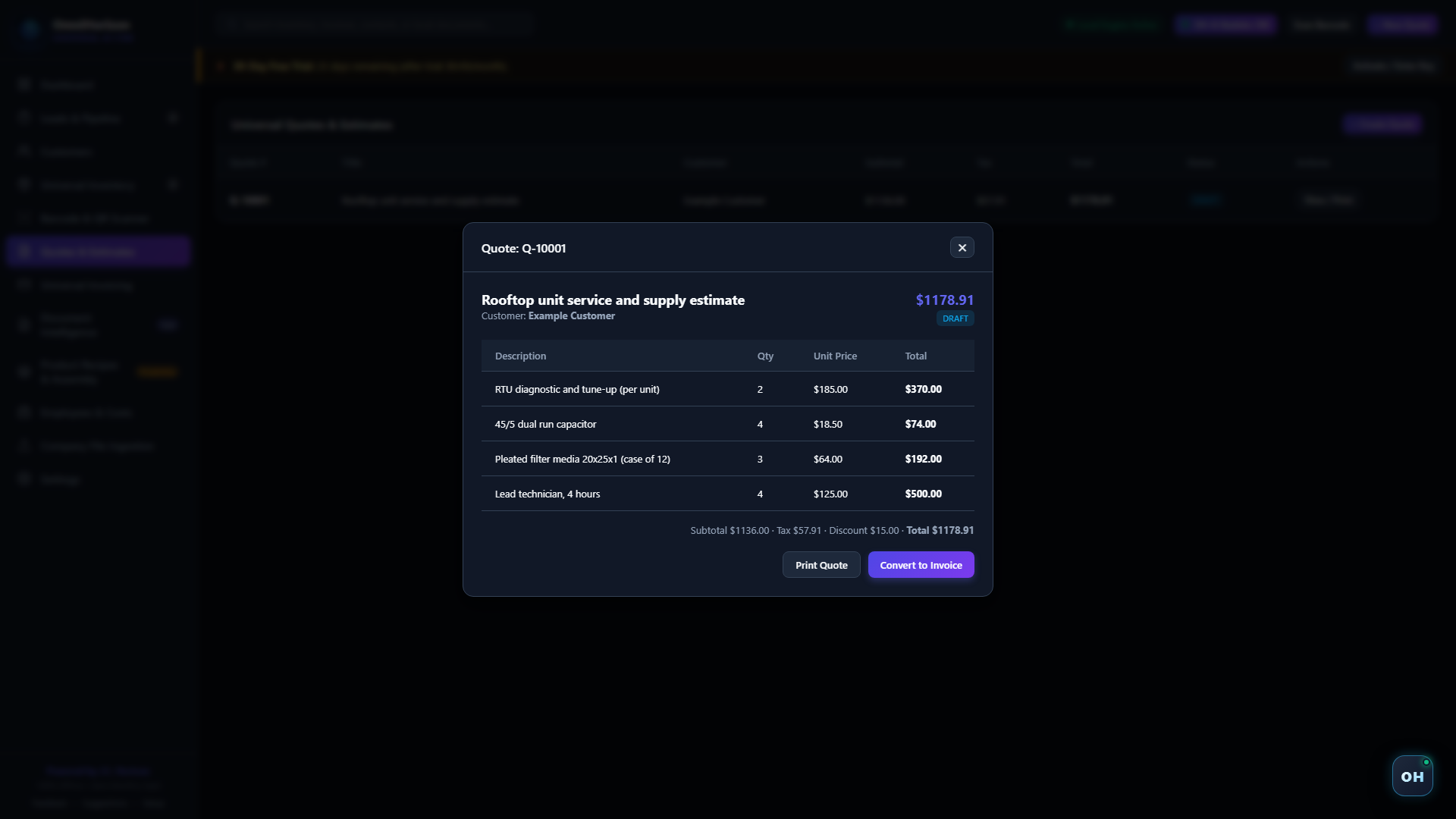
Synthetic or isolated-data render from the shipped app source. It illustrates the named control only; it does not prove a send, purchase, license decision, saved record, or completed result.
| Control (label) | What it does | When you use it | Gotcha |
|---|---|---|---|
| + Create Quote | Opens the quote form | New estimate or quote | Also reachable as top-bar + New Quote |
| + Add Line | Adds a line-item row | Multi-item quotes | Each line needs a name and a price — empty prices count as $0 |
| Estimated Tax ($) / Discount ($) | Adds tax / subtracts discount (flat $) | When terms require it | These are flat-dollar fields on quotes in this build |
| Terms & Notes | Free text on the quote | Payment terms, validity | Pre-filled "Net 30…" — edit to match your business |
| Create Quote | Saves the quote (status DRAFT) | Finish the form | Nothing is saved until you click it — closing the modal throws the form away |
| View / Print | Opens the quote as a document | Reviewing or printing | The modal is the document — Print Quote prints it |
| Print Quote | Opens the Windows print dialog | Paper or PDF | Choose "Microsoft Print to PDF" to make a PDF |
| Convert to Invoice | Creates the invoice from the quote | The job is billed | No confirmation step — it converts and takes you to Invoicing immediately |
5.10 Universal Invoicing
Universal Invoices & Billing — a table: Invoice #, Customer, Amount, Status, Date, Actions. Empty state: "No invoices yet. Click "+ Create Invoice"."

Reviewed product or Store capture. It shows the named control only; it does not prove that a later action completed.
- "+ Create Invoice" opens the same line-item form used for quotes (title box becomes part of the form flow; the modal heading says "Draft New Universal Invoice"). Submit to save.
- Status badges: green PAID, amber for anything else (e.g. DRAFT).
- "View / Print" opens the invoice document (number, customer, line items, totals) with a "Print Invoice" button — same PDF path as quotes.
- The row Date is when the invoice was created.
Invoice numbers, currency symbol, and tax defaults follow what you set in Settings (currency code/symbol, tax rate); every invoice stores its own Subtotal · Tax · Discount · Total.
| Control (label) | What it does | When you use it | Gotcha |
|---|---|---|---|
| + Create Invoice | Opens the invoice form | Direct invoicing (without a quote) | Prefer Convert to Invoice from a quote to avoid retyping |
| Print Invoice | Windows print dialog | Paper invoice or PDF | "Microsoft Print to PDF" = PDF export |
| View / Print | Opens the invoice document | Checking before sending | — |
5.11 Document Intelligence (FilePerch Q-RAG)
Document Intelligence & Local Verification — local file search across the folders the engine indexes. This is the "find that contract/quote/drawing" screen. Controls: "Deterministic Mode" (the safe, policy-bound search — on by default) and "Full Drive Index" (broader drive search), a search box ("Search files, customer blueprints, invoices, contracts... e.g. 'Smith ext:pdf'"), and "Search Documents".
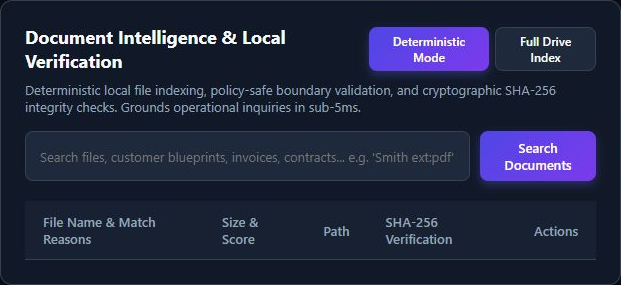
Reviewed product or Store capture. It shows the named control only; it does not prove that a later action completed.
- Results columns: File Name & Match Reasons (small tags like "Exact basename", "Prefix stem"), Size & Score (file size + a % relevance score), Path (full folder path), SHA-256 Verification (a fingerprint badge — SHA-256 is a fingerprint of a file's contents; the app uses it to prove which version of a file you're looking at), Actions.
- Actions per result: "Open" (opens the file), "Folder" (opens the folder in Explorer), "Vault" (copies the file into the app's local vault, which keeps a protected copy: you get a confirmation "File secured in Local CRM Vault: …").
- The meta line above the table reports what really happened: e.g. "Document Intelligence retrieved 3 confirmed files in 124 ms from 2 indexed paths." with a green "Truth: CONFIRMED • Grounded" badge.
- Privacy guard: search is policy-bound and will not surface private stores (
.ssh,.env, credentials, keys) — files there are excluded by design, whatever you type. - The global search box in the top bar runs the same search: press Enter on any query and you arrive here with it executed.
| Control (label) | What it does | When you use it | Gotcha |
|---|---|---|---|
| Deterministic Mode | Runs the policy-bound Q-RAG search (default) | Everyday document lookups | Excludes private stores (keys, .ssh, .env) on purpose |
| Full Drive Index | Switches to the broader drive search | When a file isn't in the curated index | Breadth over safety: results may span more of the drive |
| Search box | Sets the query ("Smith ext:pdf" style works) | Before clicking Search | Press Enter in the box also runs it |
| Search Documents | Executes the search | Every lookup | Results show a % score and an SHA-256 badge — that badge is the integrity proof |
| Open / Folder | Opens the file / reveals it in Explorer | Acting on a result | If the file was moved, "Open" reports an error — use Folder to find it |
| Vault | Copies the file into the local vault | Keeping a protected copy of an important file | The vault is local, in the same OmniHorizon data folder |
5.12 Product Recipes & Assembly (BOM)
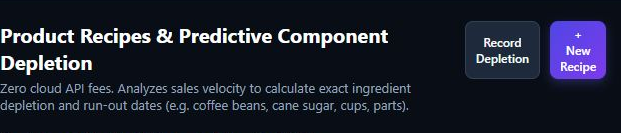
Product Recipes & Predictive Component Depletion — for businesses that assemble finished goods from components (a latte from beans/milk/cups, a repair from parts). Two parts: the Depletion Velocity & Projected Run-Out Dates cards and the Composite Recipes & Component Breakdowns table.
Reviewed product or Store capture. It shows the named control only; it does not prove that a later action completed.
- Prediction cards appear once there is sales data: per component, a severity badge (Critical red / Warning amber / Optimal green), "X Days Left", Stock On Hand, Daily Burn Rate, and an AI Depletion Forecast line. The engine tracks daily burn over a rolling 14-day window and projects run-out dates. With no sales data yet, a plain note appears: "No predictive run-out data available. Record sales to train velocity."
- "Record Depletion" (also the row action on each recipe) opens Record Sale & Auto-Deplete Sub-Components: the sold recipe, Quantity Sold, Total Revenue Collected, with the warning "Submitting will atomically deduct the exact ratio of ingredients and sub-parts according to the product recipe." → Cancel / Process Depletion. A success alert reports how many components were auto-depleted.
- "+ New Recipe" opens Create Bill of Materials (BOM) Recipe: Recipe / Finished Product Name, Parent Finished SKU, Yield Quantity (+ unit, e.g. "1.0 serving"), Sub-Ingredients & Materials rows (pick a part from your inventory, type quantity and unit; + Add Ingredient adds rows; the × on a row removes it), Recipe Notes → Cancel / Save Recipe. You need at least one ingredient ("Please add at least one ingredient.").
| Control (label) | What it does | When you use it | Gotcha |
|---|---|---|---|
| Record Depletion | Logs a sale and reduces stock by the recipe ratio | A finished good sold | Uses the recipe's exact quantities — build recipes accurately first |
| Process Depletion | Confirms the sale + depletion | After checking the sale form | The depletion is atomic — it either fully happens or not at all |
| + New Recipe | Opens the recipe form | A new assembled/packaged product | Every ingredient must already exist in inventory (picked from the dropdown) |
| + Add Ingredient | Adds an ingredient row | Multi-part recipes | Zero-ingredient recipes are refused |
| Save Recipe | Saves the recipe | Finish the form | Cancel throws the form away |
5.13 Employees & Costs
Employees & Operating Costs — two summary cards (Total Staff / Employees, Monthly Operating Overhead — the recurring costs summed) and two tables side by side.

Reviewed product or Store capture. It shows the named control only; it does not prove that a later action completed.
- "+ Add Employee" opens Add Team Member / Employee: Full Name, Role / Position, Hourly Wage / Rate ($), Email, Phone → Cancel / Save Employee. Employees appear with their rate (e.g. "$22.50/hr").
- "+ Record Expense" opens Record Operating Cost / Overhead Expense: Cost Category (dropdown: Rent / Facilities, Utilities & Power, Equipment Lease, Insurance, Marketing & Ads, Packaging & Supplies, Miscellaneous), Amount ($), Expense Description, and a checked box "Recurring monthly expense" — recurring amounts accumulate into the Monthly Operating Overhead card. → Cancel / Record Expense.
- Rows show Category, Description, Amount, and a "Monthly Recurring" (amber) or "One-Time" badge.
| Control (label) | What it does | When you use it | Gotcha |
|---|---|---|---|
| + Add Employee | Adds a staff member with rate | Tracking labor cost | Rate is hourly; used for cost visibility, not payroll |
| Save Employee | Saves the record | Finish the form | — |
| + Record Expense | Adds an overhead cost | Rent, utilities, leases, insurance | Recurring costs drive the Monthly Overhead card — one-time ones don't |
| Record Expense | Saves the expense | Finish the form | — |
5.14 Company File Ingestion (ZIP / CSV / TSV / JSON)
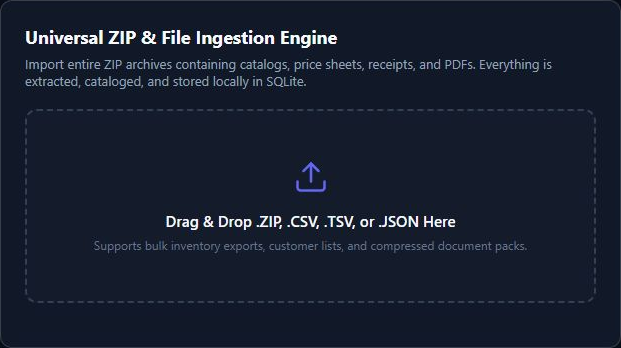
Universal ZIP & File Ingestion Engine — import a whole archive of your existing data: product catalogs, customer lists, price sheets, receipts, PDFs — dragged in as a .zip, .csv, .tsv, or .json file. Everything is extracted, cataloged, and stored locally in the SQLite database and document vault.
Reviewed product or Store capture. It shows the named control only; it does not prove that a later action completed.
What happens next: a green result box appears: "✓ Ingestion Complete" with Format (ZIP/CSV/TSV/JSON), Structured Records Found, Committed to Database (parts/items added), and Documents Extracted to Vault (files). The file is validated before anything is committed.
Safety limits (built in): the importer refuses archives that exceed 200 MB uncompressed, contain more than 1,000 files, or have a compression ratio above 200:1 (a "zip bomb" guard). Imports validate up to 100,000 rows per the product spec. An oversized/over-packed archive is rejected with a clear error back in the box.
| Control (label) | What it does | When you use it | Gotcha |
|---|---|---|---|
| Dropzone (click or drag) | Picks/imports a .zip/.csv/.tsv/.json | Bringing in existing data | Max 200 MB unpacked, 1,000 files per archive — widen the red flag if rejected |
| Ingestion receipt box | Read-only result report | After an import | "Committed to Database" is the number that counts; "Documents Extracted to Vault" files are copies in the local vault |
5.15 Settings — Business Profile & Settings
Business Profile & Settings — one form: Company Name, Tagline / Motto, Contact Email, Contact Phone, Business Address, Currency Code (default USD), Currency Symbol (default $), Sales Tax Rate (%) (default 8.25) and "Save Settings".

Reviewed product or Store capture. It shows the named control only; it does not prove that a later action completed.
| Control (label) | What it does | When you use it | Gotcha |
|---|---|---|---|
| Company Name etc. (form fields) | Sets the profile printed on documents | Once at setup, or when details change | — |
| Currency Code / Symbol | Defaults for new documents | Changing currency | Existing documents keep their own stored numbers |
| Sales Tax Rate (%) | Default tax on new documents | Regional tax changes | Editable per document too |
| Save Settings | Saves everything on the form | Before leaving Settings | Nothing saves until you click it |
5.16 The floating OH assistant
A small round "OH" bubble floats at the bottom-right of the window (you can drag it anywhere and it remembers where). Top-bar "OH AI Bubble: ON" shows/hides it. Click the bubble (without dragging) to open the chat drawer. The assistant is grounded in your local files and database — its answers are produced on this PC only. The Store disclosure applies: AI might make mistakes.
Reviewed product or Store capture. It shows the named control only; it does not prove that a later action completed.
What's in the drawer:
- Focus Surface — the label of the screen you're on; the assistant tailors suggestions to it.
- A status chip (e.g. "rules ready • deterministic answers", "CPU model ready (0 GPU)"…) and a compute-mode dropdown: automatic, cpu_only (never allocates GPU memory), rules_only (deterministic answers only). Pick one; it's remembered.
- Prompt chips — one-click questions per screen (e.g. on Dashboard: "Executive Health", "Low Stock Alert", "Pipeline Valuation"; on Inventory: "Low Stock Audit", "Run-Out Velocity"). Clicking one runs it.
- Chat history — your conversation. Every answer is labelled by how it was produced (e.g. "deterministic", "local_gpu (GPU)", "rules fallback (capacity limited)"). Answers can include "Verified Q-RAG References" listing the local files used, with SHA-256 prefixes. Draft suggestions are marked "⚠ Draft only — review before any change". Clear History wipes the conversation.
- Send — submits your question. Enter works too.
- Pop-out (⧉) — opens the assistant in its own resizable window (e.g. on a second monitor) via oh_widget.html. If nothing opens, your browser blocked the pop-up — allow pop-ups for OmniHorizon, or stay in the drawer.
- Minimize (_) collapses to the bubble; ✕ closes; the bubble itself can be toggled off from the top bar.
How the answers are computed: the assistant first retrieves only verified local records/files (Q-RAG), and drafts/answers from those alone. If a local model is running, its output is grounded in that evidence set; if no model runs (the usual case), it answers from deterministic rules, SQL, and Q-RAG — and says so. Its answers never depend on an internet call, and none of your data leaves the PC.
| Control (label) | What it does | When you use it | Gotcha |
|---|---|---|---|
| "OH" bubble | Opens/closes the drawer; drag to move | Any time | A drag ≠ a click — click without moving to open |
| OH AI Bubble: ON/OFF (top bar) | Shows/hides the bubble entirely | Bubble in the way | Position is remembered |
| Prompt chips | Run a prewritten question for this screen | Fast drill-downs | They change per screen |
| compute-mode dropdown | automatic / cpu_only / rules_only | Choosing how local AI runs | rules_only = deterministic answers only |
| Send | Asks the question | After typing | Every answer is labelled by route — read the label |
| Clear History | Deletes the chat log in this drawer | Starting fresh | Doesn't touch your data files |
| ⧉ (Pop-out) | Opens the assistant in its own window | Second monitor use | If blocked, allow pop-ups for the app |
5.17 License, trial & activation
Older 1.0.18.0 screens may display a license banner. The following labels describe the draft UI only; they do not verify account status or entitlement:
- Trial (older interface copy): the guide source describes a trial badge and activation control. Current trial status and terms are not verified.
- Expired (older interface copy): the guide source describes an expired badge and activation control. Current entitlement behavior is not verified.
- Paid (older interface copy): the guide source describes an active-license badge. It is not evidence of a current paid entitlement.
Activation release hold: the published 1.0.18.0 activation path is under security review. The visible modal is not evidence that paid entitlement is safely enforced or automatically detected after checkout. Do not publish key-entry, offline-verification, or device-binding instructions from this draft until the corrected Store build and purchase flow pass an end-to-end test. The official checkout page remains the place to review current purchase terms.
| Control (label) | What it does | When you use it | Gotcha |
|---|---|---|---|
| Activate / Enter Key (banner, trial) | Opens the license modal | Before/at trial end | Nothing is charged by clicking it |
| Subscribe Online (label in older interface copy) | Described as opening a checkout page | Do not use based on this guide | Current purchase path and price are unverified; confirm with support |
| Activation-key box + Activate Subscription | Current-release behavior under security review | After a corrected release is verified | Do not use this draft to validate a purchase or entitlement |
| Close | Closes the modal | Changed your mind | Trial keeps running |
5.18 Feedback & suggestions
The sidebar footer has Feedback and Suggestions; the app also offers "Report AI output (Store Policy 11.16)" after AI answers (Store-disclosed in-app issue reporting). All open the same feedback modal with four tabs: Bug Report, Suggest Feature, Feedback, AI Safety.
Reviewed product or Store capture. It shows the named control only; it does not prove that a later action completed.
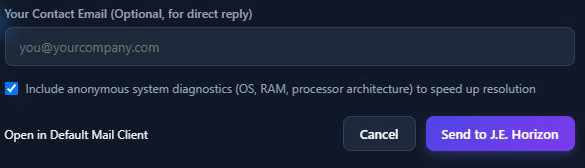
The modal: Subject / Brief Summary (required), Detailed Description (required), Your Contact Email (optional), a checked box "Include anonymous system diagnostics", and two actions: "Open in Default Mail Client" (builds a pre-filled email) and "Send to J.E. Horizon". When sent, the result reports either "✓ Sent via AWS SES" to the target inbox, or "✓ Saved locally … Open the mailto link if SES is not configured on this PC." Inboxes: bug/safety reports → [email protected], general feedback → [email protected], feature ideas → [email protected]. Cancel (✕) closes the modal.
| Control (label) | What it does | When you use it | Gotcha |
|---|---|---|---|
| Bug Report / Suggest Feature / Feedback / AI Safety (tabs) | Chooses the inbox and form flavor | Pick the matching tab | AI Safety is for objectionable/incorrect AI output |
| Send to J.E. Horizon | Sends via email (AWS SES) | After filling the form | Needs internet; offline it falls back to the mail-client link |
| Open in Default Mail Client | Opens your mail app with the form filled | No internet / prefer email | The mailto opens with subject + body pre-filled |
| Include-anonymous-diagnostics checkbox | Attaches OS/RAM/CPU info | Speeding up support | Anonymous — no customer data rides along |
6. What's supported
Platforms: Windows 10 (x64, 1809+) and Windows 11. Distributed as a full-trust MSIX package (~17 MB) from the Microsoft Store; Store lists platform x64.
The four anchor modules (landing-page verified): customer records ("Remember the customer"), stock & inventory ("Keep stock in view"), quotes & estimates, and invoicing ("Move from quote to invoice") — with the quote→invoice conversion workflow.
Store-listed features (verbatim from the Microsoft Store listing): Universal Inventory & BOM (automated Bill of Materials component depletion, real-time stock levels); estimates → invoices; AI insights from local neural models ("$0.00 cloud token costs"); unlimited records; workforce + operating-cost views; "Floating OH assistant grounded in your local files and database"; offline license verification; encrypted core; install on up to ten Windows devices. The listing's licensing and device-limit claims are not independently verified for published build 1.0.18.0; activation is under security review.
Source-verified capabilities in the current build: browser-native barcode scanning (webcam, photo drop, USB/Bluetooth gun, manual entry; UPC-A/E, EAN-13/8, Code 128, Code 39, QR); zero-install phone-as-scanner bridge over local Wi-Fi; leads pipeline with local AI qualification; itemized quotes with discounts, tax, terms, and print/PDF; invoices with print/PDF; BOM recipes with atomic component depletion and 14-day run-out forecasting; workforce/employee records and recurring overhead tracking; ZIP/CSV/TSV/JSON ingestion with validated imports; local document search with SHA-256 verification and Open / Folder / Vault actions; multi-currency invoicing (currency code/symbol per build settings); a floating OH assistant grounded in local files, with per-answer route labelling.
File formats you can bring in: .zip, .csv, .tsv, .json — catalogs, customer lists, price sheets, receipts, invoice PDFs. Limits: validate up to 100,000 rows; archives capped at 200 MB uncompressed / 1,000 files / 200:1 compression ratio.
Barcode formats: UPC-A, UPC-E, EAN-13, EAN-8, Code 128, Code 39, QR Code.
Not yet available / honest limits (do not expect these): - A visible "Model Hub" screen. The underlying local-AI engine and model downloads exist in the product code, but the current build's interface has no Model Hub button — the assistant runs on deterministic rules, SQL, and Q-RAG by default, and the dashboard reports the honest engine state (the local-AI feature set is Store-claimed and not independently re-verified in this packaged build). If a model is present and admitted, answers route through it and say so; you cannot drive that from the visible UI in this build. - Auto-backup. There is no in-app backup/export button. Back up by copying the database file (see §10). - Multi-device sync. Ten-device installs share a license, not a live-synced database — each machine keeps its own local data. - Online payments, scheduling, marketing automation, app marketplace. Not part of this product. - Mac / phone-native app. Windows desktop only; the phone is a barcode-scanning companion.
7. Edge cases & gotchas
- Symptom: "I already clicked Create Quote and it vanished." → Every form is in a modal; nothing saves until you click the primary button (Create Quote, Save Customer, Create Item, etc.). Closing the modal with ✕ or Cancel throws the form away — there is no auto-save and no undo. Re-open and re-type.
- Symptom: my trial expired (red "Expired" banner). → The app shows the commercial offer; review the current terms on the official checkout page. Activation of a paid entitlement in published build 1.0.18.0 is under security review, so this draft cannot prescribe a verified key-entry flow.
- Symptom: the clock was wrong and now the trial looks expired (or won't end). → Why: the license uses a DPAPI monotonic-clock guard — rolling the clock backwards cannot extend the trial, and a clock set far ahead can make it look expired. What to do: set the correct date/time in Windows, restart the app, and check the banner.
- Symptom: "This license belongs to another computer." → The current activation path is under security review. Record the exact error and purchase receipt for a human billing review; do not send a key or device identifier in a public help request.
- Symptom: the app works fine but the internet is down. → The reviewed business-data workflows are local. Purchasing and downloads need a connection. Paid entitlement behavior remains under security review and is not certified by this guide.
- Symptom: my phone scans the code but the desktop does nothing. → Why: the phone and PC must be on the same local Wi-Fi, and the pairing modal must still be open. What to do: reconnect the phone to the PC's Wi-Fi network, reopen Pair Phone Camera, and scan again. If the QR won't render (offline), type the URL shown in the modal into the phone's browser.
- Symptom: the big import failed with a size/limit error. → Why: uploads are validated first — archives over 200 MB uncompressed, over 1,000 files, or over 200:1 compression are refused, and imports validate up to 100,000 rows. What to do: split the archive into smaller ZIPs and/or reduce the file count, then drop them one at a time.
- Symptom: I scanned a barcode and it says "not found". → Why: the code isn't in your inventory yet. What to do: click "+ Register New Part with Barcode" — the barcode is pre-filled; add SKU + name and save.
- Symptom: search doesn't find my private files. → Why: by design, document search excludes private stores (
.ssh,.env, credentials, keys). What to do: that's the safety behavior — business files in normal folders search fine. - Symptom: "OH" assistant answers with a route label I don't recognize. → Why: every answer states how it was made:
deterministic= computed locally from rules/SQL/Q-RAG;local_gpu (GPU)/(CPU)= a local model ran; "rules fallback (capacity limited)" = the model couldn't run, so rules answered. What to do: read the label; if you want rules-only, set the compute mode torules_only. Remember the Store disclosure: AI might make mistakes — verify before acting on any draft. - Symptom: I want a model to run but nothing downloads. → Why: the current build exposes no Model Hub button; models are Store-claimed, and a model runtime only starts with an explicit opt-in flag — the app never starts a neural model by itself and honestly reports "no model running" otherwise. What to do: use the deterministic engine (everything works without a model); contact support if you need the model path (section 11).
- Symptom: my PC died / I reinstalled Windows — where did my data go? → Why: all data is in one local SQLite file under your Windows profile. What to do (before disaster): with the app closed, copy
C:\Users\<you>\AppData\Local\OmniHorizonCRM\(the whole folder — it holds the database and the local vault) to a USB drive or your own backup location. Restore by copying it back, then reinstalling the app. There is no automatic cloud copy — make this folder part of your routine backup. - Symptom: I uninstalled the app but worry data remains. → Why: the business data folder lives outside the app package, in your profile. Windows uninstall removes the program; it does not guarantee deleting
%LOCALAPPDATA%\OmniHorizonCRM. What to do: to wipe everything, uninstall the app and deleteC:\Users\<you>\AppData\Local\OmniHorizonCRMyourself (back it up first if you might want it). - Symptom: closing the app window "didn't close everything". → Why: the window is the interface; a background engine process serves it locally on port 8765. What to do: nothing — quit the app normally (close window / right-click taskbar → Close). If something misbehaves, restart the PC or kill the local engine process; your data is intact in the database file.
- Symptom: the pop-up OH window didn't open. → Why: pop-ups blocked. What to do: allow pop-ups for OmniHorizon and click ⧉ again, or just use the in-window drawer.
- Symptom: my laptop and counter PC show different numbers for the same customer. → Why: each device holds its own database; ten devices share a license, not live data. What to do: decide which machine is the book of record, or periodically copy the data folder between machines (see §10).
8. Troubleshooting
Problem: the app won't install.
1. Confirm you're on Windows 10 (x64, version 1809+) or Windows 11 — the app is Windows-only, x64.
2. Try the Store page again in a browser: https://apps.microsoft.com/detail/9NJSG0QJ7WCF.
3. Make sure you sign in to the Store with a Microsoft account, and check Windows Update is current (the Store needs an up-to-date installer/licensing service).
4. If install fails repeatedly, note the error code and contact [email protected] (section 11).
Problem: the app won't open / window shows a blank or "can't reach" page.
1. The interface lives at http://127.0.0.1:8765. Open that address in Edge/Chrome manually.
2. If it loads in the browser, the app window failed to attach — restart the app. If nothing loads, the local engine didn't start: restart your PC and try again.
3. Check whether something else is occupying port 8765 (a developer tool or VPN proxy) — the engine needs that local port; free it, then relaunch.
4. Still broken: grab the exact error text from the message box and send it to support.
Problem: a button I expect is missing. 1. The top bar has Scan Barcode and + New Quote on every screen; "+ Create Quote" / "+ Create Invoice" / "+ Add Lead" / "+ Add Customer" / "+ Add Part" live in their own screens' headers. 2. The Activate / Enter Key banner button only shows while on trial; on a paid license the banner shows "License Active" with no button — that's correct. 3. If the "+ New Quote" button does nothing: you may have a modal already open behind the screen — press Esc/click ✕ first, or restart the app.
Problem: results look wrong (quote/invoice numbers or totals unexpected). 1. Compare the quote/invoice against its source record: customer, line items, quantities, tax, discount (see the site's reviewed answer: "A quote and invoice differ" — compare line items, quantities, taxes, and terms before exporting). 2. Check the profile tax/currency in Settings (section 5.15) — new documents use those defaults; numbers already saved keep their own stored values. 3. Correct the source, then re-open the document with View / Print before sharing. There is no re-render-after-edit in this build's document view — fix data at the source first.
Problem: payment / subscription questions. 1. Current purchase and activation terms are not verified for the published Store build. Do not pay or rely on trial/license behavior based on older interface copy. 2. If you already made a payment or the app shows a conflicting entitlement state, do not retry payment; contact support with the receipt and device details. 3. This guide does not establish a current price, payment provider, billing portal, or cancellation flow.
Problem: the app is stuck on a screen. 1. Click the sidebar entry for the screen again to force a refresh (each screen reloads its data when opened). 2. If a modal is stuck open, press Esc or click ✕, or restart the app. 3. Restarting the app is safe for data — records are saved as you create them.
Problem: the floating assistant returns errors.
1. Check the status chip in the drawer ("rules ready…" vs "runtime unavailable"). Deterministic rules, search, and records are unaffected by any model state.
2. Set the compute mode to rules_only if you want purely deterministic answers.
3. Use the "Report AI output (Store Policy 11.16)" path (via Feedback → AI Safety tab) if an answer was wrong or objectionable.
9. FAQ — common questions
"I don't see the button." → Every primary action lives in its screen's header (right side): "+ Add Customer" on Customers, "+ Add Lead" on Leads, "+ Add Part" on Inventory, "+ Create Quote" on Quotes, "+ Create Invoice" on Invoices, "+ New Recipe" on Recipes, "+ Add Employee" / "+ Record Expense" on Employees & Costs. The top bar also carries Scan Barcode and + New Quote everywhere. If a screen looks empty, its table shows a plain-language empty line telling you the exact button name to click.
"Can I undo that?" → No undo exists in this build. Stock +1/-1 clicks and form saves are immediate. Count changes can be corrected with another adjustment (or the Details → Apply Stock Delta box); documents can't be un-created — but they're local, so a mistaken draft can simply be ignored.
"Where is my data saved?" → One local SQLite database plus a local file vault, under C:\Users\<you>\AppData\Local\OmniHorizonCRM\ (also shown in the app during setup: %LOCALAPPDATA%\OmniHorizonCRM\data\). Optional AI model files live in %LOCALAPPDATA%\OmniHorizonCRM\engine\weights\.
"Will this touch my files?" → Only in the directions you use: Document Intelligence searches and opens files you query (and can copy them into the local vault when you click Vault); document search deliberately excludes private stores like .ssh, .env, and credential files. Ingestion reads the files you explicitly drop in. Nothing is uploaded anywhere.
"Do I need to pay?" → The published package and current purchase path need confirmation. Older materials describe trial and paid-license terms, but this guide does not verify those terms or activation. Do not enter payment details until support confirms the current path.
"Can I use it offline?" → The app is designed for local customer, stock, quote, invoice, search, and barcode workflows. Purchasing and optional downloads need a connection. Paid license verification in the published build is under security review.
"What happens if I close it mid-task?" → Records are saved the moment you submit a form (Create/Save buttons). A half-typed form in an open modal is lost if you close the modal or the app. Nothing else is at risk — closing the window just closes the interface; your data stays in the local database.
"Can my staff use it too, is that extra?" → Older Store copy claims up to ten devices and no per-seat fee. Those license/device terms are not verified for the published build; confirm current terms before purchase.
"Is it really private?" → The app runs and stores everything locally: no telemetry, no cloud database, encrypted core. The one deliberate exception: the in-app feedback form sends the message you write (plus optional anonymous system diagnostics) to JE Horizon's support inboxes.
10. Privacy & data
- Where data lives: all customer, stock, quote, and invoice records are in one local SQLite database on your PC (WAL mode, ACID) — SQLite is the dependable single-file database format; WAL/ACID mean your records stay consistent even if the app closes abruptly. No tenant database in a data center.
- What goes to the network: nothing in normal use. The app makes no cloud calls for its features. The guide source describes possible outbound actions such as model download and feedback; the current purchase path is unverified (which carries only what you type plus optional anonymous system diagnostics).
- AI: answers are produced on this PC; no prompt, customer list, or document is uploaded for AI. The Store disclosure — "AI might make mistakes" — is the standing rule; drafts are labelled as drafts.
- Search privacy: document search is policy-bound and never surfaces private stores (
.ssh,.env, credentials, keys). - Encryption: the product's proprietary engines use AES-256-GCM in the reviewed source. Licensing behavior in the published 1.0.18.0 build is under security review; this guide does not certify its entitlement enforcement.
- Backups are on you: because nothing is stored centrally, nothing is backed up centrally. Copy
C:\Users\<you>\AppData\Local\OmniHorizonCRM\(app closed) to your own backup device. Restore by copying it back and reinstalling. - Landing page FAQ (verbatim): "Where does my business data live?" → "OmniHorizon is designed to work with business data on your PC." The site's privacy policy covers website/Store/checkout handling separately at
https://jehorizon.com/privacy/.
11. Getting help
- Support email:
[email protected] - Support page:
https://jehorizon.com/support/(help index:https://jehorizon.com/help/#omnihorizon) - In-app: use the Feedback link (sidebar footer) — Bug Report tab routes to
[email protected]; general Feedback to[email protected]; feature ideas via Suggestions to[email protected]. - What to include when you write in: which screen you were on, the exact button you clicked, what you expected vs what happened, any error text (or screenshot), your Windows version (10/11 and build — Settings → System → About), and whether the problem happens offline or online. Diagnostics: you can tick "Include anonymous system diagnostics" in the in-app report, which attaches OS/RAM/CPU info automatically.
Partner Center lists package 1.0.18.0 as published on 2026-09-27, and the local Store-associated package matches. This guide also draws on product source and feature documents; the phone-camera bridge and performance claims still require a direct check in that package. Name on the Store/app: "OmniHorizon AI CRM"; name on the website: "OmniHorizon for Windows". Verify current purchase terms at checkout.
Quick reference
This guide covers the reviewed public workflows for OmniHorizon AI CRM. Controls can vary by installed version. Reviewed control images from the complete source draft appear in the visual tour below. The completed source guide follows the reviewed public workflows. Read the current release limits first; installed package checks and source-rendered images do not prove licensing, pairing, or saved-record outcomes.
1. Install and open
Open the Microsoft Store listing and follow the install action shown for your account. Launch the app and check the controls visible in your installed version.
Product details · Product Help
2. Common tasks
Work from quote to invoice
- Add or select the customer and review the relevant stock or service items.
- Build and review the quote in OmniHorizon.
- When the work is ready to bill, create an invoice from the quote and check all details before sending it through your chosen channel.
Review stock before quoting
- Open the item or stock record and verify its current quantity and pricing.
- Select the appropriate customer and build a line-item quote.
- Review totals and terms before giving the quote to the customer.
Keep a customer history useful
- Create or open the customer record.
- Attach the relevant quote and invoice work to that customer.
- Review the record when the customer returns rather than re-entering prior details.
3. Current release limits
Partner Center still identifies published version 1.0.18.0. A corrected 1.0.18.0 package was built and installed locally with the repaired window and taskbar artwork, but no newer version was uploaded to the Store. The published Store build retains the previously reported licensing/activation concern; do not pay or rely on activation based on this guide. Phone-camera pairing and the synthetic saved-quote example remain unverified as end-to-end workflows.
- This guide does not establish a backup, payment, tax, or invoice-delivery integration; confirm those steps in your own workflow.
4. When something goes wrong
A quote or invoice has an unexpected item
- Review the customer, stock item, quantity, and amount in the source record.
- Correct and review the document before sharing it.
A quote and invoice differ
- Compare the original quote line items, quantities, taxes, and terms with the invoice.
- Correct the source or invoice before exporting or sharing it.
5. Get help
Record your installed app version, the control you used, and the exact result. Do not include a password, license key, customer record, or private file.