Follow the steps and red lettered screenshots below. Some controls vary by installed version; confirm a send, purchase, license decision, or saved record in your app.
How to Use RevLatch — the complete guide
RevLatch · JE Horizon · updated 2026-09-27
Help center · Product page · Microsoft Store
1. What this app is
RevLatch is a free, fully local Windows desktop app for teams that review revised PDF drawing sets before they go to the workshop. You give it two PDFs — a baseline (the drawing set you already reviewed and worked to) and the revision (the new incoming set, often called REV-D or similar). RevLatch suggests which pages pair up between the two sets, shows the pair side by side with changed areas marked, lets you draw boxes on the areas that matter to your job (dimension blocks, material notes, hardware schedules), records your decision on every item, and exports a release packet: a folder with exact copies of both PDFs, before/after crops, your decisions and notes, and an integrity manifest that proves which files were reviewed.
The product's own one-line promise, verbatim: "RevLatch assists a human review — it does not certify a drawing, approve it automatically, or promise to find every change." The app surfaces what changed and what it could not be sure about; a human makes the calls. Nothing you mark as important is silently dropped from the review.
What this app is NOT
- Not a CAD or BIM editor. RevLatch does not edit drawings; it reviews PDFs.
- Not a scanned-drawing repair tool. "Scanned or skewed drawings are not guaranteed" — the app is honest that it may not cope with them.
- Not a certifier. It never stamps a drawing "safe" or "correct" — a finished workflow is not a certificate that no changes were missed.
- Not a cloud service. Drawing files are processed on your PC and are never uploaded for comparison.
- Not an OCR or auto-classifier. The app highlights changed areas, it does not read dimensions or hardware codes for you. "Dimension block", "material note" and "hardware schedule" are labels you apply by hand.
- Not a packet report generator in PDF or CSV. The packet is a folder of drawings, crops, JSON and text files. (Some store-listing copy mentions "PDF and CSV export"; the current build does not do that — see "Known limits" in section 6.)
2. Before you start
| Need | Requirement |
|---|---|
| Computer | Windows 10 or Windows 11 (x64 desktop) |
| App | RevLatch from the Microsoft Store (Store ID 9MTLXPDK0LLR) — free download |
| Account | None for Free. No sign-in, no email address, no card |
| Network | Only to download the app from the Store, and (optionally) to buy/claim Pro in your browser. Comparison work itself is fully offline |
| Drawings | Unencrypted, computer-generated PDF files, each set up to 25 sheets, each file up to 200 MB |
| Version | Check the version installed on your PC in Windows Settings. An official Microsoft Store install on 2026-09-27 delivered package 0.0.2.0 on the guide test machine; rollout may differ on other PCs. |
Plans & pricing (verbatim from the RevLatch page, 2026-09-27)
Free — $0. Free tier covers 1 active review with full PDF packet export forever. One active review at a time; archive to open another. No account, card or time limit — archived reviews stay readable and exportable.
Pro — $1.99 / mo · $19.99 / yr. Multiple concurrent active reviews. Existing active reviews remain usable if Pro ends. Store submission materials describe JE Horizon website checkout for the optional subscription; confirm the current purchase flow in the app before paying.
The two things you actually experience on your PC:
- A 30-day, no-card Pro trial starts automatically on first launch. You do nothing to start it; the status bar at the bottom of the window shows "Access: 30-day Pro trial active (N days remaining)". During the trial you can run several active reviews at once.
- After the trial or a Pro subscription ends, RevLatch keeps working on Free terms: one active review at a time. Reviews that were already active remain usable. You just cannot create or reopen a second active job at the same time. Section 7, edge case 1, covers the exact click-by-click behaviour.
3. Install & first launch
- Open the Microsoft Store listing for RevLatch:
https://apps.microsoft.com/detail/9MTLXPDK0LLR(or go tohttps://jehorizon.com/revlatch/and click "Get from Microsoft Store"). - On the Store page, click Get (or Install).
- Wait for the download and installation to finish. RevLatch installs as a normal Windows desktop app — you may be asked to confirm installation; click Yes.
- Launch RevLatch from the Start menu (search "RevLatch") or from the Store's Open button.
First run: you land on the job station — the window title is "RevLatch — revision review station", the panel reads "Review drawing revisions", and there is a "Drawing jobs" list that is empty the first time. The bottom status bar shows the trial message. There is no onboarding wizard, no account screen, and nothing to click except the buttons on the window — so the next step is section 4.
4. Quick start
This walks you from a cold start to a reviewed pair and an exported packet. The whole route takes most people about 5–10 minutes for a small set.
- Open RevLatch (search "RevLatch" in the Start menu). You should see the job station with an empty "Drawing jobs" list.
- Click "🔴 New job…" — the top-left button in the row under "Review drawing revisions". It opens the "New RevLatch job" window.
- In the Job name box type a short name that tells you which drawing family this is, for example
Kitchen 102 – revision review. - Click "Choose baseline (reviewed) PDF…" and pick the PDF set you already reviewed. Then click "Choose incoming revision PDF…" and pick the newly arrived revision. The app checks both files while creating the job and refuses anything outside its scope (see section 6). If both files are fine, click OK.
- Wait for the progress window ("Creating job and comparing…") to finish. The "Confirm page matches" window then opens. This is a table of every pair the engine proposes, with a Confirm tick box, the page numbers, a Similarity score, and live previews of both sheets. Leave a pair ticked only if its sheet labels and content really match. Read the "Unpaired pages" note — anything listed there stays visible in the review. Then click "OK".
- The review window opens ("RevLatch review — job …"). It shows the pair side by side — "Baseline (reviewed)" on the left, "Revision (incoming)" on the right — with red boxes over suggested changes. Below the drawings is the checklist table with four columns: Item, Where, Decision, Note.
- Work down the checklist. For every row, open the Decision dropdown and pick one of:
no_change(I looked, nothing changed that matters),not_significant(there is a change but it does not matter for the job),significant(this change matters — record why), oracknowledged(a structural item such as a reordered set or an alignment warning — you saw it and dealt with it). Type the "why" into the Note box when it matters. Click a row to zoom the review into that area. The orange counter "Pending decisions: N" drops as you decide. - When every item is decided, click "🔴 Export release packet…" (teal button, bottom right of the tools). In the "Prepare the workshop packet" window, click "Choose output folder…" if you want the packet somewhere specific, add a reviewer note if you like, and click OK. A message tells you where the packet was written. That folder is your handoff artifact — open it and check the
REVIEW_STATUS.txt,manifest.jsonandREVIEW_RECEIPT.txtfiles inside.
That is the whole loop: job → confirm matches → decide items → export packet. The next section goes through every screen and every button in the order you meet them.
5. The tour
Screens appear in the order you meet them: job station, then the New Job window, then the match confirmation, then the review window (with critical regions, the unpaired-page view and the export dialog), then the license and feedback dialogs off the menus.
Job station
The main window lists every drawing job you have created and shows the state of the selected one. A "job" is one baseline PDF paired with one incoming revision PDF, plus its review record. Each row in the list shows the job name and the shortened SHA-256 fingerprints of its baseline and incoming files — SHA-256 is a fingerprint of a file's contents, so the row identifies the exact files, not just their names.
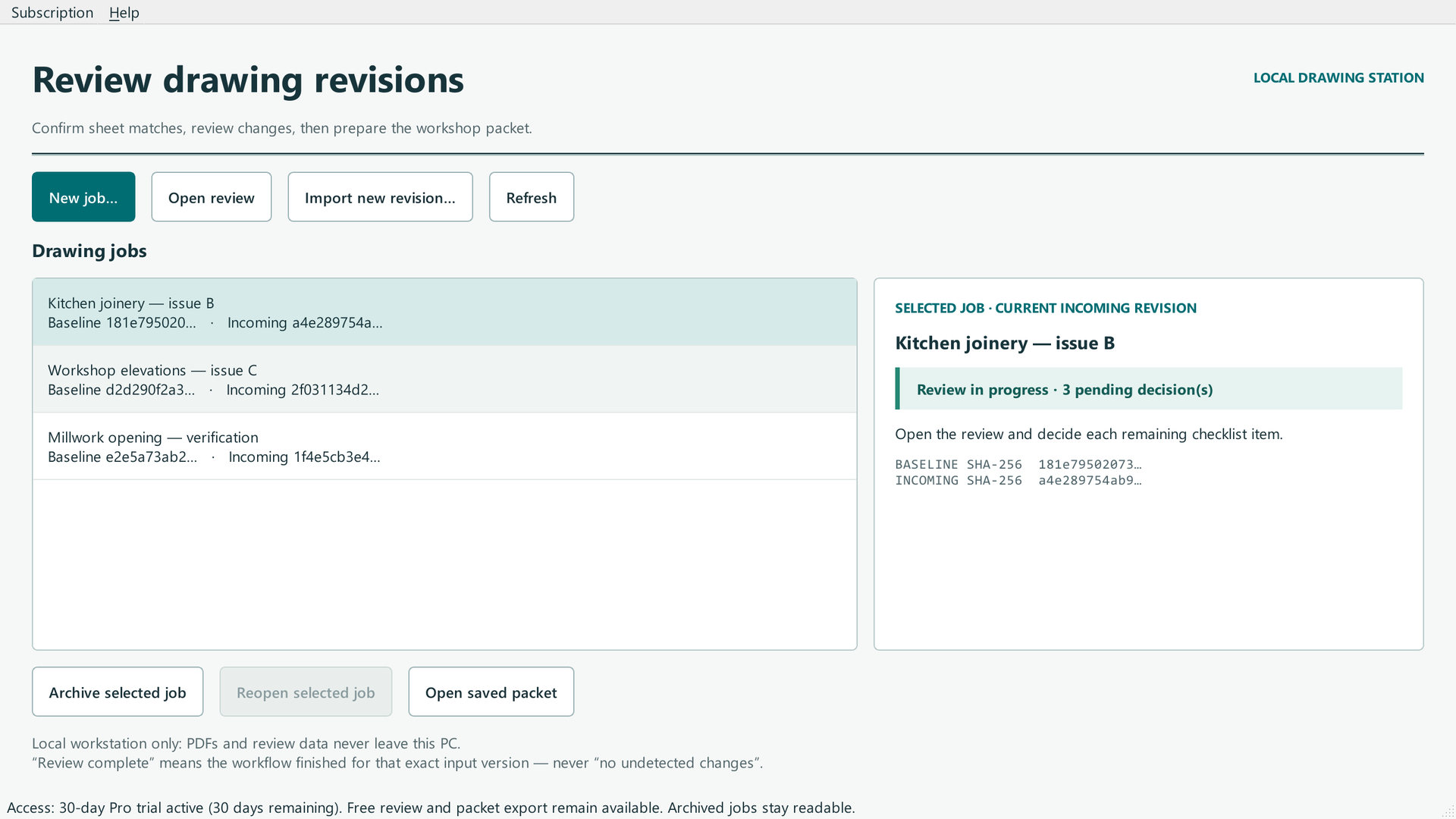
Reviewed product or Store capture. It shows the named control only; it does not prove that a later action completed.
| Control (label) | What it does | When you use it | Gotcha |
|---|---|---|---|
| "New job…" (top row, first, blue/teal) | Opens the "New RevLatch job" window | When you start reviewing a new drawing family | On Free, this button is greyed out while one job is already active — archive it first (edge case 1) |
| "Open review" (top row) | Opens the match confirmation or review window for the selected job | To continue a job | Nothing happens if no job is selected — select a row first |
| "Import new revision…" (top row) | Lets you bring a newer revision PDF into the selected job | When REV-E (or later) arrives for a job you already reviewed | Only enabled for an active (not archived) job; new bytes reset that version's review state |
| "Refresh" (top row) | Re-reads the job list and rebuilt states | After jobs change on disk | Harmless to click any time |
| "Archive selected job" (bottom row) | Marks the selected job archived and read-only, freeing your one Free slot | To switch jobs on the Free tier | Asks you to confirm first; archived jobs stay readable and exportable |
| "Reopen selected job" (bottom row) | Makes an archived job writable again | To resume work on an archived job | On Free, blocked if another job is active — the warning tells you to archive it first |
| "Open saved packet" (bottom row) | Opens the folder of the newest exported packet for the selected job | To hand the packet to the workshop, or re-check it | Shows "no saved packet yet" if the job has none; shows a warning if the folder has moved |
| Drawing jobs list | One row per job: name plus the baseline/incoming SHA-256 fingerprints | Choose which job you are working on | Double-click a row to open it |
| Selected job panel | Shows job name, its state, the suggested next step, and the SHA-256 fingerprints | Read before acting, so you know what you are about to open | "Archived · …" appears in the state when the job is read-only |
| "Subscription" menu (top-left menu bar) | Status, upgrade, refresh and import license actions | To check or change your plan | See subsection 5.10 |
| "Help" menu (top-left menu bar) | "Suggest a feature…" | To record feedback for the team | See subsection 5.11 |
| Status bar (bottom) | Shows "Access: …" and the Free-review note | Glance to confirm your current plan | "Free review and packet export remain available. Archived jobs stay readable." is always appended |
Gotchas specific to this screen: nothing is saved until a job is actually created — closing the "New RevLatch job" window throws the form away. Archiving is not deleting: the job's drawings, decisions and packets remain on disk and stay openable. The fingerprint shown is the shortened hash; the full SHA-256 is one "Open review" away in the review window or in any exported packet's manifest.
Empty state
The first time you open RevLatch, and after you archive your only job, the list is empty and the right-hand panel says "Select a drawing job / No job selected / Create a job or select one to inspect its review."
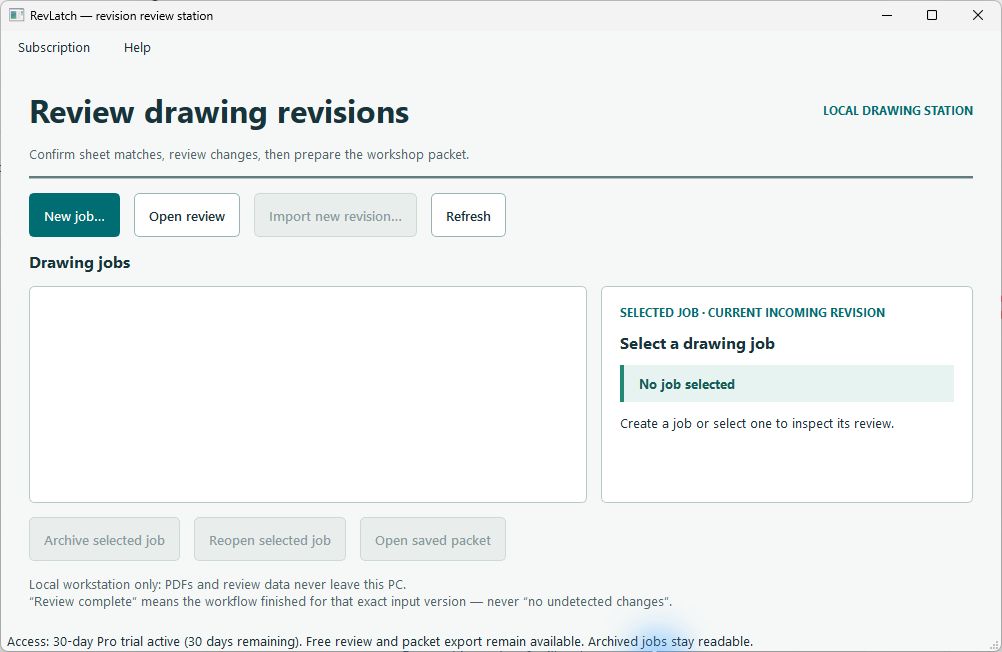
Reviewed product or Store capture. It shows the named control only; it does not prove that a later action completed.
New job dialog
The "New RevLatch job" window is where the pair is chosen and checked. While you are selecting files, the small info text states the admission rules, and the app refuses anything outside scope with a clear message instead of trying to work around it.
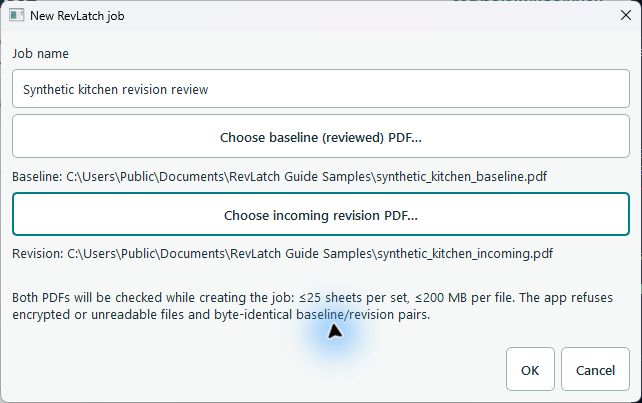
Reviewed product or Store capture. It shows the named control only; it does not prove that a later action completed.
| Control (label) | What it does | When you use it | Gotcha |
|---|---|---|---|
| Job name box | Names the job (placeholder: "e.g. Kitchen 102 – revision review") | Always — the job row in the list uses this name | The OK button refuses an empty name with "Enter a job name." |
| "Choose baseline (reviewed) PDF…" | Opens the file picker for the reviewed set | First PDF of the pair | Only *.pdf files are offered |
| "Choose incoming revision PDF…" | Opens the file picker for the new set | Second PDF of the pair | Refused if the two files are byte-identical — RevLatch will not review a file against itself |
| Info text | States the admission limits (≤ 25 sheets per set, ≤ 200 MB per file, no encrypted/unreadable files, no byte-identical pair) | Read it once so refusals are not a surprise | It only appears after both PDFs are chosen |
| OK | Starts creating the job and comparing | After both files are chosen | If a PDF is refused (encrypted, oversized, empty, corrupt, over 25 sheets), the job is not created at all and a message shows the refusal |
| Cancel | Closes the window without creating anything | To abandon the form | Nothing is saved — close, start over |
After OK, a progress window titled "Creating job and comparing…" runs the import and the first comparison. It has an indeterminate progress bar and a "Cancel" button. Cancel genuinely stops it — the PDF renderer runs in a separate process that is killed on cancel, so you are not waiting on a zombie job. If the pair is accepted, the "Confirm page matches" window opens next — see the Confirm page matches subsection.
Gotcha: a job is only created after BOTH PDFs pass every admission check. A refused job leaves no partial job behind.
Confirm page matches
The engine proposes which revision page belongs to which baseline page — it compares content, not page order or filenames, and it shows you a similarity score for every suggestion. Suggestions need your confirmation; the human disposes. Nothing is treated as matched until you tick it. Revision pages with no trustworthy mate are listed as "added sheet" and stay visible in the review.
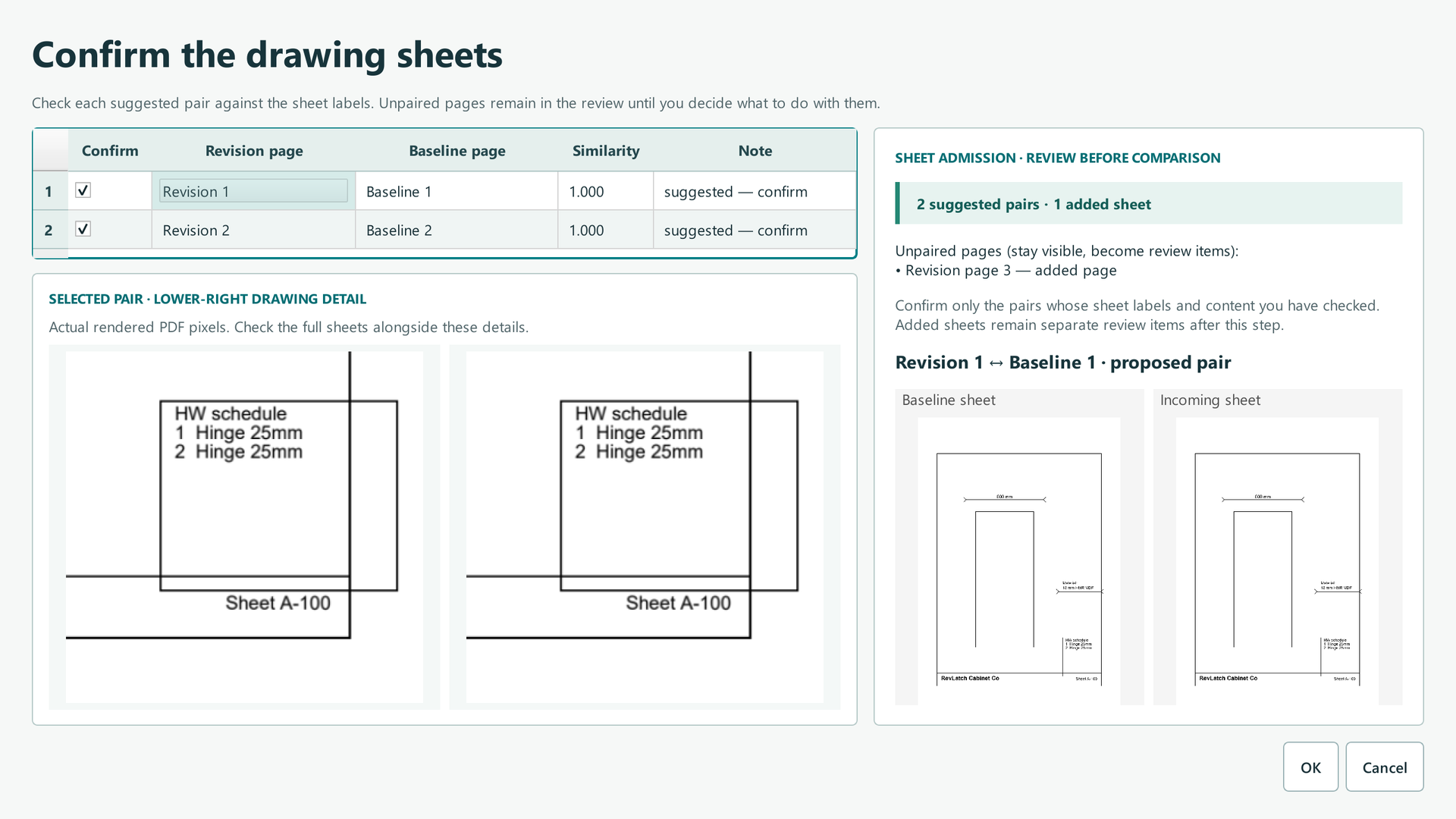
Reviewed product or Store capture. It shows the named control only; it does not prove that a later action completed.
| Control (label) | What it does | When you use it | Gotcha |
|---|---|---|---|
| Confirm tick boxes (one per row) | Mark a proposed pair as genuinely matched | After you eyeball the pair's labels and content | Unticking a pair keeps the page visible afterwards as an "added page" review item — it is not hidden |
| Revision page / Baseline page columns | Which page in which set the row pairs | Read them to catch order swaps | Page numbers refer to positions in the PDF, not drawing titles |
| Similarity column | How closely the engine's content signature matched (shown to 3 decimals) | Gauge how much trust to put in a suggestion | A high score is not certainty — content that looks alike can still be a different sheet |
| Note column | "suggested — confirm" marker | Orientation only | A row you tick gets its note resolved into a matched pair |
| Unpaired pages note | Lists revision pages with no trustworthy mate — they become review items | Always read it before OK | This is the "nothing disappears silently" guarantee doing its job |
| Sheet previews (Baseline sheet / Incoming sheet, plus lower-right detail crops) | Real rendered pixels of the proposed pair | Check detail before ticking | Previews are low-scale thumbnails — confirm against the full sheets if in doubt |
| OK | Saves your confirmed pairs and opens the review window | Once every pair is checked | Suggested pairs you left ticked are confirmed; unticked ones become added-page items |
| Cancel | Closes without saving the pair confirmations | To start over | The job and its comparison still exist; the review just does not open |
Review window
The review window is the heart of the app. It renders the confirmed pair side by side, auto-aligned to the same canvas, with red boxes over suggested changed regions, and shows the checklist beneath. The line under the tools tells you the rendering resolution and engine — e.g. "Rendering resolution: 2.0 px/pt (144 dpi) · renderer pypdfium2 5.13.0 · engine revlatch-engine/2.0.0" — so you can judge how much detail you are looking at; the app never downsamples silently.
The colour legend is printed in the window: red boxes are suggested changes, blue boxes are critical areas.
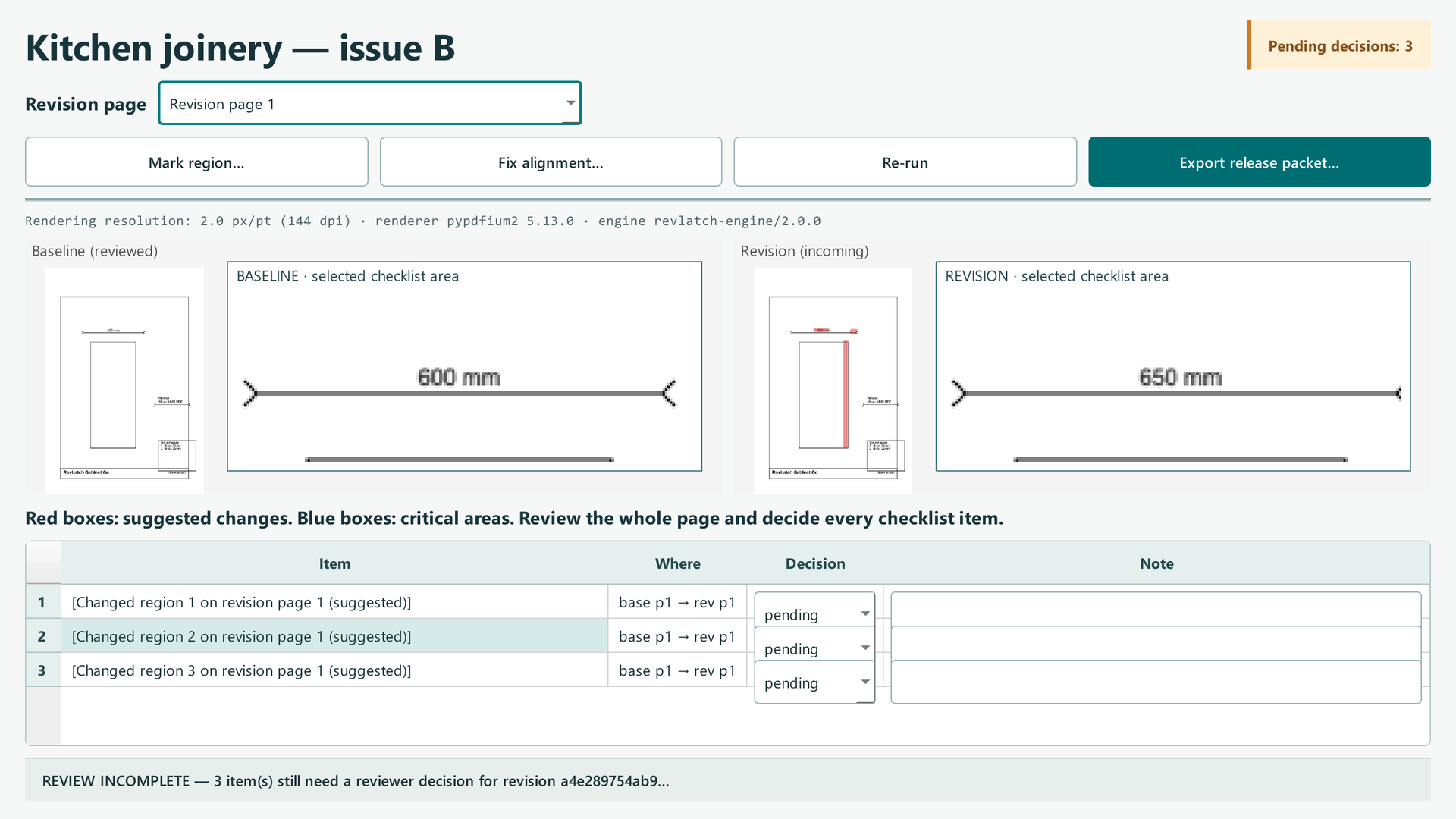
Reviewed product or Store capture. It shows the named control only; it does not prove that a later action completed.
| Control (label) | What it does | When you use it | Gotcha |
|---|---|---|---|
| Revision page dropdown | Chooses which revision page the pair view shows | To walk through the set page by page | Pages with no baseline mate show a blank left pane and a banner — that is the unpaired view (5.8) |
| "Mark region…" | Starts drawing a critical-region rectangle on the baseline page | When a dimension block, material note or hardware schedule is load-bearing for this job | Only works on a paired page; the banner explains the drag step while it is active |
| "Fix alignment…" | Opens the landmark dialog to re-register the pair by hand | When the banner reports "ALIGNMENT UNRELIABLE for this pair" | Needs at least 2 corresponding points (5.7) |
| "Re-run" | Re-runs the comparison for this revision | After fixing alignment, or to refresh the items | Re-running replaces the item list for this version |
| "Export release packet…" (teal) | Opens the release-packet dialog | When the checklist is decided (or to export a marked DRAFT) | Greyed out on archived jobs and when no page is visible |
| Pair panes (Baseline (reviewed) / Revision (incoming)) | The aligned drawings with overlays; clicks on a checklist row zoom the panes to that area | Check every change visually before deciding | The zoom magnifier label says e.g. "BASELINE · selected checklist area" |
| Warning banner (orange, under the panes) | States alignment problems, excluded diff pixels, or unpaired pages | Read it every time it appears | A banner means the view you see is NOT a clean comparison — decide accordingly |
| Checklist table (Item / Where / Decision / Note) | Every review item with its location, decision and note | This is the whole review — every row needs a decision | Rows stay pending until you choose; pending rows block workflow completion |
| Decision dropdown per row | pending · no_change · not_significant · significant · acknowledged |
Assign the human verdict for that item | Changing a decision updates the pending counter and the top-right badge instantly |
| Note box per row | Free text that travels into the review record and the packet | Record the "why" of a decision | Notes are stored per item, not per screen |
| Top-right state badge | "Pending decisions: N", "Reviewed for this revision", or "Archived — read-only" | Track completion | Turns green with "Reviewed for this revision" only when every item has a decision |
| Status line (bottom, grey) | "REVIEW INCOMPLETE — N item(s)…" or "WORKFLOW COMPLETE for this exact revision (sha…). Pending items: 0. This is NOT a certificate that no undetected changes exist." | The honest state of the review | "Workflow complete" never means "nothing was missed" |
What actually shows up as checklist items: a changed region suggested by the engine ("Changed region 1 on revision page 1 (suggested)"), a critical region you marked ("Critical: "), an added page ("Revision page 3 is unpaired (added page)"), a deleted page ("Baseline page 2 has no revision mate (deleted page)"), a reordered set ("Page content matched but the revision reordered pages"), and an alignment failure ("Alignment unreliable for revision page …"). Big pixel differences the engine could not box up (edge/straggler pixels) produce a banner "Note: some differing pixels were excluded from the suggestion boxes (edge/straggler). They remain accounted for, not silently dropped." — not silence.
Mark a critical region
Critical regions are the areas on the baseline whose details you refuse to let drift: the dimension block, a material note, a hardware schedule. You draw them once per job; RevLatch stores them and re-checks them on every future revision of that job — "mark it once, recheck it every time."
- Click "Mark region…". The banner changes to: "Drag a rectangle on the baseline page over the critical area (e.g. dimension block, material note, hardware schedule)."
- Press and drag on the baseline page to draw the rectangle.
- A small naming window appears, pre-filled with
dimension block. Type the real name (for exampleOpening widthorHinge schedule) and confirm. - The region appears as a blue box on both panes and as a checklist row "Critical: ". Decide it like any other item, and it will be re-checked on the next revision import.
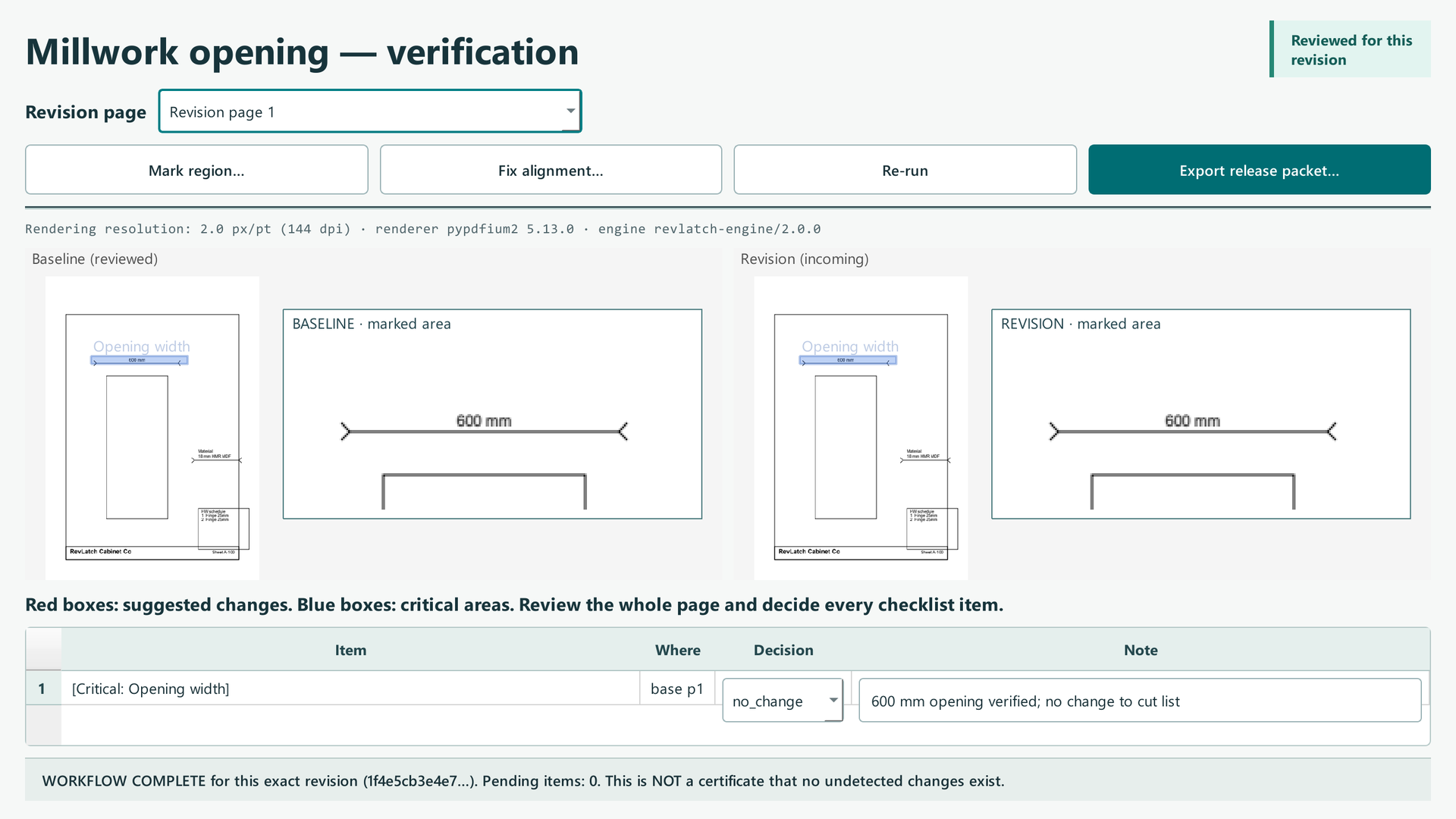
Reviewed product or Store capture. It shows the named control only; it does not prove that a later action completed.
Fix alignment with landmarks
Most pairs line up automatically; the engine globally registers the revision onto the baseline canvas. When that registration is not trustworthy, the app says so — with a banner and an "Alignment unreliable" checklist item — instead of showing a diff that could be wrong. That is deliberate: "reject rather than show deceptively clean".
To fix it yourself:
- Click "Fix alignment…". A window shows the baseline page and the revision page side by side, titled "Confirm registration landmarks".
- Click a distinctive point on the baseline page, then the same point on the revision page. That is one pair. Repeat until you have at least 2 pairs — the hint text says "Click a point on the baseline page, then the same point on the revision page. Repeat ≥ 2 times."
- Click OK. RevLatch re-runs the comparison using your landmarks ("Re-running comparison with landmarks…") and remakes the item list.
If you would rather not re-align, decide the "Alignment unreliable" row with acknowledged (you saw the warning and accepted the pair is not machine-aligned) — the review can then complete, but the packet's record shows you acknowledged the limitation rather than a clean diff being certified.
Unpaired, added and deleted pages
A revision page with no trustworthy mate is an added page; a baseline page nobody mated to is a deleted page; a set whose content matches but whose order changed is flagged as reordered. All three become checklist items. The card on the landing page names the promise: "Added, deleted and unpaired sheets stay visible; nothing disappears silently."
An added page is reviewed on its own: the left pane shows "No baseline page — this added sheet is reviewed on its own" and the orange banner states the page is unpaired. Decide it (significant is the usual call for a genuinely new sheet) and it is recorded like any other item — it must be decided before the review can complete.
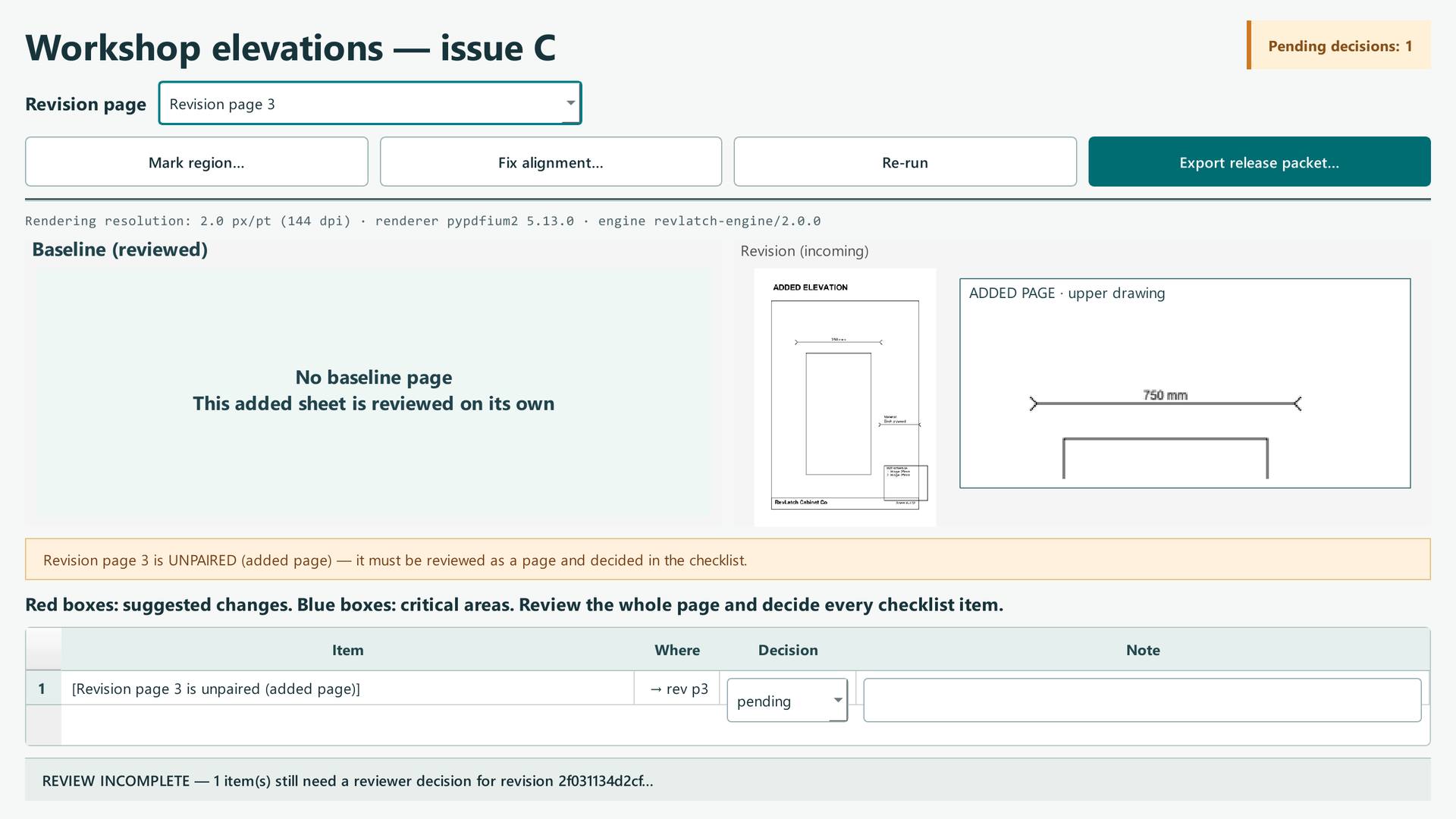
Reviewed product or Store capture. It shows the named control only; it does not prove that a later action completed.
Export release packet
The export dialog tells you exactly what will be written before you write it, and it will not overstate the review. The window shows one of three banners, and the packet status is decided by the truth, not by what you wish were true:
- "NO COMPARISON RUN: this revision was never compared by the engine, so there is nothing to certify. Export is refused (no_comparison_run)…" — a revision the engine never compared cannot be exported at all.
- "INCOMPLETE REVIEW: N item(s) still need a decision; the export will be a DRAFT packet marked for review." — a half-finished review exports only as a draft that can never carry a "review complete" cover.
- "Workflow complete for this revision: final packet. Completeness is not a guarantee of no undetected changes." — green banner, the real thing.
The "What this packet will include" table lists the four sections: Source drawings (exact copies of the baseline and incoming PDFs), Review record (sheet matches, decisions, notes, unresolved items), Region evidence (before/after crops for decided regions), Integrity receipt (file sizes and SHA-256 hashes in the manifest). The "Exact inputs for this packet" block shows the baseline and incoming SHA-256 fingerprints up front.
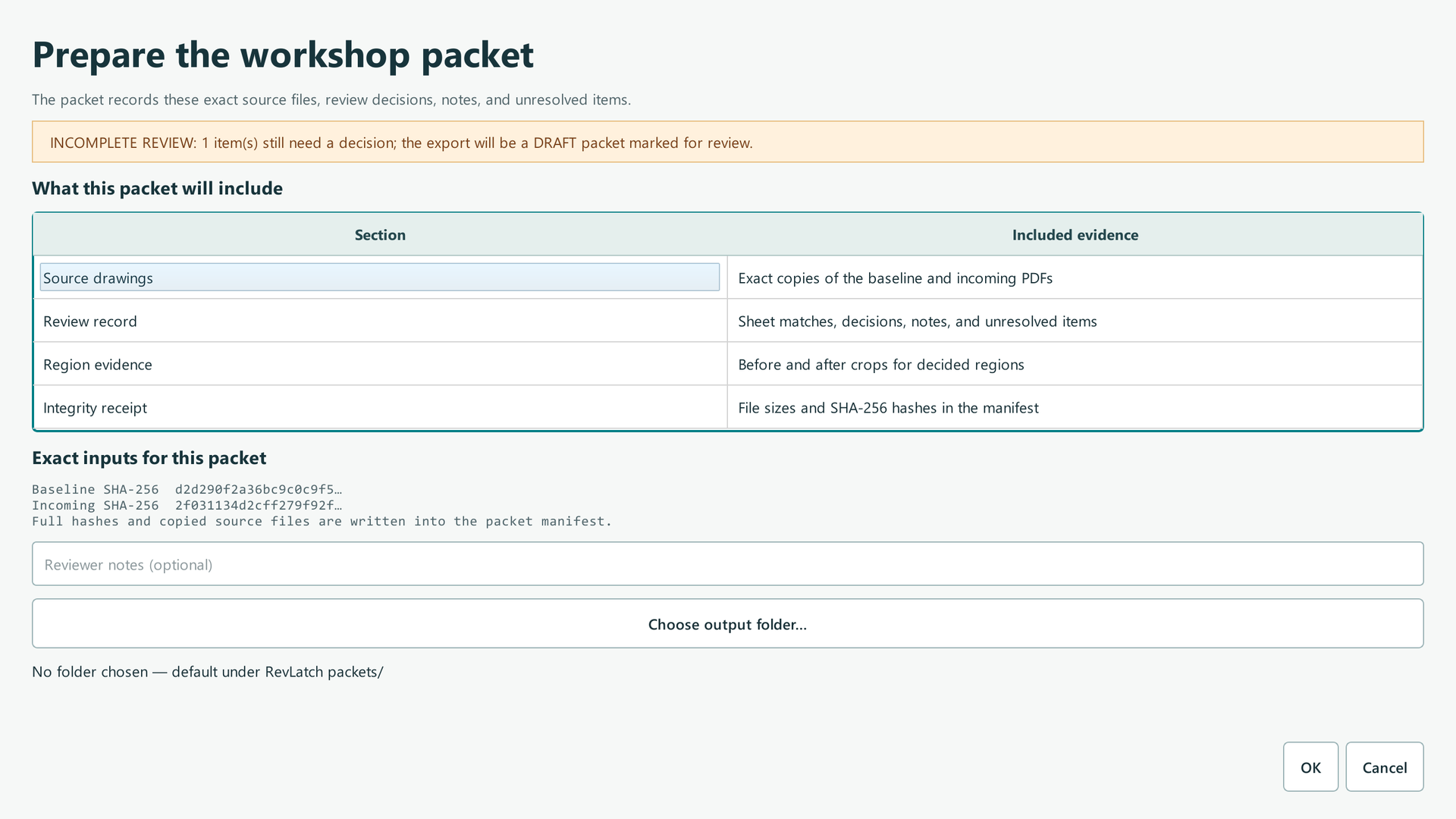
Reviewed product or Store capture. It shows the named control only; it does not prove that a later action completed.
| Control (label) | What it does | When you use it | Gotcha |
|---|---|---|---|
| Status banner | States draft vs complete vs refused, in plain text | Read it before clicking OK | A "NO COMPARISON RUN" banner means the export will be refused no matter what you click |
| What-this-packet-will-include table | Lists the four packet sections and their evidence | Orientation | The exact files inside are always the same shape (section 6) |
| Exact inputs block | Shows the baseline/incoming SHA-256 fingerprints | Verify you are exporting the revision you think you are | The full hashes and copied files go into the manifest |
| Reviewer notes (optional) field | Extra free text written into notes.txt in the packet |
Final handoff message to the workshop | This joins — not replaces — per-item notes |
| "Choose output folder…" | Opens the folder picker for the packet | When you want the packet somewhere specific | Unpicked = default under the app's packets/ folder |
| OK | Runs the export ("Exporting release packet…" progress) | To write the packet | The packet folder is named revlatch-packet-<n>; re-exporting replaces the previous packet, it never merges |
| Cancel | Closes without exporting | To go back to decisions | Nothing is written |
After the export finishes, a message shows the result with the folder path: either "DRAFT PACKET exported (for review): … N item(s) still pending." or "Workflow-complete packet exported: … (completeness for this exact revision; not a certificate of no undetected changes)".
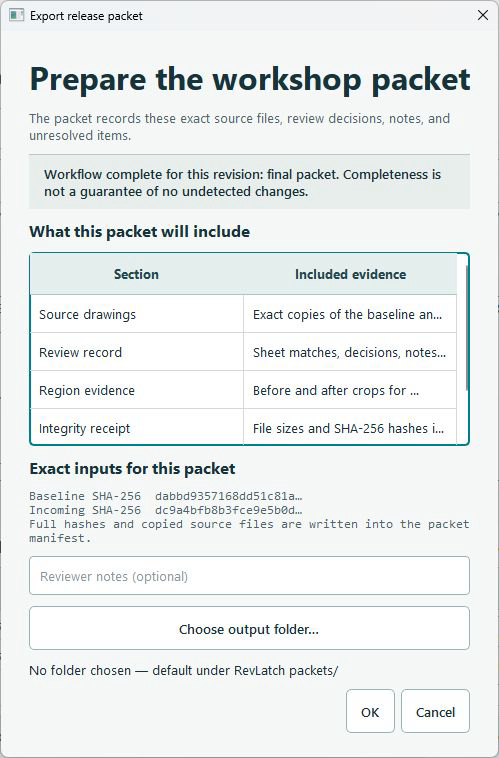
Reviewed product or Store capture. It shows the named control only; it does not prove that a later action completed.
Back on the job station, "Open saved packet" for that job opens the newest packet folder directly from Explorer.
Subscription and license
The "Subscription" menu (left of the window's menu bar) holds five actions. Pro capacity is only ever activated by actions you take; nothing phones home in the background.
| Control (label) | What it does | When you use it | Gotcha |
|---|---|---|---|
| "Status…" | Opens a message with your current access code and plan | To see exactly what plan you are on | Free keeps one active job with complete review and packet export; Pro allows multiple |
| "Upgrade to Pro monthly — $1.99…" | Opens the checkout page in your browser, pre-linked to this device | To buy Pro by the month | The page is jehorizon.com/checkout/?product=revlatch; completing a payment there does not finish the install — the next step is "Refresh signed license…" |
| "Upgrade to Pro annually — $19.99…" | Opens the annual checkout page in your browser | To buy Pro for a year | Same as monthly — refresh after checkout |
| "Refresh signed license…" | Pulls the signed subscription token for this device over HTTPS | After you complete a checkout | Until it returns "active", you keep the previous plan — this is an explicit user action, never automatic |
| "Import signed license…" | Lets you pick a license .json file you were given |
When you have a license file instead of a checkout | The license is bound to this exact Windows device; a license from another computer is refused |
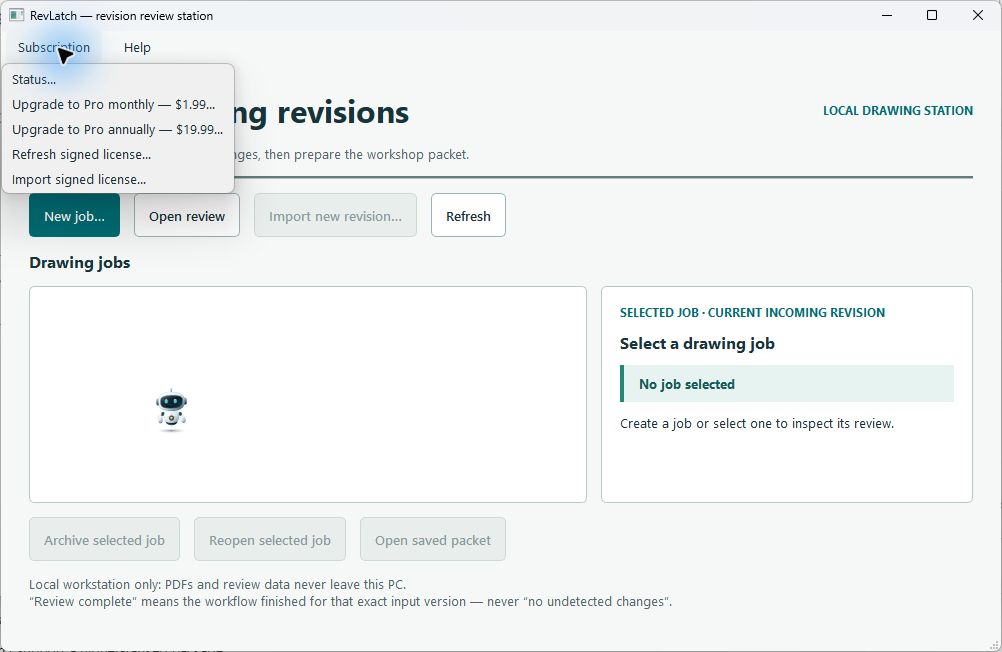
Reviewed product or Store capture. It shows the named control only; it does not prove that a later action completed.
What the trial is: the 30-day, no-card Pro trial is granted automatically at first launch and enables Pro capacity — several concurrent active reviews. The status bar tracks it ("30 days remaining"). When it ends, status drops to Free; see section 7 edge case 6 for exactly what stays usable.
Suggest a feature
"Help" → "Suggest a feature…" opens the feedback dialog. This is the app's only feedback channel, and it is built to never ship your drawings or anything about them: the dialog records your words locally (an "audit row" in the settings database) and — only if you click "Send by email…" — hands a pre-filled message to your own mail app addressed to [email protected]. RevLatch never sends mail itself and cannot see whether you pressed Send.
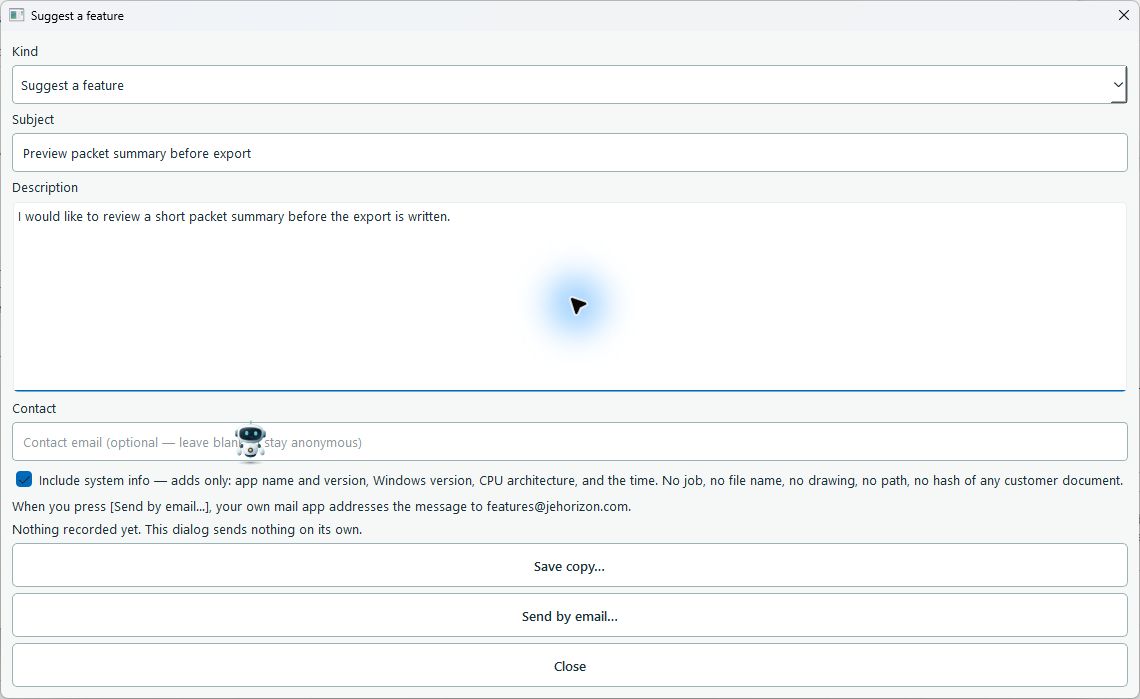
Reviewed product or Store capture. It shows the named control only; it does not prove that a later action completed.
| Control (label) | What it does | When you use it | Gotcha |
|---|---|---|---|
| Kind dropdown | "Suggest a feature" or "General suggestion" | Pick what your message is | Both routes go to the same inbox |
| Subject | One line, up to 200 characters | Always fill it | Longer text is trimmed to 200 |
| Description | What you want and what you do today instead (up to 8,000 characters) | Required in practice | Over 8,000 characters is refused, not silently cut |
| Contact | Optional email so the team can reply | Only if you want a reply | Leave blank to stay anonymous |
| Include system info checkbox (ticked by default) | Adds app version, Windows version, CPU architecture, time | Keep it ticked to help debugging | That is ALL the diagnostics that exist — no job, path, drawing or hash |
| "Save copy…" | Writes your suggestion to a .txt file you choose |
To keep a local copy | The audit row is saved to the settings database regardless |
| "Send by email…" | Opens your mail app pre-addressed to [email protected] | To actually send | RevLatch did not send it and cannot see whether you pressed Send there |
| "Close" | Closes the dialog | When you are done | If you only typed and closed, nothing was recorded — the audit row only appears after Save copy… or Send by email… |
6. What's supported
Files you can import (and the refusals that protect you):
| Requirement | Limit (verbatim from the app and its docs) | What happens if exceeded |
|---|---|---|
| File type | Unencrypted, computer-generated PDFs | Encrypted / password-protected PDFs are refused with code ENCRYPTED_PDF; unreadable or corrupt files with UNREADABLE_PDF |
| File size | ≤ 200 MB per file | Refused with FILE_SIZE_OVER_LIMIT (also FILE_TOO_SMALL below 16 bytes) |
| Sheet count | ≤ 25 sheets per set | Refused with PAGE_COUNT_OVER_LIMIT; empty PDFs with EMPTY_PDF |
| Page dimensions | Matching sets only — pages whose width/height differ by more than 2% are "not comparable", never "matched" | Such pages are treated as unpaired rather than compared |
| Baseline vs revision | Must not be byte-identical | The job is refused ("baseline and revision are byte-identical") |
| Rendering | Minimum render scale 0.5 px/pt; watchdogs: 600 s per comparison run, 40 megapixels per page, 400 megapixels per run | Over budget runs are refused with a named code; the run can always be cancelled |
What the review engine does: content-based page matching (64×64 grayscale page signatures, similarity score 0.94 threshold), automatic geometric registration (global phase-correlation alignment, with a user-landmark fix-up path), pixel-diff changed-region suggestions (area-ranked boxes with mean-diff strength), and honesty gates: pairs over 60% differing pixels are declared unreliable instead of shown as a clean diff; alignment failures become checklist items; excluded/edge diff pixels are flagged.
What a release packet contains (every export, same shape):
drawings/— exact copies of the baseline and revision PDFs (baseline-<sha12>.pdf,revision-<sha12>.pdf)crops/— before/after PNG crops of every decided changed region and critical regionreview.json— full item snapshot: matches, decisions, notes, unresolved itemsREVIEW_STATUS.txt— plain-text status (DRAFT FOR REVIEW or WORKFLOW COMPLETE)manifest.json— every packet file with size and SHA-256 hash, plus the status and hash of both source drawingsREVIEW_RECEIPT.txt— packet id, status, manifest SHA-256 and revision SHA-256notes.txt— your reviewer notes (or "(no reviewer notes entered)")
The manifest's own hash is recorded in the receipt and in the app's store, so the packet's integrity can be re-checked at any time, and re-exporting replaces the previous packet instead of merging into it.
Feature per plan (verbatim):
| Capability | Free ($0) | Pro ($1.99/mo or $19.99/yr) |
|---|---|---|
| Active reviews at once | 1 | Multiple concurrent |
| Full revise-and-confirm workflow + packet export | Yes, forever | Yes |
| Archived reviews readable and exportable | Yes | Yes |
| Account / card / time limit | None | Subscription (no per-seat fees) |
| After the plan ends | — | Existing active reviews remain usable; Free one-active rule applies to creating/reopening |
Known limits (state plainly): no CAD/BIM editing; no OCR; scanned or skewed drawings are not guaranteed; changed regions are pixel-area suggestions, not auto-classified dimension/hardware content; no vector overlay or blend mode (the "overlay" in store copy means the coloured boxes drawn over the raster views); no PDF/CSV packet report export; change suggestions were validated on labelled test drawings — eye-check real-world pairs; the app is not a sandbox for hostile PDFs, so only open files you trust.
7. Edge cases & gotchas
- Symptom: I already have one active review and "New job…" is greyed out. Why: Free permits one active review at a time; the button is disabled while a job is active. What to do: click "Archive selected job" on the active job (it stays readable and exportable), then "New job…" works again. The same rule applies to "Reopen selected job" — reopening is blocked while another job is active, with a warning that names the fix.
- Symptom: the export produces a DRAFT packet even though I "finished". Why: at least one checklist item still has a
pendingdecision; unfinished exports stay drafts and can never carry a "review complete" cover — that honesty is enforced in code. What to do: open the review, decide everypendingrow, then export again. A draft packet is still a valid record —REVIEW_STATUS.txtwill say DRAFT FOR REVIEW. - Symptom: export says "NO COMPARISON RUN" and refuses. Why: a revision the engine never compared cannot be exported — an empty item list with no engine run behind it is not a finished review. What to do: run the comparison first (the review window opens it), then export. This typically only appears if a job was created but never completed its first comparison.
- Symptom: an unpaired/added page will not go away and blocks completion. Why: an added, deleted or unpaired page is a checklist item by design — "nothing disappears silently" means these cannot be swept under the rug. What to do: decide the row.
significant+ a note for a genuinely new sheet;acknowledgedif it is noise you verified against the source. - Symptom: a suggested sheet match is wrong (the pages do not belong together). Why: matching is content-based and suggested, never assumed; similarities can mislead when sheets look alike. What to do: untick the pair in "Confirm page matches" (it becomes an added-page item and stays visible), or fix the pairing when reopening. Never interpret a displayed difference until the pair is right — the site's troubleshooting guidance says the same.
- Symptom: my Pro subscription/trial ended and I cannot create a new job. Why: graceful downgrade — existing active reviews remain usable, but the Free capacity rule (one active review) applies to creating or reopening jobs after Pro ends. What to do: archive one active job to free a slot; your existing reviews and packets stay open and exportable. Your decisions are not lost.
- Symptom: "ALIGNMENT UNRELIABLE" banner — no change boxes are shown. Why: the registration could not be made trustworthy, so RevLatch refuses to show a clean-but-wrong diff. What to do: click "Fix alignment…" and place at least 2 corresponding points, then "Re-run" — or decide the alignment item as
acknowledgedafter a manual look. Do not treat the view as a clean comparison while the banner is up. - Symptom: the warning banner mentions excluded/edge pixels. Why: differing pixels that fall outside every suggestion box, or in the border band, are flagged explicitly rather than dropped — the system's own blind spots are surfaced. What to do: read it as "there is diff here the boxes do not cover"; magnify those areas and decide the item on what you see.
- Symptom: a refresh/import says "review status was RESET for this version — every item is pending again." Why: new input bytes are a new revision (identified by SHA-256 of the file contents, never the filename); the new version's review state starts fresh, and previously reviewed versions keep their own history. What to do: that is the intended safety — re-review the new revision. If you re-import identical bytes, nothing is reset ("Identical bytes were already imported…").
- Symptom: change-detection flags a change that is not real, or misses subtle ones. Why: suggestions are pixel-area heuristics on rendered pages — they are not promises to find every change, and format-only noise can trigger boxes. What to do: treat every red box as a proposal to verify, not a verdict; zoom the area, check the source pair, and set
no_change/not_significanthonestly. The product never certifies your drawing. - Symptom: I close the review window mid-render. Why: rendering runs in a cancellable child process; closing cancels it and the window waits up to a moment for the renderer to stop. What to do: if you see "Closing is waiting for the page renderer to stop. Please try again in a moment.", just click close again after a second. Nothing is lost — decisions are saved the moment you make them.
- Symptom: I picked a packet output folder that already has other files. Why: clean-room re-export — RevLatch builds the packet in a staging folder and moves it into place; a target holding a foreign (non-RevLatch) file is refused rather than silently mixed in. What to do: choose an empty folder (or let it use the default under
packets/); re-exporting to a folder that already holds a previous RevLatch packet replaces that packet cleanly. - Symptom: an archived job's buttons are all greyed out. Why: archived jobs are read-only by design — their drawings, decisions and saved packets stay readable and exportable, but the review cannot change. What to do: "Reopen selected job" first (remember the one-active Free rule), then continue editing or exporting.
8. Troubleshooting
Problem: the app won't install or open.
1. Confirm your PC is 64-bit Windows 10 or Windows 11 — the Store listing is "Windows 10, Windows 11 (x64)".
2. Reinstall from the Store: open https://apps.microsoft.com/detail/9MTLXPDK0LLR, click Get, then Open.
3. If the Store window will not install, restart the Microsoft Store app (close it fully and reopen).
4. If the app opens to a blank window, close it via the taskbar and reopen — first launch is slow while the trial state is created.
5. Still failing? Include the Windows version, the app version shown on your PC and what exactly happened when writing to support (section 11).
Problem: a button is missing or greyed out. - "New job…" greyed: an active job already exists on Free → archive it (edge case 1). - "Import new revision…" / "Archive selected job" greyed: no job selected, or the selected job is archived → select an active job, or reopen the archived one. - "Reopen selected job" greyed: the job is not archived → nothing to reopen. - "Open review" does nothing: no job selected → select a row first. - Decision dropdowns greyed in the review window: the page could not be rendered, or the job is archived/read-only → fix the archived state; if the preview failed, the banner explains what happened.
Problem: results look wrong (pair, alignment or suggested changes).
1. Check the baseline and revision file selection first — the pairing starts from the exact source bytes you chose (shown as SHA-256 fingerprints on the job station).
2. If a sheet match looks wrong: reopen the job, untick the wrong pair in "Confirm page matches", and let the page stay visible as an added-page item rather than forcing a match.
3. If alignment is unreliable: treat the pair as needing manual review; use "Fix alignment…" with ≥ 2 landmarks and "Re-run", or record acknowledged after your own look.
4. If change boxes look noisy: they are suggestions. Zoom the area, compare the actual sheets, and decide honestly — RevLatch does not certify drawings.
Problem: payment or subscription trouble.
1. Check your current status: "Subscription" → "Status…" shows the code and message (for example active, trial, expired, payment_pending).
2. After paying, click "Refresh signed license…" — completing checkout alone does not finish the install; the license is pulled by that explicit action.
3. "Checkout pairing belongs to another device" (wrong_device): the license is bound to the Windows machine hash of the device that opened checkout — run the upgrade from the device you will use, and re-do the checkout there.
4. "Payment confirmation is still pending": wait and click "Refresh signed license…" again.
5. Store/refund questions belong to the Microsoft Store and to [email protected] (section 11).
Problem: the app is stuck on a screen. 1. If a progress window is open, click "Cancel" — it genuinely kills the render/compare child process; the task does not linger in the background. 2. While a pair renders, keep waiting a few seconds; renders are transient and re-created on demand. 3. If the whole window is unresponsive for a long time, close RevLatch from the taskbar and reopen — jobs and decisions are stored per click, not on close.
9. FAQ
I don't see the "New job…" button. It is the first button in the row under "Review drawing revisions" on the job station. If it is greyed out, one active job already exists — archive it first (edge case 1).
Can I undo a decision? Yes. Every decision is a dropdown you can change any time while the job is active — pick another value and the review state updates. Notes are editable the same way.
Where is my data saved? On this PC only, under %LOCALAPPDATA%\JE Horizon\RevLatch (that is C:\Users\<you>\AppData\Local\JE Horizon\RevLatch by default). Inside: jobs\<job>\sources\ holds exact copies of the imported PDFs, each job has its own review database (revlatch.sqlite), and exported packets go into packets\ unless you chose another folder. There is no hidden cloud copy and no derived render folder — page renders are transient.
Will this touch my files? It copies the PDFs you choose into the job's sources\ folder and reads those copies. Your original files are never modified, moved or deleted. Exports write a brand-new packet folder; re-export replaces the previous packet folder rather than merging into it.
Do I need to pay? No. Free is permanent: one active review with the full workflow and packet export, no account, card or time limit. Pro ($1.99/mo · $19.99/yr) only adds concurrent active reviews — the first 30 days of Pro capacity are a no-card trial that starts automatically.
Can I use it offline? Yes. All comparison, review and export work runs on your PC. The only network calls are the Store download and the optional, explicit Pro checkout/claim in your browser.
What happens if I close it mid-task? Your decisions and notes are saved the instant you make them. An in-flight render/compare can be cancelled and is never left to run in the background. Reopen the job and continue.
Does RevLatch find every change? No, and it says so itself: "RevLatch assists a human review — it does not certify a drawing, approve it automatically, or promise to find every change." It surfaces what it found and what it could not be sure about; the human decides what matters.
What does "workflow complete" mean, then? It means you finished the defined workflow for that exact input version — every checklist item has a decision and a comparison actually ran. The packet repeats: completeness is NOT a guarantee of no undetected changes. "Unfinished exports stay drafts" is the same honesty on the way out.
Will it read my scanned drawing? Maybe not — "scanned or skewed drawings are not guaranteed", and encrypted or unreadable PDFs are refused up front with a clear message.
10. Privacy & data
The privacy posture, in plain terms:
- 100% local processing. Drawing files are processed locally and never uploaded for comparison. There is no cloud send path in the build at all — the only network calls are bounded HTTPS requests for the Pro checkout page and the signed-license claim, and only when you take those explicit actions.
- No hidden copies. Job data lives only on your PC under
%LOCALAPPDATA%\JE Horizon\RevLatch(or aREVLATCH_HOMEfolder you set yourself):jobs\<job>\sources\(exact imported PDF copies), per-jobrevlatch.sqlite, exportedpackets\, plus the app-level settings database. Page renders are transient — there is noderived\folder and no secondary copy to leak. - Explicit-only license traffic. License claim and activation are deliberate user actions from the "Subscription" menu; nothing is activated in the background and no drawing, job path or review record is ever sent. The signed license is bound to this Windows device (its machine ID hash) and keeps working offline until its verified expiry.
- Feedback is your words only. The "Suggest a feature" dialog records your text locally (an audit row) and, only when you click "Send by email…", opens your own mail app addressed to
[email protected]. The message may include app version, Windows version, CPU architecture and the time — never a drawing, file name, path, or hash of a customer document — and RevLatch cannot see whether you pressed Send. - The packet is the only persistent derived artifact, its every file hashed into
manifest.json, the manifest's hash recorded in the receipt — all written to the folder you chose.
The landing page's truth line, verbatim: "RevLatch assists a human review — it does not certify a drawing, approve it automatically, or promise to find every change. Scanned or skewed drawings are not guaranteed. Drawing files are processed locally and are not uploaded for comparison; license claim and activation are explicit actions."
One honesty note the docs keep: the app is not a sandbox for hostile PDFs — import only PDFs you trust, as you would with any drawing tool.
11. Getting help
- Support email: [email protected]
- Support page: https://jehorizon.com/support/
- Help index: https://jehorizon.com/help/#revlatch
- Feature suggestions: use the in-app "Suggest a feature…" dialog (reaches [email protected] via your mail app), or email the support address.
- When you write in, include: the app version shown on your PC, your Windows version (e.g. "Windows 11 23H2"), the exact button you clicked and the message you saw, and — for review problems — the job name and the SHA-256 fingerprints shown on the job station row. The more exact the "expected vs seen", the faster the answer.
Quick reference
This guide covers the reviewed public workflows for RevLatch. Controls can vary by installed version. The complete illustrated source guide appears below after current release limits. Confirm dated plan, version, and checkout details in the current app.
1. Install and open
Open the Microsoft Store listing and follow the install action shown for your account. Launch the app and check the controls visible in your installed version.
Product details · Product Help
2. Common tasks
Review a drawing revision
- Select the baseline and revised PDF sets.
- Confirm the suggested sheet matches before comparing changes.
- Inspect visible differences, mark critical regions, and write your significance notes.
- Export the review packet and have the responsible reviewer approve the conclusions.
Handle added or deleted sheets
- Import the baseline and revision sets, then review every proposed sheet match.
- Keep unpaired added or deleted pages on the review list instead of forcing a false match.
- Record the human decision and its reason before exporting the packet.
Mark a critical region
- Open a confirmed sheet pair and mark the area whose details matter to the job.
- Inspect any suggested changes and alignment warnings in that region.
- Record significance and notes; recheck the region on later revisions.
3. Current release limits
A comparison highlights areas to review. The responsible person must decide whether a drawing change matters and approve any packet before use.
- RevLatch assists review; it does not certify a drawing, replace professional judgment, or guarantee that every change was found.
- Password-protected or scan-only PDFs may need preparation or manual review.
4. When something goes wrong
A sheet match appears wrong
- Check the baseline and revised file selection.
- Correct the proposed sheet pairing before interpreting any displayed difference.
Alignment is unreliable
- Treat the pair as needing manual review.
- Check the source PDFs and page pairing before deciding whether a change is significant.
5. Get help
Record your installed app version, the control you used, and the exact result. Do not include a password, license key, customer record, or private file.