Follow the steps and red lettered screenshots below. Some controls vary by installed version; confirm a send, purchase, license decision, or saved record in your app.
How to Use Wittlet (+ Wittlet's World) — the complete guide
Wittlet · JE Horizon · updated 2026-09-27
Help center · Product page · Microsoft Store
1. What this app is
Wittlet is a free Windows desktop companion for people who want a friendly, private AI on their own computer. No account is required for normal app use. JE Horizon describes free access with optional one-time Spark bundles, but the published 1.5.0.0 app still contains a legacy trial/subscription panel; do not enter payment details there. Character selection and unlock behavior have not been verified in the installed Store package. The companion lives on your desktop: it chats with you using a local AI model that runs on your PC, plays includes games, lessons, file tools, and Wittlet's World. The availability and outcomes of individual controls may vary by installed version; this guide does not verify completion, saved progress, or unlocks. The product page describes World as part of the same download, but its current in-app behavior was not verified.
This guide is written so a person who has never touched an AI app can read it and operate Wittlet with zero guesswork. Every button is named, what it does, what happens next, and what to do when something does not work.
What this app is NOT:
- Not a web service. There is no cloud companion, no sync, no phone app, and no server that can change how the app behaves after you install it.
- Current published offer and in-app UI differ. JE Horizon describes optional one-time Sparks and no Pro subscription, while Store build 1.5.0.0 still contains a legacy adult trial/subscription panel. Do not use that panel to pay or infer current terms; ask support. Optional one-time "Spark" bundles exist; they only add in-game currency.
- Not a therapist or a doctor. The companion is a character, not a person. Course content rides with disclaimers ("not medical advice", "not a permit to mix cleaners"). It does not diagnose anything.
- Not a child-safety certificate. Family Mode is a local, parent-controlled setting — a guardrail, not a certification.
- Not a certification machine. Courses are tutors with checks; finishing them is not a professional certification (the Cisco IOS course says so itself).
- Not a separate app. Wittlet's World is inside the Wittlet download. You never install "Worlds" on its own.
- Not a multiplayer game. Everything runs offline on your PC, against the companion itself.
2. Before you start
What you need
| Thing | What you need | Notes |
|---|---|---|
| Windows | Windows 10 or Windows 11, 64-bit | The app is x64. The Microsoft Store listing is the authoritative requirements source. |
| Disk space | About 1.1 GB for the download, about 2.2 GB installed | Plus space for the local AI model (a few GB). See edge case 2. |
| Graphics | None required | A gaming GPU is optional, not required. The app runs on ordinary CPU graphics. See §5.2 "AI processing". |
| Memory (RAM) | The more free RAM, the larger the AI model | The smallest model wants about 3.5 GB free; bigger models want 6–8 GB. See edge case 3. |
| Internet | Not needed to use Wittlet | Once installed, everything runs offline. A one-time first-run setup may download the local AI engine if it is missing — after that, no connection is needed. |
| Account | None | No sign-up, no login, no card. Microsoft Store handles the download only. |
| App version | Check the version installed on your PC. | Partner Center published submission 6 and an official Microsoft Store install both identify MSIX 1.5.0.0 on the guide test machine as of 2026-09-27; rollout may differ elsewhere. The in-app selection and unlock flow still needs verification. |
Current published offer and payment boundary
JE Horizon currently describes free access, lessons, and optional one-time Spark bundles. The published Store build 1.5.0.0 also contains legacy trial/subscription wording. Do not enter payment details in that panel. Current bundle prices, checkout behavior, and redemption are not verified here; contact support to confirm the current purchase route before paying.
The product page describes Wittlet's World as part of the same download. The installed Store overlay could not be targeted during capture, so current in-app availability and room-action outcomes have not been verified.
3. Install & first launch
Install from the Microsoft Store
- Open the Microsoft Store listing:
https://apps.microsoft.com/detail/9PD8F625136L(or go tohttps://jehorizon.com/wittlet/and click "Get from Microsoft Store"). - On the web listing, choose "View in Store" to open the Microsoft Store app, then use the install action shown there. The exact button label can vary by account and region. The Store listing provides the download action. Current in-app purchase terms are described above; do not use the legacy trial/subscription panel.
- Wait for the download and install to finish (about 1.1 GB; this can take a few minutes on a slow connection).
- Click "Open" on the Store page, or search "Wittlet" in the Start menu and press Enter.
Reviewed product or Store capture. It shows the named control only; it does not prove that a later action completed.
First launch — what you see
When Wittlet first opens you see a small floating character on the desktop and a chat panel titled "Wittlet — your local companion". Two things are true on the very first run that you should know before they surprise you:
- The app starts in Family Mode. Family Mode is ON by default (it is a local, parent-friendly setting). The chat panel shows a big "Let's play in the room" heading, an "Open the room" button, and three ready-made conversation buttons: "Say hello", "What can we play?", and "How does care work?". In Family Mode the companion answers with built-in friendly replies, and the AI chat, file tools, voice, and purchase screens are paused. See §5.14 to set the parent password and unlock adult mode.
- The AI model is prepared once. The conversation AI lives on your PC. On first launch the app may show "Finding the right AI for this computer…" and, if the local AI engine is not there yet, "Preparing Wittlet local AI · downloading runtime" and "downloading 1.7B model" (one-time, needs an internet connection that once). After that, everything works offline. Core room and play work while setup is pending.
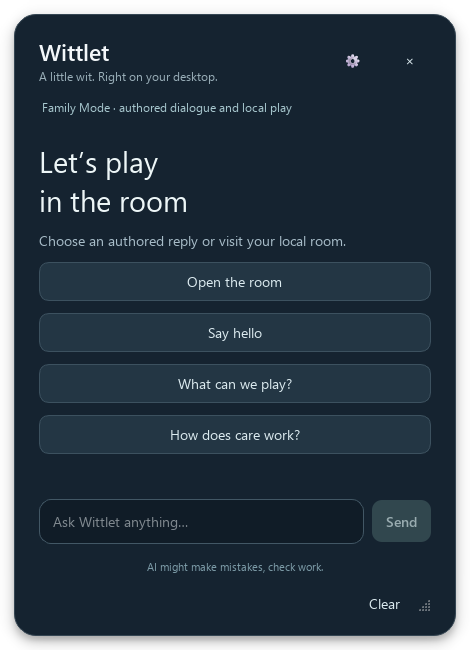
Synthetic or isolated-data render from the shipped app source. It illustrates the named control only; it does not prove a send, purchase, license decision, saved record, or completed result.
4. Quick start — first win in 10 minutes
This route describes a first-use path. The Store overlay was not targetable in the capture session, so character selection, unlock, and conversation outcomes must be confirmed in your installed version.
- Open Wittlet (search "Wittlet" in the Start menu). The chat panel appears beside the character. It starts in Family Mode (see §3).
- Right-click the character to open the companion menu. Click "🔴 Character & preferences".
- In the "Wittlet preferences" window, click "🔴 Family Mode settings…". In the Family Mode window, type a New password (8 to 128 characters) into both boxes, click "Set parent password", then click the toggle button "Unlock adult mode" and enter the password when asked. The status line then reads "Adult mode unlocked for this session." The AI chat, file tools and voice are now available. (Restarting returns to Family Mode — that is by design.)
- Back in the preferences window, inspect the Character design control and use only the choices available in your installed version. Character selection and unlock behavior have not been verified in the Store package; do not assume every named character is selectable. If "Character color" and "Save" are present, use them and confirm the result in the app.
- Watch the status line at the top of the chat panel. When it shows "● AI ready · Automatic acceleration" (or "CPU only"), the local AI is running. If it says "No suitable AI is installed for the available memory", close other apps and click the "↻" refresh button in the bottom-right corner of the panel (edge case 3).
- Click the message box at the bottom — "Ask Wittlet anything…" — type a question, and press "🔴 Send" (or press Enter). A "Thinking…" line appears, then the reply. The status line changes to something like "● AI · CPU · 3.7s" — that is a report of where the reply ran (GPU or CPU) and how long it took.
- Try the built-in shortcuts under the heading: "🔴 Think it through" drafts a thinking prompt, "Draft an email" drafts (never sends), and "Find files" opens the local file tools that only act with your approval.
- If the companion menu in your installed version shows "Wittlet's World ✸ N", it identifies a World/room entry and Spark balance. The menu action and resulting room were not verified in this capture lane.
That is the described setup path: set a password, use only controls shown in your installed version, then check the resulting state. Character selection, unlock, and room outcomes were not verified in the Store overlay. The next section describes the source-matched controls.
5. The tour
Screens appear in the order you meet them: the chat panel (welcome, setting up the AI, conversation), the preferences window, the files windows, the games and lessons, the Sparks & Bundles window, the companion menu and tray, then Wittlet's World (the room scenes, the Worlds window, the Today/Room/Moments panel, the play overlays, the postcard, Worlds settings, Family Mode) and finally the voice window.
5.1 The chat window
The chat panel is the heart of the app: the header, the status line, the welcome/shortcuts area, the conversation, and the input row. Drag the header to move the panel anywhere; press Esc to hide it; press Ctrl+L to jump to the message box; Ctrl+Shift+Backspace clears the conversation.
- Header: the "Wittlet" brand and the subtitle "A little wit. Right on your desktop." On the right: the "⚙" button (tooltip "Character & preferences") and the "×" button (tooltip "Hide conversation · Esc").
- Status line (under the header): tells you what the AI is doing — "Connecting to local AI…", "Finding the right AI for this computer…", "● AI ready · …", "Thinking on your computer…", or "● AI · GPU · 2.1s" after a reply.
- Welcome area (adult mode): the heading "What shall we make happen?", the line "Find what you need. Shape what comes next. Your files stay on your computer.", and six shortcut buttons in a grid: "Find files", "Edit a file", "Open a file", "Create a note", "Think it through", "Draft an email". In Family Mode this area instead shows "Let's play in the room", the "Open the room" button, and "Say hello" / "What can we play?" / "How does care work?".
- Conversation: appears after your first message. Each message is labelled "You" or "Wittlet".
- Input row: the message box ("Ask Wittlet anything…", up to 6,000 characters), the "Send" button, and the "Stop" button (appears while a reply is being generated; it cancels the reply, not the app).
- Disclaimer under the input: "AI might make mistakes, check work." — treat it like the fine print: verify anything important it gives you.
- Footer: the "↻" refresh button (tooltip "Refresh AI and hardware"), the "Clear" button (clears the conversation and the model context), the "Files" menu (Find files / Edit a file / Open a file / File permissions & indexing), and the "Report issue" button.
- The "Review file before saving" button appears only when you asked Wittlet to create a file — see §5.4.
| Control (label) | What it does | When you use it | Gotcha |
|---|---|---|---|
| "⚙" (top right, icon) | Opens "Wittlet preferences" | To change character, colors, size, AI mode | Also reachable from the right-click menu "Character & preferences" |
| "×" (top right, icon) | Hides the conversation panel | When you want Wittlet out of the way | The character stays on the desktop; press Esc works too |
| Status line | Reports AI state and last reply time/device | Glance to see if the AI is ready | "● AI · CPU · 3.7s" means the reply ran on the CPU and took 3.7 s — normal |
| "Say hello" / "What can we play?" / "How does care work?" | Send a ready-made message | Family Mode, before you unlock | They use built-in replies — no AI behind them |
| "Find files" / "Edit a file" / "Open a file" | Open the local file tools (§5.4) | When you want Wittlet to touch your files | Family Mode hides these — unlock adult mode first |
| "Create a note" / "Think it through" / "Draft an email" | Pre-fill a message for you to send | Quick starts for notes, thinking, drafting | Drafts are never sent anywhere — nothing is emailed |
| "Send" (bottom right of input) | Sends the message to the local AI | After typing a question | Greyed out until there is something to send or a file intent is detected; in Family Mode it sends an authored reply |
| "Stop" (replaces Send while thinking) | Cancels the reply in progress | When the reply is too long or wrong | Stops the reply only — the app keeps running |
| "Clear" (footer) | Clears the conversation and model context | To start over | Cannot be undone; "Conversations clear on exit" anyway |
| "Files" (footer menu) | Find / edit / open / permissions for local files | Any file work | File tools are unavailable in Family Mode |
| "Report issue" (footer) | Opens the in-app report dialog | To report a bug or send feedback | Saves a report on this PC first; email only opens if you choose Send by email |
| "↻" (footer, icon) | Re-scans hardware and local AI models | After installing a model or closing memory-hungry apps | See edge case 3 |
Gotchas specific to this screen: the conversation lives in memory — close Wittlet and it is gone (use "Export conversation", §5.7, before quitting if you need it). In Family Mode the Send button still works but the reply is one of the built-in curated lines. If the status line stays on "Connecting to local AI…", click "↻"; if the AI never appears, read edge case 3.
5.2 Character & preferences (the settings window)
The controls in this section are source-described; installed Store availability, selection, and save behavior have not been verified.
Open "Character & preferences" only if the control appears in your installed version. A source-matched render illustrates the described preferences window; it is not a live overlay capture, and current availability, selection, save, and unlock outcomes were not verified in the Store app.
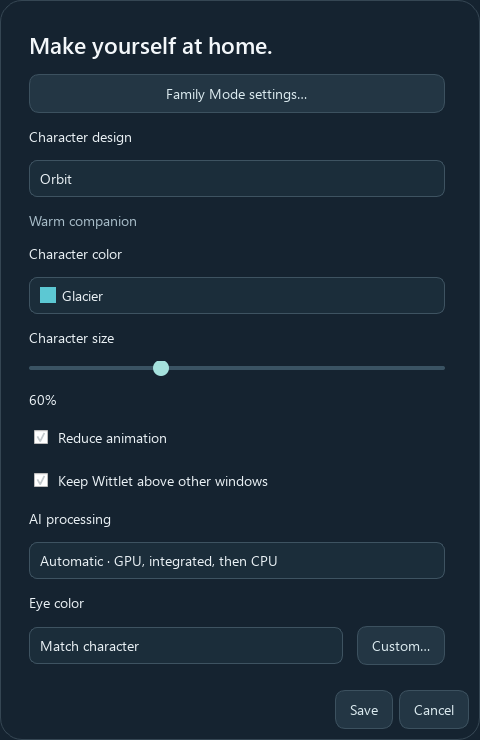
Synthetic or isolated-data render from the shipped app source. It illustrates the named control only; it does not prove a send, purchase, license decision, saved record, or completed result.
The source-matched render shows the Character design dropdown. Use only choices exposed by your installed version; the available roster and unlock behavior have not been verified in the Store overlay.
| Control (label) | What it does | When you use it | Gotcha |
|---|---|---|---|
| "Family Mode settings…" | Opens the Family Mode window (§5.14) | Set the parent password, unlock adult mode | The most important first step for new users |
| Character design dropdown | Shows choices exposed by the installed version | If the control is present | Selection and unlock behavior were not verified in the Store app |
| Character color dropdown | Source render shows a color control | If present in your installed version | Current choices and saved-selection behavior are unverified |
| Character size slider | Source render shows a size control | If present in your installed version | Range and saved behavior are unverified |
| "Reduce animation" checkbox | Switches off most motion | Sensitive to motion | Calmer, less distracting |
| "Keep Wittlet above other windows" checkbox | Pins the character and panel on top | When you want Wittlet always visible | Turn it off if it covers other apps |
| "AI processing" dropdown | "Automatic · GPU, integrated, then CPU" or "CPU only · leave graphics free" | Choose where the AI runs | See edge case 3 for what each means practically |
| Eye color / Shell color dropdowns + "Custom…" | 9 presets (Match character, Glacier, Azure, Violet, Jade, Gold, Rose, Pearl, Graphite) plus any color you pick | Fine-tune the character's look | A "Custom ♯rrggbb" entry appears once you pick a custom color |
| Eye size / Body width / Glow intensity / Animation speed sliders | Fine appearance tuning | When the presets are not enough | Shown as percentages |
| "Reset appearance" | Puts eye/shell colors and sliders back to default | After experimenting | Also resets size to 60% |
| "File permissions & nightly indexing…" | Opens the file-permissions window | Let Wittlet know which folders to index | Only in adult mode |
| "Report an issue or submit feedback…" | Opens the in-app report dialog | Report bugs, or send feedback | Suggested for any wrong-looking AI answer |
| "Save" / "Cancel" | Keep or discard the changes | Always, to finish | Nothing is saved until Save |
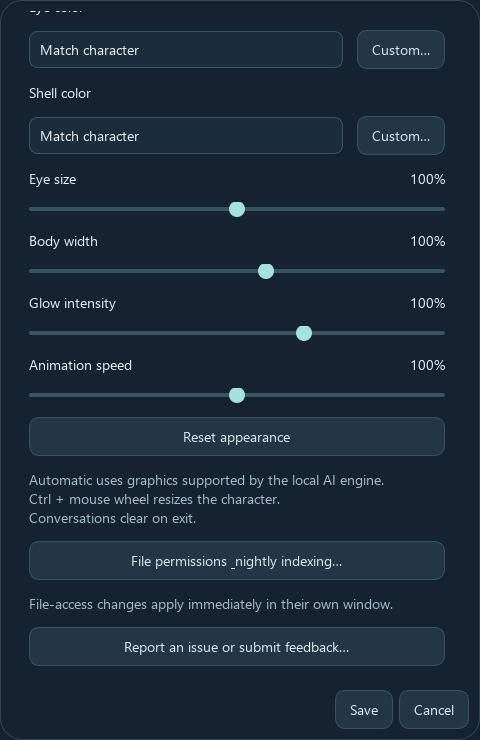
Synthetic or isolated-data render from the shipped app source. It illustrates the named control only; it does not prove a send, purchase, license decision, saved record, or completed result.
5.3 Setting up the local AI ("AI processing")
Wittlet reads your PC, picks a model between 1.7B and 4B parameters — 1.7B means "1.7 billion parameters", which is a rough measure of model size — and prefers a GPU when there is spare graphics memory. If there is no free GPU memory, the exact same model weights (Q4 quantisation, a memory-efficient format) run on the CPU. It never quietly picks a model below 1.7B.
- "Automatic · GPU, integrated, then CPU" — try the dedicated graphics card, then the built-in graphics, then the processor. Most people leave this.
- "CPU only · leave graphics free" — never touch the GPU. Use this when you are gaming or running GPU-hungry software.
What "no gaming GPU required" practically means: a normal office laptop with no dedicated graphics card runs Wittlet fine — the smallest model needs roughly 3.5 GB of free memory to start, and replies take a few seconds on the CPU. A gaming PC with spare GPU memory gets faster replies and can run a larger model. If the status line says "The selected AI is unavailable or needs more free memory", close other programs and click "↻".
5.4 Working with your files (scoped approvals)
Wittlet can find, open and amend your text files, but only inside folders you allow, and every single action asks you first. Nothing is scanned until you approve, each action has its own permission, and existing files are never overwritten — the app writes a backup beside your file before it saves.
The Files window opens from the "🔴 Find files" shortcut, or the "Files" footer menu. It is titled "Wittlet — local files" and states its own rule up front: "Local file tools · AI is not needed for finding or opening. Nothing is scanned until you approve. Each action has its own permission."
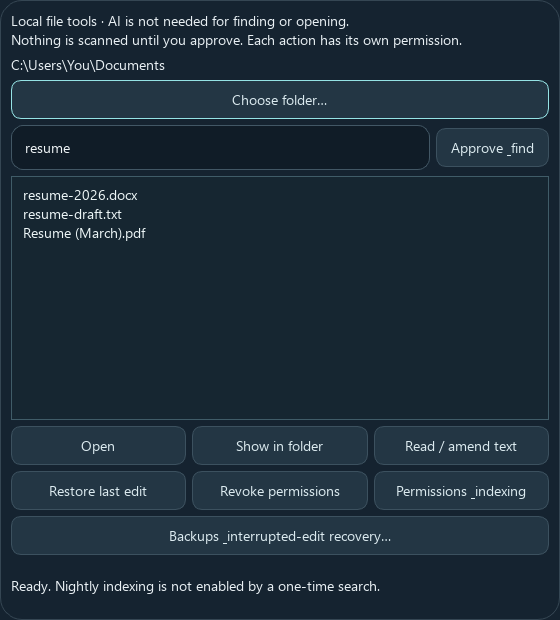
Synthetic or isolated-data render from the shipped app source. It illustrates the named control only; it does not prove a send, purchase, license decision, saved record, or completed result.
| Control (label) | What it does | When you use it | Gotcha |
|---|---|---|---|
| "Choose folder…" | Picks which folder is searched | First time, or a new folder | Every action still asks separately |
| Search box ("Filename keywords, such as resume") | Keywords for the filename search | Before searching | Searches names, not contents |
| "Approve & find" | Grants permission and searches | To run a search | If the folder is not yet allowed, the button reads exactly this; once allowed it reads "Find files" |
| "Open" | Asks permission, then opens the selected file | To view a document | Opens with your default app; "Open refused: …" appears if you decline |
| "Show in folder" | Reveals the file in Explorer | To find the file yourself | Same permission flow |
| "Read / amend text" | Opens the amendment window for a text file | To have Wittlet propose changes | You review the proposed text before it touches the file (§5.5) |
| "Restore last edit" | Rolls back the most recent edit | After a bad amendment | Uses the verified backup the app wrote before saving |
| "Revoke permissions" | Forgets every granted folder permission | When you want a clean slate | Does not delete files |
| "Permissions & indexing" | Opens the file-permissions window | Manage folders and nightly indexing | Indexing is optional and per-folder |
| "Backups & interrupted-edit recovery…" | Lists edit receipts for restore/recovery | After an interrupted write | Nothing is restored automatically — you review first |
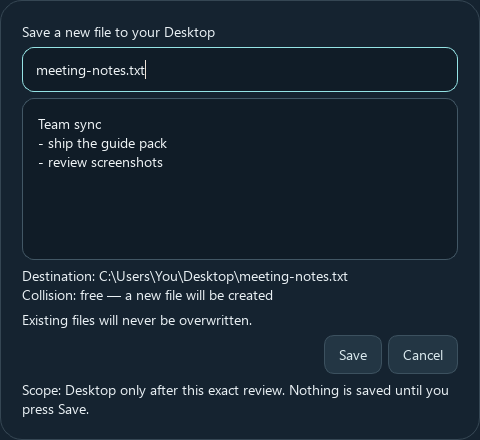
Synthetic or isolated-data render from the shipped app source. It illustrates the named control only; it does not prove a send, purchase, license decision, saved record, or completed result.
5.5 Amending a file — review the proposal
When you choose "Read / amend text" (or say something like "edit notes.txt"), Wittlet opens "Wittlet — review text amendment": the original text on one side (read-only), the proposed replacement on the other, and an instruction box. AI does not write files — the app states "Review the proposed text yourself before saving. AI does not write files."
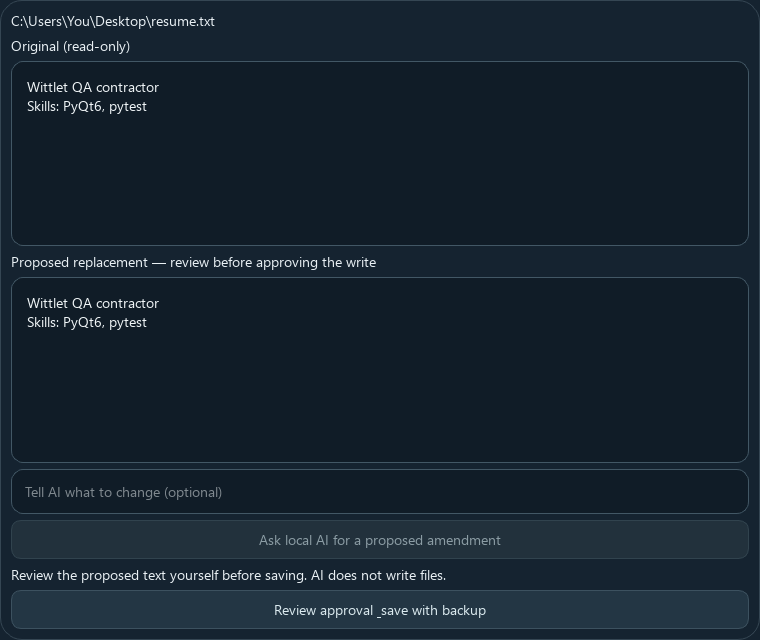
Synthetic or isolated-data render from the shipped app source. It illustrates the named control only; it does not prove a send, purchase, license decision, saved record, or completed result.
| Control (label) | What it does | When you use it | Gotcha |
|---|---|---|---|
| Instruction box ("Tell AI what to change (optional)") | Describes the change in your own words | Instead of trusting the guess | Optional — the proposal works without it |
| "Ask local AI for a proposed amendment" | Asks the local model to draft the replacement | When you want AI help writing the change | Produces a proposal you still review; nothing is saved |
| "Review approval & save with backup" | Saves the change after one more confirmation, after writing a backup | The final step of an edit | Declining leaves the file untouched |
| "Restore last edit" (in the Files window) | Restores the backup | If the saved change was wrong | "Restore denied" appears if the file changed since |
Hard file-safety rules: Wittlet never runs your files — Python lessons are
graded from an answer key, never executed. Sensitive folders (.ssh, .aws,
.azure, .gnupg, .codex, .claude, …) are blocked outright, and unsafe
filenames (.., CON, nul, control characters, …) are rejected.
5.6 Games & lessons
Games. Right-click the character and choose "🔴 Play games with Wittlet", or type a request like "let's play chess". The panel status line says: "Play a game with Wittlet. Any game earns sparks. The closer you are to winning, the more. Beating Wittlet earns the most." The seven games are played by their real rules on a real board — no illegal moves:
- Chess — classic two-player strategy.
- Checkers — draughts with forced jumps.
- Reversi — also known as Othello: flip your opponent's pieces.
- Connect Four — four in a row on a vertical board.
- Gomoku — five in a row on a grid.
- Kalah — a "mancala" family game: sow seeds around pits to capture them.
- Pallanguzhi — a traditional South Indian mancala game played with seeds.
Lessons. Right-click the character and choose "Learn a skill", or use the subtle "Learn" link at the bottom of the Worlds companion panel. There are 15 courses in six groups, each with five levels — "I know nothing" → "Foundations" → "Use it" → "Harder cases" → "Expert check" — and a placement quiz up front: "A placement quiz skips what you already know. Misses become gaps you close before the next lesson."
| Group | Courses |
|---|---|
| Language | English, Writing |
| Mathematics | Mathematics, Algebra |
| Science | Biology, Chemistry, Physics, Earth and sky |
| Computing | Python, Computers, Cisco IOS |
| Reasoning | Careful thinking, Logic |
| World | History, Geography |
Lessons are free and never charged (there is a guard against charging for education baked into the app). Honest disclaimers ride along — Biology is "not medical advice, and it does not diagnose anyone", Chemistry is "not a permit to mix cleaners", Cisco IOS is "not a certification, and not someone else's network". Code in lessons is graded from the answer key; IT IS NEVER RUN on your machine. Finishing a level earns a badge and Sparks; finishing every expert tree lets you choose one more Wittlet (the Store listing's own line — you pick which of the ten).
5.7 The companion menu and the tray
Right-click the character anywhere on the desktop. The menu:
| Menu item | What it does | Gotcha |
|---|---|---|
| "Wittlet's World ✸ 36" (spark balance shown) | Opens (or returns to) the room | The ✸ number is your Spark balance at this moment |
| "Play games with Wittlet" | Opens chat ready for a game | See §5.6 |
| "Learn a skill" | Starts the lessons flow in chat | See §5.6 |
| "Open conversation" | Shows the chat panel | Equivalent to clicking the character |
| "Character & preferences" | Opens the settings window | §5.2 |
| "Family Mode" | Opens the Family Mode window | §5.14 |
| "Sparks & Bundles" | Opens the Sparks & Bundles window | §5.8 |
| "Voice controls" | Opens the voice window | §5.15 |
| "Quit Wittlet" | Opens the quit dialog: "Keep Wittlet nearby, or quit completely?" with "Keep in tray", "Quit completely", "Cancel" | "Keep in tray" hides the character into the system tray — click the tray icon to bring it back |
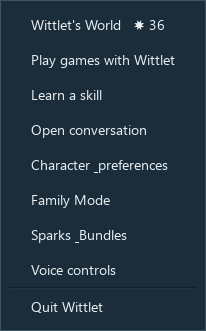
Synthetic or isolated-data render from the shipped app source. It illustrates the named control only; it does not prove a send, purchase, license decision, saved record, or completed result.
The tray icon also carries the same menu. If the tray is unavailable (some locked-down desktops), Wittlet stays visible and you can quit from its menu instead — the app tells you this in the status line.
5.8 Sparks & Bundles (the currency)
Sparks are the in-app currency. You earn them and you may buy extra ones in one-time bundles; nothing useful is ever locked behind a payment.
Earn (from the Store listing, verbatim): "Chat, lookup, opening a file and editing a file earn sparks; harder work earns more; games earn sparks (closer game = more, beating = most; one spark is 'spent as electricity')." In plain terms:
- Every chat message, file lookup, file open and file edit earns a small number of Sparks (the harder the task, the more).
- Games pay 1–12 Sparks: a closer game pays more, and beating the companion pays the most (at least 12).
- Lessons pay per lesson and per completed level, and your daily streak multiplies it (see below).
- In classic desktop mode, one Spark per task is "spent as electricity" — think of the companion paying for the lights. Once you have opened the World, that small charge stops.
- You start with 36 Sparks. The menu label "Wittlet's World ✸ 36" shows the balance, and Sparks are "waiting beside the World" when you open the room.
Streaks and the multiplier: open the app, keep it open for a while (at least a minute), and care for the companion that day (a care action or a lesson) to advance a streak. That day's Spark grants are multiplied: ×2 on day one, ×3, ×4, up to ×5. Nothing punishes you: needs decay but never reach zero, a missed day creates no debt, and the character never dies.
Spark purchase controls (not a transaction test): a source render shows a balance, bundle options, and a redemption control. The current website describes optional one-time Spark bundles, but current prices, checkout behavior, and redemption have not been verified in this guide. Do not enter payment details in the legacy trial/subscription panel. Contact support to confirm the current purchase route. The illustration does not establish a saved balance or transaction result.
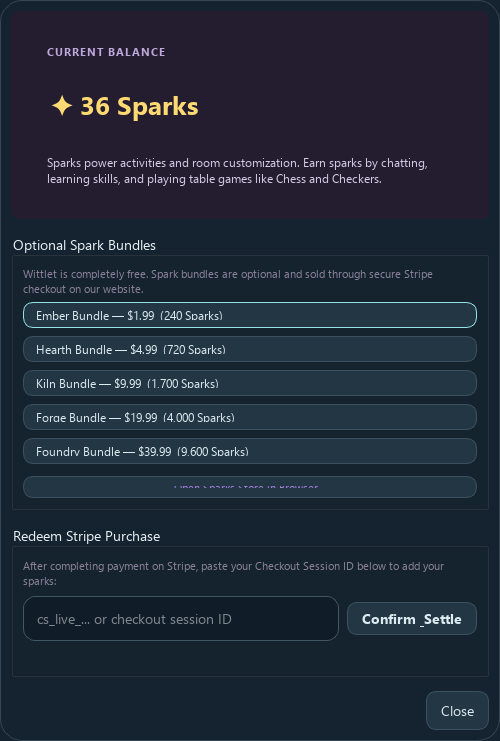
Synthetic or isolated-data render from the shipped app source. It illustrates the named control only; it does not prove a send, purchase, license decision, saved record, or completed result.
The current website describes optional one-time Spark bundles, while the installed Store build still shows conflicting legacy trial/subscription wording. Payment, redemption, and event-spin availability are not verified.
What Sparks buy: source materials describe room furniture, rooms, and additional companion choices. Current prices and unlock availability have not been verified in the installed Store app; check the choices and terms shown in your version.
Usefulness is never for sale: "education is never charged" is part of the economy's own description.
5.9 Wittlet's World — the room
Wittlet's World is a little home for the companion: a furnished room you can arrange, where the character cares for itself, plays two offline games with you, keeps keepsakes, and joins a calm focus session. It is inside the Wittlet download — open it from the companion menu ("Wittlet's World ✸ 36") or, in Family Mode, the "Open the room" button. There is no separate installer.
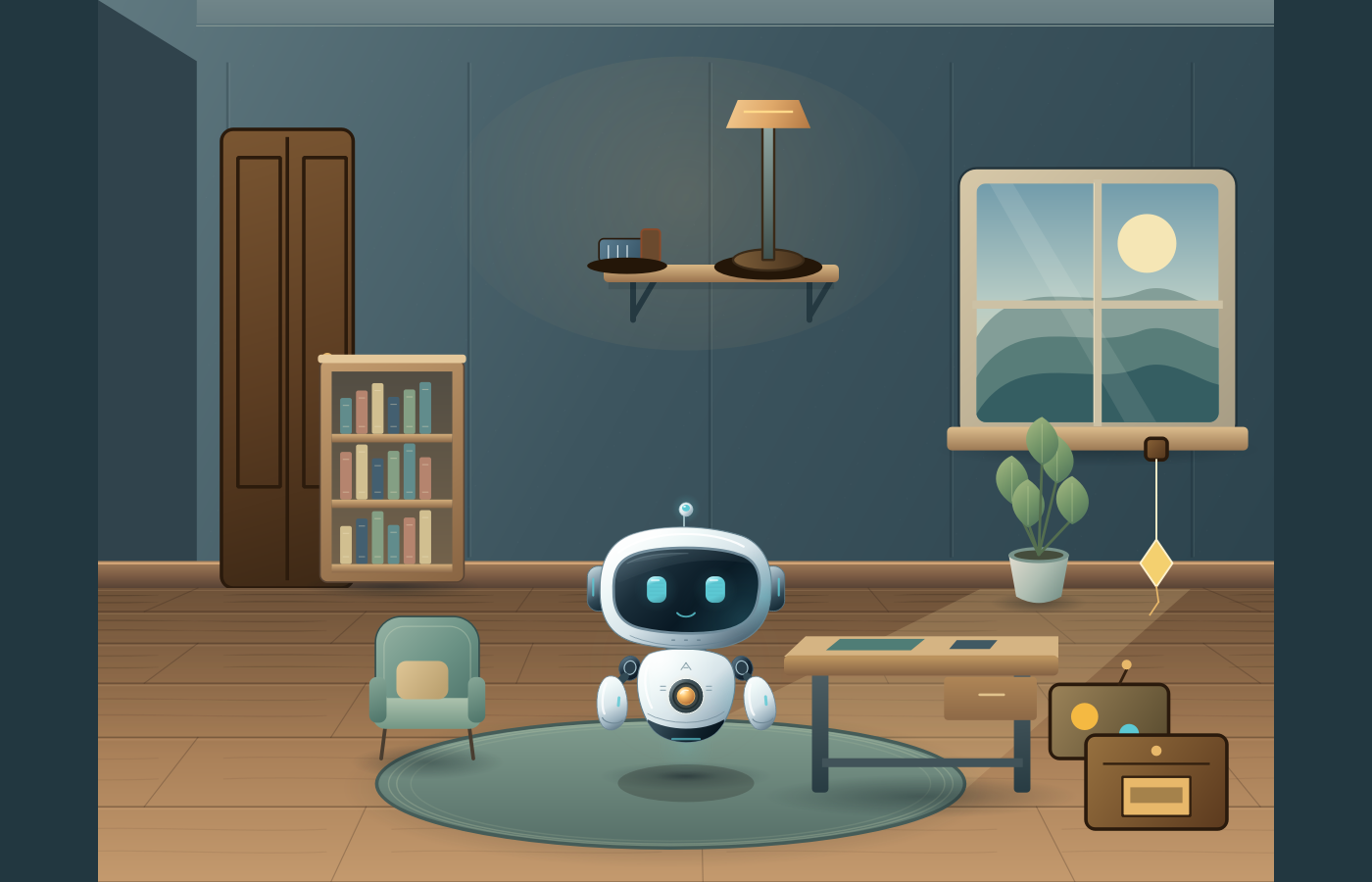
Synthetic or isolated-data render from the shipped app source. It illustrates the named control only; it does not prove a send, purchase, license decision, saved record, or completed result.
The room catalog is deep: 100 rooms across 10 room families (First Room, Greenhouse, Workshop, Orbital Cabin, Rain Studio, Pocket Library, Seaside Observatory, Night Loft, Courtyard, Lantern Market) and district styles (Hearth, East, West, Loft, Nook, Gallery, Porch, Alcove, Bay, Attic), plus a 1,300-item placeable catalog (keepsake shelves, mementos, lamps with light/focus affordances, and more). One room starts free from the full list; item prices are computed from your local profile tags (+25 Sparks per matching tag) and shown as the price — there are no fake "was/now" discounts. All starter furnishings are free; everything stays in a local save on your PC.
The six room examples
The release material includes six character-room examples. Your installed version's character choices and room controls are the ones shown in the app.
Orbit's room — the First Room you see first. Orbit is the warm, witty starter character, pearl-white with a glass visor and blue (Glacier) eyes. His room is the furnished starter room: wardrobe, bookshelf, armchair, desk, lamp and a window on the hills.
Synthetic or isolated-data render from the shipped app source. It illustrates the named control only; it does not prove a send, purchase, license decision, saved record, or completed result.
Scout's room. Scout is the curious explorer, white-and-blue, standing by the same starter furnishings.
Synthetic or isolated-data render from the shipped app source. It illustrates the named control only; it does not prove a send, purchase, license decision, saved record, or completed result.
Bloom's Nook. Bloom is the gentle supporter, soft rose-pink with a heart; her scene is the compact Nook mode — a small 560-pixel-wide corner rather than the full room.
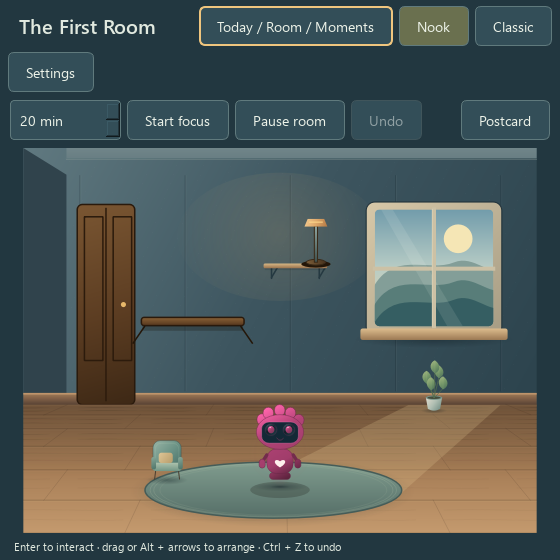
Synthetic or isolated-data render from the shipped app source. It illustrates the named control only; it does not prove a send, purchase, license decision, saved record, or completed result.
Sentinel's room. Sentinel is the calm guardian, dark-grey with glowing cyan eyes and a yellow diamond emblem.
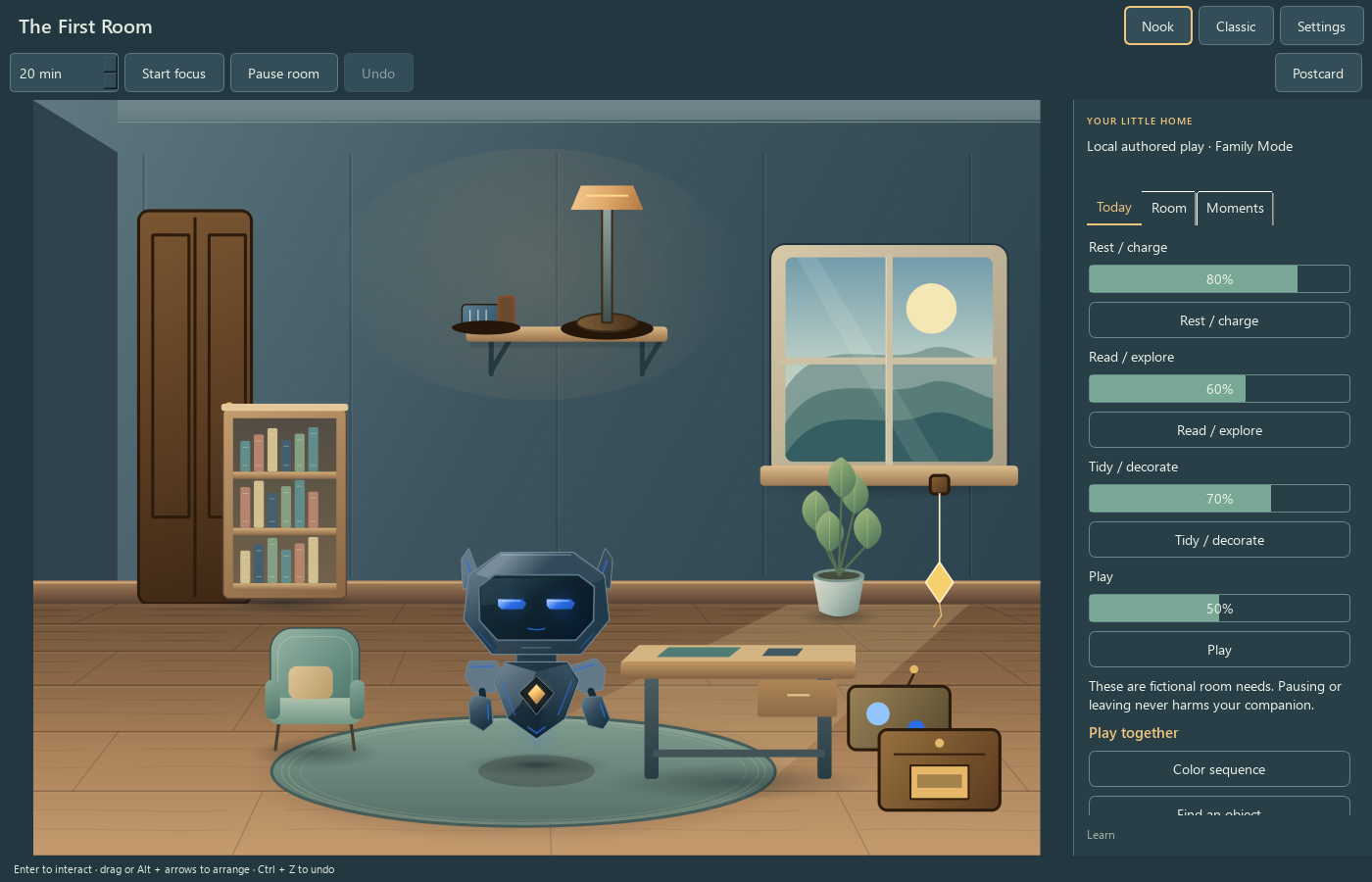
Synthetic or isolated-data render from the shipped app source. It illustrates the named control only; it does not prove a send, purchase, license decision, saved record, or completed result.
Lyra's room. Lyra is the creative dreamer, violet with a wand, and her room shows a night window with a full moon and drifting particles.
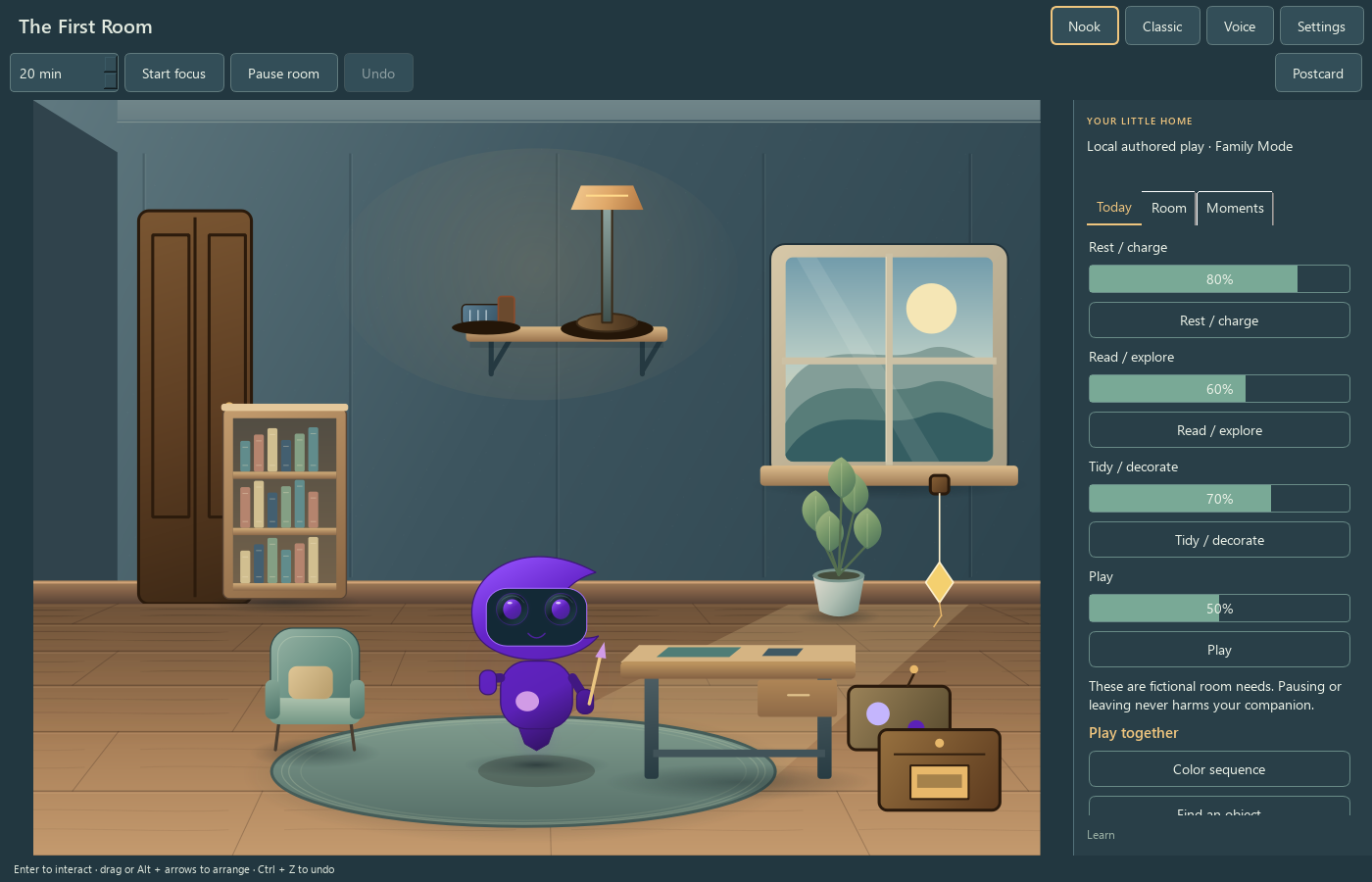
Synthetic or isolated-data render from the shipped app source. It illustrates the named control only; it does not prove a send, purchase, license decision, saved record, or completed result.
Ember's room. Ember is the energetic motivator, orange with a yellow diamond. The room is the same friendly starter home.
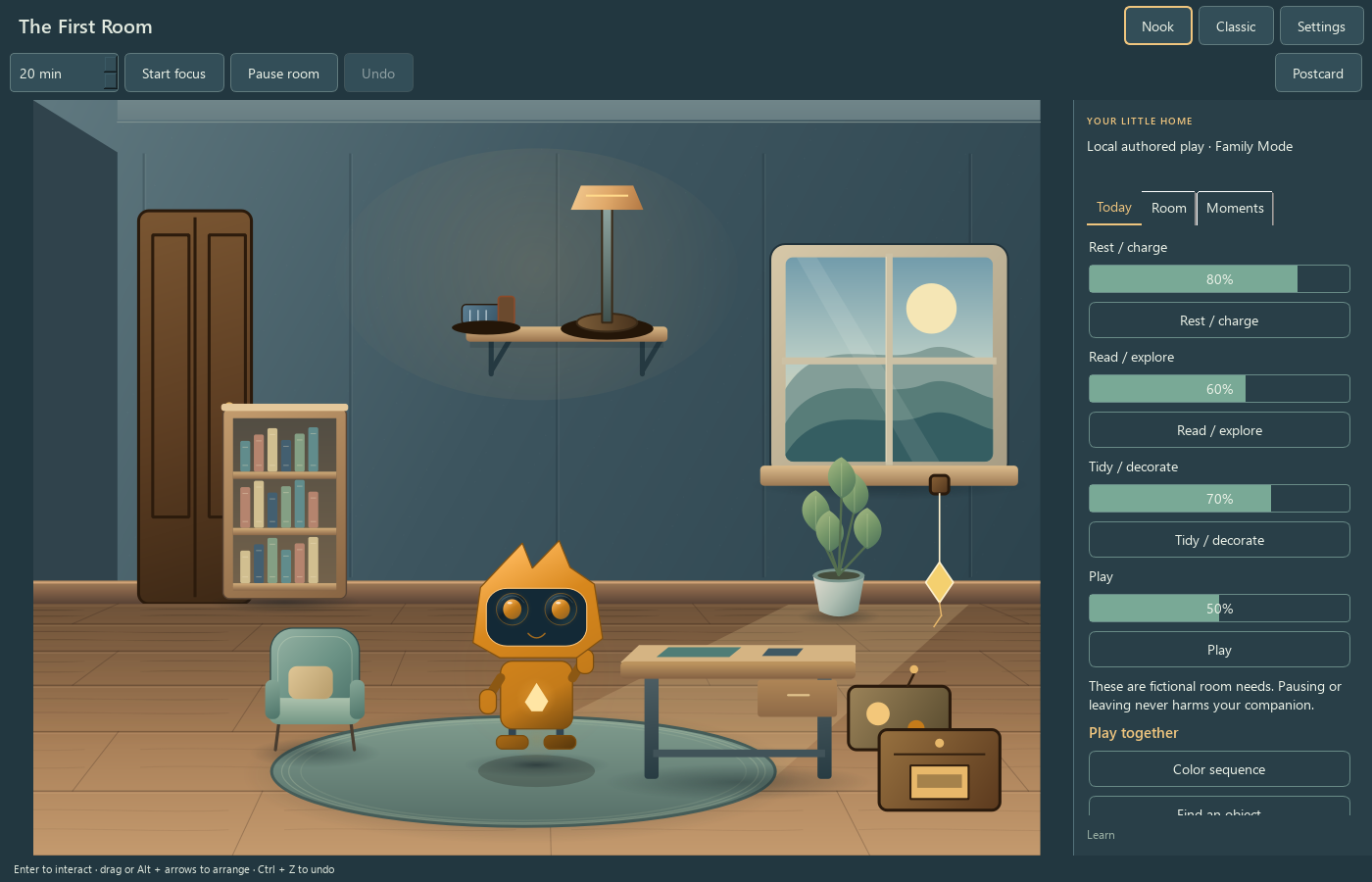
Synthetic or isolated-data render from the shipped app source. It illustrates the named control only; it does not prove a send, purchase, license decision, saved record, or completed result.
5.10 The Worlds window
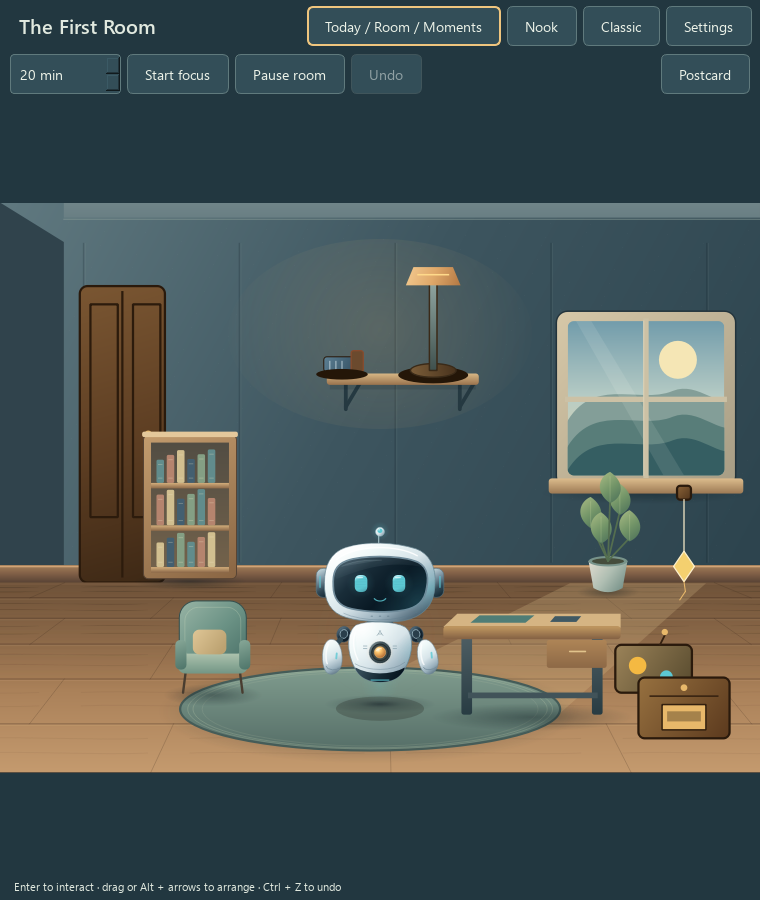
The room lives in a window titled "Wittlet Worlds — Room" (or "— Nook"). The header shows the room name ("The First Room") and the buttons "Today / Room / Moments", "Nook", "Classic", "Voice" and "Settings". Under the header is the tool row: the focus-minute spinner, "Start focus", "Pause room", "Undo", and "Postcard". The note line under the room says it all: "Enter to interact · drag or Alt + arrows to arrange · Ctrl + Z to undo".
| Control (label) | What it does | When you use it | Gotcha |
|---|---|---|---|
| "Today / Room / Moments" | Toggles the side panel (care, room inventory, keepsakes) | Almost always | On narrow windows it shows as a toggle labeled "Today / Room / Moments"; on wide windows the panel is always visible |
| "Nook" | Switches to the compact 560 px corner; click again for the full room | When you want the room small | Same room, smaller window |
| "Classic" | Closes the room window and returns the companion to the desktop | When you are done in the room | The companion is never removed — classic Wittlet is always there |
| "Voice" (adult mode) | Opens the voice window | To talk or listen | Unavailable in Family Mode |
| "Settings" | Opens "Wittlet Worlds settings" | Care, voice, notifications, privacy, export, reset | See §5.13 |
| Focus-minute spinner (1–180, default 20, "min" suffix) | Sets the focus-session length | Before "Start focus" | It is an ambient timer — finishing records time, it does not certify work |
| "Start focus" / "End focus" | Starts/stops a calm focus session beside the companion | Deep work, study | A completed timer records time only; no streak punishment |
| "Pause room" / "Resume room" | Pauses or resumes care and routines | When you need silence for a while | Pausing never harms the companion |
| "Undo" | Undoes your last placement edit | After dragging a furnishing somewhere wrong | The button is greyed out when there is nothing to undo |
| "Postcard" | Opens the scene-only postcard preview | To save a picture of the room | Task titles and file names are always excluded |
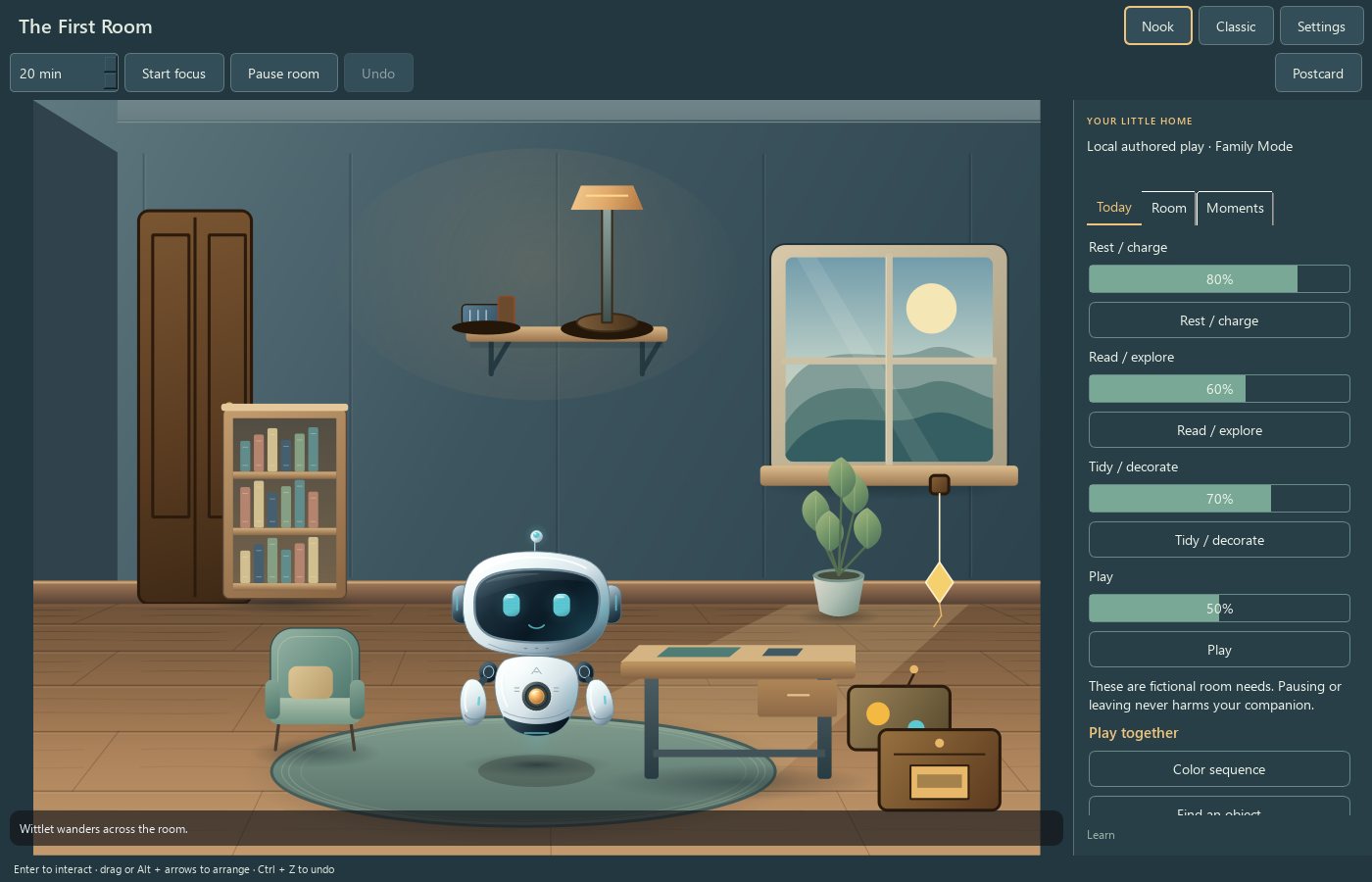
Synthetic or isolated-data render from the shipped app source. It illustrates the named control only; it does not prove a send, purchase, license decision, saved record, or completed result.
Arranging furniture: drag a furnishing into a valid placement area (the highlighted zones on the floor). Enter interacts with it, Alt + arrow keys move the selection, and Ctrl+Z undoes your last placement. A "Reset room…" later clears placement history — but it always saves a recovery snapshot of the previous layout first, and a failed room save never destroys the previous layout.
5.11 The companion panel — Today, Room, Moments
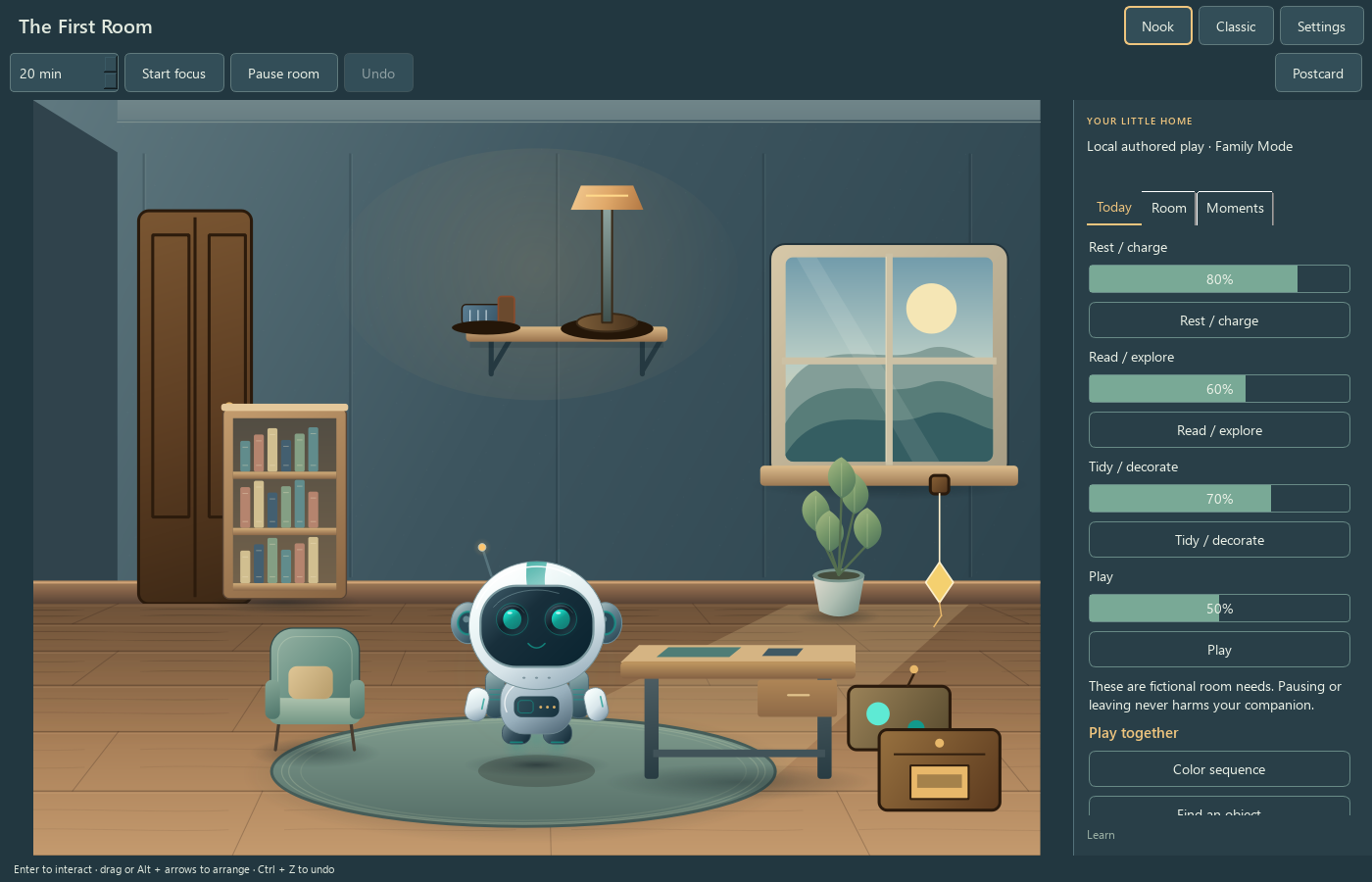
The side panel (opened with "Today / Room / Moments") is titled "YOUR LITTLE HOME" and has three tabs.
Today — four fictional care meters and their buttons: "Rest / charge", "Read / explore", "Tidy / decorate", "Play". These are gentle, optional play, and the app says so twice: "These are fictional room needs. Pausing or leaving never harms your companion." The panel also has a "Play together" section with "Color sequence" and "Find an object" — the two offline play activities — plus a "Learn" link.
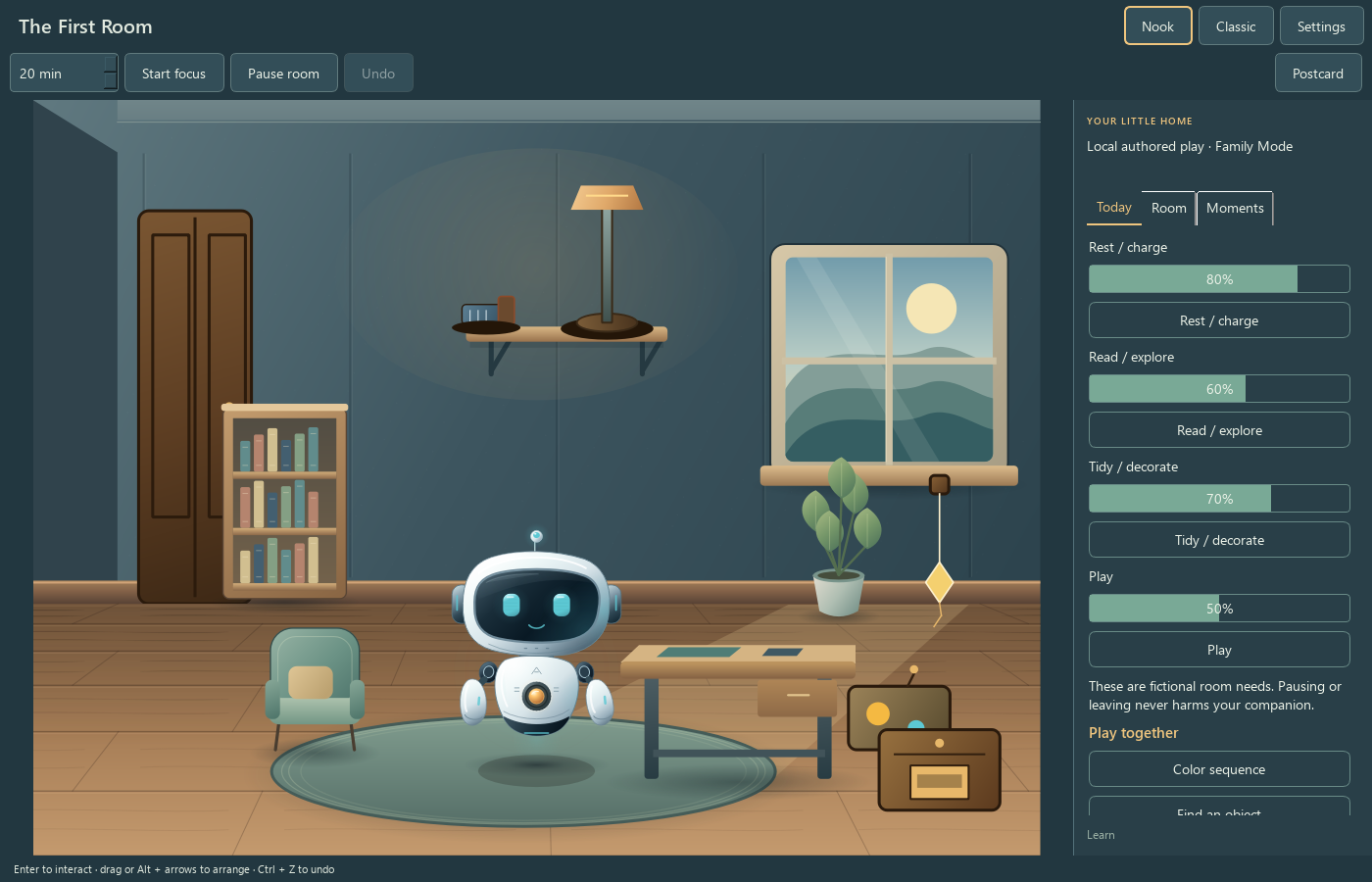
Synthetic or isolated-data render from the shipped app source. It illustrates the named control only; it does not prove a send, purchase, license decision, saved record, or completed result.
Room — the tab lists "'s room · N placed furnishings. All starter furnishings are free." and every placed item with its zone ("PLACED IN YOUR ROOM"). Selecting an item shows its furnishing detail, and the help line repeats the controls: "Drag a furnishing to arrange it. Enter interacts; Ctrl+Z undoes placement."
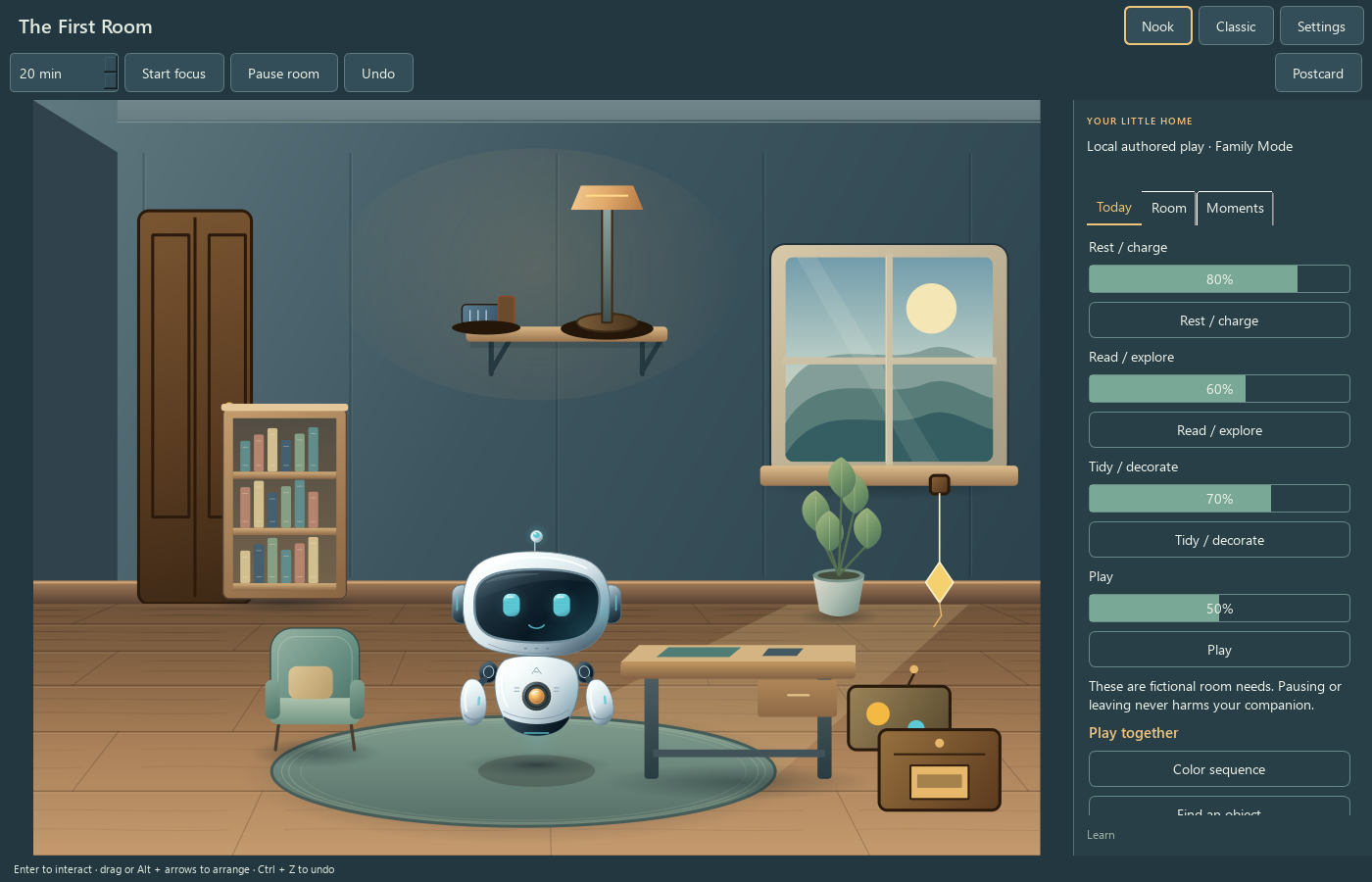
Synthetic or isolated-data render from the shipped app source. It illustrates the named control only; it does not prove a send, purchase, license decision, saved record, or completed result.
Moments — the tab and the Moments overlay show "N keepsakes · N completed local games · N Sparks. No streaks or care debt." The empty state says "Your first local keepsake appears after both play activities." Keepsakes and Moments are local, read-only, and Family-safe (adult captions are never shown in Family Mode).
5.12 Offline play — Color sequence & Find an object
These are the two offline play activities: untimed, no sound-only cues, no flashing, and replayable.
- Color sequence works in three steps. First Study: "Look at all three colors. Take your time, then choose Ready." The pattern stays visible until you press "Ready to repeat". Then Repeat: "Choose the colors in the same order" — the tiles are labelled with color words and shapes so it never relies on color vision alone, and "Show pattern for help" lets you peek. Wrong input keeps the round retryable; there is no timer ("Step 1 of 3 · no timer").
- Find an object: a target object is highlighted in the room, and you choose the matching object from an accessible text list.
Completing a round over the daily cap (3 rewarded completions per day, 2 Sparks each) still lets you keep playing — replay stays available, rewards just stop duplicating, and the ledger deduplicates so you cannot mint repeats from the same completion. Completing both activities for the first time saves the "Both games, one keepsake" keepsake.
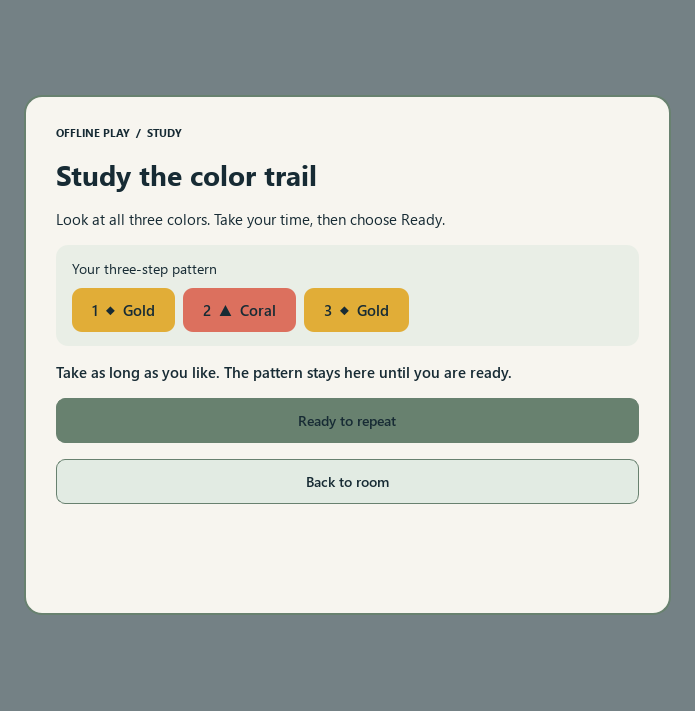
Synthetic or isolated-data render from the shipped app source. It illustrates the named control only; it does not prove a send, purchase, license decision, saved record, or completed result.
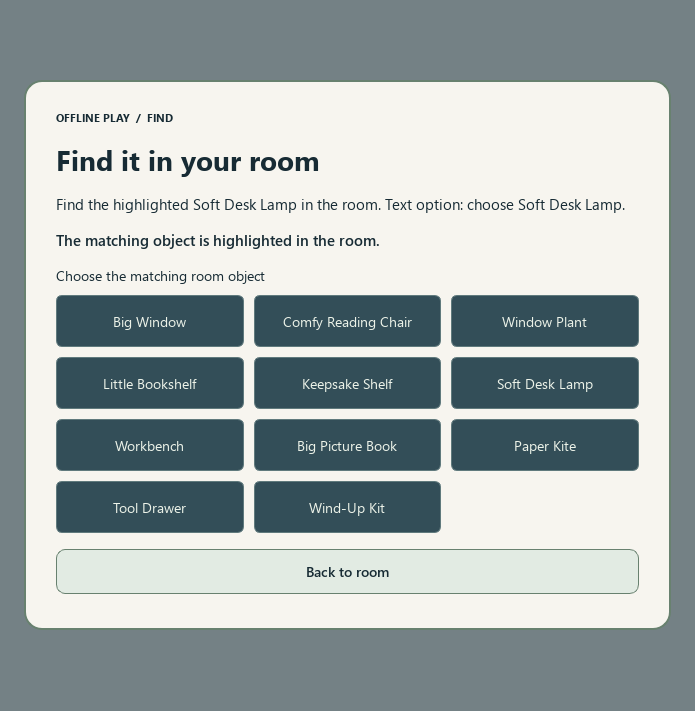
Synthetic or isolated-data render from the shipped app source. It illustrates the named control only; it does not prove a send, purchase, license decision, saved record, or completed result.
5.13 Worlds settings
Click "Settings" in the room window — "Wittlet Worlds settings", headed "Your companion's little world." Tabs: Care, Voice, Task notifications, Memory, Privacy, World, and Help (the Voice/Tasks/Memory/Privacy/Help tabs only appear in adult mode).
| Tab | Controls | Gotcha |
|---|---|---|
| Care | "Care enabled (fictional affectionate play)", "Automatic care — Wittlet rests and entertains itself" | Care is opt-in; switching it off keeps your room and decorations |
| Voice | "Open voice controls" | Voice controls are shared with classic Wittlet (§5.15) |
| Task notifications | "Task notifications enabled", "Notification style" (Visual only / Visual plus sound / Spoken / Off — no task notifications), "Quiet hours" Start/End, per-integration toggles | Everything is off until you switch it on, per integration, on purpose |
| Memory | "What Wittlet remembers": the approved-memory list with "Edit…" and "Delete…" | Only user-approved memories are listed; deleting also erases derived summaries so a memory cannot resurface |
| Privacy | "Privacy mode — generic labels, task titles hidden", "Hide the world while a fullscreen window is active", "Allow sharing (separate opt-in, off by default)" | Sharing is off until you opt in |
| World | "When Wittlet starts": Classic — Wittlet opens normally / Nook — a small companion corner / Room — the full worlds room; "Include my approved memories in the export"; "Export world…"; "Reset room…" | Resetting keeps purchased content, keepsakes and memories — only the layout returns to starter, with a recovery snapshot saved first |
| Help | "Suggest a feature", "Report an issue or send feedback" | Saved on this PC first; your mail app opens only if you choose Send by email |
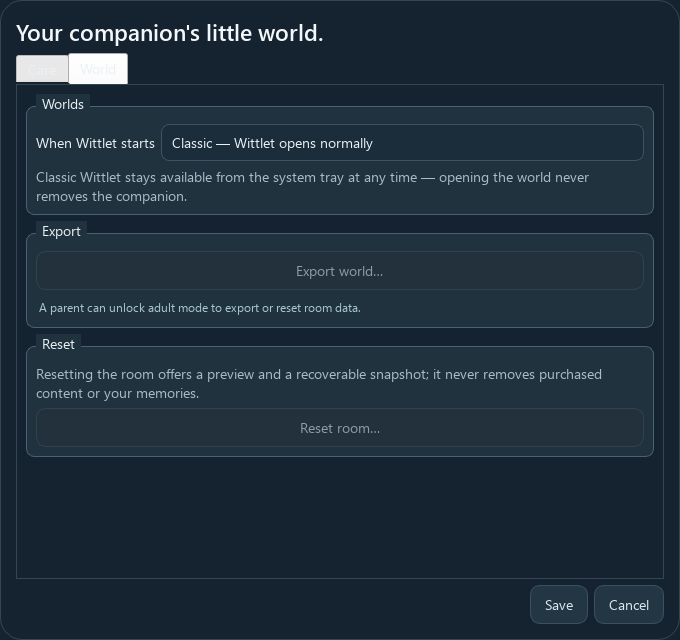
Synthetic or isolated-data render from the shipped app source. It illustrates the named control only; it does not prove a send, purchase, license decision, saved record, or completed result.
Exporting your world: "Export world…" saves a JSON file of the room and keepsake captions (task details are omitted; memories only if you tick "Include my approved memories"). The export cannot overwrite your live room, preferences or recovery files. It is a copy — your original room is unchanged.
5.14 Family Mode
Family Mode is a local, parent-controlled setting. It starts enabled, sits behind a simple local password that a parent sets, and its curated play mode shows no purchase prompts. Adult AI conversation, the microphone, and the file tools are available only while the parent has unlocked the session; closing and reopening Wittlet returns to Family Mode (it always relocks).
Set it up: preferences → "Family Mode settings…" (or right-click menu → "Family Mode"). The window shows "Family Mode is ON. Generated conversation is paused." Type a New password and Confirm new password (8 to 128 characters), click "Set parent password", then click "Unlock adult mode" and enter the password. The status line switches to "Adult mode unlocked for this session." The toggle button reads "Enable Family Mode now" when adult mode is on, so you can re-lock instantly.
| Control (label) | What it does | Gotcha |
|---|---|---|
| "Set parent password" | Creates the local password (needs the two password boxes filled, 8–128 chars) | Passwords must match, or the app says so and changes nothing |
| "Unlock adult mode" | Unlocks AI chat, files and voice for this session | Still Family Mode after restart — by design |
| "Enable Family Mode now" | Locks again immediately | No password needed to lock — the parent just clicks it |
| "Change parent password" | Replaces the password (needs the current one) | The old password stops working at once |
| Recovery note | "Forgot the password? Family Mode stays on… There is no in-app password reset or universal override." | A device administrator can reset the local profile |
The window also states the boundary plainly: "Family Mode uses authored dialogue and local play. Adult AI, microphone and file tools are available only during an unlocked session. This switch is a local control, not age verification." And per the product's own wording, Family Mode is not a child-safety certification — it is a local guardrail with 100% on-device execution and zero cloud data transmission.
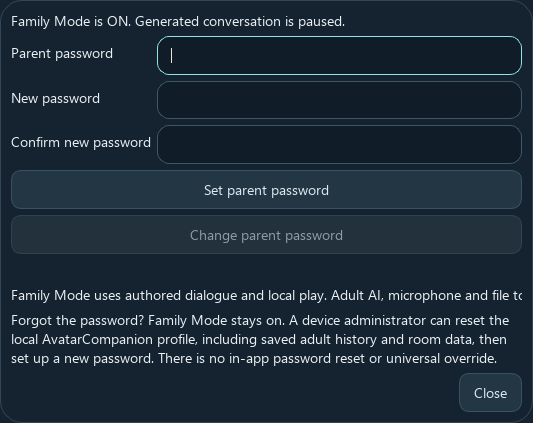
Synthetic or isolated-data render from the shipped app source. It illustrates the named control only; it does not prove a send, purchase, license decision, saved record, or completed result.
5.15 Voice (explicit opt-in)
Voice is shared between classic Wittlet and the World, and it is opt-in by design: opening voice controls never turns on your microphone. From the companion menu choose "Voice controls" to open "Wittlet voice". The window states: "Local voice · English. Record up to 20 seconds, review the words, then use them in chat. Audio is kept in memory only."
| Control (label) | What it does | Gotcha |
|---|---|---|
| "Start recording" | Begins recording (up to 20 seconds) — the button then reads "Stop and transcribe" | Requires adult mode; unavailable in Family Mode |
| "Stop and transcribe" | Stops and turns the speech into text (local Whisper transcription) | You review the transcript before it is used |
| Transcript box | Shows the words; you can correct them | "Your transcript appears here. You can correct it before using it in chat." |
| "Use transcript in chat" | Puts the words in the chat message box for review | Nothing is sent until you click "Send" |
| "Stop speech" | Stops the spoken reply mid-way | Stops speech only — tasks and focus sessions continue |
| "Read latest reply" | Speaks the last reply aloud with a Windows voice | An explicit action — reading aloud is never automatic |
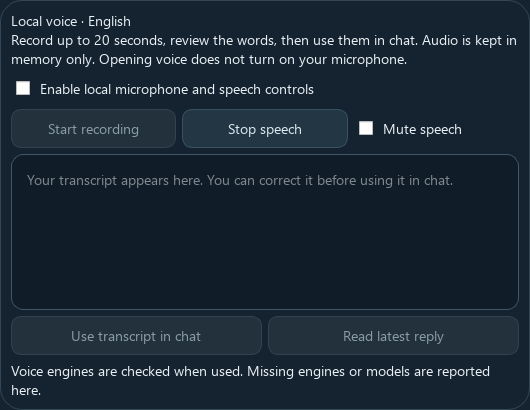
Synthetic or isolated-data render from the shipped app source. It illustrates the named control only; it does not prove a send, purchase, license decision, saved record, or completed result.
Missing engines or models are reported in the status line when used — opening the window never starts recording.
6. What's supported
Platforms: Windows 10/11 (x64), installed from the Microsoft Store
(9PD8F625136L). One download includes the companion, the games, the lessons,
and Wittlet's World. Current Store package: 1.5.0.0 (2026-09-27).
Conversation & AI: local on-device model (1.7B–4B), GPU preferred, runs the same Q4 model on CPU, never below 1.7B; "does not send a profile or a transcript off the PC" (Store listing, verbatim); compute modes Automatic or CPU only; the Store's own disclaimer applies: "AI can be wrong — check important results."
Characters & appearance: the source guide describes character and appearance controls. The installed Store package has not been verified for selection, unlock, color choices, or saved settings; treat these as control descriptions.
Games: the source materials describe Chess, Checkers, Reversi, Connect Four, Gomoku, Kalah, and Pallanguzhi. Current Store availability and game outcomes were not verified here.
Lessons: Store listing materials describe courses and say lessons are free. Course count, level completion, rewards, and character unlocks were not verified in the installed package.
Files (scoped approvals): find/open/amend inside approved folders;
review-before-save; never overwrites; backups; restore; denied paths
(.ssh, .aws, .azure, .gnupg, .codex, .claude); unsafe filenames
rejected; the app never runs your files.
Sparks: source materials describe earning Sparks through app activities and optional one-time bundles. Current prices, checkout, earning rates, event spins, and redemption are unverified. Do not pay through the legacy panel; ask support to confirm the current route.
Wittlet's World (shipped, inside the download): the room opens from the companion; 100 rooms across 10 families; moveable starter furnishings with Undo and reset-with-recovery-snapshot; care with fictional needs; two offline play activities; bounded daily play rewards with replay; keepsakes and local Moments; focus sessions (timer records time, does not certify); scene-only postcard; 1,300-item placeable catalog with tag-based pricing and no fake discounts; Local Family Mode behind a parent password.
Not yet available in the Store build (alpha only — do not expect these today): story campaigns, 1,000-record dialogue memory, the encrypted profile vault, the day/night (diurnal) cycle, spatial room awareness and pathfinding, adaptive NPC conversations, recommendations, the sanitize layer, and adaptive mini-game AI. Those modules are built and tested inside the development tree but are not in the Store package and are not on any live page. If you read about them somewhere, they are the next layer, not the current app. The base app is honest about this: what ships is what the Store listing ships.
7. Edge cases & gotchas
The awkward stuff, in plain language. If something here matches what you are seeing, you are not doing anything wrong.
-
Symptom: "I used an AI companion on my phone; where do I sign in?" — Why: Wittlet has no account and no cloud — that is the point. What to do: nothing; everything saves on this PC. There is no login screen to find, and no profile or transcript ever leaves your computer.
-
Symptom: first launch seems to take a long time / needs disk space and internet. Why: the app installs about 1.1 GB, expands to about 2.2 GB, and on first run may prepare the local AI engine (runtime plus the 1.7B model) once — the status line says "Preparing Wittlet local AI · downloading runtime / downloading 1.7B model". What to do: let it finish once; keep a few GB free. After that, everything runs with no connection at all.
-
Symptom: the status line says "No suitable AI is installed for the available memory" or "The selected AI … needs more free memory", and "Send" is greyed out. Why: the model needs free RAM (roughly 3.5 GB for the smallest). What to do: close big programs (browser tabs, games), wait a moment, and click the "↻" refresh button in the chat panel footer. If it still fails, set "AI processing" to "CPU only" and retry.
-
Symptom: the reply takes a few seconds and the status reads "● AI · CPU · 4.1s". Why: with no free GPU memory the same model runs on the CPU — a few seconds per reply is normal on an ordinary laptop. What to do: if it bothers you, close other heavy apps; a machine with spare GPU memory gets faster replies automatically.
-
Symptom: "Sparks" — when do I ever have to pay? Why: Sparks can be earned, and the website describes optional one-time bundles. The installed 1.5.0.0 app also contains a legacy trial/subscription panel whose payment state is not verified. What to do: do not enter payment details in that panel; contact support to confirm the current purchase path. Education is described as free in current product materials.
-
Symptom: a purchase or balance is unclear. What to do: do not retry payment or infer a result from an illustration or status label. Contact support with the receipt and device details so the transaction can be checked.
-
Symptom: the room opens but the screen is black or empty. Why: the room needs a little free disk space to save, and rendering needs a functioning graphics path. What to do: free up disk space, keep Wittlet open, and open Worlds again — the status line asks exactly this: "Could not save your Worlds room. It is paused in memory. Keep Wittlet open, free disk space, then open Worlds to retry." If the room never appears at all, the Store package may be an older version — check for updates (edge case 8).
-
Symptom: a feature from the website (or an update that adds rooms) is missing in my installed app. Why: Store builds roll out in versions; the listing banner can lag the actual package (the current listing text still says 1.4.0 while the package is 1.5.0.0). What to do: open the Store, search "Wittlet", and click "Update" if it offers one; then compare against this guide. If a feature is still missing, it is either an alpha feature (see §6) or you should contact support with your installed version.
-
Symptom: I closed Wittlet and my conversation is gone. Why: conversations live in memory and clear on exit, by design (the settings note: "Conversations clear on exit"). What to do: before quitting, use "Export conversation" (available in the chat panel, adult mode) to save a copy. Room layout, Sparks, keepsakes and learning progress are saved automatically — only the chat transcript is not.
-
Symptom: the microphone button does nothing / "Microphone and generated speech are unavailable in Family Mode." Why: voice is adult-mode only and fully opt-in — opening the controls never starts the mic. What to do: unlock adult mode (§5.14), then use "Start recording" explicitly and review the transcript before sending it to chat.
-
Symptom: I want to undo a room change / I want my old room back after a reset. Why: Undo covers your placement edits, and a reset first saves a recovery snapshot of the previous layout. What to do: use "Undo" right after a placement; after a reset, the previous layout is in the recoverable snapshot — reset never removes purchased content, keepsakes or memories.
-
Symptom: I am worried the companion will be sad or die if I stop opening the app. Why: needs are explicitly fictional: they decay but never reach zero, a missed day creates no debt, and the character does not die. What to do: nothing — close the app as long as you like. The care explainer in the room says it: "Pausing or leaving never harms your companion."
-
Symptom: Family Mode is on after restart even though I unlocked it. Why: that is the design — restart always relocks into Family Mode. What to do: open "Family Mode settings…" and "Unlock adult mode" with the parent password again.
-
Symptom: the app says a filename "is not usable" or refuses to touch a folder. Why: filename/path safety rules:
..,CON,nul, control characters and reserved folders (.ssh,.aws,.azure,.gnupg,.codex,.claude, …) are blocked on purpose. What to do: rename the file or choose a different folder — nothing is wrong with your PC.
8. Troubleshooting
The app won't install or open.
- Open the Microsoft Store listing and confirm the price reads $0.00 and the button says "Install" (not "Disabled" or "This app is incompatible").
- Confirm you are on 64-bit Windows 10/11 and have room for the ~2.2 GB install.
- Restart Windows and open the Store again, then Install.
- If it opens but nothing appears, check the system tray (the character may have started hidden) and the taskbar.
- If it still fails, contact support (section 11) with the error text.
The AI button "Send" is greyed out / no AI ready.
- Check the status line: if it says "Finding the right AI…", wait — first-run setup can take minutes.
- If it says "No suitable AI is installed for the available memory" or "needs more free memory", close heavy programs and click "↻" in the chat footer.
- In preferences, set "AI processing" to "CPU only" and retry.
- If the model setup kept failing, an internet connection was needed once for the one-time download — retry when online, then it works offline forever.
A button that this guide names is missing.
- Check your installed version in the Store (see edge case 8) and update.
- Check whether you are in Family Mode: adult-mode-only controls (Files, Report issue, Export conversation, Voice, bundles) are hidden there — unlock adult mode first.
- If a control is still absent, contact support with the version and a privacy-safe screenshot.
The reply text looks wrong or refuses.
- The disclaimer in the app is literal: "AI might make mistakes, check work." For anything important, verify before relying on it or acting on it.
- Click "Stop" while a reply is generating to cut it short, then rephrase the question.
- Click "Clear" to reset the conversation context and retry.
- If a reply "claimed file access no tool performed", the app throws it away and does not change anything — that is the safety layer working.
Sparks or purchases are not appearing.
- Do not initiate a payment from the legacy trial/subscription panel or assume a redemption route from this guide.
- Contact support to confirm the current purchase path and check any transaction or balance discrepancy. Do not treat a status label as proof of payment.
The app is stuck on a screen.
- Usually it is the AI generating: watch the status line; click "Stop" if it hangs on "Thinking…".
- If the room is stuck saving, free disk space, keep Wittlet open, and open Worlds again.
- Close Wittlet from the tray ("Quit completely") and reopen; your room, Sparks and progress are saved.
Payment/subscription questions. Current website materials describe optional one-time Spark bundles and no Pro subscription, but the published 1.5.0.0 app contains a legacy trial/subscription panel. Do not use that in-app panel to pay or cancel; contact support to confirm the current purchase path. A visible control alone does not verify a charge or redemption.
9. FAQ — common questions
"I don't see the 'Send' button." You always do — it is to the right of the message box, and it is greyed out until there is something to send or the AI is ready. In Family Mode any typed message sends to the built-in replies.
"Do I need to pay for anything?" Current JE Horizon pages describe free access and optional one-time Spark bundles. The published 1.5.0.0 app still contains a legacy adult trial/subscription panel; do not enter payment details there. Current prices and checkout behavior are not verified in this guide; ask support to confirm the purchase route.
"Can I use it offline?" Yes — that is the point. After the one-time local AI setup, the whole app (chat, games, lessons, room) runs with no internet.
"Will this touch my files?" Only with your explicit approval, one folder and one action at a time, inside the Files window; you review every change before it is saved, existing files are never overwritten, and the app never runs your files.
"Where is my data saved?" On this PC, under your user profile
(%LOCALAPPDATA%\AvatarCompanion), with profile/game state encrypted
(AES-256-GCM — an industry-standard authenticated encryption). There is no
cloud backup and no account to sign back into.
"Can I undo that?" In the room: "Undo" for placements and a reset that first saves a recovery snapshot. For chats: "Clear" (that is the point of no return). For file edits: "Restore last edit" uses the written backup.
"What happens if I close it mid-task?" The chat reply stops, but your room, Sparks, keepsakes and learning progress are saved. Family Mode always relocks on restart; nothing in the room decays to harm.
"Is Wittlet's World a separate download?" No — "the room is wrapped right into Wittlet." One Store download, and the room opens from the companion.
"Do you give me a child-safety guarantee?" No — Family Mode is a local password-guarded guardrail, and the product's own page says it is not a certification of child safety, verified parental consent, or a product with guarantees.
"Is this a real AI, or scripted?" Both, honestly: the companion chat runs a real local AI model on your PC, and Family Mode deliberately uses authored, curated replies. Important results still deserve a human check.
10. Privacy & data
- Everything stays on the device. Conversations, preferences, your
character choices, game state, Sparks, and learning progress live on your
PC. The conversation AI is reached at
127.0.0.1(your own machine — that address is literally "this computer"). The Store listing states: "does not send a profile or a transcript off the PC"; the Worlds page states "100% on-device processing" and "zero cloud data transmission." - Encrypted at rest. The shipped build encrypts profile and game state
with AES-256-GCM (authenticated, anti-tamper) and hides the store from
Explorer. Room saves and their recovery snapshots sit under
%LOCALAPPDATA%\AvatarCompanion\worlds. - The microphone is never ambient. Voice is explicit opt-in; audio stays in memory during a recording session, is transcribed locally, and you review the words before they are used in chat.
- No account, no analytics phone-home. There is no login. Task notifications, sharing, and memory recollection each have their own separate controls and stay off until you enable them.
- Sharing, when you choose it, is scene-only. The "Postcard" picture excludes conversations, task titles and file names by design.
- Education is described as free in current product materials. The legacy 1.5.0.0 adult-panel trial/subscription wording is not a verified current offer; do not rely on it or enter payment details. The only financial flow is the optional Spark checkout on the JE Horizon website (Stripe), which is a separate web service and requires your consent to use.
11. Getting help
- Support email:
[email protected] - Support page:
https://jehorizon.com/support/ - App landing page:
https://jehorizon.com/wittlet/· World page:https://jehorizon.com/wittlet-worlds/· Sparks page:https://jehorizon.com/wittlet/sparks/ - In-app reporting: the "Report issue" button (chat footer) and "Report an issue or send feedback" (Worlds settings, Help tab) save a report on your PC first; your mail app opens only if you choose Send by email.
When you write in, include: your installed Wittlet version (from the Microsoft Store listing), the exact button or step that failed, the exact message shown, and whether the problem survives closing and reopening the app. A privacy-safe screenshot helps. Do not send payment keys, private room memories, or confidential task files.
Quick reference
This guide covers the reviewed public workflows for Wittlet. Controls can vary by installed version. Reviewed control images from the complete source draft appear in the visual tour below. The completed source guide follows the reviewed public workflows. Read the current release limits first; source-rendered images identify controls and do not prove that the installed overlay appeared or that an action completed.
1. Install and open
Open the Microsoft Store listing and follow the install action shown for your account. Launch the app and check the controls visible in your installed version.
Product details · Product Help
2. Common tasks
Start with Wittlet
- Install Wittlet from its Microsoft Store listing.
- Open the floating companion and use the controls visible in your installed version.
- Try a visible conversation, game, or lesson control. Character selection and Worlds availability are still being verified in the current Store package.
- If Wittlet proposes a file change, review the target and contents before approving.
Use the floating companion
- Install Wittlet from the Microsoft Store and open the companion.
- Use the controls visible on the floating companion. A character-change control has not been verified in the current Store package.
- Try a visible conversation, game, or lesson control. If a control is missing, note your app version and the buttons you see so we can help here.
Review a proposed file change
- Choose the file task and target yourself.
- Read the proposed change and confirm the destination before approval.
- Decline anything that does not match your intent; keep a separate copy of important files.
3. Current release limits
JE Horizon currently describes Wittlet as free with optional one-time Spark purchases and no Pro subscription. The published 1.5.0.0 app has a legacy adult-panel trial/subscription screen; do not enter payment details there. Store-overlay capture could not target the frameless Qt.Tool window, so this is a capture limit, not proof that the app failed to render. Source-matched synthetic images illustrate visible controls only. Character selection/unlock and action outcomes remain unverified in the installed package.
- Optional Spark purchases add Sparks; they do not create a Pro tier or subscription.
- Worlds availability in the current Microsoft Store package requires confirmation; do not rely on the marketing page alone.
4. When something goes wrong
Wittlet's World is not visible
- Confirm you installed Wittlet from the current Microsoft Store listing.
- Contact support with the app version and a screenshot that contains no private content; current Store-package availability is being verified.
A character or room shown on a marketing page is absent
- Check the installed app version and its actual controls.
- Contact support with the version and a privacy-safe screenshot; package availability is under verification.
5. Get help
Record your installed app version, the control you used, and the exact result. Do not include a password, license key, customer record, or private file.