Follow the steps and red lettered screenshots below. Some controls vary by installed version; confirm a send, purchase, license decision, or saved record in your app.
How to Use PyRe GPU — the complete guide
PyRe GPU · JE Horizon · updated 2026-09-27
Help center · Product page · Microsoft Store
1. What this app is
PyRe GPU is a Windows desktop workbench for running Python scripts on your own machine. You add .py files, choose how much of your PC they may use, queue a few at once, run them, and keep a permanent record of how every run ended. Its promise, verbatim from the product page: "Your scripts. Under control." Or, as the page's full answer puts it: "Run your Python work from one Windows workbench. Queue scripts, set resource limits, and see how every run ends."
PyRe is built for two kinds of people. The first is a data practitioner or developer running long Python jobs (data pulls, ETL, backtests) who has watched a 4-hour run freeze Windows or vanish into a terminal they closed. The second is a local-AI operator running llama.cpp-class stacks on their own GPU — PyRe gives that person explicit device selection, planning, and run evidence instead of "which of my five terminals ran that?". A GPU (graphics processing unit) is the special chip in a PC that can do math much faster than the main processor (the CPU) for the right workloads; PyRe lets you choose who runs what, honestly.
Three ideas run through the whole app, and they are worth learning once:
- Allocation — the amount of your PC's memory (RAM and, for GPUs, VRAM = the memory on the graphics card) a run is allowed to use. PyRe shows you an allocation plan before a run starts, so your run leaves capacity for Windows and your other open apps.
- Run record — a permanent ledger (a saved list) of every run: what started, what finished, what needs attention. The page's words: "See what started, what finished, and what needs attention. Keep a run record to check afterward."
- Receipt — a signed JSON file the app writes for a finished run, proving the run actually ran on the controller and how it ended. Receipts are covered in section 5.7.
What this app is NOT
- Not an IDE. PyRe runs scripts; it does not edit, debug, or autocomplete them. You write the
.pyfile in whatever editor you like and hand it to PyRe. - Not a model runner. It is not LM Studio, Ollama, or ComfyUI. Those apps load models for you; PyRe is the control layer around your existing Python/GPU stack.
- Not a cloud service. Everything executes on your workstation. There is no cloud queue, no API, no upload (see section 10).
- Not a scheduler. There is no built-in cron-style timer. Start runs yourself in the workbench. Source documentation describes command-line scheduling, but that workflow has not been verified in the published Store build (section 5.13).
- Not a click-to-create virtual-environment manager. A venv (virtual environment) is a private folder of Python packages for one project. PyRe selects among its own managed, version-pinned environments and routes runs to them; it does not create or edit arbitrary per-project venvs for you (section 6).
- Not magic. The single most important sentence on the page: "PyRe GPU does not turn ordinary CPU code into GPU code." PyRe coordinates runs and checks what your machine can actually do; acceleration depends on your code, your hardware, and your drivers.
2. Before you start — what you need
| Need | Requirement |
|---|---|
| Computer | Windows 10 (build 17763.0 / version 1809 or higher) or Windows 11, 64-bit (x64), DirectX 11 |
| Memory | Minimum 4 GB RAM and 2 GB video memory. Recommended 16 GB RAM, 6 GB VRAM |
| Processor | Recommended 4-core x64 with AVX2 |
| GPU | Not required — "A dedicated GPU is not required; CPU fallback is supported." For accelerated workloads: "NVIDIA CUDA, AMD ROCm, or Intel Arc-compatible GPU with 8 GB+ VRAM" |
| Disk | Package ~6.9 GB, up to ~15.6 GB if the GPU runtimes are installed |
| Account | None to install or run. Optional Microsoft account sign-in to install from the Store |
| Network | Only to download the app and — if you choose to pay — to open the Store checkout or the subscription page in your browser. All execution, queueing, records, and license checks run offline on your PC |
| App version | Partner Center identifies the published package as 1.1.16.0 on 2026-09-27, and the local Store-associated Appx matches. Check the version installed on your PC; rollout may differ. |
Plans & pricing (verbatim from the product page and Store listing, 2026-09-27)
"Free download for Windows. See current pricing and requirements in the Store on the Microsoft Store."
"Free for Windows. The free trial is on the Store page. The button opens it."
From the Microsoft Store listing (9MZPG0LSZS31):
- Base app: Free. You install and use the workbench for free.
- 30-day free trial: "Automatic 30-Day Free Trial included on initial download with zero setup hurdles." The trial starts the first time you launch the app — you do nothing to claim it, no card is asked for.
- Subscription (paid): "In-app subscription via Stripe ($3.99/month) delivers offline Ed25519-signed licenses." The yearly option is $29.99/year (source-verified 2026-09-27). An older $29.00 one-time purchase has been superseded; people who bought it keep their entitlement.
- Install terms: "Get this app while signed in to your Microsoft account and install on up to ten Windows devices."
What a license actually does: the app works fully offline — trial or paid — and validates your license on your PC against a signature, your device, and an expiry date. When the trial ends and no license is imported, the header shows "Activation required" and new runs are refused before they start (section 5.11 and edge case 9). The checkout happens in your browser; the app never sends your scripts anywhere.
3. Install & first launch
- Open the Microsoft Store listing:
https://apps.microsoft.com/detail/9MZPG0LSZS31— or go tohttps://jehorizon.com/pyre/and click "Get from Microsoft Store". - On the Store page, click Get (or Install). The listing is free to open; the free trial is on the listing.
- Wait for the download and install to finish (the package is several GB — see section 2). You may be asked to confirm installation; click Yes.
- Launch PyRe GPU from the Start menu (search "PyRe GPU") or from the Store's Open button.
First run. The window opens with the title "PyRe GPU — by JE Horizon". Top-right you will see a status pill that says "● Initializing Engine…" and then settles on "● Engine Ready (Local)" — that is the local controller service (the background process that actually runs and records your jobs) starting up. Next to it is the license indicator: on a fresh install it reads "30-day trial through YYYY-MM-DD" (your trial end date). The big table in the middle is empty the first time, and the bottom status bar says "Ready. Add scripts (+ Add Scripts / Ctrl+O), then Run selected (F5)." There is no account screen and no wizard — the next step is section 4.
Reviewed product or Store capture. It shows the named control only; it does not prove that a later action completed.
4. Quick start — first win in 5 minutes
This walks you from a cold start to a completed, recorded run. It takes most people under five minutes with the example script.
- Open PyRe GPU (search "PyRe GPU" in the Start menu). Wait for the top-right pill to show "● Engine Ready (Local)". If it shows "● Engine Connecting…", give it a few seconds.
- Click "🔴 + Add Scripts" — first button in the toolbar. In the file picker, choose any Python script, or the project's published example
https://jehorizon.com/pyre/how-to.py(download it to a folder and pick it). Each chosen file appears as a row in the table with state "Added" and progress "Ready". - Look at the Strategy dropdown (default "CPU Only") and the CPU Limit spinner (default 70 %). Leave them alone for the first run — 70 % of your measured-free RAM keeps Windows itself usable. That 70 % is the "leave capacity for the rest of your day" guarantee in action.
- If your machine has an NVIDIA GPU and you want to try the example's GPU lane: set Backend to "NVIDIA CUDA" and click "Check backend" (section 5.8) before running. If you never touch this, runs stay on CPU, which is fully supported.
- Click "🔴▶ Run Selected" (keyboard: F5). The row's state changes to "Submitting…" then "RUNNING" and its progress reads "Running...". Run All (Ctrl+F5) submits the whole queue in order instead.
- Watch the Output tab at the bottom. When the run ends, the row turns state "COMPLETED" with progress "100% (Done)", and a status line such as "✓ Run 'how-to.py' completed successfully (100%)." appears. The Output tab now holds the script's stdout/stderr, the Details tab holds the run's JSON record, and the Receipt tab holds the signed receipt.
- Click "Open receipt" — the app opens the run's receipt file in the folder where it is stored. That file is your evidence that this exact run ended this way (edge case 4).
- That is the whole loop: add → plan → run → read the record. The next section goes through every screen and button in the order you meet them.
5. The tour — every screen, every button
Screens appear in the order you meet them: the workbench (with its five regions), then add-scripts, run planning, running, live status, run control, results and evidence, the backend check, settings, the built-in help, the trial and license dialog, the exit prompt, and finally the limited Store CLI check.
5.1 The workbench
The main window is one screen with five regions, top to bottom:
- Header: brand ("PyRe GPU by JE Horizon"), the license indicator and "Trial & license" button, the engine status pill, "Reconnect", "Help & Guide", and "Settings".
- Toolbar: "+ Add Scripts", "▶ Run Selected", "▶▶ Run All", "■ Stop All (Force)", then "Execution:" with the mode dropdown, and "Workers:" with its number box.
- Options row: "Strategy:", "Backend:", "Check backend", "Device:", "CPU Limit:" with its RAM figure, "GPU Limit:" with its VRAM figure.
- Run table + resource panel: the six-column table of every script and every recorded run, with the "Current measured availability" panel on its right.
- Evidence area: the "Selected run output" tabs (Output / Details / Receipt) with "Open output", "Open receipt", "Pause", "Resume", "Cancel", and the status bar at the very bottom.
| Control (label) | What it does | When you use it | Gotcha |
|---|---|---|---|
| License indicator (top-right, text) | Shows "30-day trial through ", "Subscription active", or "Activation required" | Glance to know your entitlement before a big run | It updates only when the app restarts or you open the license dialog |
| "Trial & license" | Opens the "PyRe GPU — Trial and license" dialog (section 5.11) | To see your trial/status, subscribe, or import a license | Nothing is purchased until you go through the Stripe checkout in your browser |
| Engine status pill | "● Engine Ready (Local)", "● Engine Connecting…", or "Stale — awaiting controller" | Tells you whether the local controller is reachable | "Stale" means the status may be old data — nothing is wrong with your runs, but reconnect before trusting the table |
| "Reconnect" | Re-attaches to the local controller | When the pill shows Connecting or Stale | Only appears when the app is not connected; connecting never starts a second controller if one already owns the socket |
| "Help & Guide" | Opens the built-in quick-reference dialog (section 5.10) | Any time you forget what a knob does | It is a text summary, not a manual — this guide is the manual |
| "Settings" | Opens "PyRe settings" (section 5.9) | To see which Python interpreters each backend uses, and the controller runtime location | Read-only in the Store build — you cannot change interpreter paths here |
| "+ Add Scripts" (Ctrl+O) | Opens the file picker for .py files; adds each as a row without running it |
To load work into the queue | Only .py files are accepted; dropping a script twice adds two rows |
| "▶ Run Selected" (F5) | Submits the ticked rows to the controller | To run the scripts you just selected | Nothing runs until you click this or Run All — adding scripts never starts them |
| "▶▶ Run All" (Ctrl+F5) | Submits every added script, in order | To start the whole batch at once | In Sequential mode it runs 1-by-1 in order; in Parallel mode up to the Worker count at once |
| "■ Stop All (Force)" | Cancels every active run and forcibly terminates their process trees (exit code 130) | A runaway job is eating your PC and Cancel has not worked fast enough | This is the "no zombie python.exe" guarantee — read section 5.6 before you rely on it; it is graceful-cancel first, force only for what does not stop |
| "Execution:" dropdown | "Sequential (1-by-1 Queue)" or "Parallel (Concurrent Pool)" | Choose whether the batch runs one job at a time or several at once | Sequential disables the Workers box; Parallel enables it (default 4) |
| "Workers:" spinner (1–8) | How many scripts may run at once in Parallel mode | Right-size concurrency to your machine | The controller still only admits a job if the resources are actually free — see run planning |
| "Strategy:" dropdown | "Dual CPU + GPU", "GPU Preferred", or "CPU Only" — which resource plan to submit | Pick the plan for the next run | This is the persisted plan; it changes what the CPU/GPU sliders do (sections 5.3) |
| "Backend:" dropdown | "Auto", "CPU", "NVIDIA CUDA" (usually also "Intel XPU (experimental)" and "AMD ROCm (experimental)" in developer builds) | Tell PyRe which execution stack to use | In the Microsoft Store build the two experimental entries are hidden — CUDA is the accelerated option; Auto keeps ambiguous work on CPU |
| "Check backend" | Runs a fresh physical capability check of the selected accelerator (section 5.8) | Before your first GPU run, and after hardware/driver changes | Only enabled for CUDA/XPU/ROCM modes; a fresh result expires after 60 seconds for submission purposes |
| "Device:" dropdown | The detected accelerator(s), e.g. "NVIDIA GeForce RTX 5070 Ti [cuda:0, 15.9 GiB]" | Choose which physical device a GPU run uses | Greyed out in CPU Only; disabled when nothing was detected ("No accelerator detected") |
| "CPU Limit:" spinner (10–100 %, default 70) | Share of measured free RAM reserved for the run, shown as "X.X GB RAM" to its right | Cap host-memory use | Measured free, not manufacturer capacity — the OS and your apps keep what is actually in use |
| "GPU Limit:" spinner (10–100 %, default 80) | Share of free VRAM reserved on the chosen device, shown as "X.X GB VRAM" | Cap device-memory use to stop CUDA OOM aborts | Only meaningful with a GPU strategy/device; disabled under CPU Only |
| Run table (columns Script / Mode / Selected / running / State / Elapsed / Progress) | Every added script and every recorded run, newest at the bottom; click a row to select it | Choose what to run, or what to inspect | Rows survive app restarts — they come back from the controller's ledger when you reconnect |
| Resource panel ("Current measured availability") | Live readout: RAM free, commit free, disk free, the safety floors, leased-run counts, and per-GPU VRAM/temperature | Watch whether the machine can take another job | Readings carry an observation timestamp; when collection fails the panel says "Readings stale / unknown" instead of pretending |
| Output / Details / Receipt tabs | The selected run's console output, its JSON record, and its signed receipt | Read how a run ended | The Output tab is a bounded tail of the run's log — read the whole file with "Open output" |
| "Open output" | Opens the run's output folder/files in Explorer | To see the full log on disk | Disabled until a finished run with a validated output path is selected |
| "Open receipt" | Opens the run's signed receipt file | To keep or share the evidence for this run | Disabled until the controller reports a receipt path for the selected row |
| "Pause" / "Resume" / "Cancel" | Request cooperative pause/resume/cancel of the selected run | When a job is running and you need the machine, or it is a mistake | See section 5.6 — intents are durable, but pause needs the workload to cooperate (PAUSE_UNSUPPORTED is shown honestly) |
| Status bar (bottom) | One line that tells you what to do next or what just happened | Orientation | If it says "Controller request queue is full…", the engine is busy — wait and retry |
Gotchas specific to this screen: the table mixes drafts (scripts you added, not yet submitted) with run records (submitted runs the controller is tracking). Drafts vanish if you close the app before running them; records do not. Selection matters: most actions act on the selected row(s). Nothing is saved until a script is actually submitted — closing the window throws unwritten drafts away.
5.2 Adding scripts (and the empty state)
The table is empty the first time — that is the whole empty state; there is no separate empty-screen page. You add scripts with "+ Add Scripts" (file picker, *.py only) or by dragging .py files onto the window. Each file becomes one row; nothing executes yet. The status bar confirms: "Scripts added. Choose a mode and submit with Run Selected or Run All."
Draft-row states you will see: Added (progress "Ready"), Submitting… (progress "Pending"), and Queued (Seq #N) (progress "Waiting in queue") when a sequential batch is lined up behind an active run.

Reviewed product or Store capture. It shows the named control only; it does not prove that a later action completed.
| Control (label) | What it does | When you use it | Gotcha |
|---|---|---|---|
| "+ Add Scripts" / Ctrl+O | File picker for Python scripts | Loading one or many scripts | Non-.py files are ignored; a script you add twice runs twice |
| Drag-and-drop onto the window | Adds dropped .py files as draft rows |
Quick batch loading from Explorer | Only local files with a .py suffix are accepted |
| Row selection (click row / Ctrl+click multiple) | Marks which drafts "Run Selected" submits | Choosing a subset of the queue | "Run All" ignores the selection — it submits everything added |
5.3 Run planning and allocation
Before anything runs, PyRe builds an allocation plan: how many CPU worker lanes, how much RAM, how much VRAM, and on which device. You see a plain-English summary updated live in the middle of the window, for example: "Dual CPU + GPU: host 70 % of 9.01 GiB free = 6.31 GiB; device 80 % of 13.17 GiB free = 10.53 GiB on discrete NVIDIA GeForce RTX 5070 Ti; allocation specs backend=auto, ram=70%, vram=80%." That sentence is the plan — review it before pressing run, exactly as the page promises ("Review an allocation plan before a run and leave capacity for Windows and the other apps you have open").
The plan is governed by three things:
- Strategy sets the shape: "CPU Only" (host RAM only), "GPU Preferred" (tensors on the accelerator with hardware safety floors), or "Dual CPU + GPU" (budgets both host RAM and device VRAM).
- CPU Limit / GPU Limit set the percentages of measured free memory the run may take. Safety floors are enforced below the sliders and cannot be lowered: RAM 2 GiB, commit 4 GiB, disk 1 GiB, VRAM 0.5 GiB, GPU temperature at most 85 °C — you can read them in the resource panel.
- The Device dropdown picks the physical accelerator for GPU plans. Automatic selection prefers a discrete GPU; integrated or unified-memory devices only appear when chosen explicitly.
The plan becomes a request, and the request is admitted or refused by the controller's admission gate before the script runs. A refusal is not a crash — it is the governor deciding the request cannot be satisfied right now (host load over threshold, RAM/commit/disk/VRAM over budget) and refusing rather than freezing your PC. If it happens, the run row ends "FAILED" and the details show why (edge case 3, troubleshooting entry 4). Set and review budgets in the workbench. Command-line budget flags are described in source documents but have not been verified in the published Store CLI.

Reviewed product or Store capture. It shows the named control only; it does not prove that a later action completed.
| Control (label) | What it does | When you use it | Gotcha |
|---|---|---|---|
| "Strategy:" dropdown | Switches the plan between CPU Only / GPU Preferred / Dual CPU + GPU | Before a run, once, to set the machine's job | It persists between sessions (saved to your user state) |
| "Backend:" dropdown | Selects the execution stack for the plan | To explicitly choose CUDA vs CPU vs Auto | Auto inspects the source without running it and stays on CPU when the evidence is ambiguous — imports are evidence of intent, not proof of a speedup |
| "Check backend" | Refreshes the physical device capability record (section 5.8) | Before any accelerated run | A GPU run requires a fresh capability record with a physical key — see edge case 13 |
| "Device:" dropdown | Which detected accelerator the plan targets | Choosing between GPUs | Manual selection is required for integrated/unified-memory devices |
| "CPU Limit:" spinner | % of measured-free RAM to reserve | Right-size host budget | Raising it does not create RAM; a request that cannot be satisfied is refused, not squeezed |
| "GPU Limit:" spinner | % of free VRAM to reserve | Prevent CUDA OOM | Not the whole story: allocator ceilings are applied before the framework imports (edge case 13) |
| Plan summary line | The live plain-English allocation summary ending in "allocation specs …" | Read before every run | It tells you plainly when no accelerator was detected: "…submits as CPU until Check backend finds one" |
| Guidance line | One sentence about the current mode (e.g. "CPU Only: Isolated host CPU execution with measured memory limits…") | Orientation on what the combo means | After Check backend it is replaced by the backend evidence |
5.4 Running: sequential queue and parallel pool
Two buttons start work: "▶ Run Selected" (F5) and "▶▶ Run All" (Ctrl+F5). The "Execution:" dropdown decides how:
- Sequential (1-by-1 Queue): submitted scripts run one at a time in strict order. Each run gets dedicated capacity and unshared device bandwidth. This is the mode for pipelines where step 2 depends on step 1, or when you want zero resource contention. Workers is disabled (always 1).
- Parallel (Concurrent Pool): up to "Workers:" (1–8, default 4) scripts run simultaneously. The controller admits each job only up to the free CPU slots and VRAM limits — see section 5.3.
Every submission is durably persisted before it is sent to the controller, and each run gets a stable ID. Keyboard shortcuts: Ctrl+O add scripts, F5 run selected, Ctrl+F5 run all.

Reviewed product or Store capture. It shows the named control only; it does not prove that a later action completed.
| Control (label) | What it does | When you use it | Gotcha |
|---|---|---|---|
| "▶ Run Selected" (F5) | Submits only the ticked draft rows | Running one script or a chosen subset | Rows that are already running are not resubmitted |
| "▶▶ Run All" (Ctrl+F5) | Submits every draft row in order | Starting the whole batch | In Sequential mode each job still waits for the previous one to finish |
| "Execution:" dropdown | Sequential vs Parallel | Deciding concurrency | Switching to Sequential zeroes the Workers box |
| "Workers:" spinner | Concurrency limit (1–8) | Parallel mode tuning | Requests more than free resources and the governor refuses the excess rather than oversubscribing |
5.5 Live status and telemetry
While runs are active, the table shows honest live state per row, and the resource panel streams real-time readings. Column State shows the durable machine state, and column Progress the human reading:
| State values | Progress reading | Meaning |
|---|---|---|
| SUBMITTED / VALIDATING / RUNNABLE / ADMISSION_WAIT | "Queued" | Waiting to start (or waiting for the admission gate) |
| RUNNING | "Running..." | Executing now |
| PAUSED / PAUSE_REQUESTED | "Paused" | Cooperatively suspended or the request is in flight |
| COMPLETED | "100% (Done)" | Finished; verified is separate from merely finishing (edge case 4) |
| FAILED | "Failed" | Finished badly — open Details for the reason |
| CANCELLED | "Cancelled" | Stopped on request |
| RECOVERING / CANCEL_REQUESTED | the state itself | Outcome unknown; resources stay reserved until the controller confirms the whole process tree stopped |
The engine status pill (top-right) is the health of your connection: "● Engine Ready (Local)", "● Engine Connecting…", or "Stale — awaiting controller". The resource panel right of the table shows RAM free, commit free, disk free, the safety floors, the number of CPU/GPU/unclassified leased runs, and per-GPU VRAM free and temperature. Honesty rule the app follows: GPU utilization figures are labeled device-wide — PyRe never claims "this run used X% of the GPU" unless it really measured it.
Gotchas specific to this screen: missing progress is reported as "Not reported" rather than an invented percentage — a job that does not publish progress shows exactly that. Stale readings are flagged "stale" rather than presented as fresh. When the connection drops, the last known rows stay visible with a disconnected/stale status — nothing is wiped by a disconnect.
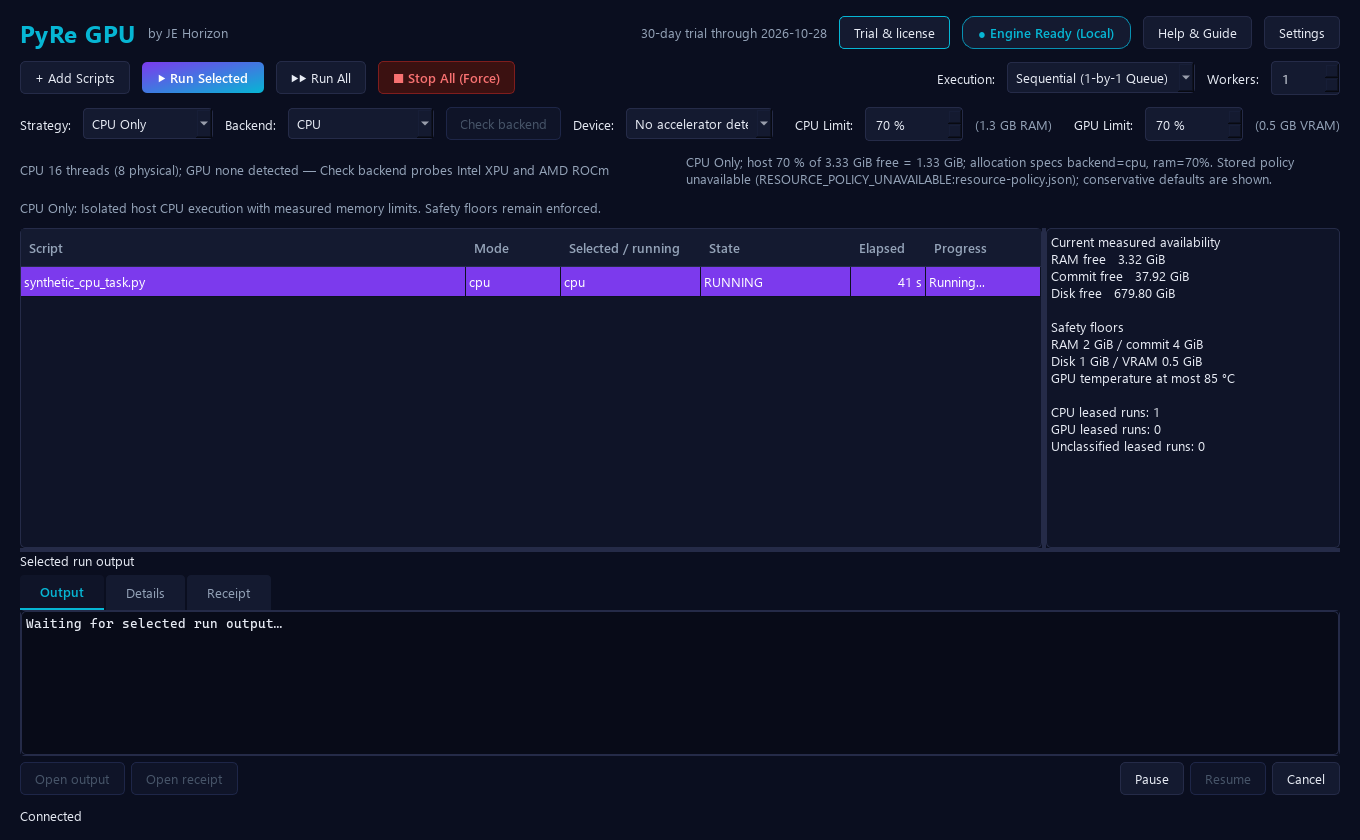
Synthetic or isolated-data render from the shipped app source. It illustrates the named control only; it does not prove a send, purchase, license decision, saved record, or completed result.
5.6 Run control: Pause, Resume, Cancel, Stop All (Force)
Real jobs misbehave; PyRe gives you four levels of control, all acting on the selected row (or all rows for Stop All):
- Pause sends a cooperative pause request. It works only if the workload can actually suspend — if it cannot, the button explains itself honestly: the tooltip changes to "PAUSE_UNSUPPORTED: this workload cannot confirm cooperative suspension."
- Resume undoes a pause.
- Cancel sends a cancellation intent; the controller resolves it and the row ends "CANCELLED". Pending submissions are resolved first, and the window stays open until every outcome is confirmed terminal.
- "■ Stop All (Force)" stops everything: it cancels active runs and terminates their Windows job objects with exit code 130. "Job object" is the Windows mechanism that keeps a whole process tree in one killable group; this is the app's "zero orphan python.exe" guarantee. It is grace-free for anything that did not stop cooperatively.
Closing the window with work active shows the "Exit PyRe" prompt (section 5.12). Nothing is silently killed while you are just looking at another window.

Reviewed product or Store capture. It shows the named control only; it does not prove that a later action completed.
| Control (label) | What it does | When you use it | Gotcha |
|---|---|---|---|
| Pause | Cooperative pause request for the selected run | When you need the machine back mid-job | Enabled only for a running row; a workload that cannot suspend reports PAUSE_UNSUPPORTED |
| Resume | Continues a paused run | After you got the machine back | Enabled only for PAUSED/PAUSE_REQUESTED rows |
| Cancel | Cancels the selected run, durably | The run is a mistake or no longer needed | Cancellation requests are persistent — reconnect and it still resolves |
| "■ Stop All (Force)" | Cancels every run and force-terminates trees (exit 130) | A runaway job ignores everything else | Force means exactly that: cooperative grace is zero for anything Cancel could not stop |
5.7 Results and evidence: Output, Details, Receipt
When you select a run row, the bottom area fills from three sources:
- Output — a bounded tail of the run's validated stdout/stderr log files. On completion it is the closest thing to "what the script printed."
- Details — the run's record: run ID, state, requested backend, selected/running backend, a line "Verified accelerator execution: Not established" (records never claim parity they did not prove), progress, elapsed time, and the full raw JSON of the controller row.
- Receipt — the signed receipt file for the run. "Open receipt" opens it on disk so you can keep or share it.
What a receipt is, precisely: a JSON file with the run's identity, outcome, exit code, and validated output/receipt paths, published atomically by the controller when the run reaches a terminal state. It proves the supervised target returned with that recorded code — it does not by itself prove that application-specific aggregation or publication completed (edge case 4). Receipts and the ledger survive app restarts, service restarts, and disconnect/reconnect cycles — your run history is durable, not memory-bound.
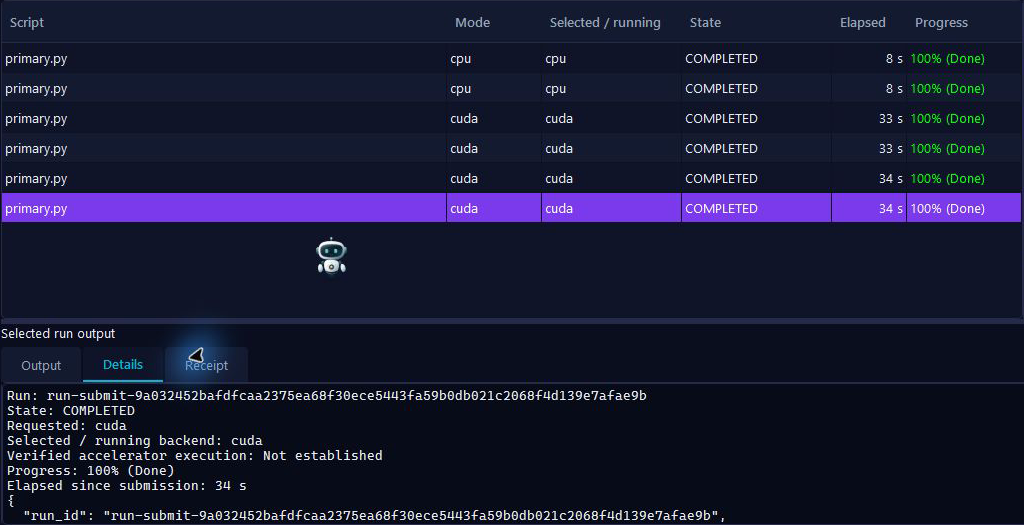
Reviewed product or Store capture. It shows the named control only; it does not prove that a later action completed.
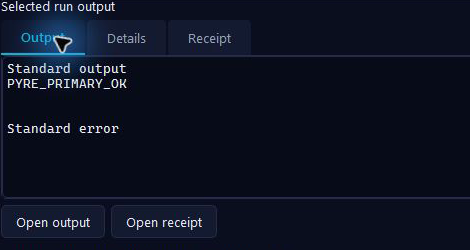
Reviewed product or Store capture. It shows the named control only; it does not prove that a later action completed.
| Control (label) | What it does | When you use it | Gotcha |
|---|---|---|---|
| Output tab | Tail of the selected run's stdout/stderr | Read what the script printed | A bounded tail — "[Earlier output omitted]" appears when the log is long; use Open output for the full file |
| Details tab | The run record + raw JSON | Understand how a run ended | "Verified accelerator execution: Not established" until parity evidence exists — the app never infers it |
| Receipt tab | The run's signed receipt | Check the controller's terminal record | Receipts prove the target returned with that code; they do not prove your aggregation finished |
| "Open output" | Opens the run's output directory/files | Full log on disk | Only for rows with a validated output path |
| "Open receipt" | Opens the receipt file | Keeping/share the evidence | Disabled until a receipt path is reported |
5.8 Check backend — the honest GPU device check
PyRe's GPU promise is deliberately unmagical: "GPU execution is optional." Before an accelerated run, PyRe verifies what your machine can actually do. "Check backend" (enabled only when Backend is NVIDIA CUDA / Intel XPU / AMD ROCm) runs a fresh capability probe: it stages or verifies the packaged GPU runtime, probes the physical device identity (on this team's hardware, an RTX 5070 Ti via nvidia-smi), and returns evidence lines like "Interpreter: …" plus the probed device(s). The probe result is also how you can check a run without committing hours — the published example https://jehorizon.com/pyre/how-to.py demonstrates it.
What you see while it runs is a status line like "Preparing the verified NVIDIA runtime…" or "Installing the NVIDIA runtime on this PC…" — on first CUDA use, PyRe stages and verifies the runtime files (copy → verify → atomic activate). CPU jobs never wait for GPU setup.
Important rules, straight from the source contract:
- An explicit GPU run requires a fresh compatible interpreter/device capability record with a physical key (≤ 60 seconds old at submission). Without one, submission fails with
GPU_UNAVAILABLE: Check backend for a fresh physical identity …. - The device check proves compatibility, not workload parity. Speed parity must be shown by the run itself — the example script runs the same computation on CPU and device and compares with exact
assert_closechecks, and exitsCPU_PARITY_FAILED/DEVICE_MISMATCHwhen they do not match. - In the Microsoft Store build, the Backend list contains Auto, CPU, and NVIDIA CUDA only — the experimental Intel XPU and AMD ROCm entries are hidden there (they appear in the developer builds, and the Settings dialog notes they are packaged but not hardware-verified).

Reviewed product or Store capture. It shows the named control only; it does not prove that a later action completed.
| Control (label) | What it does | When you use it | Gotcha |
|---|---|---|---|
| "Check backend" | Fresh capability probe of the selected accelerator; stages/verifies the GPU runtime | First CUDA run, and after driver/hardware changes | Only enabled for CUDA/XPU/ROCM modes; the result is temporary (60 s window) |
| Device dropdown entries from the probe | Probed devices appear with name/UUID after a successful check | Choose the exact physical device | If nothing compatible is found, the dropdown shows "No compatible physical device" |
| Guidance line (after a check) | Shows each backend's reason + interpreter path ("Backend evidence unavailable" if none) | Read before deciding to run on GPU | Evidence is compatibility evidence, never a speed claim |
5.9 Settings
"Settings" opens the "PyRe settings" dialog — read-only in the shipped build. It shows, per backend, which Python interpreter world runs that backend ("CPU interpreter", "CUDA interpreter", "XPU interpreter", "ROCM interpreter"), the controller runtime location, and an explanation. In the Store build the explanation tells you the package includes an NVIDIA CUDA runtime and experimental Intel XPU and AMD ROCm runtimes, that the first use of a GPU runtime prepares and verifies its local files, that CPU jobs do not wait for GPU setup, and that "GPU checks establish compatibility, not workload parity."
Gotcha: the developer-build text tells you something important if you ever reconfigure: "Changing desktop environment variables cannot reconfigure an existing service." The running controller keeps its environment until it is stopped and restarted.

Reviewed product or Store capture. It shows the named control only; it does not prove that a later action completed.
| Control (label) | What it does | When you use it | Gotcha |
|---|---|---|---|
| Interpreter rows (CPU / CUDA / XPU / ROCM) | Show the resolved interpreter path per backend | Diagnosing a "package missing in interpreter" failure | Text is selectable for copying |
| Controller runtime row | Shows the controller state directory | Knowing where records live | See section 10 for the default location |
| Explanation text | States the packaged-runtime and compatibility facts | Read once | "GPU checks establish compatibility, not workload parity" — the recurring honesty rule |
| Close | Closes the dialog | Always | Nothing here changes anything — reconfigure via environment variables before starting the controller |
5.10 Help & Guide
"Help & Guide" opens "PyRe GPU — User Guide & Architecture", a one-screen quick reference covering the execution modes, resource budgeting percentages, the hardware acceleration options, and the clean-lifecycle/no-orphan-processes explanation. It is a summary — the full manual is this guide.
5.11 Trial and license
"Trial & license" opens "PyRe GPU — Trial and license", the entitlement center. The status line tells you where you stand, in plain words:
- "30-day trial active until . All workloads are available."
- "Perpetual PyRe license active." (grandfathered one-time buyers)
- " subscription active until ." (monthly or yearly)
- "Your 30-day trial has ended. Import a signed license to start new workloads."
- "No active license (). Import a signed license to start new workloads."
The flow to go paid is deliberately manual and offline-friendly:
- Read your device hash — a long text shown read-only in the dialog, identifying this machine.
- Click "Subscribe with Stripe" — your browser opens the checkout (
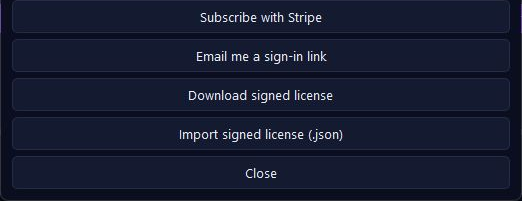
jehorizon.com/checkout/?product=pyre&device=<your hash>), where you pay $3.99/month or $29.99/year. - After subscribing, "Email me a sign-in link" sends the sign-in magic link; "Download signed license" fetches the signed license file for this device (both open your browser to the license service).
- "Import signed license (.json)" opens a file picker; choose the downloaded JSON. PyRe verifies the signature, product, major version, device binding and expiry — entirely locally, offline — and the status line flips to "Subscription active until ."
"Sync subscription" appears only when the app has been paired for an automated sync; on most installs you will not see it. Whatever the status, the 30-day trial gives you every workload; the paid tiers add nothing in features — the entitlement is what unlocks runs after the trial.
Gotcha (current state, 2026-09-27): the automated server-side sync path is still being completed for this release line; if the link/sync buttons ever fail or spin, fall back to the manual path (subscribe → download → import). The purchase page, not this guide, shows the current price — "verify the purchase screen before buying."
Reviewed product or Store capture. It shows the named control only; it does not prove that a later action completed.
| Control (label) | What it does | When you use it | Gotcha |
|---|---|---|---|
| Status line | Your entitlement in one sentence | Orientation | After "Trial expired", new runs are refused until a valid license is imported |
| Device hash (read-only) | Identifies this machine to the license service | Copy it when subscribing | It identifies the machine, not you — keep it with your subscription records |
| "Subscribe with Stripe" | Opens the checkout in your browser with your device hash pre-filled | When you decide to pay | Runs are not gated during the trial, so there is no pressure to rush |
| "Email me a sign-in link" | Opens the license service's sign-in-request URL | After subscribing | Opens your default browser |
| "Download signed license" | Opens the license-activation URL | After the email sign-in | The downloaded file must be imported on the same machine the license was issued for |
| "Import signed license (.json)" | Loads and locally verifies a license file | The last step of going paid | The file must be valid for this device — a license for another machine is refused with a plain message |
| "Sync subscription" | One-shot entitlement refresh | Only when visible (paired installs) | If absent or failing, use the manual import path — see the gotcha above |
| Close | Closes the dialog | Always | The header indicator refreshes from the new state |
5.12 Closing the window (the Exit prompt)
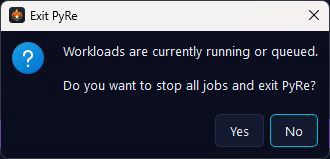
Closing the window while runs are running or queued prompts: "Exit PyRe" — "Workloads are currently running or queued. Do you want to stop all jobs and exit PyRe?" with Yes / No (default No, so a stray click never kills your work). Yes stops all jobs (same as Stop All (Force)) and closes. No cancels the close and leaves the window up.
The source design describes a separate controller, durable pending requests, and status re-sync after an unexpected close. Recovery after a crash, forced close, or reboot has not been verified against the published Store runtime for this guide. Do not rely on that behavior for unattended work until it is tested (section 7, edge case 6).
Reviewed product or Store capture. It shows the named control only; it does not prove that a later action completed.
5.13 Command line (CLI)
The published Microsoft Store package 1.1.16.0 registers the PyRe GPU desktop app, but it does not register pyre, pyre-desktop, or pyre-warm-service as commands on your terminal's PATH. Typing bare pyre in PowerShell therefore did not find a command on the tested Store install. The executable inside protected WindowsApps returned Access is denied when launched directly; the app's extracted per-user runtime copy worked. The workbench remains the straightforward way to run scripts.
For an advanced read-only CLI check on Store build 1.1.16.0, locate the extracted executable first. If the path does not exist on your PC, use the workbench and do not add protected WindowsApps directories to PATH:
$pyreCli = Join-Path $env:LOCALAPPDATA 'Packages\J.EHerizonLLC.PyReGPU_adxkxvmqapa6p\LocalCache\Local\JE Horizon\PyRe\runtimes\1.1.16\Scripts\pyre.exe'
Test-Path -LiteralPath $pyreCli
& $pyreCli --help
& $pyreCli --dry-run --backend cpu 'C:\path\to\your_script.py'
& $pyreCli --json --dry-run --backend cpu 'C:\path\to\your_script.py'
Run the & $pyreCli lines only if Test-Path prints True; otherwise use the workbench. Replace the example script path with a real .py file you own. The synthetic CPU dry-run tested on this Store build exited 0 and printed only Dry Run: <run directory> and Backend: cpu; it did not display an allocation budget or preflight detail. --json --dry-run returned a pyre_cli/v1 object with fields such as backend, run ID/directory, selection reasons, DRY_RUN status, and target mode. The dry-run created local run state but did not execute the script. These checks establish that the extracted CLI responds; they do not establish that its other automation flags work correctly.
Environment presets are not a supported CLI instruction for this published build. --env returned unrecognized arguments and exit code 64. Older source documents describing --env, preset names, pyre --headless, --resume, a warm service, and budget flags need separate tests against the published package before they can be given as customer steps. Use the workbench's visible Backend, Device, CPU Limit, GPU Limit, and Check backend controls for current setup guidance.
6. What's supported
Platforms. Windows 10 (build 17763+) / Windows 11, 64-bit. CPU-only machines are fully supported — the app is CPU-first by design. Optional accelerators: NVIDIA CUDA (verified on NVIDIA GeForce RTX 50-series, Ada, Ampere, Turing), AMD ROCm (experimental, best-effort), Intel XPU/oneAPI (experimental, best-effort). Apple MPS exists as a preset for other platforms, not for this Windows build. GPU runtimes are version-pinned and staged separately — the Store promise: "Version-pinned environments — zero PATH conflicts or dependency hell."
Files. Python scripts (.py) added in the workbench or via drag-and-drop. Source documentation describes a CLI --command wrapper, but it has not been verified as a customer instruction for the published Store package.
Integrations. The workbench exposes backend and interpreter choices. Source documentation also describes Torch/CuPy/Numba routing, py-spy profiling, a warm-state service, and external scheduling; their command-line customer workflows remain unverified on the published Store package.
Plans. Free download; automatic 30-day trial; paid subscription $3.99/month or $29.99/year (verify the purchase screen); legacy one-time buyers grandfathered. Trial and paid tiers do not differ in features — the entitlement unlocks runs after the trial.
Honest boundaries — what the master feature list confirms the app does NOT include (2026-09-27):
- No built-in scheduler. Use the workbench to start runs; do not rely on an unverified Task Scheduler CLI recipe for this Store build.
- No click-to-create venv manager. The workbench shows backend and interpreter choices; the older
--envpreset recipe is unsupported by the tested Store CLI. - No Windows tray monitor confirmed in the build. The Store listing advertises "Native Windows tray monitor for real-time VRAM, compute utilization, and thermal metrics"; the shipped workbench surfaces telemetry inside the window (resource panel, section 5.5) and no tray icon implementation exists in the reviewed source. Treat the tray monitor as not-yet-available until a build ships it.
- Store-listing screenshots are more colorful than the build. Some submission art shows extra skins (DirectML, TensorRT/vLLM cards, "MAXIMUM COMPUTE" buttons). The shipped window is the one in SHOT 1; ignore the extras.
--envis unavailable in the tested Store CLI. It exits 64 as an unrecognized argument (section 5.13).

Reviewed product or Store capture. It shows the named control only; it does not prove that a later action completed.
7. Edge cases & gotchas
- My script imports a package that isn't installed → Why: the script runs under PyRe's managed interpreter for the selected backend, not under whatever Python you used in your own terminal. What to do: check which interpreter the run uses (Settings dialog, section 5.9), install the missing package into that interpreter, and rerun. A common variant is
PYTORCH_NOT_INSTALLED_IN_SELECTED_INTERPRETER— your Torch lives in another environment; point the backend at the interpreter that has it, or install torch there. Read the Output/Details tab before touching anything — the error names the interpreter. - Two runs share one GPU and one of them gets refused → Why: the admission governor reserves real VRAM budgets; the second run's request could not be satisfied (or host load was over threshold — a CPU-load refusal happens around 85% CPU). What to do: lower the GPU Limit on one run, schedule them sequentially, or wait for load to drop. The refusal is the product working — "refuse rather than freeze."
- Allocation vs. execution are different things → The plan (section 5.3) is a reviewed request; the governor admits it; the run then actually uses what it needs up to the cap. A plan does not guarantee the actual numbers, and actual use is never allowed to exceed the cap. If the plan says refused, the run does not start (exit code 75) — that is the designed outcome, not a crash.
- Run records as evidence, and what a receipt really proves → A receipt proves the supervised target returned with the recorded exit code at that time on that machine's controller. It does not prove output parity, that your aggregation completed, or that the speedup you hoped for happened. For parity claims, use the example's CPU-vs-device
assert_closecheck; a parity failure exits 74 (CPU_PARITY_FAILED). This honesty is a feature — every ad can quote it. - A run crashes mid-way → The row ends state FAILED (progress "Failed"); the Output tab keeps the partial log; the Details tab holds the raw JSON for the crash; the receipt carries the code. Fix the script (or the environment — see edge case 1) and start a fresh run. Source documentation describes a resume command for long pipelines, but it has not been verified as a customer workflow in the published Store CLI.
- Unattended runs and locked screens → Source documentation describes a controller separate from the window, durable job requests, reconnect behavior, and a supervisor alert file. Those recovery promises and a Task Scheduler headless workflow need a published-build test before they are used as support instructions. Save your work and use the visible workbench controls for runs that matter.
- venv vs. system Python confusion → PyRe is not your venv manager. If you have been "running in the project venv", that venv's packages are not automatically visible to PyRe's managed interpreter. Either install the packages into the interpreter the backend resolves to (edge case 1) or route the run to that interpreter. The Settings dialog's interpreter rows exist exactly to answer "which Python is this run going to use?"
- Headless mode and scheduling → There is no built-in "run at 2 AM" button. The published Store CLI did not register a bare
pyrecommand on PATH, and its headless/resume behavior has not been tested here. Do not schedule an unattended run from this guide; start and monitor it in the workbench. - Trial expired / "Activation required" → After the 30-day trial, the header reads "Activation required" and new runs are refused before they execute (the runner checks entitlement first). Existing records and receipts stay readable. Subscribe (section 5.11), download, and import the signed license — the whole check is local and offline. As of the 2026-09-27 release line the automated sync path is still being completed; the manual subscribe→download→import path is the reliable one, and the purchase screen is the source of truth for the current price (site/pack verification: "verify the purchase screen before buying").
- Offline behavior → Everything (queueing, allocation, running, records, receipts, license validation) works with no network. Only two things need a connection: downloading the app from the Store and — if you pay — the browser checkout/subscription pages. There is no cloud token meter, no model/prompt upload, no telemetry.
- Closing the window mid-task → The Exit prompt offers Yes (stop all + exit) / No (stay, default). If the app is killed without that choice (crash, force-quit), the controller keeps running and re-syncs on reopen; pending requests were persisted before they were ever sent. "Close the window and the job dies" is not how this app behaves.
- Force stop dropped my work → Force (exit 130) is exactly that: process trees get terminated, so in-flight writes may be lost. That is why durable-journal policies exist (
--fsync-policy per_row|batched|interval) and why resume verifies evidence before reusing a plan. If a job matters, let it finish or cancel cooperatively first. - GPU runs that never touch the GPU → (a) Auto routing keeps ambiguous work on CPU — imports are evidence of intent, not proof of speedup; (b) an explicit GPU run needs a fresh capability check first (
GPU_UNAVAILABLE: Check backend…); (c) CPU runs are hard-isolated withCUDA_VISIBLE_DEVICES=-1, so a CPU run cannot accidentally grab the GPU; (d) the forced allocator ceiling is applied before the framework imports so a model cannot grab every GB at load time (abackend_limits.receipt.jsonrecords the applied ceiling). If a GPU run fails withPYTORCH_NOT_INSTALLED_IN_SELECTED_INTERPRETERorNVIDIA_CUDA_UNAVAILABLE, read edge case 1 and the example script. - "Stale — awaiting controller" and disconnected rows → The pill is honest: the last snapshot is stale, not current. Click Reconnect; the table keeps the last known rows and reconciles. Never delete pending-request files in the state directory to "clear" a stuck status — invalid pending records produce explicit recovery errors and stay on disk for manual recovery.
- First CUDA run feels slow → That is runtime staging: the first use of a GPU runtime prepares and verifies its local files ("Installing the NVIDIA runtime on this PC…"), and later jobs verify that cache again. CPU jobs never wait for GPU setup. A genuinely large package (~15.6 GB worst case) explains slow first runs and big disk use.
8. Troubleshooting
The app won't install from the Store. 1) Check the requirements in section 2 (Windows 10 build 17763+ / 64-bit). 2) Open the Store and try Get again — several GB downloads can be interrupted; the Store resumes. 3) If the Store shows an error, restart the Store app or run the Windows "Microsoft Store Apps" troubleshooter (Settings → System → Troubleshoot). 4) If installation is blocked by policy (work computers), ask your administrator.
The app won't open, or opens then immediately closes. 1) Launch from the Start menu, not from a second desktop shortcut — PyRe allows one window per session; a second launch raises the first window (that first window may be on another desktop). 2) If a dialog says "PyRe could not verify its installed runtime. Repair or reinstall PyRe from Microsoft Store." — do exactly that (Start → Settings → Apps → PyRe GPU → Repair, then Reinstall if needed). 3) Check that antivirus is not blocking the per-user install; add an exclusion only if your antivirus itself reports PyRe.
A button is missing or greyed out. 1) "Check backend" is greyed unless Backend is set to NVIDIA CUDA (Store build's accelerated option). 2) "Pause" is greyed unless a running row is selected and the workload supports suspension (tooltip explains PAUSE_UNSUPPORTED). 3) Workers is greyed in Sequential mode (by design). 4) Device is greyed in CPU Only strategy. 5) The row buttons act on the selected row — select one and look again.
A run is refused before it starts ("FAILED", exit code 75). 1) Open the Details tab and read the refusal reasons (e.g. cpu_percent>=85, budget exceeded). 2) Reduce the CPU/GPU Limit, switch to Sequential mode, or free resources and retry. 3) Understand this as the design working — the governor refuses an impossible job instead of freezing the PC. 4) If you are on a heavily loaded machine, even a valid job can be refused.
A script does not use the GPU. 1) Check with the published example (/pyre/how-to.py): set BACKEND = "cuda", follow the device-check flow, and read the errors. 2) Confirm compatible code, hardware, drivers, and that the package is installed in the selected interpreter (edge case 1). 3) Confirm you ran "Check backend" first (edge case 13) and that a compatible physical device appeared. 4) Remember the boundary: "PyRe GPU does not turn ordinary CPU code into GPU code."
The result looks wrong (parity failure, exit code 74). 1) Read the Output tab — a CPU_PARITY_FAILED or DEVICE_MISMATCH line names the exact problem. 2) If the accelerated result differs from the CPU result, run on CPU (--backend cpu or CPU Only) — the device path is only a win when the result matches. 3) Check numeric precision expectations (the example demands exact equality with assert_close).
Payment/subscription issues. 1) If "Payment is pending. PyRe will check again later." — the payment is processing; wait and return. 2) If "This subscription is inactive." — check your account at https://jehorizon.com/account/ or contact support. 3) The purchase screen, not any guide, shows the current price; confirm it before paying. 4) If nothing syncs, use the reliable manual path: Subscribe (browser) → download the signed license → "Import signed license (.json)" (section 5.11). 5) A license for another machine is refused locally ("could not be verified for this device") — download a fresh one on the machine you want to use.
License storage busy / import fails. "License storage is busy. Retry the import in a moment." — a controller holds the license file briefly; retry. If the file fails verification, re-download it and import again; corrupted/half-written JSON files are refused with a plain message.
The app feels stuck. 1) If the status bar says "Controller request queue is full…", the local engine is busy; wait and retry the action. 2) If the pill says "Stale — awaiting controller", click Reconnect. 3) If a GPU-runtime staging step runs long ("Installing the NVIDIA runtime…"), it is copying and verifying a large runtime — give it time; CPU jobs keep working meanwhile. 4) A genuinely frozen window can be closed (the Exit prompt, section 5.12) without corrupting records — reopen and everything re-syncs.
Records, receipts, or output paths reported unavailable. 1) Select a terminal (COMPLETED/FAILED/CANCELLED) row — open actions need validated paths. 2) If output reads "Output unavailable (missing, rotated, or inaccessible file)" the log file left the expected place — run again and keep the new records. 3) Never delete pending-request files under the state directory to clear status; recovery errors are meant to be read, not erased.
9. FAQ — common questions
"Where is the download?" The Microsoft Store button on https://jehorizon.com/pyre/. The listing is free to open, the free trial is there, and the requirements are there too.
"Do I need to pay?" No — the app is free to download and comes with an automatic 30-day trial that unlocks every workload. After the trial you import a paid signed license ($3.99/month or $29.99/year — confirm the purchase screen) to keep starting runs. Existing one-time buyers keep their entitlement.
"Can I use it offline?" Yes. Everything — running, queueing, records, receipts, license checks — happens on your PC with no network. Only the Store download and the optional browser checkout need a connection.
"Will this touch my files?" It runs the .py scripts you give it — a tool that runs your code is a tool that executes your code, so review scripts before running them (the page says exactly that: "Review code and commands before running them."). It does not edit your scripts: "No. PyRe GPU coordinates selected runs; your script must specify how it uses a device."
"Will PyRe make my Python faster on the GPU?" Only if your code, hardware, drivers, and environment allow it — and only when the result matches. "PyRe GPU does not turn ordinary CPU code into GPU code." It shows you a device check before you commit the hours, and its acceleration claims are parity-checked by design.
"What happens if I close it mid-task?" You get the Exit prompt (Yes stops all jobs, No keeps running — default No). If the app is killed without that choice, the background controller keeps the jobs' records and your run history re-syncs when you reopen.
"Can I undo a run?" There is no undo — but there are records. Open the run's Output, Details, and Receipt to see what happened. The source-documented resume CLI path is not yet a verified customer instruction for this Store build; review your script and inputs before starting a new run.
"Where is my data saved?" In your user state folder — by default %LOCALAPPDATA%\python-gpu-maximize on Windows: the controller ledger, run records, receipts, output files under the controller-attempts area, your resource policy, license, and trial record. Power users can relocate this with the PYTHON_GPU_STATE_DIR environment variable. Backing up that folder backs up your run history.
"Is PyRe like LM Studio or Ollama?" No. Those are model runners that load models for you. PyRe is the workbench around your own Python/GPU stack: planning, queueing, resource guardrails, run records, and receipts. It complements free model runners instead of replacing them.
"Can my PC run it?" The minimum is Windows 10 (build 17763+), 64-bit, 4 GB RAM, 2 GB video memory, DirectX 11 — and a dedicated GPU is not required; CPU fallback is supported. The recommended spec for accelerated workloads is 16 GB RAM, 6 GB VRAM, a 4-core x64 with AVX2, and an 8 GB+ VRAM NVIDIA CUDA / AMD ROCm / Intel Arc GPU.
10. Privacy & data
Everything PyRe does — script execution, resource planning, queueing, logs, receipts, run records, and the license check — happens on your workstation. The Store's words, verbatim: "100% offline execution — zero cloud token meters or external leaks." The source confirms: no telemetry collection exists in the product, and all inter-process communication is loopback-only (localhost), token-authenticated, fixed-size frames with a bounded number of peers — a local execution controller that cannot be poked by the network.
What data lives where:
- On your PC: run records, output logs, receipts, the resource policy, your license and trial record — under
%LOCALAPPDATA%\python-gpu-maximizeby default (section 9, "Where is my data saved?"). - To the network: nothing during normal operation. The only network-facing moments are the ones you initiate: the Store download and, if you subscribe, the browser checkout page (
jehorizon.com/checkout/?product=pyre&device=<device hash>). The device hash — a machine identifier, not your files — travels with that checkout link so the license can be bound to your PC. The Store and checkout are separate web services; scripts, models, and logs never leave the device.
11. Getting help
- Support email:
[email protected] - Support page:
https://jehorizon.com/support/ - Help hub:
https://jehorizon.com/help/#pyre
When you write in, include: the app version (see the Store listing), your Windows version, the exact button or command you clicked, the text of the message or the error code you saw (for example GPU_UNAVAILABLE, ADMISSION_REFUSED, exit code 75), and — if the trouble is about one run — what the Output/Details tabs showed for that run. Receipt files and run IDs make diagnosing far faster.
JE Horizon (J.E. Herizon LLC) is an independent US publisher; there is no support phone line. Feature suggestions and feedback go to [email protected] and [email protected] respectively — the app's own experimental-runtime failure report drafts email there and never sends anything without your explicit Send.
Quick reference
This guide covers the reviewed public workflows for PyRe GPU. Controls can vary by installed version. Reviewed control images from the complete source draft appear in the visual tour below. The completed source guide follows the reviewed public workflows. Read the current release limits first; synthetic or source-rendered screens identify controls and do not establish run results.
1. Install and open
Open the Microsoft Store listing and follow the install action shown for your account. Launch the app and check the controls visible in your installed version.
Product details · Product Help
2. Common tasks
Run a local script
- Prepare a Python script and its required packages; the public how-to.py is an example.
- Add the script to PyRe and review its execution plan and resource allocation.
- Choose a compatible CPU or GPU path, run it, and inspect the output and run record.
Check a run before starting
- Add the script and make sure its dependencies are installed in the selected environment.
- Review the proposed resource allocation and confirm it leaves capacity for Windows and other work.
- Start the selected run or queue and watch its status.
Read a run result
- Open the completed run record and check its terminal outcome and exit code.
- Read the output log and any recorded resource observations.
- If the run failed, correct the script or environment, then launch a fresh run.
3. Current release limits
Review the execution plan and output in your installed version. Reconnect-safe state and environment presets described in older materials have not been verified in the published package.
- PyRe does not turn CPU-only Python code into GPU code; GPU use requires compatible code, hardware, drivers, and environment.
- A built-in scheduler and general virtual-environment manager are not established as shipped features.
4. When something goes wrong
A script does not use the GPU
- Check whether the script and its packages actually support GPU execution.
- Check the GPU, driver, and environment compatibility, then review PyRe's run output.
The workbench refuses a run
- Inspect the admission or environment message rather than bypassing it.
- Reduce the request or free resources, then review the plan again.
5. Get help
Record your installed app version, the control you used, and the exact result. Do not include a password, license key, customer record, or private file.