Follow the steps and red lettered screenshots below. Some controls vary by installed version; confirm a send, purchase, license decision, or saved record in your app.
How to Use ScopeStamp — the complete guide
ScopeStamp for Windows · JE Horizon · updated 2026-09-27
Help center · Product page · Microsoft Store
1. What this app is
ScopeStamp is a Windows desktop app for small contractor offices that need to document work added after the original quote — the "extras" — and keep the evidence for that work beside the bill. You create a job (customer, original quote reference, scope, one currency), add line items for the extra labor and material, attach the photos, PDFs and exported customer messages your office already has, and see clearly which items still lack customer approval evidence before the bill goes out. When the packet is ready, you export a numbered PDF packet plus a CSV of the line items plus a file-hash manifest into a folder of your choosing.
The scenarios ScopeStamp is built for: a plumber reroutes a drain mid-job and the customer texts "go ahead"; an electrician wires an extra sub-panel and photographs the work; an office manager assembles the change-order packet before invoicing. The photos and the text were already on a phone — ScopeStamp gives them a home next to the exact dollar amount they support.
Everything runs locally on one Windows PC. Job data stays in a local workspace folder; nothing is uploaded automatically.
What this app is NOT
- It is NOT a signature service. The packet's status is an office record — not an electronic signature, not a legal approval determination. The app does not obtain approval for you.
- It is NOT an invoicing or payment system. It does not collect payment, send invoices, or process card payments. You document the work here, then bill through whatever you already use.
- It is NOT a phone app, a customer portal, or a dispatch/scheduling system. There is no phone app for crews.
- It is NOT an estimator. There is no AI, no auto-margin, no automatic receipt matching — amounts are what you enter.
- It is NOT cloud software. There is no cloud upload and no account required for the Free tier.
2. Before you start
What you need, at a glance:
| Need | What you need | Notes |
|---|---|---|
| Computer | A Windows desktop PC, 64-bit (x64), Windows 10 or Windows 11 | Per the Microsoft Store listing specs. The app window needs at least a 1000×650 screen (default 1280×800). |
| Install access | A Microsoft account to download from the Microsoft Store | The Store itself needs a Microsoft sign-in; ScopeStamp itself needs no account or login. |
| Internet | Only to download the app, and to activate or refresh an optional Pro subscription | The Free workflow runs fully offline once installed. |
| Files to document | Photos (JPG/JPEG/PNG), PDFs, and exported customer messages (TXT/EML/HTML/HTM/JSON/MD) | These are the evidence you will link to line items. Files up to 50 MiB each, 200 per revision. |
| Who it is for | One operator workstation, one office PC, single user | Local SQLite database; not a multi-user server. |
| Version | Check the version installed on your PC in Windows Settings. | An official Microsoft Store install on 2026-09-27 delivered package 0.1.9.0 on the guide test machine; rollout may differ on other PCs. |
Plans & pricing — copied exactly from the ScopeStamp site (jehorizon.com/scopestamp, verified 2026-09-27):
Free — $0
"The permanent Free tier covers one active job at a time with complete line-item documentation, evidence linking, and tamper-evident packet exports — no credit card, account, or time limit required."
- Complete approval, billing-record and export workflow
- One active job at a time; archive to start another
- No account, card or time limit — archived jobs stay readable and exportable
Pro — $1.99 / mo · $19.99 / yr (flat, zero per-seat)
The Store submission materials describe an optional Pro subscription through JE Horizon website checkout, with zero per-seat fees. Confirm the current purchase flow in the app before paying.
- Multiple/unlimited concurrent active jobs
- Existing active jobs remain usable if Pro ends
- Flat one price regardless of how many people touch the job — no per-tech pricing, no annual contract, no implementation fees
Pro is a subscription, not a one-time purchase. There is no account on the Free tier. The Store submission describes JE Horizon website checkout for Pro; if the in-app "Subscribe…" action does not open a checkout you can complete, ask support to verify the current purchase path before paying.
3. Install & first launch
- Open the Microsoft Store on your PC (the Store app is built into Windows).
- Search for ScopeStamp.
- Click Get (or Install). The listing title is "ScopeStamp - Free download and install on Windows". You may be asked to sign in with your Microsoft account — that is the Store's sign-in, not a ScopeStamp account.
- Wait for the download and install to finish, then click Open (or find ScopeStamp in the Start menu).
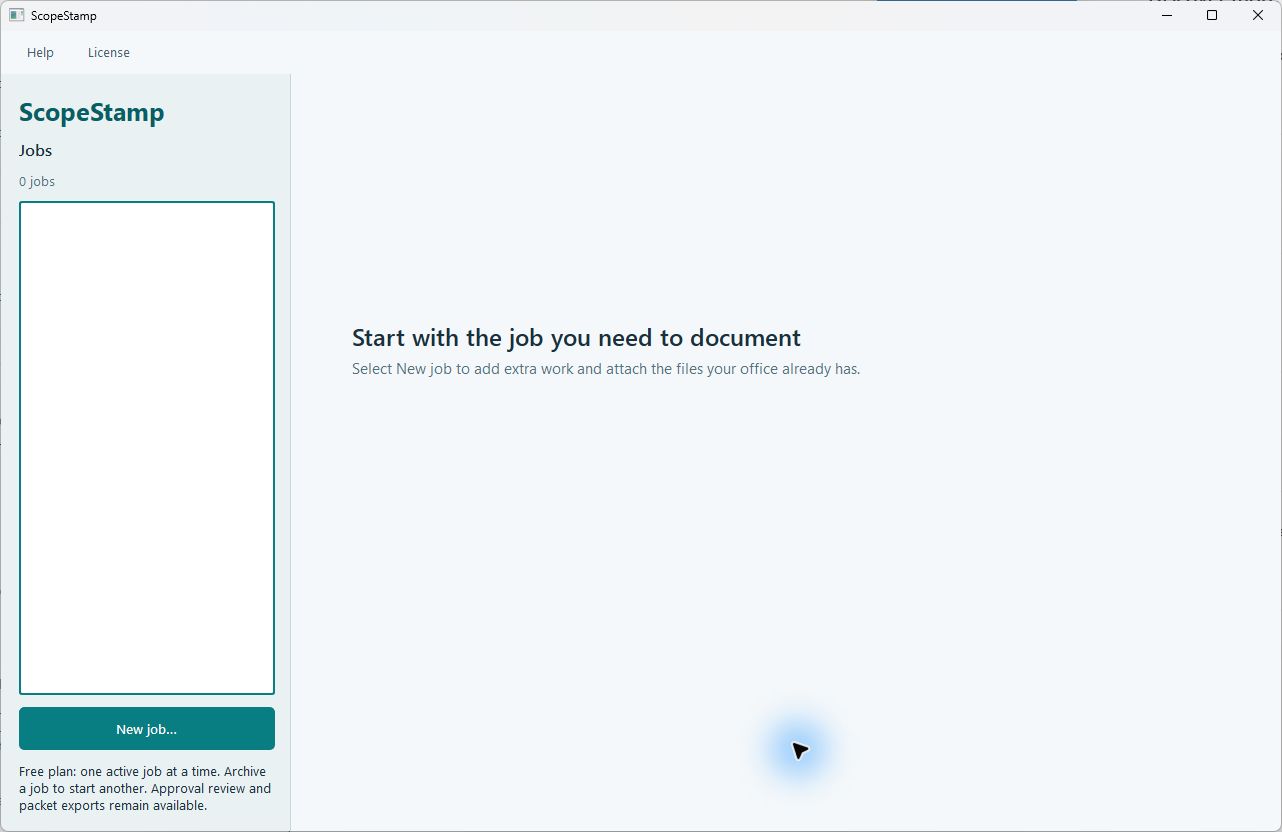
- The app opens on the main window — a light background with the word ScopeStamp at the top-left of a grey side panel, and a mostly empty area to the right.
What you see on first launch is the empty state: a big heading "Start with the job you need to document" and the line "Select New job to add extra work and attach the files your office already has." Nothing is set up, nothing is registered, no account is created. You can start working immediately.
Reviewed product or Store capture. It shows the named control only; it does not prove that a later action completed.
4. Quick start
Your first win in about 10 minutes:
This gets a brand-new user from zero to a finished exported packet. Every button below is on the screen in front of you; the 🔴 marks the button to press at each step.
- Click 🔴 "New job…" (lower-left side panel). A "New job" dialog opens.
- Fill in the form: Customer label (required — something like "Demo Plumbing Co"), Quote / reference (optional — e.g. "Q-2026-0417"), Currency (pick the currency of the job), Original scope (what the original quote covered). Then click OK. The job appears in the job list on the left and its page opens on the right.
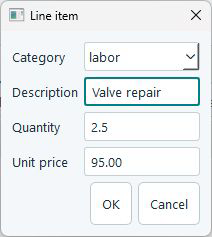
- On the job page, click the "Extra work" tab (second tab). Click 🔴 "Add item…". In the "Line item" dialog choose a Category (labor / material / other), type a Description, a Quantity (default "1"), and a Unit price (for example 150.00 — decimals must match the currency), then click OK. Do this for each extra item.
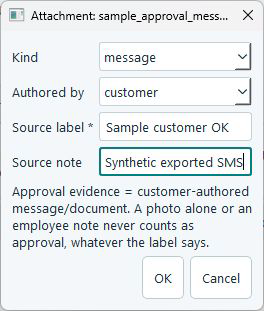
- Click the "Evidence" tab (third tab). Click 🔴 "Add files…" (or drag files onto the window) and pick the photos, PDFs or exported messages for this job. For each file a small "Attachment" dialog opens — set Authored by to customer for customer messages, type a Source label like "Customer: ok, go ahead", and click OK.
- Go back to the "Extra work" tab, click a row to select an item, then click 🔴 "Link evidence…" and choose the attachment that backs that item. Link customer messages/documents to every item.
- Watch the banner at the top of the page. When it says "Approval evidence missing: 0", click 🔴 "Verify approval (operator)" in the Packet actions row. This is your explicit "I checked the evidence" step. If it is refused, read the message — some item still lacks qualifying evidence (a photo alone never counts; see section 7).
- When the state reads "Approval verified by operator" and the button "Record invoice reference…" lights up, click it and type the external invoice number (this records "billed").
- Click 🔴 "Export packet (PDF + CSV + manifest)…" (wide teal button at the bottom). Choose a folder. The app writes three files (PDF + CSV + JSON). Read the Integrity check result before sharing anything. The published 0.1.9.0 build has returned PROBLEMS on a synthetic export; if you see that result, do not describe the packet as verified or send it as a verified packet. See section 5.10 and troubleshooting below.
5. The tour
Every screen, every button — in the order you meet them.
5.1 The main window — layout and navigation
The main window has two parts. On the left is a grey side rail; on the right is the working area that shows either the empty page or the page of the job you selected.
The side rail (from top to bottom): the ScopeStamp wordmark; the heading Jobs; a count line ("1 job" or "N jobs"); the job list (one entry per job — each shows the customer label and the currency in parentheses, e.g. "Demo Plumbing Co — 455 Acorn St (USD)"; an archived job adds " — Archived"); the "New job…" button (teal); the "Archive selected job" button; the "Reopen selected job" button; and a small license status line at the bottom.
At the very top of the window are two menus: Help (contains "Suggest a Feature…") and License (contains "Free and Pro access…").
Click a job in the list to open it. The right side switches to that job's page.
| Control (label) | What it does | When you use it | Gotcha |
|---|---|---|---|
| Job list (left rail) | Lists every job; one row = one job, shows customer label + currency | To open a job, click its row | Archived jobs show " — Archived" after the name |
| "New job…" (lower rail, teal) | Opens the "New job" dialog | When you start documenting new extra work | Disabled (greyed) when no active-job slot is free — Free tier = one active job; archive first or upgrade |
| "Archive selected job" | Locks the selected job's packet and moves it out of the active slot | When you finish a job and need the Free active slot for another | Archivng keeps the job readable and exportable; it never deletes data |
| "Reopen selected job" | Un-archives the selected job so you can edit it again | When you need to change an archived job | Enabled only if a slot is free; visible only for archived jobs |
| License status line (bottom of rail) | Shows your current plan message, e.g. "Free plan: one active job at a time…" | To see your plan status at a glance | The message changes when a paid license is installed |
| Help → "Suggest a Feature…" | Opens the in-app feedback dialog (section 5.12) | To send a feature request or feedback | The app only hands a draft to your mail app — it never sends email itself |
| License → "Free and Pro access…" | Opens the "ScopeStamp Free and Pro" dialog (section 5.11) | To subscribe, refresh, or import a license | All Pro actions there are explicit and user-initiated |
| "Export packet (PDF + CSV + manifest)…" | Bottom of every job page; exports the three packet files (section 5.10) | Whenever the packet is ready to send | Works on archived jobs too; exports never overwrite older exports |
5.2 Create a job — the "New job" dialog
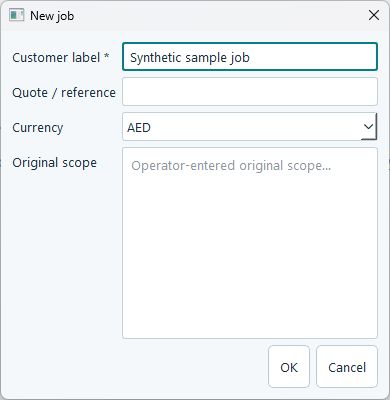
Click "New job…" in the side rail. A small "New job" dialog opens with four fields and OK / Cancel buttons.
| Control (label) | What it does | When you use it | Gotcha |
|---|---|---|---|
| Customer label * | The name/address you will recognize this job by | Always — it is required | Max 200 characters; empty is refused with "Customer label is required" |
| Quote / reference | The original quote number or reference | If you have one | Optional; job page shows "no quote ref" if you leave it blank |
| Currency | One currency for the whole job, chosen from ~70 ISO-4217 codes | Pick before adding any money | The list starts at the alphabetically first code (AED), not USD — always check it; a job's currency can never be changed after line items exist |
| Original scope | Operator-entered description of what the original quote covered | Helps reviewers understand what was "extra" | Max 20000 characters |
| OK | Saves the job and opens its page | When the form is complete | The job only exists after OK — closing the dialog (Cancel/✕) saves nothing |
| Cancel | Closes the dialog without creating anything | To abandon the form | Nothing is saved |
Reviewed product or Store capture. It shows the named control only; it does not prove that a later action completed.
5.3 The job page — status line, review banner, amounts
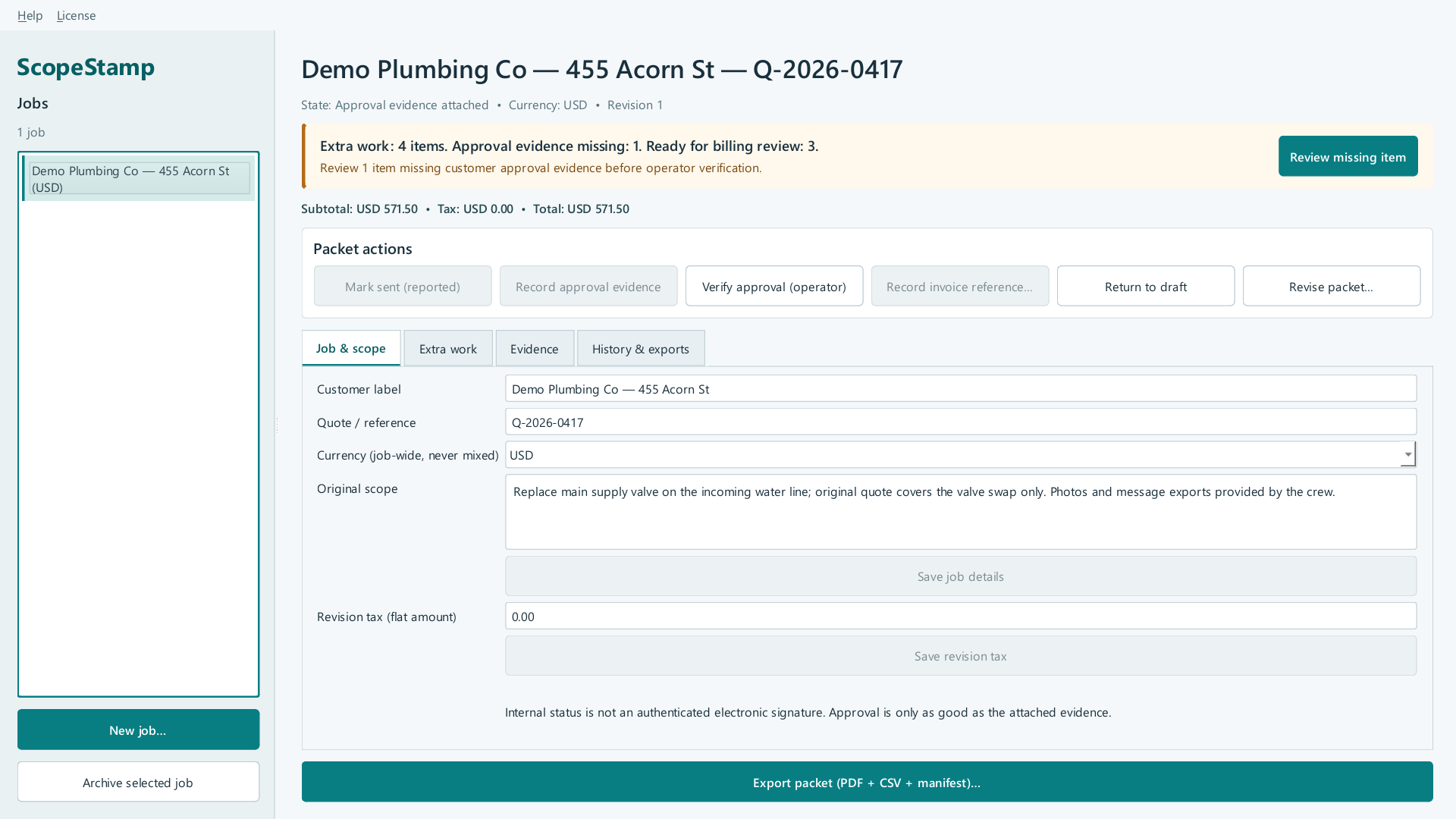
Opening (or creating) a job shows its page on the right. From top to bottom: the job title (customer — quote reference); a grey state line ("State: … • Currency: … • Revision 1"); the review banner (a coloured panel); the amounts line ("Subtotal: … • Tax: … • Total: …"); the Packet actions row; the four tabs; and the wide teal "Export packet (PDF + CSV + manifest)…" button at the very bottom.
The review banner is the app's most important screen element. It states the approval status in one sentence, for example:
"Extra work: 4 items. Approval evidence missing: 1. Ready for billing review: 3."
Under it runs a next-action line such as "Review 1 item missing customer approval evidence before operator verification." When everything has qualifying evidence the banner turns green and reads "Extra work: N items. Approval evidence missing: 0. Ready for billing review: N."
| Control (label) | What it does | When you use it | Gotcha |
|---|---|---|---|
| State line | Shows the current workflow state, the job currency and the revision number | Always visible | State names: Draft, Sent (operator-reported), Approval evidence attached, Approval verified by operator, Billed (external invoice recorded) |
| "Review missing item" (in the banner) | Jumps to the first line item that still lacks qualifying customer approval evidence | When the banner says "Approval evidence missing: 1" or more | Visible only when at least one item is missing approval; it just navigates — it does not change state |
| Amounts line | "Subtotal: USD 571.50 • Tax: USD 0.00 • Total: USD 571.50" | To see money at a glance | If a total exceeds the safety cap the app prints "OVER LIMIT" instead of a fake number |
| Packet actions row | Six buttons that drive the workflow (section 5.8) | Per the state machine | Buttons grey out exactly when the current state forbids the action |
| Tabs | "Job & scope", "Extra work", "Evidence", "History & exports" | To switch between the four views of this job | Contents depend on state — several edit buttons disable after verification |
| "Export packet (PDF + CSV + manifest)…" | Exports the packet (section 5.10) | When the packet is ready to send | Never overwrites a previous export — each export is a brand-new file |
The job page also carries a permanent note you should trust: "Internal status is not an authenticated electronic signature. Approval is only as good as the attached evidence."
Reviewed product or Store capture. It shows the named control only; it does not prove that a later action completed.
5.4 "Job & scope" tab — editing job details and the flat tax
This tab holds the same fields you entered when creating the job, plus one extra: the revision tax. The tax on this screen is a flat amount in the job currency (for example "45.00"), not a percentage — the app deliberately has no percentage engine.
| Control (label) | What it does | When you use it | Gotcha |
|---|---|---|---|
| Customer label / Quote / reference / Currency / Original scope fields | Edit the job's record | While the packet is still in Draft | Currency cannot change once line items exist; all fields save together |
| "Save job details" | Writes the edited fields to the job | After typing changes on this tab | Enabled only in Draft; once the packet moves past Draft the button greys out |
| Revision tax (flat amount) field | Enter the tax for this revision as one amount | When the job has a tax to record | More decimal places than the currency allows are refused (see section 7) |
| "Save revision tax" | Writes the tax amount to the current revision | After typing a tax value | Also Draft-only; tax is per revision, not per line |
| Signature note | Permanent text: internal status is not an authenticated electronic signature | Read it once | It also prints inside the exported PDF |
5.5 "Extra work" tab — line items and linking evidence
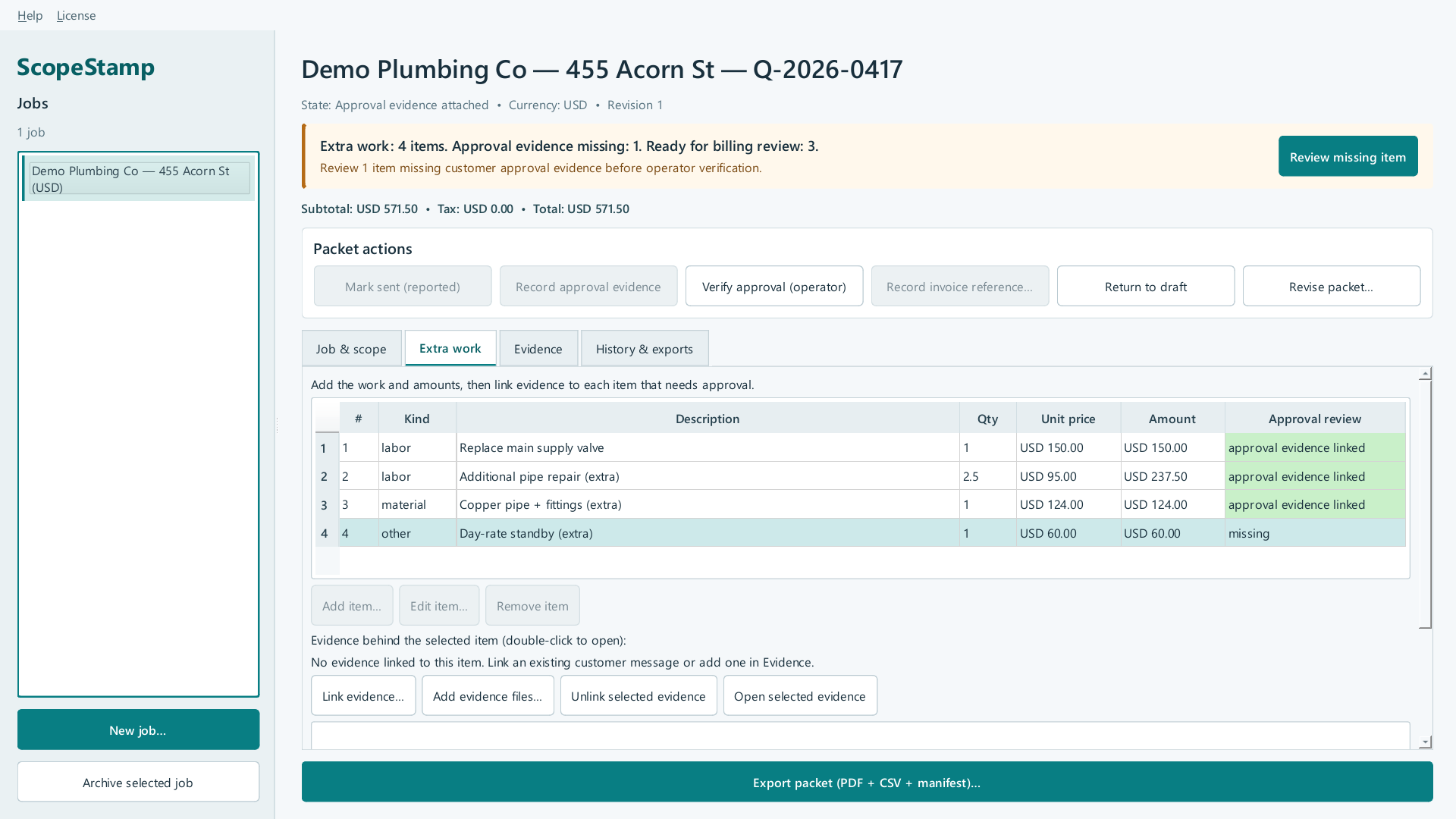
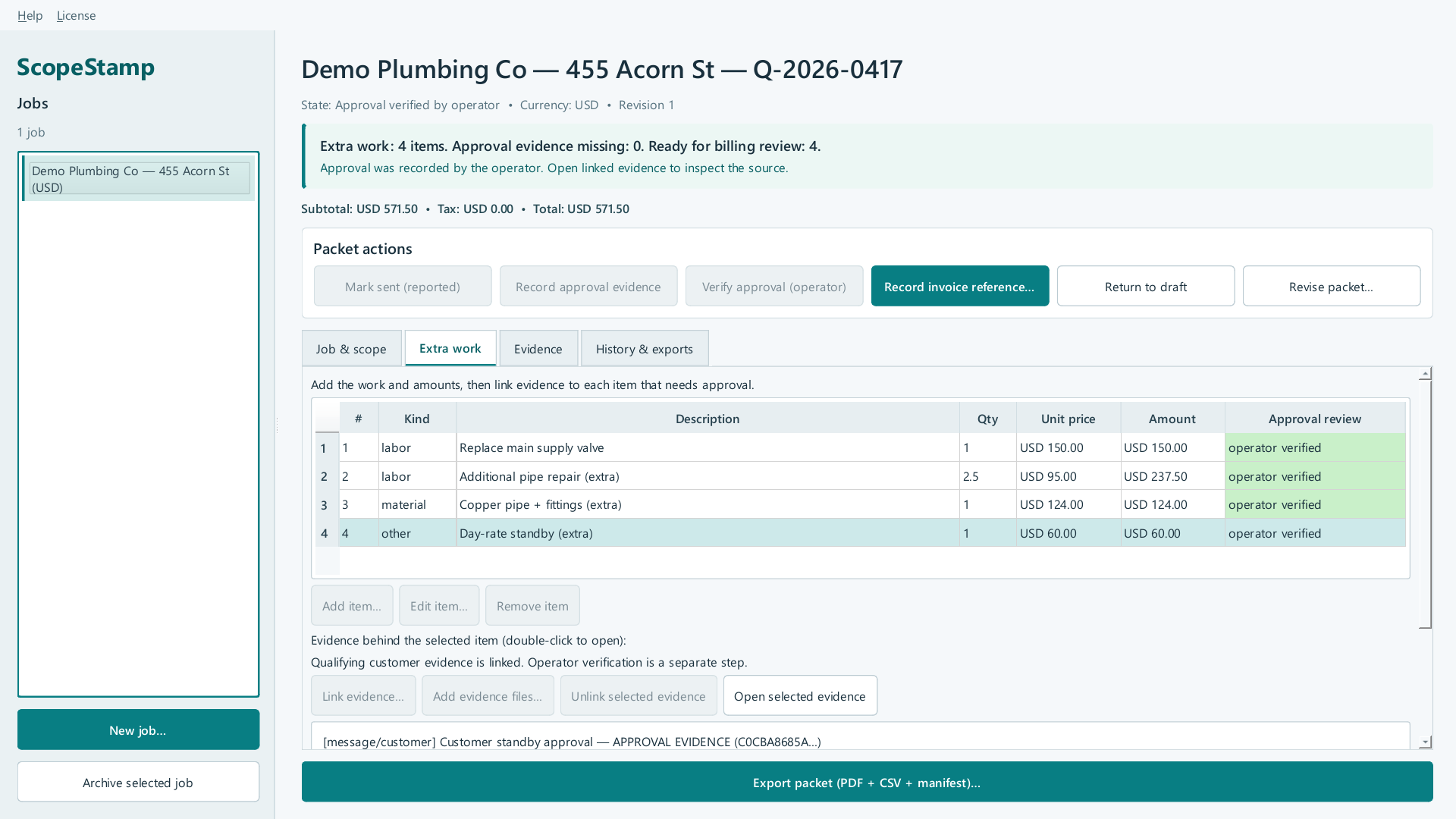
This tab is where the money lives. The intro line says: "Add the work and amounts, then link evidence to each item that needs approval." The items table has seven columns: # (line number), Kind, Description, Qty, Unit price, Amount, Approval review.
The Approval review column color-codes each item: green "approval evidence linked" (or "operator verified" once verified) when qualifying customer evidence is linked; yellow "missing" when there is no qualifying approval evidence; "evidence only" when files are linked but none qualifies as approval.
Below the table: "Add item…", "Edit item…", "Remove item" (all Draft-only). Below that, the linked-evidence panel for the selected item: a status line, a list of linked attachments (double-click to open the file), and four buttons — "Link evidence…", "Add evidence files…", "Unlink selected evidence", "Open selected evidence" (these stay enabled through "Approval evidence attached").
| Control (label) | What it does | When you use it | Gotcha |
|---|---|---|---|
| Items table | Every extra-work line: kind, description, qty, unit price, amount, approval status | Reviewing what you will bill | Select a row to inspect/link its evidence below |
| "Add item…" | Opens the "Line item" dialog to add a new extra-work line | When you document a new extra | Max 1000 items per revision; the 1001st is refused, never truncated |
| "Edit item…" | Opens the "Edit line item" dialog with the selected row's values | To fix a description, quantity or price | Draft only; the amount is recomputed exactly as quantity × unit price |
| "Remove item" | Deletes the selected line item | To drop a mistaken line | Draft only; there is no undo — the line is gone (evidence files themselves are kept) |
| "Link evidence…" | Opens a picker of the job's attachments; links the chosen one to the selected item | The core step — attach the customer message/photo that backs this line | Only attachments already imported appear; the picker shows "[kind/author]" next to each label |
| "Add evidence files…" | Switches to the Evidence tab and opens the import dialog for a new file | To import a file for this item | The new file still needs explicit linking afterwards |
| "Unlink selected evidence" | Removes the link between the selected attachment and the item | If you linked the wrong file | Unlinking a customer message can change that item back to "missing" and block verification |
| "Open selected evidence" | Opens the selected stored copy of the file | To re-read the source before verifying | Text/message exports open in a plain-text viewer; photos/PDFs open in the default Windows viewer |
The line-item dialog ("Line item" / "Edit line item"): choose Category (labor, material, other), Description (required), Quantity (default "1", up to 4 decimal places), and Unit price (in major units of the job currency — placeholder shows e.g. "12.50"; decimals must match the currency's minor units). The amount is quantity × unit price, rounded half-up to the smallest unit; click OK to add/update.
Reviewed product or Store capture. It shows the named control only; it does not prove that a later action completed.
Reviewed product or Store capture. It shows the named control only; it does not prove that a later action completed.
5.6 "Evidence" tab — importing and labeling files
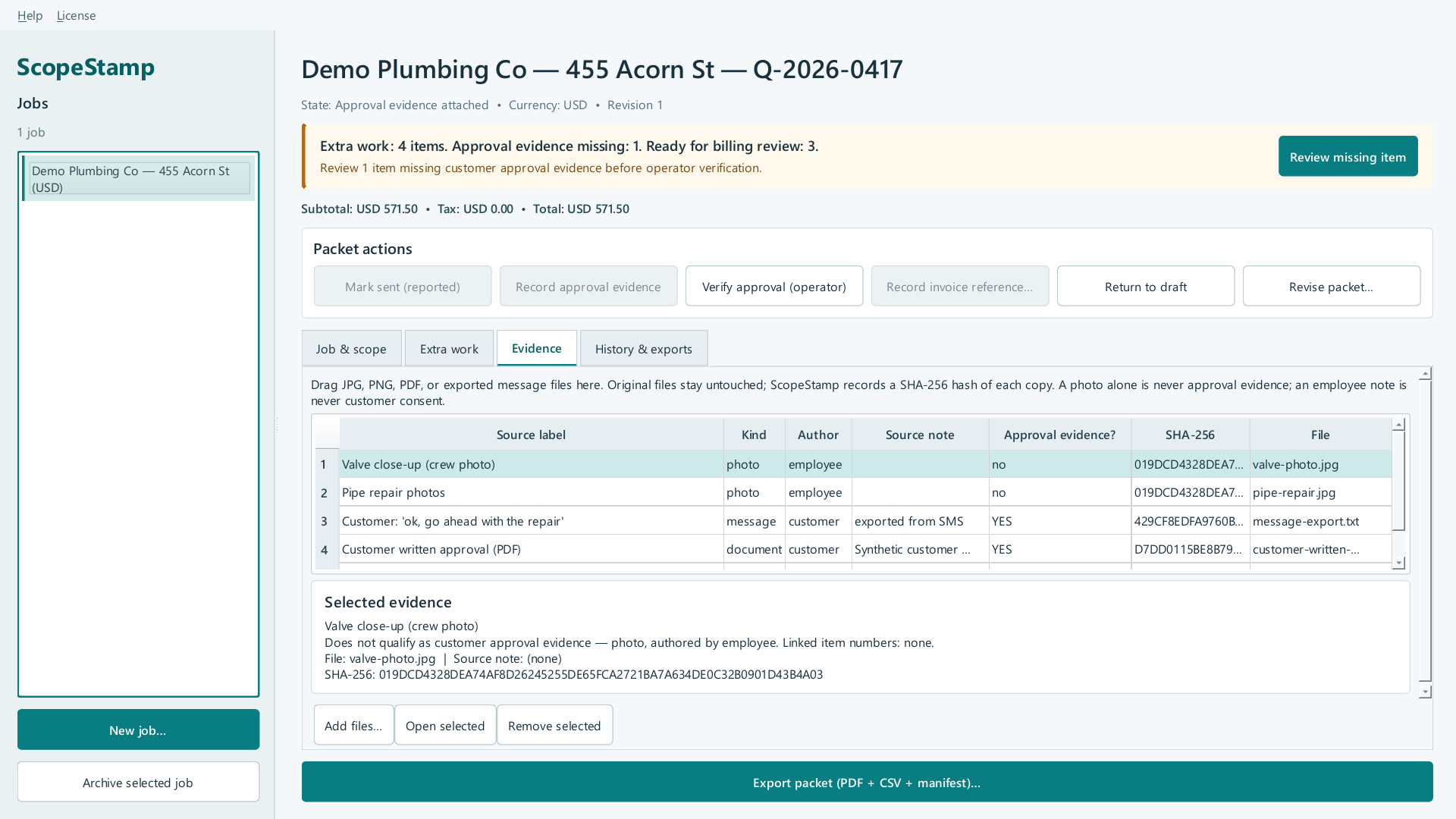
The Evidence tab is the heart of the product. The hint at the top states the rules you will live by: "Drag JPG, PNG, PDF, or exported message files here. Original files stay untouched; ScopeStamp records a SHA-256 hash of each copy. A photo alone is never approval evidence; an employee note is never customer consent."
Import in three ways: drag files onto the table area, or click "Add files…" and pick them, or click "Add evidence files…" on the Extra work tab. For every imported file a small Attachment dialog opens (SHOT 7) asking you to label it.
The evidence table has seven columns: Source label, Kind, Author, Source note, Approval evidence? (YES/no), SHA-256 (first 16 characters shown), File. Below the table, the "Selected evidence" panel spells out the full story for the highlighted row: the source label, whether it qualifies as customer approval evidence (and why), which item numbers it is linked to, the original file name, the source note, and the full SHA-256.
🧠 SHA-256 (first use): a fingerprint computed from a file's exact bytes. Two files with different content get different fingerprints, so anyone can re-hash a file and prove whether its bytes changed since import.
| Control (label) | What it does | When you use it | Gotcha |
|---|---|---|---|
| Evidence table (drop target) | Lists every attachment of this revision; accepts drops | Importing evidence | Drops are accepted only while evidence is editable (Draft → "Approval evidence attached"); afterwards the table ignores drops |
| "Add files…" | Opens the standard file picker (JPG/JPEG/PNG/PDF/TXT/EML/HTML/HTM/JSON/MD) | To import evidence the office already has | Each picked file then opens the Attachment dialog for labeling |
| "Open selected" | Opens the selected row's stored copy | To inspect the actual bytes | Text/HTML/EML/JSON/MD open in an in-app plain-text viewer (first 1 MiB) so remote content can never load; photos/PDFs open in the default Windows viewer. Opening never modifies the file. |
| "Remove selected" | Removes the attachment row and link | To discard a wrongly imported file | Only the stored copy is removed — the original file on your drive is never touched |
| Selected evidence panel | Shows label, qualification, linked items, file name, note, full SHA-256 | Verifying what a file really is | A photo shows "Does not qualify as customer approval evidence — photo, authored by employee" |
The Attachment dialog (one per imported file): set Kind (photo / document / message / receipt), Authored by (customer / employee / supplier — defaults to employee, never pre-selects "customer"), Source label * (required; placeholder "Customer: ok, go ahead"), and Source note (optional). The dialog warns: "Approval evidence = customer-authored message/document. A photo alone or an employee note never counts as approval, whatever the label says."
Three hard facts about this dialog: (1) the Kind you pick must match what the file's bytes actually are — name it "message" and the bytes are a PNG, the import is refused; (2) only kind document or message with author customer can ever become approval evidence; (3) the source label is an office note, never a proof of identity.
Reviewed product or Store capture. It shows the named control only; it does not prove that a later action completed.
Reviewed product or Store capture. It shows the named control only; it does not prove that a later action completed.
5.7 Approvals & the state machine
Every packet moves through five states. The current state is always on the state line under the job title:
- Draft — the packet is being assembled.
- Sent (operator-reported) — you clicked "Mark sent (reported)"; you are telling the record the packet was sent to the customer.
- Approval evidence attached — at least one qualifying customer message/document is attached.
- Approval verified by operator — you clicked "Verify approval (operator)" after checking every item.
- Billed (external invoice recorded) — you typed an external invoice reference.
The six Packet actions buttons and exactly when they work (greyed = refused in that state):
| Control (label) | Does what | Enabled states |
|---|---|---|
| "Mark sent (reported)" | Records that you sent the packet to the customer (no guard — operator-reported) | Only Draft |
| "Record approval evidence" | Moves to "Approval evidence attached" once a qualifying customer message/document exists | Draft or Sent |
| "Verify approval (operator)" | Records your explicit verification — only if EVERY item has qualifying evidence | Draft, Sent, or "Approval evidence attached" (highlighted teal when it can complete the packet) |
| "Record invoice reference…" | Opens a small input; typing a reference moves the packet to Billed | Only "Approval verified by operator" (highlighted teal there) |
| "Return to draft" | Logged, explicit move back to Draft | Sent, "Approval evidence attached", or "Approval verified by operator" — never from Draft, and never from Billed |
| "Revise packet…" | Opens the revise dialog and creates the next revision as a fresh Draft (section 5.8) | Always, while licensed and not archived |
Three rules that protect the record: a photo is never approval — even a photo of a signed form; the operator must attach the actual customer-written message/document. Partial approval blocks verification — if any item lacks qualifying evidence, verification is refused and the banner keeps the honest count. Billed is terminal — once billed, the packet cannot be edited or moved back; to change anything you create a new revision.
If the button "Verify approval (operator)" is pressed while items are still missing, the app asks "Approval evidence missing for N item(s). Verification will be refused — attach customer messages/documents first and link them to every item. Continue?" — clicking Yes just shows the refusal; nothing is lost.
The invoice-reference dialog has the title "Record external invoice reference" and asks: "External invoice reference (required to mark billed):". Type your own invoice number (max 200 characters) and click OK. The state line changes to "Billed (external invoice recorded)".
Reviewed product or Store capture. It shows the named control only; it does not prove that a later action completed.
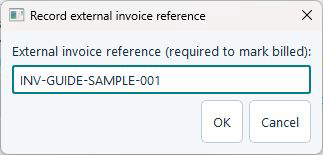
Reviewed product or Store capture. It shows the named control only; it does not prove that a later action completed.
5.8 Revisions — "Revise packet…"
A revision is a frozen snapshot of the packet. Clicking "Revise packet…" opens the "Revise packet" dialog, which explains the contract in its own words:
"Create revision N+1 from revision N? (Content is snapshotted; a new revision always starts as draft — approval is never carried over.) Operator note:"
Type an operator note (optional) and click OK. The new revision copies the items, attachments, links, scope, and tax, but it always starts as a Draft with zero approval recorded — a history event records that re-verification is required. The old revision is untouched.
Why this rule matters: "we approved revision 1" can never be stretched to cover a changed revision 2. Every version of the packet keeps its own approval status.
| Control (label) | What it does | When you use it | Gotcha |
|---|---|---|---|
| "Revise packet…" | Creates revision N+1 as a fresh Draft | When scope or amounts change after approval/billing | The revision counter in the title and state line increments; approval never carries over |
| Operator note field | A note stored with the new revision | Optional, but useful for the audit trail | The note appears in the read-only revision viewer |
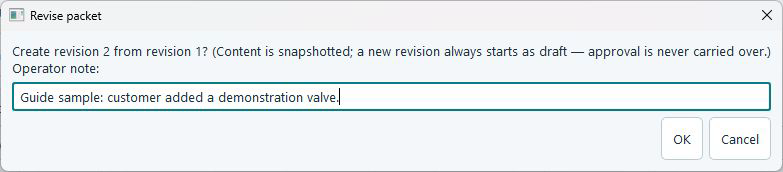
Reviewed product or Store capture. It shows the named control only; it does not prove that a later action completed.
5.9 "History & exports" tab — prior revisions and the export register
This tab keeps the audit trail. Intro line: "Open an earlier revision to inspect its original details. Earlier revisions are read only."
The revisions table lists every revision with columns Revision, State, Items, Missing approval, Invoice ref, Created (UTC). The exports tree lists every export ever made, grouped by revision, with columns Export file, Kind, SHA-256 — the file names follow the pattern <customer>-r<n>-<kind>-<timestamp>-<random>.<ext>, so no two exports can ever collide or overwrite.
| Control (label) | What it does | When you use it | Gotcha |
|---|---|---|---|
| Revisions table | One row per revision with state and approval counts | Seeing the packet's life story | Double-clicking a row also opens the read-only viewer |
| "View selected revision (read only)…" | Opens the read-only snapshot of that revision | To prove what revision 1 said | It opens a separate dialog; the live packet keeps its current state |
| Exports tree | Every export file with kind and SHA-256, grouped by revision | Verifying which files were created and when | Files are recorded even after archive; the tree shows shortened hashes |
| "Open export folder…" | Opens a folder picker, then opens that folder in Explorer | To find the exported files on disk | The app does not remember where you exported; you must pick the folder again |
| "Open selected export" | Picks a folder, then opens the selected export file | To re-open one specific export | If the file is not in that folder you get "Not found: " |
The read-only revision viewer (title "Revision N — read only") shows the heading line with the revision's state, the note "Historical packet · Read only · Values and evidence as recorded for this revision", a details box (Customer, Quote/reference, Original scope, State, External invoice reference, Operator revision note), the amounts, the "Extra work and linked evidence" table (with a Linked evidence column), the "Evidence in this revision (select to open verified bytes)" table and detail line, a "Recorded exports" list when exports exist, and the buttons "Open selected evidence" and Close. Nothing in this dialog can be edited — that is the point.
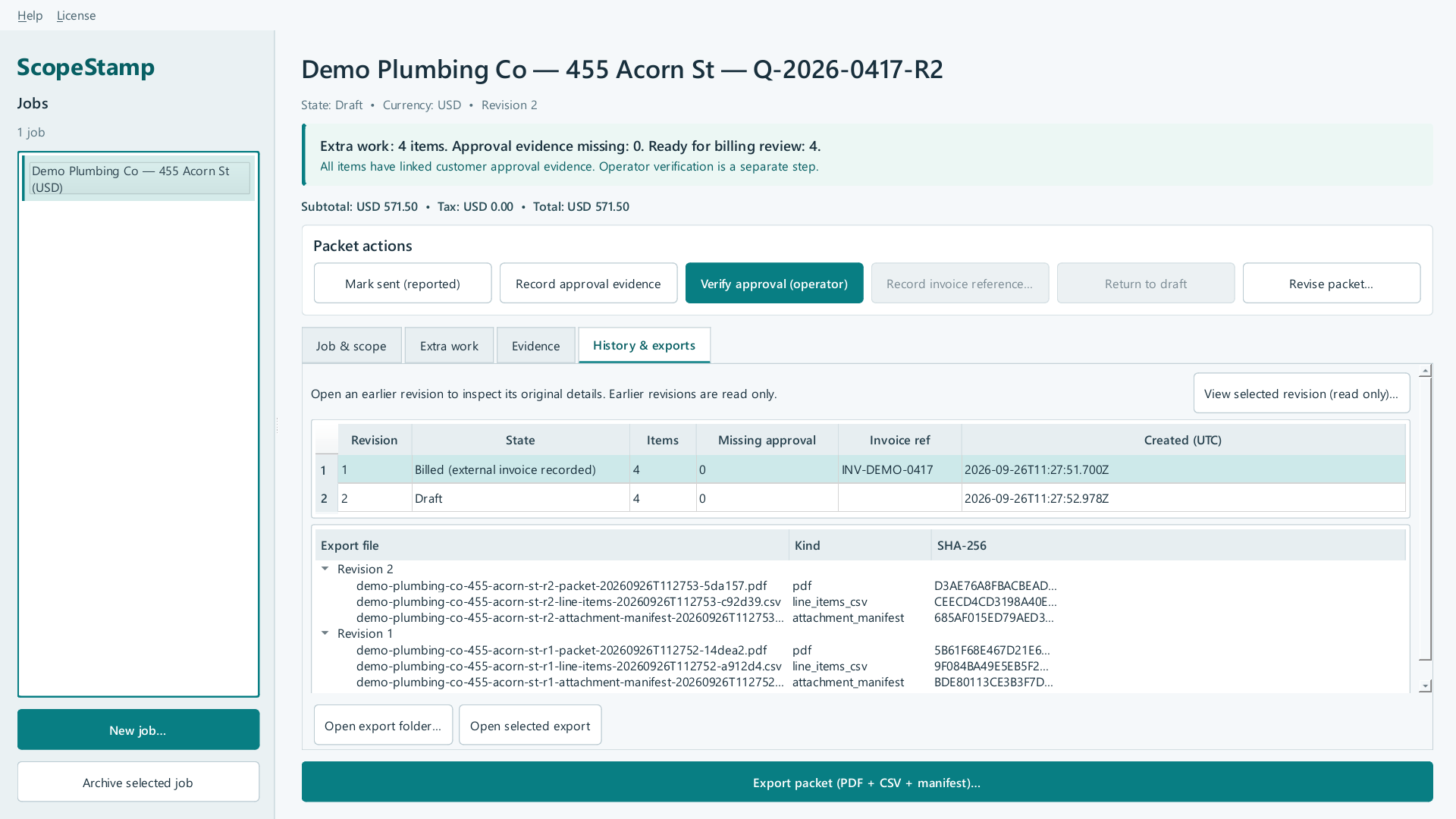
Reviewed product or Store capture. It shows the named control only; it does not prove that a later action completed.
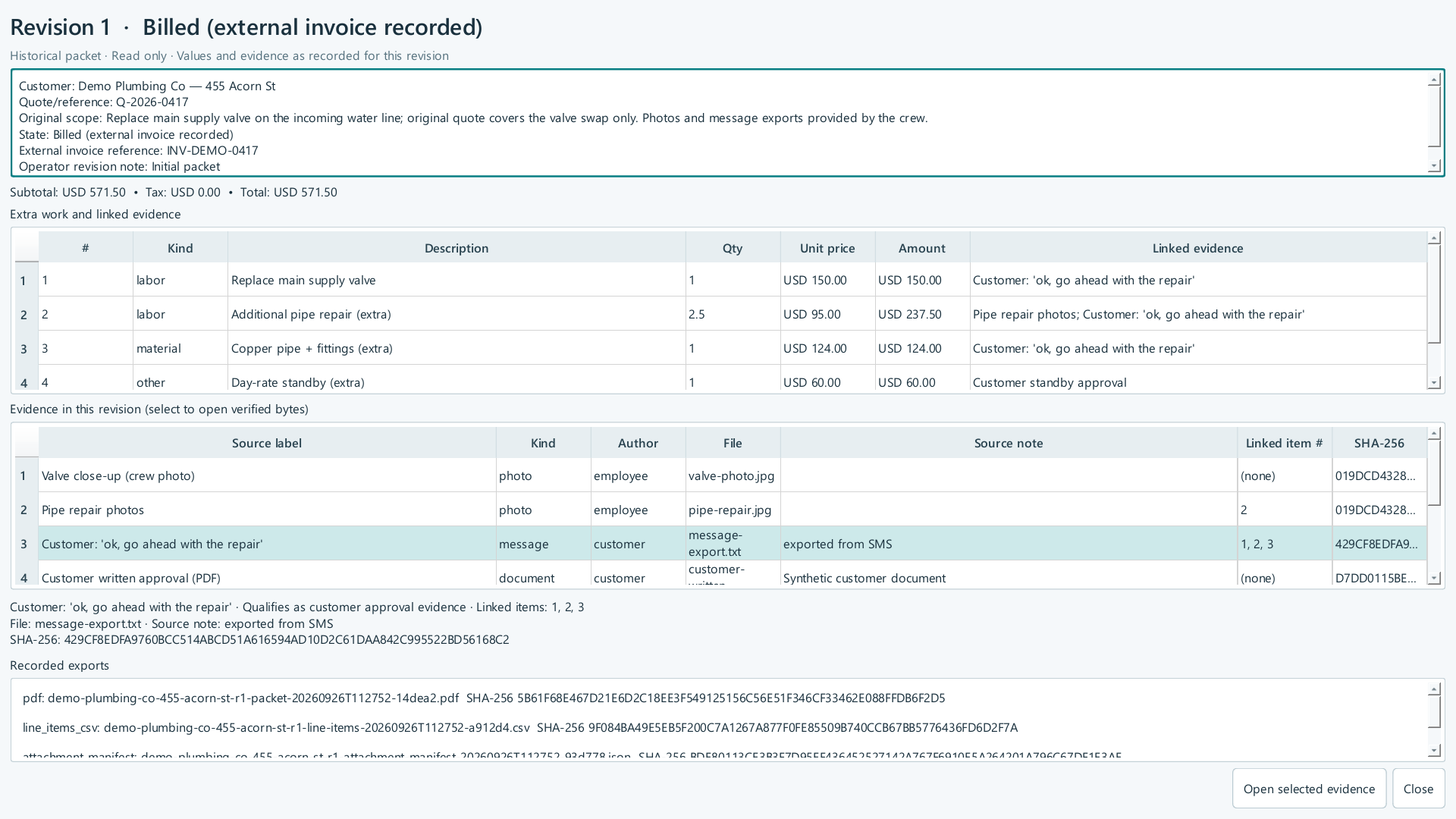
Reviewed product or Store capture. It shows the named control only; it does not prove that a later action completed.
5.10 Export the packet
Click "Export packet (PDF + CSV + manifest)…" (the wide teal button at the bottom of every job page). The app asks you to choose a folder ("Choose an explicit export folder"). Inside that folder it writes three brand-new files:
<customer>-r<n>-packet-<timestamp>-<random>.pdf— the numbered packet ("Page X of Y"), with the job/quote/currency/invoice table, original scope, the approval banner, the extra-work amounts, the evidence behind each item (photos re-encoded, GPS stripped), the attachment register, and the printed note that internal status is not a signature. It opens on any machine with no ScopeStamp account.<customer>-r<n>-line-items-<timestamp>-<random>.csv— a deterministic CSV (UTF-8 with byte-order mark for Excel): revision_number, line_number, kind, description, quantity, unit_price_minor, unit_price, currency_code, amount_minor, amount, approval_status (operator_verified / approval_evidence_linked / evidence_only / no_evidence). Cells starting with spreadsheet-formula characters are neutralized.<customer>-r<n>-attachment-manifest-<timestamp>-<random>.json— the manifest: every attachment's original filename, source label, kind, author, approval status, byte count, SHA-256, and workspace path.
After writing, the app shows a confirmation box listing the three files plus an Integrity check line. An OK (missing 0, changed 0, invalid 0) result is the intended result when the files match the manifest. Every export is recorded in the exports table with its hash; the next export gets new file names and never touches the old ones.
Published-build release hold: the current Store 0.1.9.0 build reported PROBLEMS (missing 0, changed 0, invalid 1) on a second synthetic export, while an independent check of the same manifest found no invalid file. A source repair is staged but is not in the published build. Treat any PROBLEMS result as unresolved and do not tell the customer that integrity passed or advise sending the packet until a corrected Store build passes a fresh export test.
| Control (label) | What it does | When you use it | Gotcha |
|---|---|---|---|
| "Export packet (PDF + CSV + manifest)…" | Writes the three packet files into a folder you choose | When the packet is ready to send | Also available on archived jobs; disabled only if the license state blocks it |
| Folder picker | Selects the destination folder | Every export | Each export is a NEW file — exporting twice to the same folder gives four files, not an overwrite |
| Confirmation box | Lists each file with path + the Integrity check result | After every export | "Integrity check: PROBLEMS" would mean a stored file was missing/changed — see section 8 |
| CSV file | Excel/QuickBooks-ready line items with per-item approval status | Dropping into office workflows | The "=" prefix protection means some cells may start with a tick — that is intentional |
5.11 License / Pro window — "ScopeStamp Free and Pro"
Open it via License → "Free and Pro access…" in the menu bar. The dialog shows your current status message, an explanation note, a read-only Device request field ("share only with ScopeStamp support"), and four buttons: Subscribe…, Refresh subscription, Import signed license…, Close.
| Control (label) | What it does | When you use it | Gotcha |
|---|---|---|---|
| Status message | Tells you your plan; Free reads "Free plan: one active job at a time. Archive a job to start another. Approval review and packet exports remain available." | First thing to read here | Expired/invalid licenses show their specific message instead |
| Device request field | A pairing identifier for this computer | Only if support asks for it | It is device identity information, never job content |
| "Subscribe…" | Opens the JE Horizon checkout page in your browser for the Pro subscription | When you need multiple active jobs | Requires internet; activation is tied to this Windows device. If the page will not open, see section 8. |
| "Refresh subscription" | Checks the subscription status with JE Horizon and installs the signed license | After finishing checkout, or when status looks stale | This is the ONLY network call the app makes, and it is always user-initiated; it sends device-pairing data only — never job data |
| "Import signed license…" | Lets you choose a JSON license file and install it | Only when support sends you a license file | Select a JSON file; invalid files are refused with an explanation |
| "Close" | Closes the dialog | Always | Nothing changes until you act |
Free-plan behaviour: one active job at a time with the complete approval, billing-record and export workflow — no account, card, time limit or network call. If Pro ends later, jobs that are already active stay usable and editable; only creating or reopening jobs follows the Free capacity rule.

Reviewed product or Store capture. It shows the named control only; it does not prove that a later action completed.
5.12 In-app feedback — "Suggest a Feature…"
Open it via Help → "Suggest a Feature…". The dialog has Subject (placeholder "One line, what you would like added"), Description * (required — "What problem does it solve for you?"), Your email (optional — leave blank to stay anonymous), and a checked-by-default checkbox "Include system info: app name/version, Windows version, CPU architecture, time. No files, no paths, no job or customer data." The status line tells you where the local copy is saved. Buttons: "Send by email…", "Save copy…", Close.
| Control (label) | What it does | When you use it | Gotcha |
|---|---|---|---|
| Subject | One-line title of your request | Fine to leave short | CR/LF characters are removed; >200 chars get truncated (the app tells you) |
| Description * | What you want and why | Always | Required — an empty description is refused; max 8000 chars |
| Your email | Optional contact email | Only if you want a reply | Must look like an email address, or it is refused — leaving it blank is always fine |
| Diagnostics checkbox | Volunteers app name/version, OS/arch and a UTC timestamp | Leave it checked unless you prefer not to | It never includes files, paths, job data or license keys |
| "Send by email…" | Saves the request locally, then hands a pre-filled draft to your default mail app addressed to [email protected] | To actually send your request | The app NEVER sends email itself — it says exactly that in the status line: "Recorded locally and handed a draft to your mail app… ScopeStamp cannot confirm you sent it" |
| "Save copy…" | Saves a .txt copy of the request to a folder you choose | When your mail app does not open, or to keep a record | "Recorded locally and saved a copy to … Nothing was sent." |
| Close | Closes the dialog | Always | A request is written locally only when you click Send/Save — closing first writes nothing |
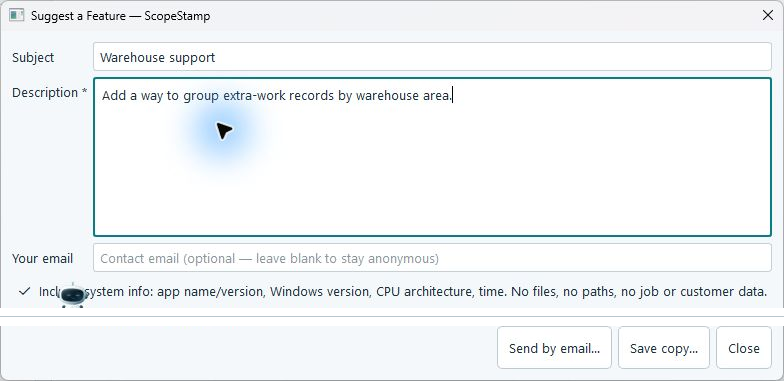
Reviewed product or Store capture. It shows the named control only; it does not prove that a later action completed.
5.13 Archive & reopen — the Free-tier job cycle
When a job is finished, click "Archive selected job" in the side rail. The job stays in the list with " — Archived" after its name; you can still open it, read everything, view its history and export the packet — every edit button greys out. Archiving frees the active-job slot so you can create the next job on the Free tier.
To work on an archived job again, select it and click "Reopen selected job" (visible only for archived jobs). The store refuses reopening if no slot is free — on the Free tier that means zero other active jobs — and shows the message "Free allows one active job. Archive the current job or upgrade to Pro."
| Control (label) | What it does | When you use it | Gotcha |
|---|---|---|---|
| "Archive selected job" | Locks the packet; keeps it readable and exportable; frees the active slot | When a job is done and you need the slot | Data is never deleted by archiving; exports remain available |
| "Reopen selected job" | Makes the archived job active and editable again | When an archived job needs changes | Refused when no slot is free (Free tier); works automatically on Pro |
| Archived job page | Every edit/state button greyed; read + export still work | Reviewing or copying an old packet | Evidence still opens; the Export button still works |
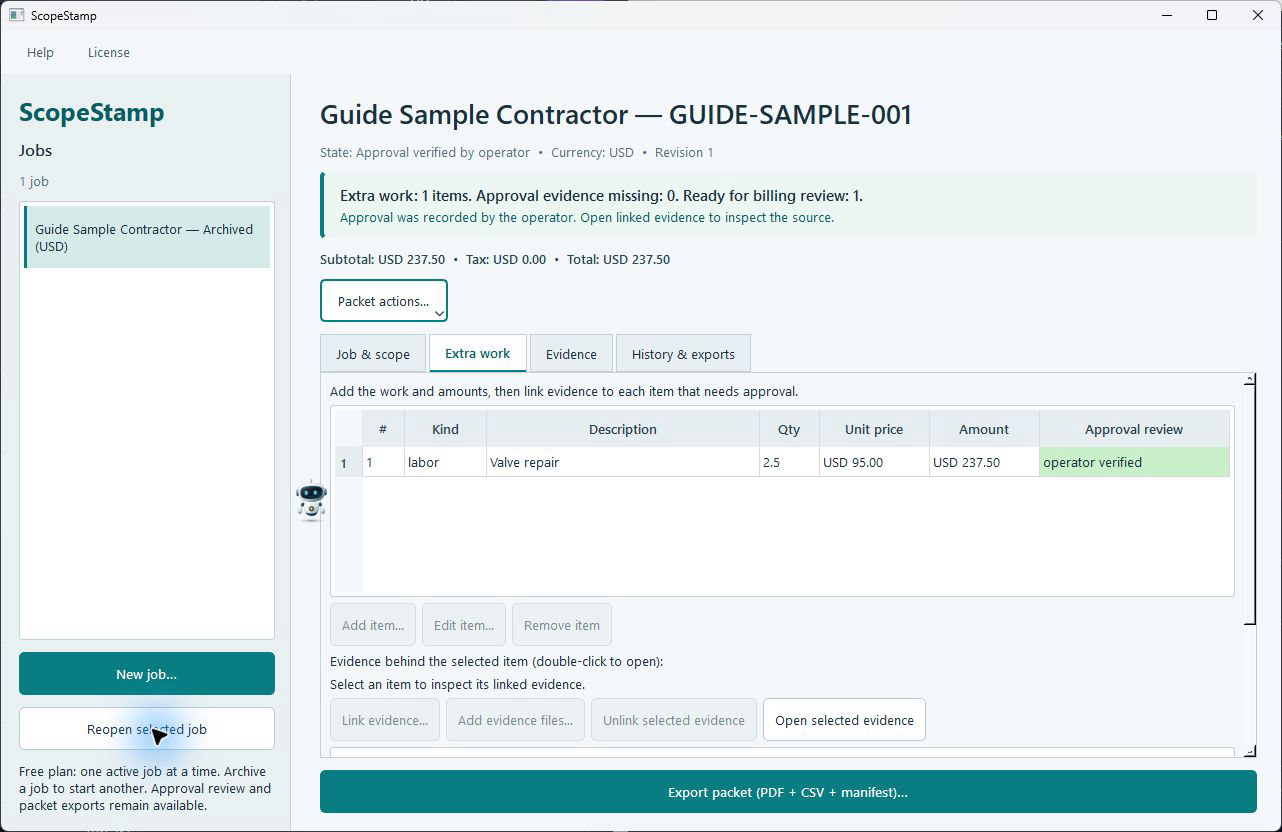
Reviewed product or Store capture. It shows the named control only; it does not prove that a later action completed.
6. What's supported
Platforms and formats
| Item | Support | Source |
|---|---|---|
| Operating system | Windows 10 or Windows 11, 64-bit (x64) desktop | Store listing specs |
| Photos | JPG, JPEG, PNG — up to 50 MiB each | App import filter + attachment caps |
| Documents and evidence | PDF, and exported customer messages in TXT, EML, HTML, HTM, JSON, MD (text exports; byte-checked) | App import filter |
| Attachments per revision | Up to 200 | Documented cap, refused above |
| Line items per revision | Up to 1000 | Documented cap, refused above |
| Currencies | One per job from an explicit ISO-4217 registry (~70 codes); unknown codes refused; JPY/KRW/ISK/VND/CLP = 0 decimals, BHD/IQD/JOD/KWD/LYD/OMR/TND = 3, all others 2 | Money rules |
| Export files | Numbered PDF packet + line-items CSV + attachment-manifest JSON, written as new files | Export pipeline |
| Packet reader | Any PDF reader; the PDF needs no ScopeStamp account | Export pipeline |
Feature per plan
| Capability | Free ($0) | Pro ($1.99/mo · $19.99/yr) |
|---|---|---|
| Jobs you can have active at once | 1 | Multiple / unlimited |
| Line items, evidence, approvals, packet export | Complete workflow | Same |
| Archive / reopen (read+export preserved) | Yes | Yes |
| Existing active jobs after Pro ends | n/a | Remain usable and editable |
| Account / card / time limit | None | Optional subscription; verify the current checkout path in the app |
| Network use | None (fully local) | Only for the explicit subscription refresh |
Not yet available (honest list) — none of these exist in the current build, so do not look for them:
- Phone app, customer portal, crews logging in remotely
- Hosted e-signatures, and any claim that the packet is a legal or authenticated signature (in fact the app prints the opposite)
- Invoicing, payment collection or card processing, accounting/QuickBooks sync
- Automatic receipt-to-job matching and automatic margin/markup calculation
- Sending SMS or quoting by text (the app only imports exported messages)
- Cloud upload, cloud backup or any automatic sync (data stays local by design)
- Per-seat plans of any kind (there are no user tiers even on Pro)
7. Edge cases & gotchas
-
Symptom: a photo of a signed form doesn't approve the item. Why: the honesty engine allows only customer-authored messages or documents (real text/PDF bytes) as approval evidence; a photo is never approval — whatever its label says, even a photo of a signed form. What to do: attach the actual written acceptance (a scan/PDF of the signed document, or the exported message) with author
customer, link it, then verify. -
Symptom: an employee note or supplier receipt doesn't count as approval. Why: kind
message/documentwith authorcustomeris the only combination that qualifies; employee and supplier material is filed as evidence but can never authorise an item. What to do: label files truthfully — the dropdown cannot override the rule, and choosing a wrong kind for the bytes is refused outright. -
Symptom: "Verify approval (operator)" is refused, or verification is blocked. Why: the guard requires EVERY extra-work item to have linked qualifying evidence — partial approval is never enough. What to do: read the banner ("Approval evidence missing: M"), open each missing item via "Review missing item", link a customer message/document to each, then verify again.
-
Symptom: after billing you cannot edit anything, and "Return to draft" is refused. Why:
billedis terminal by design — the record must not be silently changed after the fact. What to do: click "Revise packet…" to create a new draft revision; the old billed revision stays frozen and readable. -
Symptom: the new revision shows approval as missing again after you approved revision 1. Why: revisions never inherit approval — a new revision always starts as Draft and requires fresh evidence review and a fresh verify step. This is deliberate. What to do: re-check the linked evidence and verify again; every old revision keeps its original approval status.
-
Symptom: exporting twice produces four files, not an overwrite. Why: every export is a brand-new file (
<customer>-r<n>-<kind>-<utc>-<random>.<ext>) and the old one is never touched. What to do: nothing — this is the guarantee. The exports tree in "History & exports" lists every file with its hash so "which PDF is current" is always answerable. -
Symptom: "12.5" is refused when the job currency is JPY (or any 0-decimal currency). Why: currency decimals are looked up, never assumed — JPY has 0 decimals, KWD has 3, and a price with the wrong number of decimals is refused rather than quietly rounded. What to do: enter whole amounts for 0-decimal currencies (12, not 12.5) and three decimals for KWD-style currencies; unknown currency codes are refused too.
-
Symptom: the Currency dropdown shows AED when you open "New job". Why: the list is alphabetical, so it does not default to USD. What to do: always set the currency before saving; a job's currency can never be changed after line items exist (mixed currencies are structurally impossible).
-
Symptom: the total shows "OVER LIMIT". Why: safety caps — unit price ≤ 1×10¹² minor units, line amount ≤ 1×10¹⁵, packet total ≤ 1×10¹⁵, quantity ≤ 4 decimal places. The app renders "OVER LIMIT" instead of fabricating a figure. What to do: check your quantities/prices; a number is never invented.
-
Symptom: "New job…" is greyed out and archiving is required. Why: the Free tier allows one active job at a time. What to do: click "Archive selected job" on the finished job (data stays readable/exportable), then create the next job — or upgrade to Pro for multiple concurrent active jobs.
-
Symptom: a Pro subscription ended and you worry about your data. Why: Pro-expiry grandfathering means existing active jobs remain usable and editable — only creating or reopening jobs follows the Free capacity rule. What to do: keep working; archives and exports stay intact; subscribe again only if you need new concurrent jobs.
-
Symptom: you cannot find your data / you want a backup. Why: everything lives in one local SQLite workspace:
%LOCALAPPDATA%\JE Horizon\ScopeStamp\workspace(the folder containsscopestamp.dbplus theattachments/store). What to do: to back up, copy that whole folder while the app is closed; nothing is uploaded anywhere, and exporting the packet to your own folder is the standard way to share. -
Symptom: the exported PDF's photos have no GPS. Why: derived report images are re-encoded with ALL metadata (GPS included) stripped by default; the originals on your drive stay untouched. What to do: nothing — that is the privacy rule. The manifest hashes always refer to the preserved originals.
-
Symptom: importing a file is refused with a media-class message. Why: the app sniffs the file's bytes, not the name — a PNG cannot be recorded as kind
messageordocument(a picture is never an exported message), and files over 50 MiB, binaries, or unsupported extensions are refused. What to do: export the message as TXT/EML/HTML/JSON/MD or scan the document as PDF, then import. -
Symptom: an HTML/EML message opens as boring plain text, not a web page. Why: by design, text/HTML/JSON message evidence opens in an in-app read-only text viewer (first 1 MiB) so remote images or links embedded in the export can never load. What to do: read the text; the stored bytes are unchanged. Photos and PDFs open in the normal Windows viewers.
-
Symptom: closing the app mid-task loses your work. Why: each form saves only when you click its save/OK button — the Line item, Attachment, New job and invoice dialogs commit on OK, and the Job & scope fields commit on "Save job details". What to do: commit early and often; already-created jobs and their saved records persist across restarts (the data is in the local database).
-
Symptom: an archived job's edit buttons are all grey. Why: archives are read-only by design (still fully exportable). What to do: "Reopen selected job" when a slot is free; mutations on archived jobs are refused with "This job is archived. Reopen it before changing the packet."
-
Symptom: the app says it can't open your mail app for a suggestion. Why: ScopeStamp hands a mailto draft to the OS; if no mail handler is registered it reports honestly ("your mail app did not open … Nothing was sent"). What to do: use "Save copy…" and attach the .txt to an email yourself, or write directly to [email protected].
8. Troubleshooting
The app won't install or won't open. 1. Confirm your PC is Windows 10 or 11 (64-bit) and you are signed into the Microsoft Store with a Microsoft account. 2. Reinstall from the Store: search "ScopeStamp", click Get. 3. If it installed but won't start, restart the PC and try again. 4. If it still fails, note the exact error and app version shown on your PC, then write to [email protected] with the text of the error.
The "New job…" button is greyed out. 1. Look at the license line at the bottom of the side rail. 2. On Free, one active job is the limit — select the active job in the list and click "Archive selected job", then try "New job…" again. 3. If you want concurrent jobs, open License → "Free and Pro access…" and subscribe.
A button you expect is missing or greyed. 1. Read the state line: each Packet action is enabled only in the states listed in section 5.7. 2. Items/evidence edits need Draft (content) or up to "Approval evidence attached" (evidence). 3. If the job is archived, edit buttons are intentionally off; reopen it or export instead.
Verification is blocked / "Verification will be refused".
1. Note the banner's "Approval evidence missing: M".
2. Click "Review missing item", select the item, open its linked evidence, and confirm the file is a customer-authored message/document (author customer).
3. Link qualifying evidence to every item, then click "Verify approval (operator)" again.
The invoice/reference step won't complete. 1. "Record invoice reference…" is enabled only in state "Approval verified by operator" — verify first. 2. The reference cannot be empty and is capped at 200 characters.
Export produces a warning or "Integrity check: PROBLEMS".
1. The three files were still written — the check re-hashes the stored attachments against the fresh manifest.
2. A missing or changed result can indicate that a stored copy was deleted or altered. The current published build has also reported invalid 1 on a synthetic export whose manifest passed an independent check, so do not assume every invalid result proves a bad source file.
3. Preserve the files and result, do not send the packet as verified, and contact support. If a source file really is missing or changed, restore the workspace from backup (section 7 entry 12) or re-import the original before exporting again.
The totals look wrong. 1. Tax is a flat operator-entered amount per revision — not a percentage; check the "Revision tax (flat amount)" field. 2. Amounts are quantity × unit price in the job currency, rounded half-up to the smallest unit; if a value is refused, check the currency's decimal rule (entry 7 in section 7). 3. "OVER LIMIT" means a safety cap was hit; correct the numbers, no fabricated total is shown.
Subscribe / refresh behaves unexpectedly. 1. "Subscribe…" opens the JE Horizon checkout in your default browser and needs internet. 2. After checkout, click "Refresh subscription" — the app then contacts the claim endpoint once; possible honest messages: "Payment is still being confirmed…", "This checkout pairing was not found…", "Pro is inactive…", or "Subscription status is temporarily unavailable…". None of those delete your jobs. 3. If checkout never opens or you cannot complete it, contact support — the checkout flow was being finalized at guide-writing time.
A license file says "This license belongs to another computer" or "could not be verified". 1. Pro is device-bound; the file was issued for a different machine. 2. Check your Windows date and time (a clock rollback also blocks verification). 3. Download a fresh license from your account and import it via "Import signed license…".
The app seems stuck on a screen. 1. Check for an open dialog behind the window (message boxes, the "Record external invoice reference" input). 2. Every write is committed to the local database immediately; restarting the app cannot corrupt the packet. 3. If a window truly freezes, close the app from the taskbar and reopen — the workspace is safe.
9. FAQ
Common questions:
I don't see the "Verify approval (operator)" button. The Packet actions row is on every job page, but buttons grey out by state. If verification is not allowed yet, the banner shows how many items are still missing approval evidence — link customer messages/documents to all of them first.
Can I undo that? Currently only by editing while in Draft: "Return to draft" moves linked evidence back up to Draft only from non-billed states, and once billed the only way to change the packet is "Revise packet…" (a new draft revision). There is no general undo history; remove-item and unlink actions are immediate.
Where is my data saved? In one local workspace: %LOCALAPPDATA%\JE Horizon\ScopeStamp\workspace (database scopestamp.db plus the attachments/ store). Back it up by copying that folder while the app is closed. Nothing is uploaded automatically.
Will this touch my files? Your originals are never modified, moved or deleted. Imported files are COPIED into the workspace, hashed, and the originals are left exactly as they were. Even the exported packet strips GPS from photos — but only from the derived copies, never from your originals.
Do I need to pay? No. The permanent Free tier does the complete workflow — one active job at a time, no card, no account, no time limit. Pro ($1.99/mo or $19.99/yr) only adds multiple concurrent active jobs.
Can I use it offline? Yes. Free-tier work, evidence, history and exports are fully local — no network call at all. Only the optional Pro actions (subscribe, refresh subscription) and the Store download itself need internet.
What happens if I close it mid-task? Anything already saved (a created job, added items, imported evidence, exports) stays in the local database. Only unfinished forms are lost — a dialog you had not clicked OK/Save on. Commit early and often.
Does ScopeStamp approve my change orders for me? No. The app shows what is missing and lets you record that an operator verified the evidence; a photo or staff note never counts by itself, and the packet states it is an office record, not an electronic signature or legal determination.
Can the customer open my PDF without the app? Yes — the packet is a standard numbered PDF that opens in any PDF reader, with no ScopeStamp account needed. The CSV and manifest ride alongside it.
Will my old revision be overwritten? Never. Every revision and every export stays available; new revisions start as drafts, and exports are always new files.
10. Privacy & data
The claims below are the app's own, copied from the ScopeStamp site and build documentation (verified 2026-09-27).
- "One local workspace. Nothing is uploaded automatically." Job data never leaves the machine unless you export it. There is no cloud-upload path and no network code in the core.
- "Job data is not automatically uploaded. File checks and packets are local by design; any optional Pro licensing check is an explicit, user-initiated action." The only network request in the app is the subscription refresh, triggered by you, which sends device-pairing data only — never customer, job, attachment or evidence content.
- Originals stay untouched. Imported files are copied into the local workspace; the source files (the crew's photos, the exported text) are never modified, moved or deleted.
- GPS/EXIF is stripped from packet images by default. Photos embedded in the exported PDF are re-encoded and all metadata — GPS included — is dropped. Originals keep their metadata.
- Feedback is honest and minimal. If you use "Suggest a Feature…", the volunteered system info is only app name/version, OS/arch and a UTC timestamp — deliberately no file paths, no job or customer content, no license keys, no network state. The app writes the request to a local state database and only ever hands a draft to your own mail app; it never claims it sent anything.
- No AI, no GPU, no third-party data processing. Everything runs locally on the office PC.
11. Getting help
- Support email: [email protected]
- Support page: https://jehorizon.com/support/ — help articles at https://jehorizon.com/help/#scopestamp
- Feature requests: [email protected] (or use Help → "Suggest a Feature…" in the app — it saves a local copy and opens a pre-filled draft for you); general feedback goes to [email protected]
- When you write in, include: which app (ScopeStamp), the Windows version, what you clicked and what happened, and any exact error text. To attach system info without emailing anything from inside the app: open Help → "Suggest a Feature…", leave the diagnostics checkbox ticked, click "Save copy…", and attach the saved .txt to your message. If support asks for your device pairing, it is shown under License → "Free and Pro access…" (Device request field).
Quick reference
This guide covers the reviewed public workflows for ScopeStamp. Controls can vary by installed version. The complete illustrated source guide appears below after current release limits. Confirm dated plan, version, and checkout details in the current app.
1. Install and open
Open the Microsoft Store listing and follow the install action shown for your account. Launch the app and check the controls visible in your installed version.
Product details · Product Help
2. Common tasks
Document a scope change
- Create a job and record the original quote or scope reference.
- Add each changed labor, material, or other amount and review the totals.
- Attach the relevant local evidence to each item, then verify any customer-authored approval evidence yourself.
- Export the numbered packet for your own review and delivery process.
Check approval evidence
- Attach the customer-authored message or document to the relevant extra-work item.
- Check the original text and author yourself; a photo or staff note does not establish approval.
- Record operator verification only when each required item has qualifying evidence.
Revise and export a packet
- Start a new revision when the scope or amounts change.
- Review the line items and supporting evidence again; prior approval does not automatically carry forward.
- Export the numbered PDF, CSV, and attachment manifest to a folder you control.
- Check the integrity status after export. In the published 0.1.9.0 build, a synthetic export reported PROBLEMS; do not treat a flagged attachment manifest as verified.
3. Current release limits
The published 0.1.9.0 build reported Integrity check: PROBLEMS on a synthetic export. Do not send a flagged packet as verified. Review the PDF, CSV, and manifest and contact support while the corrected package is pending.
- A photo or employee note is not customer approval by itself.
- ScopeStamp does not obtain approval, provide e-signatures, collect payment, or send invoices on its own.
4. When something goes wrong
Approval evidence is unclear
- Inspect the original customer-authored message or document outside any summary.
- Keep the packet in draft or revise it until the evidence and scope are clear.
Verification is blocked
- Check each line item for missing or nonqualifying customer approval evidence.
- Keep the record in draft until the evidence and operator review are complete.
Export reports integrity problems
- Keep the exported files, but do not treat a manifest marked PROBLEMS as verified.
- Review the listed status and ask support in your current channel before relying on the handoff packet.
5. Get help
Record your installed app version, the control you used, and the exact result. Do not include a password, license key, customer record, or private file.